
Are you ready to give your WordPress site a fresh new look without breaking the bank? You’ve come to the right place!
Customizing free WordPress themes can transform your website from ordinary to extraordinary, and the best part is, you don’t need to be a tech wizard to do it. Imagine captivating your visitors with a stunning design that truly reflects your brand or personality.
In this guide, you’ll discover how simple tweaks can make a world of difference, helping you stand out in the crowded online space. Stick around to learn the secrets of editing free WordPress themes and watch your site come to life with a unique, personal touch. Your website’s next chapter of success starts here!

Credit: precisethemes.com
Choosing The Right Theme
Picking a theme is fun but also important. First, make sure the theme is easy to use. It should be simple to change colors and fonts. Next, check if it works well on mobile phones. Lots of people use their phones to visit websites. Also, think about speed. A fast theme makes your site load quickly. Finally, see if it is SEO-friendly. This helps your site show up in search results.
Many people love the OceanWP theme. It is fast and flexible. Another good choice is Astra. It offers many options for design. Neve is also popular. It works well on all devices. Consider Hestia for a modern look. Each theme is different. Choose one that fits your style. These themes are easy to customize and free.
Setting Up Your WordPress Environment
Start by installing WordPress on your computer. Use software like XAMPP or WAMP. These create a local server. Download WordPress from its official site. Unzip the downloaded file. Move it to the local server folder. Open your browser. Type “localhost/wordpress” in the address bar. Follow the installation steps. Set up a database. Use phpMyAdmin for this. Create a new database. Name it as you like. During installation, enter database details. Finish the setup. Now WordPress is ready to use locally.
A staging site is a test version. It mirrors your live site. You can try changes here first. Many hosting providers offer this feature. Check your host’s dashboard. Look for “staging” options. Create a staging site with one click. Make edits and changes here. Test them well. Ensure everything works perfectly. Move changes to your live site. This keeps your main site safe. Your visitors will not see mistakes. Staging helps avoid errors.
Customizing Theme Settings
The WordPress Customizer is a great tool. It lets you change your theme easily. You can see changes live. First, find the Customizer in the dashboard. It is under “Appearance”. Click on “Customize”. A new window opens. This is the Customizer.
Many options are here. You can change colors, fonts, and more. Try different settings to see what looks good. Experiment with the layout. Each change is shown on the screen. If you like it, click “Publish”. This saves your changes.
Changing Site Identity
Site identity is important. It shows your site’s name and tagline. In the Customizer, find “Site Identity”. Click on it. Here, you can change the site name. Add or edit the tagline too. Make sure they fit your site’s purpose. Click “Publish” when done.
Editing Theme Files
Editing theme files in WordPress lets you customize your website’s look. Access the WordPress dashboard, choose “Appearance,” then “Theme Editor. ” Carefully make changes to code for style, colors, and layout. Always back up files to avoid losing important data.
Accessing Theme Editor
WordPress has a built-in Theme Editor. It lets you change theme files directly. You find it in the dashboard. Go to Appearance and click Theme Editor. A list of files will appear. These are part of your theme. Each file has a role. Click on the file you want to edit. Make changes and click Update File. Changes apply instantly.
Understanding Key Files
Theme files are important. They include style.css and functions.php. Style.css controls the design. It changes colors and fonts. Functions.php adds features to the theme. Other files include header.php and footer.php. Header.php manages the top section. Footer.php controls the bottom part. Each file has a special job. Knowing them helps you edit better.
Using Child Themes
Creating a Child Theme is simple. Start by making a new folder. Name it after your theme. Inside, create a style.css file. This file will hold your changes.
In the style.css file, add a line. This line tells WordPress which theme you are changing. The line should look like this: Template: parenttheme. Replace “parenttheme” with the theme you use.
Next, make a functions.php file. This file helps load styles from the parent theme. Add this code to your functions.php:
php
add_action( 'wp_enqueue_scripts', 'enqueue_parent_styles' );
function enqueue_parent_styles() {
   wp_enqueue_style( 'parent-style', get_template_directory_uri() . '/style.css' );
}
?
Upload your child theme folder to WordPress. Go to Appearance, then Themes. Activate your child theme. Now, you can edit safely!
Benefits of Child Themes are many. They keep your changes safe. Updates won’t erase them. You can try new designs. It’s easy to switch back. Save time with child themes.
Adding Custom Css
The best place to add your custom CSS is in the WordPress dashboard. Go to Appearance and click on Customize. Look for the Additional CSS option. You can type your CSS here. This makes your site look different. It keeps the changes even after updates. No plugins needed!
Changing fonts is simple. Use the font-family property. Adjust the text size with font-size. Make buttons stand out with background-color. Add borders with the border property. You can even hide elements with display: none. Try these tweaks to make your site unique.
Installing Plugins For Extra Customization
WordPress themes can be made better with plugins. They add new features and make your site unique. Some plugins are free and easy to use. They let you change colors, fonts, and layouts. This helps your site look special.
Recommended Plugins
Elementor is a popular choice. It allows easy page building. Another good one is Yoast SEO. It helps with search engine optimization. WooCommerce is great for online stores. It adds shopping features. Jetpack offers security and performance options. Each plugin offers different benefits. Choose the ones that suit your needs best.
Extending Theme Functionality
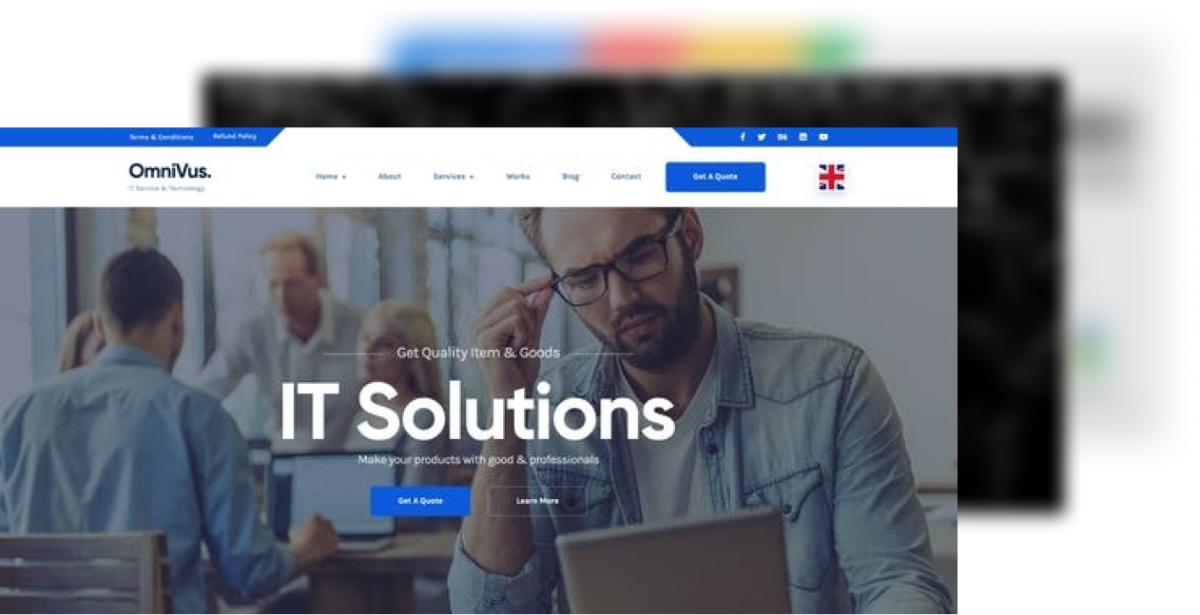
Plugins can add more to your theme. They offer contact forms and social media buttons. Some plugins improve site speed. Others help with images and videos. This makes your site engaging. Choose plugins based on what you need. They make your theme more powerful.
Credit: themeforest.net
Testing Your Changes
Mobile Responsiveness is key for websites today. Check your theme on mobile. Does it look good on a phone? Try different screen sizes. See if text and images fit well. Buttons should be easy to tap. A mobile-friendly site is important for users. It also helps in search rankings.
Cross-Browser Compatibility means your site works on all browsers. Test your theme on Chrome, Firefox, and Safari. Make sure everything looks the same. Some features may not work in every browser. Fix any issues you find. A consistent look is important. This ensures all users have a good experience.
Backing Up Your Work
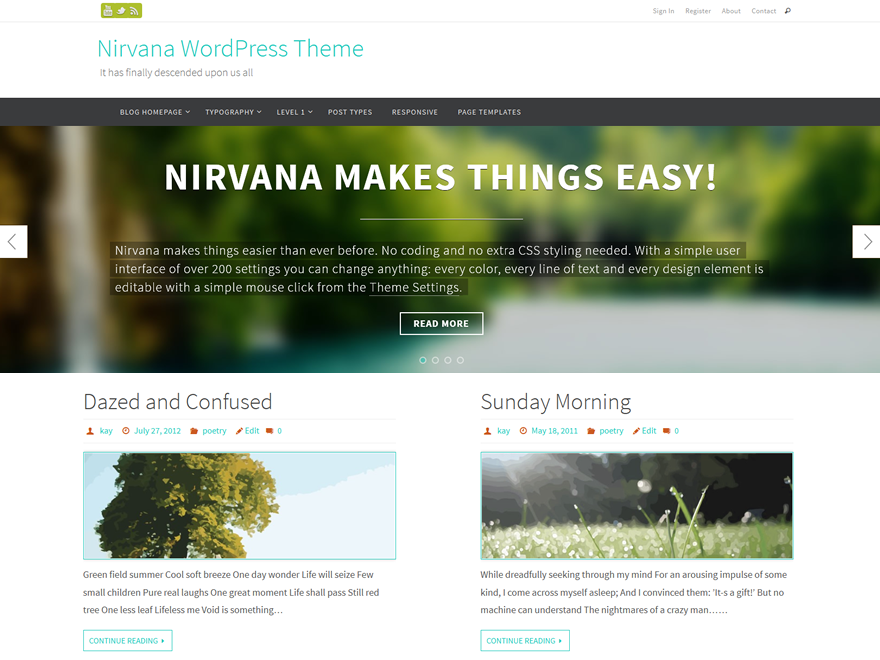
Backup plugins help save your work. They are easy to use. Most plugins offer automatic backups. This means they save your site without you doing anything. Some popular plugins are UpdraftPlus and BackWPup. These plugins store backups in the cloud. You can also download them to your computer. Always keep a backup before editing themes. This way, you can restore your site if needed. Plugins often have a restore option. It brings back your site to a saved point. Choose a plugin that is easy for you. Try a few and see which one you like best.
Manual backups need more steps. First, download all your files. Use an FTP client like FileZilla. Connect to your website server. Find the folder with your website files. Download these to your computer. Next, export your database. This holds all your site data. Use a tool like phpMyAdmin. Find the database and export it. Save it on your computer. Always check your backups. Make sure they work. Having both plugin and manual backups is safe. It ensures you do not lose your site work.
Credit: www.cryoutcreations.eu
Frequently Asked Questions
How Do I Edit A Theme Page In WordPress?
To edit a theme page in WordPress, go to the dashboard, select “Appearance”, then “Editor”. Choose the theme file to modify. Save changes after editing. Always backup your site before making edits.
How Do I Edit WordPress Theme Files?
Edit WordPress theme files by accessing the WordPress dashboard. Navigate to “Appearance” and select “Theme Editor. ” Modify files directly there. Alternatively, use FTP to access files on your server, ensuring you back up before making changes. Consider using a child theme for safer customization.
Why Can’t I Edit My WordPress Theme?
You might lack the necessary permissions or your theme files could be locked. Ensure you’re using a child theme and have the correct file permissions. Also, check if there’s a conflict with plugins or custom code. Always back up your site before making changes.
How Do I Edit An Existing Template In WordPress?
Go to your WordPress dashboard. Navigate to Appearance > Editor. Select the template you want to edit. Make changes using the built-in editor. Save your changes once done. Always back up your site before editing templates.
Conclusion
Editing free WordPress themes is simple and rewarding. Start by exploring theme settings. Change colors, fonts, and layouts easily. Add widgets to enhance functionality. Customize menus for better navigation. Keep your design clean and user-friendly. Test your changes before going live.
Remember, your theme reflects your brand. Regular updates keep your site fresh and secure. Don’t rush; take your time. Enjoy the process and make your website unique. With practice, you’ll become skilled in theme customization. Share your website with the world and watch it grow.
Happy editing!


