
Imagine transforming your website’s look with just a few clicks. Sounds exciting, right?
That’s the magic of WordPress themes. Whether you’re building a blog, an online store, or a portfolio, choosing the right theme can make all the difference. But how do you get started with downloading and installing these themes on WordPress?
This guide is here to show you exactly how to do it, step by step. You’ll discover tips to make your website not just a visual treat, but also more engaging for your visitors. Ready to give your site a fresh new look? Let’s dive into the simple process of downloading themes in WordPress and unleash your website’s true potential.
Accessing The WordPress Dashboard
Start by logging into your WordPress account. Enter your username and password. You will see the dashboard. This is where you manage your site. Look for the left-hand menu. Find the option marked “Appearance”. Click on it. This will show more options. Choose “Themes” from the list. Here, you can see all current themes. You can add new ones too. Adding themes is easy. Just click “Add New”. Find a theme you like. Click “Install”. Wait for it to download. Then activate it. Now your site has a new look. Themes change how your site feels. You can switch them anytime. Always pick themes that fit your style.
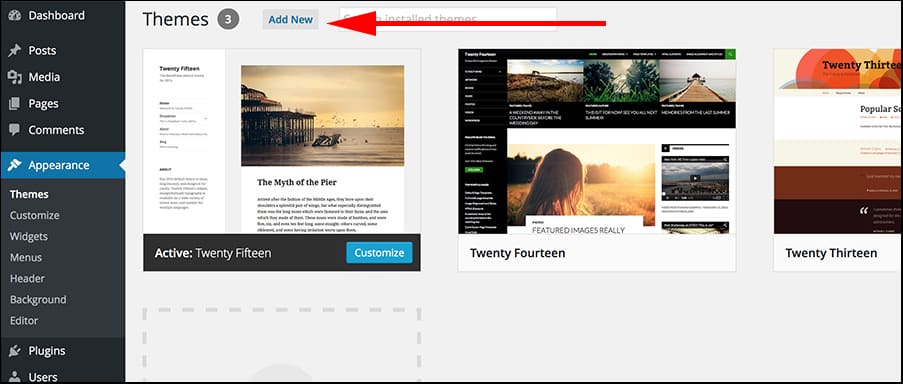
Credit: www.greengeeks.com
Exploring The Themes Section
Finding themes in WordPress is fun and easy. The Themes Section is like a big store. Here, you can see many theme options. Each theme has a unique style and look. You can choose what suits your website.
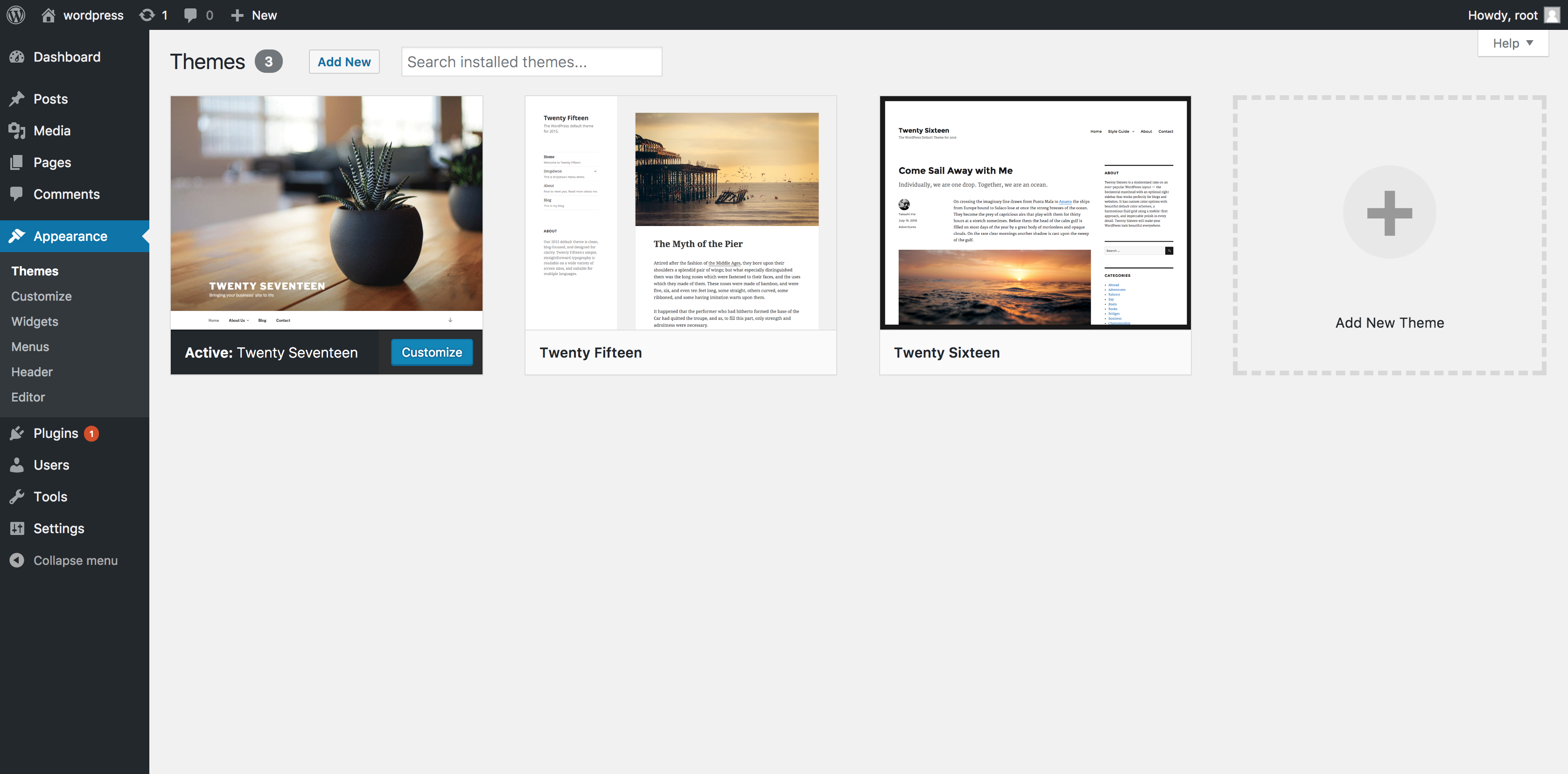
Click on “Appearance” in the WordPress dashboard. Then, click on “Themes.” You will see many themes ready to use. Some themes are free, and some need payment. Check the details for each theme.
To know more about a theme, click on its picture. You can see a preview of how it looks. If you like it, you can install it with a click. WordPress makes it easy to try different themes. This helps you find the best one for your site.
Searching For Themes
Type the theme name in the search bar. Use simple words. Words like “clean” or “modern” help find themes. Check spelling. Spelling mistakes can cause trouble. Choose the best theme from the list.
Use filters to find the right theme. Look for features you like. Colors, layouts, or styles matter. Click the filter button. It helps narrow choices. Easy to find themes this way.
Sort themes by popularity. Popular themes are loved by many. Click the sort button. It shows top themes first. Popularity can mean quality. Choose the theme that many use.
Previewing Themes
It’s fun to see how a theme looks. Click on the Live Demo button. This shows how the theme will look on your site. You can check colors, fonts, and layouts. Make sure it’s what you want for your blog.
Try different themes. It’s like dressing your website in new clothes. Make sure it fits your style. Take your time to explore. It’s important to be happy with your choice.
Websites need to look good on all devices. Check if the theme is responsive. Try it on a phone, tablet, and computer. Look for any strange things. Text should be easy to read. Pictures must fit well.
A responsive theme is like a magic trick. It changes size to fit any screen. This makes sure everyone can see your website nicely. No matter what gadget they use.
Installing A Theme
WordPress makes theme installation easy. Go to your dashboard and click on Appearance. Then, select Themes and click Add New. Here, you can search for themes. Choose one that you like. Click on Install to start the process. After it installs, click Activate. Your new theme is now live!
Download your theme as a .zip file. Go to your WordPress dashboard. Click on Appearance and then Themes. Click Add New and select Upload Theme. Choose the .zip file from your computer. Click Install Now to upload. After installation, click Activate. Your theme is ready!
Activating Your Theme
After choosing a theme, it’s time to activate it. Find your new theme under the ‘Appearance’ section. Click ‘Themes’ to see your collection. Locate the theme you want to use. Hover over it and click ‘Activate’. Your site will now display with the new look.
Preview your site to ensure everything looks good. Check your homepage and other important pages. If something looks off, adjust the settings. You may need to tweak widgets or menus. Make sure your site is still easy to navigate.
Test your site on different devices. Smartphones, tablets, and desktops should display correctly. Verify that all links work. Broken links can frustrate visitors. Fix any issues to keep your site user-friendly.
Customizing Your Theme
Explore WordPress themes to give your site a fresh look. Navigate to the dashboard and find the “Appearance” section. From there, choose “Themes” to browse and download options that suit your style. Select, install, and activate your chosen theme for a personalized website experience.
Using The Theme Customizer
The Theme Customizer is easy to use. It lets you change your site’s look. You can see changes live. This tool saves time. It helps you decide faster. No need for extra clicks. You can find it in your WordPress dashboard. Click on “Appearance” and then “Customize”. Now, you are ready to make changes.
Adjusting Colors And Fonts
Colors set the mood of your site. Bright colors are happy. Dark colors are serious. Choose colors that fit your message. Fonts are important too. They need to be clear. Pick fonts that are easy to read. This makes your site look good. It also helps visitors enjoy your content more.
Adding Widgets And Menus
Widgets add fun extras. They show recent posts or comments. You can add a search bar too. Menus help visitors find pages. They guide users through your site. It’s smart to keep them simple. This makes navigation easy. Place menus at the top or side. This way, users can find them quickly.
Updating Themes
Automatic updates keep your themes fresh. They install new features and fix bugs. Themes update when WordPress releases them. Go to your WordPress dashboard. Click on Updates. Find your theme there. Click to update. It’s quick and easy. Your site stays safe and updated. You don’t need to do much. WordPress handles it for you. Just keep an eye on notifications. They tell you when updates are ready.
Manual updates give you control. You choose when to update your themes. First, download the new theme version. Save it on your computer. Go to your dashboard. Click on Appearance. Then, click on Themes. Choose Add New. Upload the new theme file. Activate it once uploaded. It’s done. Now your theme is updated. You can do this anytime. Make sure to backup before updating. It protects your site.
Backing Up Your Site
Always make sure to back up your site before downloading themes. This is very important. Backups save your work. They help in case something goes wrong. You can use plugins for this. Some plugins are free. Others may cost money.
Click on the plugin. Follow the steps. Save the backup file on your computer. Keep it safe. Backup files are like a safety net. They protect your hard work.
Credit: www.namecheap.com
Troubleshooting Common Issues
Downloading themes in WordPress can sometimes be tricky. Check theme compatibility and update your WordPress version. Ensure sufficient server memory to prevent installation errors.
Theme Compatibility Problems
Some themes don’t work well with every website. They might not fit all plugins. Themes need to match the WordPress version. Always check the theme details before downloading. Make sure the theme is updated. Outdated themes cause problems. Read the reviews. They help you know if others have issues.
Resolving Broken Themes
A broken theme can mess up a site. First, try to deactivate the theme. Then reactivate it. If that doesn’t work, switch to a default theme. This can help find the problem. Backup your site. Always have a copy of your site. It helps if something goes wrong.

Credit: wpfactory.com
Frequently Asked Questions
How Do I Find Free WordPress Themes?
To find free WordPress themes, visit the official WordPress theme directory. Navigate to Appearance > Themes > Add New in your WordPress dashboard. Here, you can browse and search for free themes that suit your needs. Always check user reviews and ratings before downloading.
Can I Upload Custom Themes In WordPress?
Yes, you can upload custom themes to WordPress. Go to Appearance > Themes > Add New > Upload Theme. Choose your theme’s ZIP file and click Install Now. Activate the theme after installation to apply it to your site. Ensure the theme is compatible with your WordPress version.
What Should I Consider Before Installing A Theme?
Before installing a theme, consider its responsiveness, customization options, and compatibility with plugins. Check for regular updates and support from developers. Read user reviews and test the demo version if available. Ensure it meets your website’s design and functionality requirements.
How Can I Preview A Theme Before Activating It?
To preview a theme, go to Appearance > Themes in your dashboard. Click on the theme you wish to preview and select Live Preview. This will show how your site will look with the new theme. Make adjustments and activate if satisfied with the preview.
Conclusion
Downloading themes in WordPress is simple and quick. Follow the steps outlined above. Start exploring themes in the WordPress dashboard. Choose a theme that matches your style and needs. Install and activate it with just a few clicks. Always check for theme updates regularly.
Updates ensure security and new features. Customize your theme to fit your brand. Experiment with different themes until satisfied. Enjoy the new look of your website. A good theme enhances user experience. It also boosts your site’s appearance. Happy theme hunting!


