
Imagine you’re crafting your perfect WordPress site, carefully selecting each element to reflect your vision. But when it comes to understanding page URLs, the process can feel like deciphering a secret code.
You might wonder, “How do I pinpoint the exact URL for my pages? ” Knowing the precise URL is crucial, whether you’re optimizing for SEO, sharing links, or troubleshooting issues. In this guide, you’ll discover straightforward steps to confidently identify your page URLs in WordPress.
By the end, you’ll have the knowledge to navigate your site with ease, ensuring each page is perfectly aligned with your goals. Dive in, and let’s unravel the mystery of WordPress URLs together!
Locating The Page Url
To find the page URL, first log into the WordPress Admin Dashboard. Use your username and password. Once inside, look for the Pages section on the left. Click on it to view all pages. Each page listed has its own unique URL. To see it, hover over the page name. A small link appears at the bottom of your browser. This is the page URL. Remember, the URL is the web address that others use to find your page.
In the Page Editor, the URL is easy to spot. Open the page you want to edit. Look at the top of the screen. You’ll see a link under the page title. This link is the page URL. You can click it to visit the page or copy it for sharing. It’s important to keep this URL handy, especially if you make changes. This ensures visitors always reach the right page. URLs help direct people to your content, making them essential for your site.

Credit: help.memberspace.com
Using WordPress Settings
Easily find your page URL in WordPress by navigating to the page editor. The URL appears below the page title, helping you manage your site effortlessly. This simple step ensures you have control over your WordPress site navigation.
Permalink Settings
WordPress helps users set URLs easily. The Permalink Settings allow changes to how URLs look. These settings are found in the admin area. Choose a structure that fits your site best. Common options include Post Name or Date and Name. This choice affects search engine visibility.
Custom structures can be made. Use tags like %postname% or %category%. This gives control over URL appearance. Be careful with changes. Changing URL structure can break links. Always check if URLs work after changes. This ensures visitors find pages.
Url Structure
WordPress uses a simple URL system. URLs help users and search engines find pages. A clean URL structure improves site navigation. It’s crucial for a smooth user experience. Descriptive URLs tell users about page content. Avoid using random numbers or symbols.
Using keywords in URLs is smart. It helps in search rankings. Keep URLs short and clear. This makes it easy for users to remember. Always update URLs when changing page titles. This maintains consistency across the site.
Utilizing The Address Bar
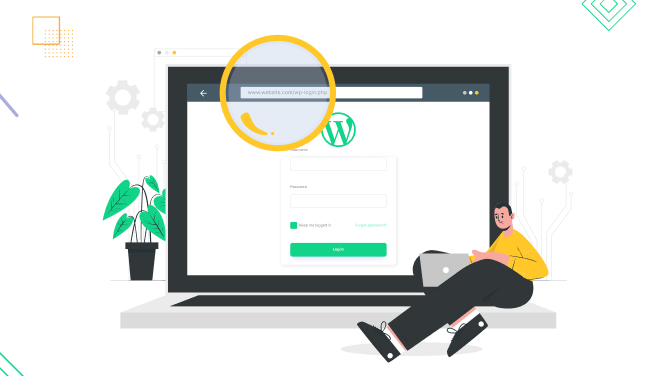
Open your web browser. Type the website’s name in the search box. Press enter. Wait for the page to load. Look at the top of your browser screen. This is the address bar. It shows where you are on the internet.
Find the text in the address bar. This is the URL of the page. It starts with “http” or “https”. It is followed by “www”. Then comes the website name. After that, you see more text. This tells you which page you are on. Every page has a unique URL.
Credit: www.seedprod.com
Plugins For Url Identification
Discover how to find a page URL in WordPress using plugins. These tools simplify URL identification, offering an easy way to manage your website’s structure. Enhance your WordPress experience with straightforward solutions for all your URL-related needs.
Popular Url Plugins
Many plugins help find page URLs in WordPress. One popular plugin is Yoast SEO. It offers many features, including URL identification. Another useful plugin is All in One SEO Pack. It helps manage URLs and other SEO tasks.
Installation And Usage
Installing plugins is simple. First, go to the WordPress dashboard. Click on “Plugins” and then “Add New.” Type the plugin name in the search box. Click “Install Now,” then “Activate.” After activation, the plugin is ready. Use the plugin settings to find page URLs easily. Follow the steps, and you will see the URLs you need.
Advanced Techniques
Place a code snippet in the functions.php file. This helps find the current page URL. Use the $_SERVER['REQUEST_URI'] variable. This variable shows the path after the domain. Add this code to display the URL:
            function get_current_url() {
                $current_url = home_url(add_query_arg(array(), $wp->request));
                return $current_url;
            }
Call this function to get the URL. It is simple and effective.
Use WordPress hooks for better control. Hooks let you add or change code. Use the wp_head or wp_footer hooks. They run code in specific places. Hooks are powerful in WordPress. They help developers customize themes.
Add hooks in the functions.php file. It makes changes to the page easily. Hooks are like magic tools. They make WordPress more flexible.
Troubleshooting Common Issues
Finding your page URL in WordPress is simple. Just navigate to your page, and check the address bar. Alternatively, view the page settings in the WordPress dashboard to see the URL.
Url Not Found Errors
Sometimes, you click a link and see a “URL Not Found” message. This means the page can’t be found. It might be due to a typo in the URL. Check the spelling carefully. Make sure every letter and symbol is correct. Also, sometimes the page was moved or deleted. In such cases, you might need to contact the site owner. They can help you find the right page.
Incorrect Url Display
URLs sometimes display incorrectly. It can confuse users. Check if your page permalink settings are correct in WordPress. To do this, go to your dashboard. Click on “Settings” and then “Permalinks.” Ensure your URL structure is set properly. You might also want to clear your browser cache. This can help display the correct URL. Always ensure your URLs are easy to read and understand.
Best Practices
Short URLs are easy to read. They help search engines. Include keywords in URLs. This improves search ranking. Avoid special characters. Use hyphens to separate words. Avoid underscores. Keep URLs lowercase. This helps with consistency. Simple URLs are better for sharing. Users find them easy to remember. Clear URLs help users know page content.
Consistency is key. Use the same style for all URLs. Follow a pattern for naming. Helps in organizing content. Use categories in URLs. Match URL with page title. It creates a clear structure. Avoid changing URLs often. It confuses users and search engines. Stable URLs help in building trust.
Credit: www.bookingpressplugin.com
Frequently Asked Questions
How Can I Find My WordPress Page Url?
To find your WordPress page URL, log into your dashboard. Navigate to Pages, and click on the page title. Your URL appears in the browser’s address bar. Alternatively, click the ‘View’ option next to the page title. Your page URL is displayed in the browser.
What Is The Permalink In WordPress?
Permalinks are the permanent URLs to your blog posts or pages in WordPress. They are important for SEO and user navigation. You can customize them in the Settings under Permalinks. Choose a structure that suits your content for better search engine visibility.
Can I Change My WordPress Page Url?
Yes, you can change your WordPress page URL by editing the permalink. Go to the page editor, find the Permalink section, and edit the slug. This allows you to optimize URLs for SEO. Ensure the new URL reflects your content accurately.
Why Is My WordPress Url Important?
Your WordPress URL is crucial for SEO and user experience. It helps search engines understand the content of your page. A clear and descriptive URL enhances visibility and attracts more visitors. Well-structured URLs improve navigation and site credibility.
Conclusion
Determining the page URL in WordPress is simple. Follow the steps outlined here. Use the dashboard or permalinks to find URLs. Understanding URLs aids in organizing your site better. It helps visitors find content easily. Remember to keep URLs short and meaningful.
This boosts SEO and improves user experience. Regular checks ensure URLs remain accurate. Practice these tips for smooth website management. You’ll find handling WordPress URLs becomes second nature. Keep exploring WordPress features for more insights. Your website’s navigation and visibility will improve significantly.
Happy managing your WordPress site!


