
Imagine transforming your WordPress site into a stunning, unique masterpiece with just a few clicks. This is the magic of the Divi Theme.
If you’ve ever felt overwhelmed by the technicalities of website design, you’re not alone. Many of us have been there, staring at a generic layout and wondering how to make it truly ours. But here’s the good news: customizing the Divi Theme is easier than you think.
With the right guidance, you can create a site that not only looks amazing but also reflects your brand’s personality and engages your audience. This article will be your guide, showing you step-by-step how to unlock the full potential of Divi. By the end, you’ll be equipped with the skills to make your website not just functional, but unforgettable. Ready to dive in? Let’s make your vision a reality.
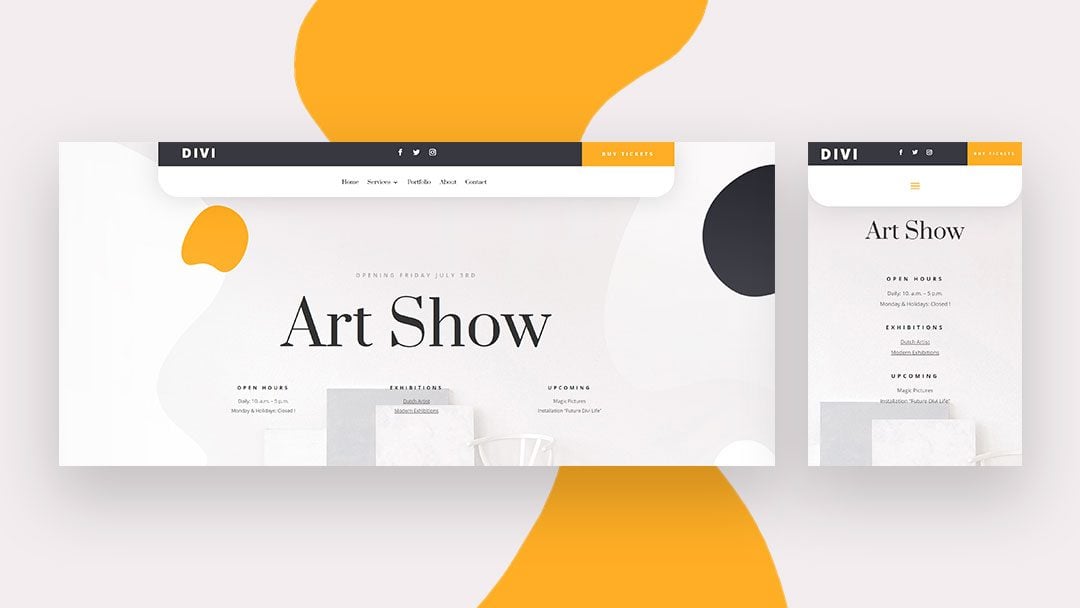
Credit: www.elegantthemes.com
Getting Started With Divi
First, download the Divi theme file from the Elegant Themes website. Go to your WordPress dashboard. Click on Appearance, then Themes. Click Add New and then Upload Theme. Choose the Divi file and click Install Now. Finally, activate the theme. Your Divi theme is now ready to use.
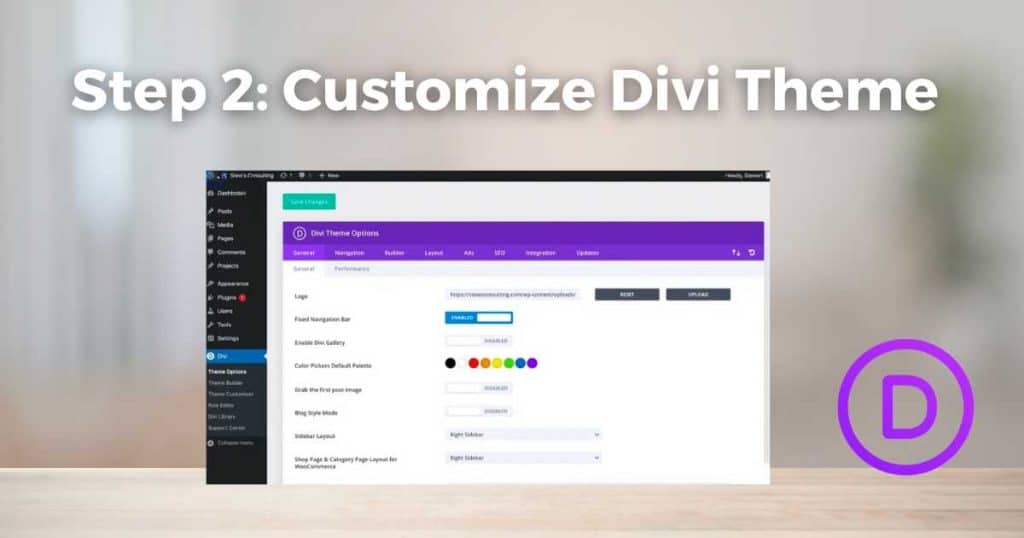
The Divi dashboard is simple. You will see options for Theme Options, Theme Builder, and Library. Each option helps you customize your site. Theme Options let you change site settings like colors and fonts. Theme Builder helps create custom layouts for pages. Library stores your saved designs.
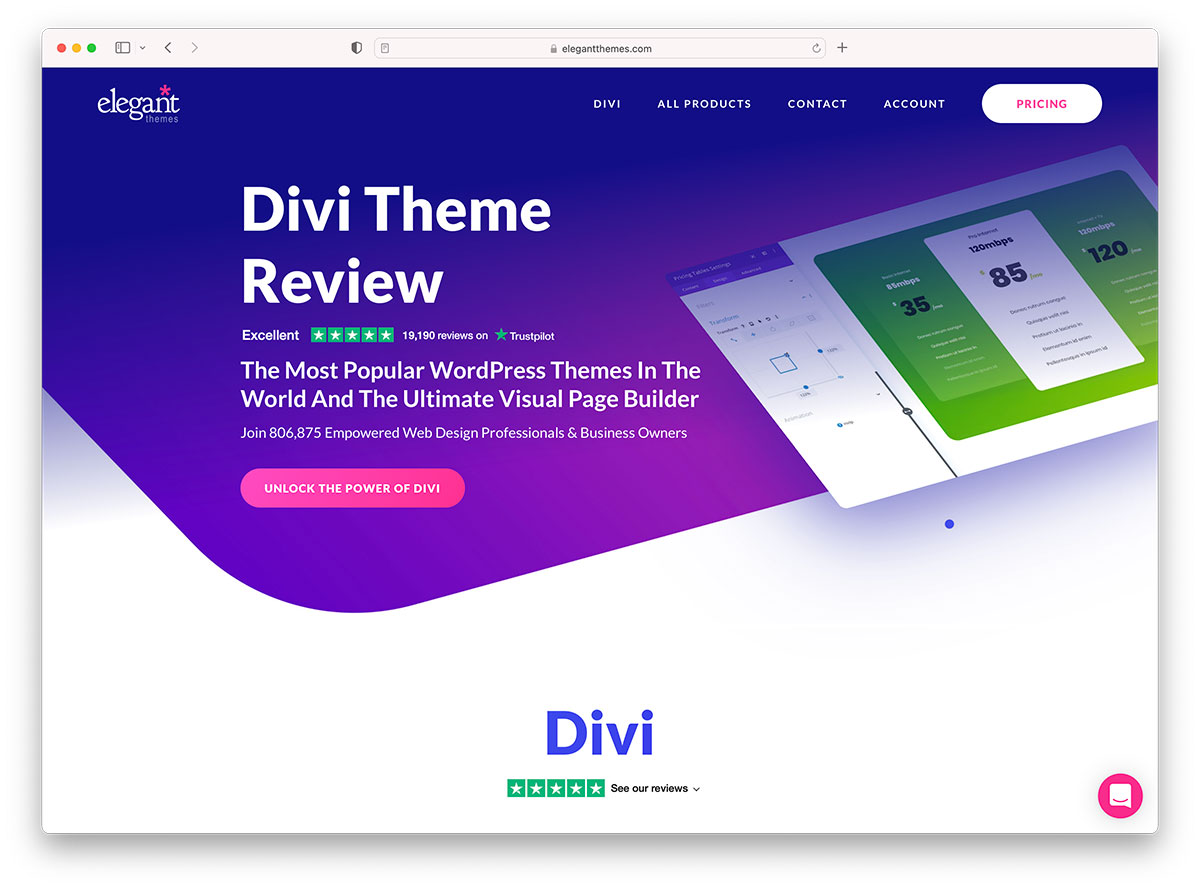
Credit: colorlib.com
Using The Divi Builder
Customize the Divi theme in WordPress effortlessly with the Divi Builder. Drag and drop elements to design pages. Adjust settings to fit your style.
Activating The Divi Builder
Open your WordPress dashboard. Find the Divi Builder option. Click on it to activate. It’s easy to start using Divi. This tool helps you create stunning pages. Use the drag-and-drop feature. Build pages without coding. The builder is user-friendly. You can make changes quickly. Save your work as you go. This keeps your progress safe. It’s fun to see your ideas come to life.
Navigating The Interface
The interface is simple. It has clear buttons and menus. Each button has a name. Read them to know their use. The main screen shows your page. Click elements to edit them. Drag them to move around. Use the toolbar for more options. Add text, images, or videos. Change colors and fonts easily. Preview your changes instantly. It’s like painting a picture. Your website grows with each stroke. Enjoy exploring new features.
Customizing Global Settings
Change site-wide styles easily. Go to the Divi settings panel. Select Global Styles. Adjust background colors and border styles. Make sure you preview changes. Save your settings. Changes will apply to all pages.
Set the global colors in Divi. Choose colors that match your brand. Go to the Divi theme options. Select Color Palette. Pick your colors. Save your choices.
Choose global fonts in Divi. Go to the settings panel. Pick a font style. Adjust size and weight. Make your text clear and readable. Save your settings. Fonts will apply to all text.
Designing With Divi Modules
Customizing the Divi Theme in WordPress becomes easy with Divi Modules. These modules allow users to design unique layouts without coding. Create stunning pages by dragging and dropping various elements, making your website visually appealing and functional.
Adding And Configuring Modules
Divi offers a variety of modules to create beautiful pages. Each module can be added with a simple click. Once added, you can configure its settings easily. Use the sidebar to change colors, fonts, and sizes. Customizing modules helps in designing unique pages.
Make sure to explore all options. Try different designs to see what works best. Each change is visible instantly. This makes it easy to see what looks good. Don’t forget to save your work often. This ensures you don’t lose any changes.
Utilizing Advanced Design Options
Divi has advanced options for more detailed design. You can add animations to elements. This makes pages look more lively. Adjust the spacing between elements for better layout. Use shadows to give depth to objects. Experiment with different styles to make pages stand out.
The advanced tab offers more control over designs. Play with the settings to learn what each does. Create a style that matches your brand. Remember, practice makes perfect. Keep trying until you get the design you love.
Creating Custom Layouts
Customizing Divi is fun and easy. It helps make your website unique. Pre-made layouts are a great start. They save time and look nice. You can find many of them in the Divi library.
Start by choosing a layout that fits your style. You can change colors, fonts, and images. This helps create a look that is yours. Drag and drop elements to change the layout. This is simple and quick.
Building Pages With Pre-made Layouts
Pre-made layouts are like puzzles. You get all the pieces. Just arrange them how you like. They help build pages fast. Start with a template. Then, add your text and pictures. This makes your page look nice without much work.
Changing parts of the layout is easy. You can move sections around. This helps make your page unique. Save time by using these layouts.
Saving And Reusing Custom Layouts
Save your custom layouts for later. This helps keep a consistent look. Once saved, use them on other pages. This is a great way to maintain your design. Reuse layouts for different parts of your site. This saves you time and effort.
Saving layouts is easy. Click the save button. Your layout is ready for reuse. This makes your website building fast and easy.
Styling Headers And Footers
The Divi Theme makes it easy to change your header. Start by clicking on the Theme Customizer. Choose the Header & Navigation option. You can change the header format. Select a style that you like. There are many options available.
Change the colors of your header. Pick colors that match your brand. Add a logo to make it look better. A logo helps people know your site. You can also add a menu. The menu helps users move around your site.
A footer is at the bottom of your page. It is important for your site. Add contact details in the footer. This helps users reach you. Include social media links. These links connect users to your social media.
Choose colors that fit your site’s look. Use the Customizer tool to do this. You can also add widgets. Widgets add more features to your footer. Make sure your footer is simple and clear.
Enhancing Mobile Responsiveness
Making your website look good on phones is important. Start by using the Divi Builder. You can change the font size and button size for smaller screens. Check the mobile preview to see how it looks. You can find these options in the settings. Try different styles to find what looks best. Remember to save your changes.
Always check how your site looks on a phone. Use the Preview button in the Divi settings. This shows you how users see your site on their phones. Make sure everything looks clear and easy to read. Adjust if something looks off. Previewing helps catch mistakes before going live.
Integrating Third-party Plugins
Plugins help Divi add more features. They work together like friends. Choose plugins that are safe. This keeps your site strong. Some plugins work well with Divi. These make tasks easy. They help with page design. They can add sliders and forms. Popular plugins include WooCommerce. It helps with online stores. Another is Yoast SEO. It helps with search engines.
Plugins can make Divi better. They add new tools for users. Some plugins make pages faster. Others help with security. You can add social media buttons. Users can share your posts. Some plugins help with images. They make them look nice. Divi becomes more useful with plugins. They make it a better tool.
Optimizing For Performance
Divi Theme can be slow without proper settings. Fast sites attract more visitors. Use tools to make Divi load quicker. Try caching plugins for better speed. Caching saves data for fast access. This reduces load times. Some tools can help clear old data. This frees up space on the server. Lightweight images load faster too. Compress them to save space.
Many tools can help speed up Divi. Optimization plugins improve site speed. They work by cleaning up unused parts. Tools like WP Rocket are helpful. They make sites load faster. Using a Content Delivery Network (CDN) spreads data across servers. This helps users access sites quickly. Choose tools that fit your needs. Test your site speed regularly.
Troubleshooting Common Issues
Customizing the Divi Theme in WordPress can be challenging. Solve common issues by checking plugin compatibility and theme settings. Ensure updates are current to prevent conflicts and enhance functionality.
Resolving Layout Problems
Layouts can break. Check your settings first. Ensure margins and padding are correct. Use Divi’s built-in tools. Adjust the row and column settings. Preview changes often. Look for missing elements. Sometimes images or text disappear. Clear your browser cache. This might refresh the page. Update Divi regularly. Updates fix bugs. Keep WordPress updated too. This helps with compatibility. If the layout still breaks, ask for help. Divi forums are helpful. Many users share solutions there.
Handling Plugin Conflicts
Plugins sometimes clash with Divi. Disable them one by one. Find the conflicting plugin. Start with new plugins. Old ones might be safe. Look at the error messages. They give clues. Check for plugin updates. Update them if needed. Conflicts might stop. If not, consider alternatives. Some plugins have similar features. Choose ones that work well with Divi. Contact plugin support if needed. They might fix the issue. Divi support can help too. They know common problems. Don’t hesitate to ask.
Credit: stewartgauld.com
Frequently Asked Questions
How Do I Start Customizing Divi Theme?
To start customizing Divi, first install it via your WordPress dashboard. Navigate to the “Divi” section and explore the theme customizer. Use the built-in modules and settings to adjust layouts, colors, and typography to suit your style. Save your changes to see your customized website in action.
Can I Change Divi Theme Fonts Easily?
Yes, changing fonts in Divi is easy. Go to the Divi Theme Customizer and select “Typography. ” Here, you can choose from a wide range of fonts. Customize size, style, and color to match your brand. Ensure to preview changes and save them to apply across your site.
How Do I Customize Divi’s Header?
Customizing the header in Divi is straightforward. Use the Theme Builder under the Divi menu. Create a new header template, adding modules like logo and navigation. Adjust layout, colors, and styling to fit your design vision. Save the template to update the header site-wide.
What Plugins Enhance Divi Customization?
Several plugins enhance Divi customization, including Divi Booster and Divi Switch. Divi Booster offers extra customization options and performance tweaks. Divi Switch adds features like animations and styling controls. Both plugins integrate seamlessly, giving you more control over your site’s design.
Conclusion
Customizing the Divi Theme in WordPress is straightforward and rewarding. You can enhance your website’s appearance easily. Use the tools available to personalize fonts and colors. Adjust layouts to fit your needs. Experiment with different modules to see what works best.
Keep your audience in mind while designing. Simplicity often leads to better user experiences. With practice, your skills will grow. Enjoy the process of creating a unique website. Remember to update your changes regularly. Stay creative and explore new ideas.
Your website reflects your brand. Make it memorable.


