
Ready to build your own web page with WordPress but not sure where to start? You’re in the right place.
Creating a web page doesn’t have to be complicated or overwhelming. With WordPress, you have powerful tools at your fingertips that make it easy to design a site that looks professional and works perfectly for your needs. In this guide, you’ll discover simple, step-by-step instructions to create your web page quickly—even if you have no prior experience.
Stick with me, and by the end, you’ll have the confidence and know-how to launch your very own WordPress page that stands out and draws visitors in. Let’s get started!
Choosing WordPress.com Or WordPress.org
Choosing between WordPress.com and WordPress.org is an important step in creating your web page. Both platforms use WordPress software but offer different experiences. The choice affects control, cost, and ease of use. Understanding the differences helps you pick the best option for your needs.
Key Differences
WordPress.com is a hosted service. It manages hosting, backups, and security for you. WordPress.org is self-hosted. You download the software and choose your own hosting provider. WordPress.com limits customization and plugin installation. WordPress.org allows full control over themes, plugins, and code.
Pros And Cons
WordPress.com is easy to start. It includes hosting and handles technical tasks. It is good for beginners or small sites. The downside is limited design freedom and a WordPress.com subdomain. WordPress.org offers full freedom to customize and expand your site. You must manage hosting, security, and backups yourself. It requires more technical knowledge.
Cost Considerations
WordPress.com has free and paid plans. Free plans have limited features and show WordPress ads. Paid plans remove ads and add storage and customization. WordPress.org software is free to use. You pay for hosting and a domain name separately. Hosting costs vary depending on the provider and plan. WordPress.org can be more cost-effective for larger sites.
Credit: wedevs.com
Setting Up A WordPress Account
Setting up a WordPress account is the first step to creating your web page. This process varies depending on the WordPress version you choose. WordPress.com offers an all-in-one solution with hosting included. WordPress.org requires separate hosting but gives full control over your site. Both options need a domain name for your web address. Understanding these basics helps you build your website with confidence.
Signing Up On WordPress.com
Visit WordPress.com to start your registration. Click on the “Get Started” button to begin. Enter your email, username, and password. Choose a website type to fit your needs. WordPress.com hosts your site and manages backups. The free plan includes a WordPress subdomain. Paid plans offer custom domains and more features.
Selecting A Hosting Provider For WordPress.org
WordPress.org requires a hosting provider to run your website. Hosting stores your site’s files and data online. Popular hosts include Bluehost, SiteGround, and HostGator. Compare prices, speed, and support before choosing. Most hosts offer one-click WordPress installation. Hosting plans often come with free SSL certificates and backups.
Registering A Domain Name
A domain name is your website’s address on the internet. Choose a name that is short, clear, and easy to remember. Domain registration can be done through hosting providers or registrars like GoDaddy. Check domain availability using their search tools. Domain names usually cost between $10 and $20 per year. Connect your domain to WordPress during setup for a professional look.
Installing WordPress
Installing WordPress is the first key step to build your website. It sets up the software that runs your site. The installation process is simple and quick. You can choose between easy one-click options or a manual setup. After installation, some basic settings will get your site ready to use. Follow these steps to install WordPress smoothly and start creating your web page.
One-click Installation Options
Many web hosts offer one-click WordPress installation. It saves time and avoids technical tasks. You log in to your hosting control panel. Find the WordPress installer tool. Click the install button and fill in basic details like site name and admin info. The system installs WordPress automatically. It creates the database and sets up files. After a few moments, your WordPress site is ready to use.
Manual Installation Steps
Manual installation gives more control over setup. First, download the latest WordPress package from WordPress.org. Next, upload the files to your web server using FTP. Create a MySQL database for WordPress in your hosting panel. Then, open your website URL in a browser. WordPress will start the setup wizard. Enter the database name, username, and password. Finally, provide your site title and admin account details. Click install, and WordPress installs itself.
Initial Configuration
After installation, configure WordPress to fit your needs. Log in to the WordPress dashboard using your admin credentials. Set your site title and tagline under Settings > General. Configure your permalink structure for SEO under Settings > Permalinks. Choose a simple URL format like “Post name.” Check your timezone and language settings. Install a theme to change your site’s look. Add essential plugins for security and performance. These steps prepare your site for content creation.
Credit: www.websitebuilderexpert.com
Choosing And Installing Themes
Choosing the right theme shapes your website’s look and feel. It controls layout, colors, fonts, and more. Installing a theme is simple and sets the foundation of your site’s design. Pick a theme that fits your site’s purpose. It should be easy to use and look good on all devices.
Free Vs Premium Themes
Free themes cost nothing and offer basic features. They are good for simple sites and beginners. Many free themes come from trusted developers and are updated regularly.
Premium themes have more design options and support. They often include extra features like sliders and custom widgets. Premium themes cost money but can save time on custom work. Choose a premium theme if you want a unique look or advanced tools.
Installing Themes From Dashboard
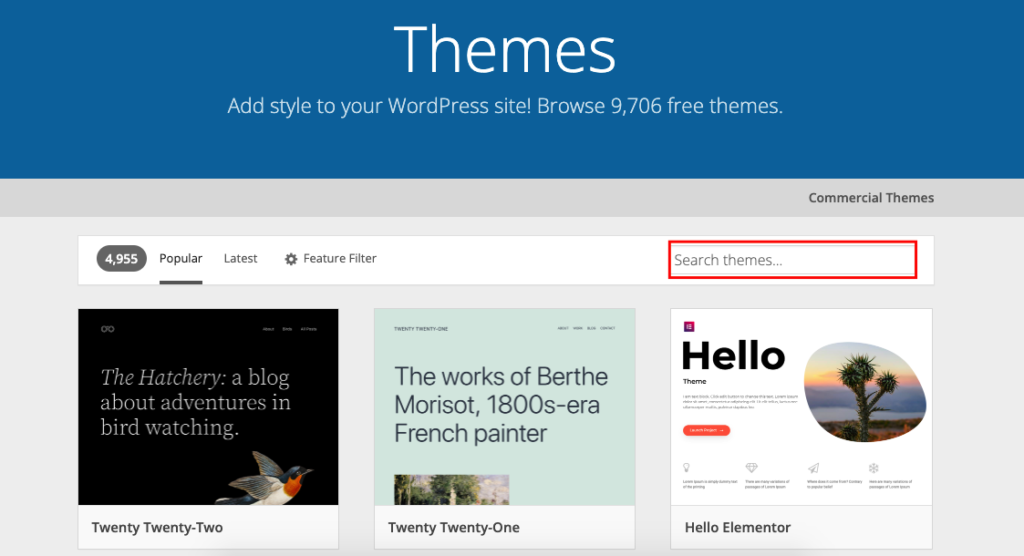
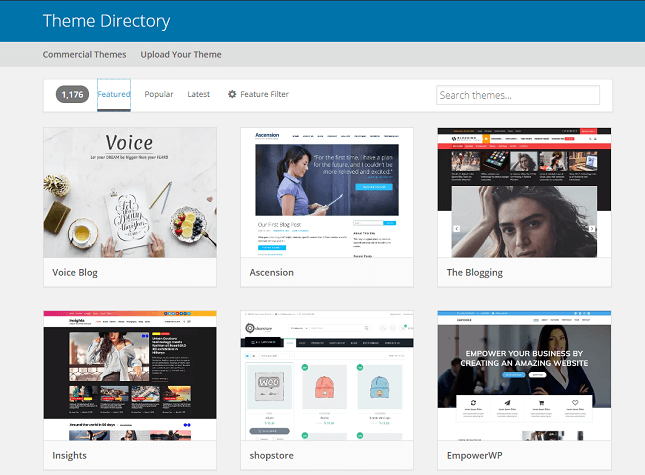
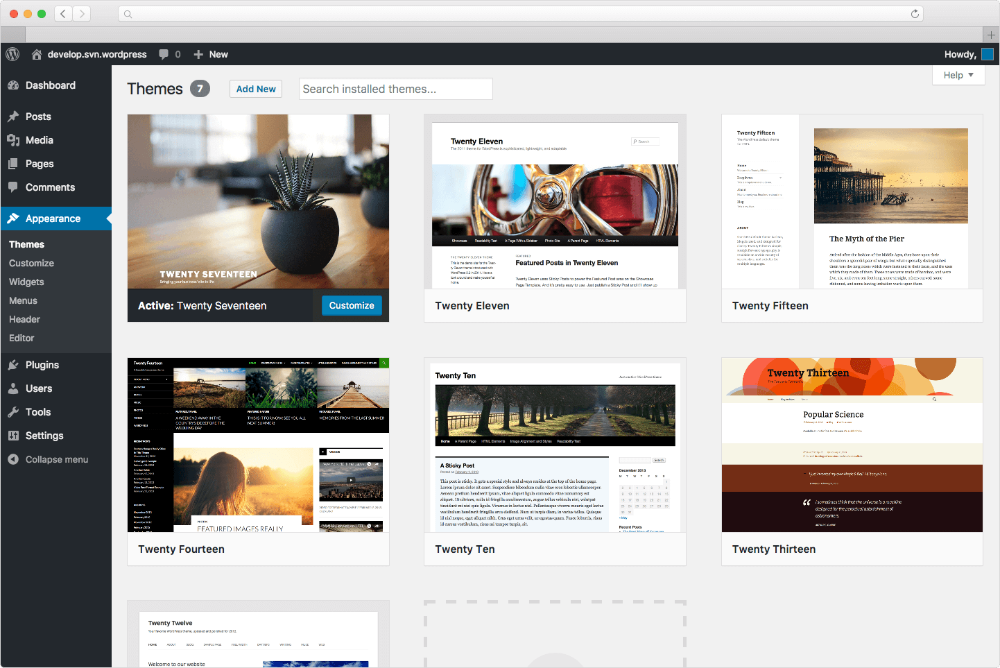
Log in to your WordPress dashboard. Go to Appearance > Themes. Click the “Add New” button to browse free themes.
Use the search bar to find themes by keyword or feature. Hover over a theme and click “Install.” After installation, click “Activate” to apply the theme.
You can also upload a theme from your computer. Click “Upload Theme,” select the ZIP file, then install and activate it.
Customizing Your Theme
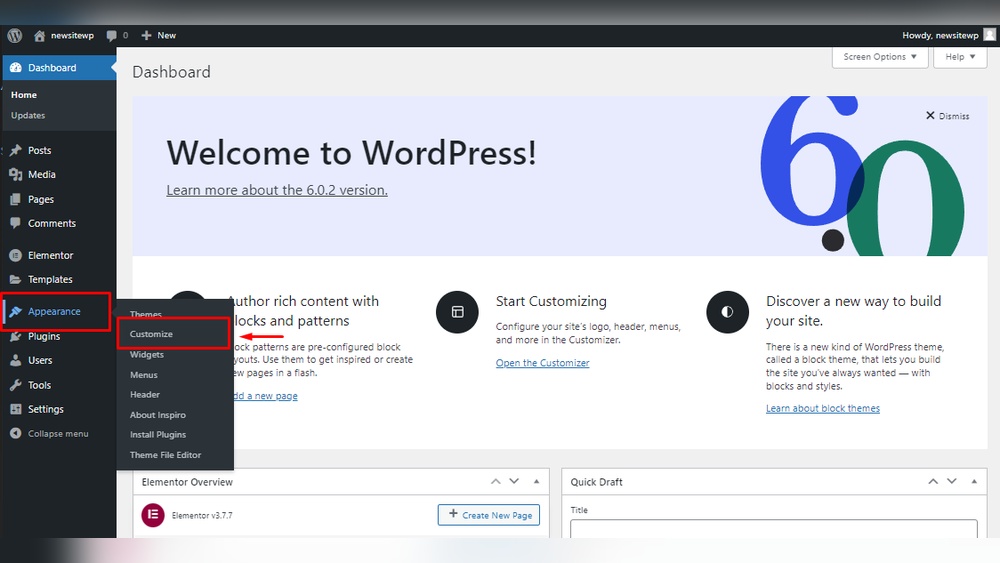
Go to Appearance > Customize to open the theme customizer. Here, change colors, fonts, and layout settings easily.
Add your logo and set a site title. Adjust menus and widgets to suit your content. Preview changes live before saving.
Each theme offers different customization options. Spend time exploring these to make your site unique and user-friendly.
Creating Your First Web Page
Creating your first web page in WordPress is simple and rewarding. It lets you share your ideas, products, or services online quickly. This guide helps you start with the basics, making the process clear and easy to follow.
You do not need coding skills. WordPress offers tools that make page building smooth. Focus on your content, and WordPress handles the design and structure behind the scenes.
Using The Gutenberg Editor
The Gutenberg editor is WordPress’s default page builder. It uses blocks to add and arrange content. Each block can be text, image, video, or other media types.
To start, open your WordPress dashboard and click “Pages” then “Add New.” The editor shows a blank page with a plus (+) button to add blocks.
Click the plus button and pick the block you want. Drag and drop blocks to change their order. The editor saves your work automatically.
Adding Text And Media
Type your text directly into a paragraph block. Use headings to organize your content clearly. Headings help readers and improve SEO.
Add images by selecting the image block. Upload files from your computer or choose from the media library. You can resize and align images easily.
Video blocks allow you to embed videos from platforms like YouTube. This makes your page more engaging and interactive.
Setting Page Attributes
Page attributes control your page’s layout and hierarchy. On the right sidebar, find the “Page Attributes” box. Here, set the parent page if you want this page to be a subpage.
Choose a template to change how the page looks. Templates vary by theme but usually include full-width or sidebar layouts.
Set the order number to control the page’s position in menus. Lower numbers appear first. This helps organize your site structure.
Adding Plugins For Extra Features
Adding plugins is a simple way to give your WordPress website more power and options. Plugins help you add new tools and features without coding. They can improve security, speed, SEO, and design.
Choosing the right plugins makes your site easier to manage and more useful for visitors. Many plugins are free and easy to install. Use only the plugins you need to keep your site fast and safe.
Essential Plugins For Beginners
Start with plugins that improve site basics. A good SEO plugin helps search engines find your site. A security plugin protects your site from hackers. Backup plugins save your site data regularly.
Contact form plugins let visitors send messages easily. Caching plugins make your site load faster. Image optimization plugins reduce file sizes for quicker pages. These plugins cover most beginner needs.
How To Install Plugins
Go to your WordPress dashboard. Click on “Plugins” and then “Add New.” Use the search bar to find plugins by name or function. Click “Install Now” on the plugin you want.
After installation, click “Activate” to start using the plugin. Some plugins may ask for setup steps right away. Follow the instructions to finish installation. Plugins install quickly and safely from the dashboard.
Managing Plugin Settings
Each plugin has its settings page. Find it under “Settings” or a new menu item in your dashboard. Adjust the options to fit your site’s needs. Keep settings simple at first to avoid conflicts.
Regularly update plugins to improve security and features. Disable plugins you no longer use to keep your site clean. Check your site after changes to ensure everything works well.
Optimizing Your Web Page
Optimizing your web page is key to attracting visitors and keeping them engaged. A well-optimized page loads quickly, shows properly on all devices, and ranks better on search engines. These factors improve user experience and help your website grow.
Focus on basic SEO, enhance your page speed, and ensure mobile responsiveness. These steps make your WordPress page user-friendly and easier to find online.
Seo Basics
Start with clear and simple page titles. Use keywords naturally in headings and text. Write concise meta descriptions that summarize your page content. Add alt text to images for better search engine understanding. Use clean URLs with keywords instead of random numbers or letters. Keep your content relevant and updated to stay visible on search results.
Improving Page Speed
Choose a fast web hosting service. Compress images before uploading to reduce load time. Use caching plugins to store page versions for quick access. Minimize the use of heavy scripts and unnecessary plugins. Keep your WordPress and plugins updated to avoid slowdowns. A faster page reduces visitor bounce rates and improves rankings.
Mobile Responsiveness
Ensure your WordPress theme adapts to different screen sizes automatically. Test your page on phones and tablets to check layout and usability. Use large, readable fonts and buttons easy to tap. Avoid pop-ups that cover content on small screens. A mobile-friendly site reaches more users and improves search engine ranking.
Credit: docs.presscustomizr.com
Publishing And Managing Pages
Publishing and managing pages in WordPress is a key step to make your website live and keep it updated. After creating content, you need to check it, publish it properly, and edit it as needed. WordPress offers simple tools to handle these tasks efficiently.
Previewing Your Page
Before publishing, preview your page to see how it looks. Click the “Preview” button in the editor. This opens a new tab with your page as visitors will see it. It helps find errors or design issues early. Previewing saves time by avoiding publishing mistakes.
Publishing Options
WordPress lets you publish pages immediately or schedule them for later. Use the “Publish” button to make your page live right away. You can also set a future date and time to publish automatically. Choose visibility settings: public, private, or password protected. These controls help manage who can view your content.
Editing And Updating Pages
After publishing, pages often need updates. To edit a page, go to the WordPress dashboard and select “Pages.” Find your page and click “Edit.” Make changes in the editor, then click “Update” to save. WordPress keeps the URL the same, so visitors always find the latest version. Regular updates keep your site fresh and relevant.
Securing Your WordPress Site
Securing your WordPress site is essential for protecting your content and visitors. A safe site builds trust and improves your reputation. Simple steps help reduce risks and keep hackers away. Use these tips to keep your site strong and secure.
Keeping WordPress Updated
Always run the latest version of WordPress. Updates fix security holes and bugs. They also improve site performance. Update your themes and plugins regularly. Outdated software invites hackers. Enable automatic updates for minor releases. Check for updates at least once a week.
Using Security Plugins
Security plugins add extra protection layers. They block suspicious activity and scan for malware. Some plugins limit login attempts and enforce strong passwords. Choose plugins with good reviews and regular updates. Avoid installing too many plugins, as they can slow your site. Test plugins on a staging site before use.
Best Practices To Avoid Hacks
Use strong, unique passwords for all accounts. Change default usernames like “admin” to something else. Limit user access and assign proper roles. Backup your site regularly and store backups safely. Use SSL certificates to encrypt data. Disable file editing from the dashboard. Monitor your site for unusual activity daily.
Troubleshooting Common Issues
Troubleshooting is a key skill for building WordPress pages. Issues can stop your page from working right. Knowing how to fix common problems saves time and frustration. This section covers simple steps to solve usual errors. You will learn to fix plugin conflicts, resolve theme problems, and use support resources.
Fixing Plugin Conflicts
Plugins add features but can clash with each other. Conflicts cause errors or slow pages. To fix this, deactivate all plugins first. Then activate them one by one. Check the site after each activation. This helps find the problem plugin. Once found, replace it or contact the plugin author. Keep plugins updated to avoid conflicts.
Resolving Theme Problems
The theme controls how your site looks. Sometimes, themes cause display issues or errors. Switch to a default WordPress theme like Twenty Twenty-Three. This step shows if the theme is the problem. If the issue stops, update or change the theme. Also, clear your browser cache to see changes. Always use themes from trusted sources.
Contacting Support Resources
Support is available for WordPress users. Use the WordPress.org forums to ask questions. Many experts share free advice there. Plugin and theme developers also offer support on their websites. Hosting providers can help with server issues. Keep detailed notes about your problem. This helps support find solutions faster.
Frequently Asked Questions
How To Create A Web Page In WordPress?
Log in to your WordPress dashboard, click “Pages,” then “Add New. ” Enter a title and content, then click “Publish” to create your web page.
Why Are People Moving Away From WordPress?
People move away from WordPress due to security risks, frequent updates, plugin conflicts, slow speed, and complex maintenance needs.
Can I Create A Website In WordPress For Free?
Yes, WordPress. com lets you create a free website with a subdomain and limited features. WordPress. org is free software but requires paid hosting and domain.
Can A Beginner Build A Website On WordPress?
Yes, beginners can build websites on WordPress easily. It offers user-friendly tools, templates, and tutorials for quick setup and customization.
Conclusion
Creating a web page in WordPress is simple and flexible. Follow the steps carefully to build your site. Choose the right platform—WordPress. com or WordPress. org—based on your needs. Use themes and plugins to customize your page easily. Keep your content clear and organized for visitors.
Regular updates keep your site running smoothly and securely. Practice makes perfect; try creating different pages to learn more. Start your WordPress journey today and enjoy sharing your ideas online.


