
Have you ever wanted to customize your WordPress site without risking losing changes during updates? By creating a functions.php file in a child theme, you can safely tweak your website to match your vision.
This approach not only keeps your modifications intact but also offers you a playground to experiment with new features. Imagine having the power to enhance your site’s functionality while ensuring it’s both future-proof and uniquely yours. Intrigued? Let’s dive into the steps that will empower you to master this essential WordPress skill.

Credit: docs.themeisle.com
WordPress Child Theme Basics
A child theme allows changes to a site without losing the original design. It keeps the main theme files safe. This way, updates don’t erase custom work. Child themes use the parent theme’s style and features. They add new styles and functions. This makes the website unique and special.
Child themes offer many advantages. They protect changes during theme updates. They also help to learn and understand theme structure. Users can try new designs and functions safely. If something breaks, the parent theme stays untouched. This way, the site remains functional. Using a child theme is a smart choice for developers.
Credit: support.reytheme.com
Setting Up A Child Theme
Start by making a new folder in your WordPress themes directory. This new folder is your child theme. Name it something meaningful. Like “mytheme-child”. This helps you remember its purpose. You can use any name. It’s your choice.
Ensure the name is unique. This avoids confusion. The child theme folder is now ready. Next, you will add important files inside.
Create a new file named style.css inside your child theme folder. This file is essential. It tells WordPress about your child theme. Paste the following code at the top:
/
Theme Name: My Child Theme
Template: parenttheme
/
Replace “My Child Theme” with your theme’s name. Replace “parenttheme” with your parent theme’s folder name. This links the child theme to the parent theme. Now, WordPress knows your theme exists.
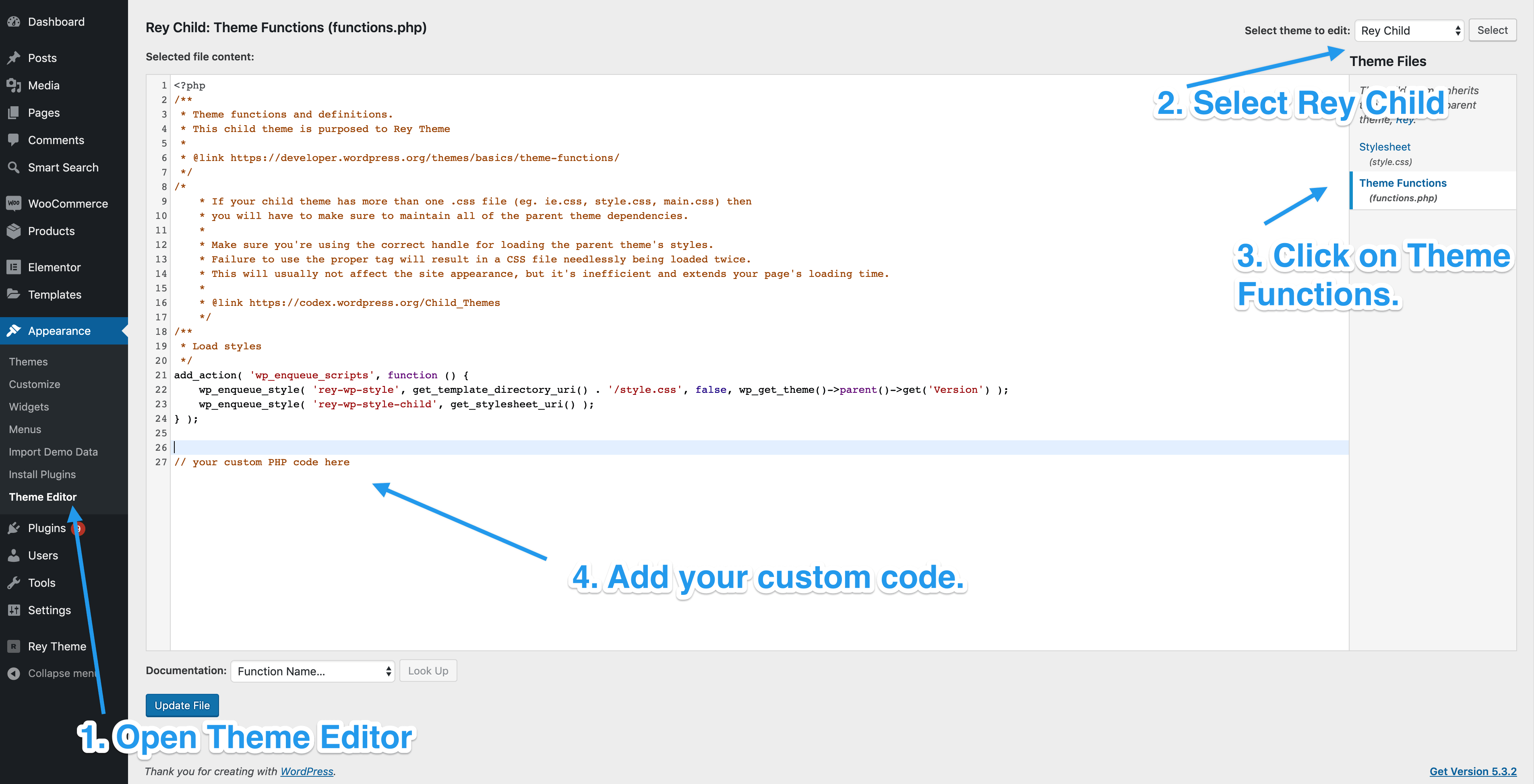
Creating The Functions.php File
The functions.php file is like a toolbox. It holds special codes. These codes help your website do more things. You can add new features. You can remove unwanted features. It makes your site look unique.
The basic structure is simple. Start with an opening PHP tag: <?php. Then, you add your code. Each line of code does something special. Maybe it adds a widget. Or changes a color. Make sure to close with a PHP tag. Like this: ?>.
Customizing Functions.php
Add styles and scripts safely. Use the wp_enqueue_style and wp_enqueue_script functions. These functions help load files. Always use the correct file path. It makes sure the styles show correctly. Do not forget to use wp_enqueue_scripts action. This action helps load the files at the right time.
Create your own functions. These are special instructions for your theme. Add them to the functions.php file. They help make your site unique. Use simple code to avoid errors. Always check if the function works well.
Sometimes, you need to change parent theme functions. Use the child theme to do this. Copy the function to your child theme. Then, make changes. This keeps the original theme safe. Never edit the parent theme directly.
Common Errors And Troubleshooting
Creating a function PHP file in a WordPress child theme can lead to common errors. Ensure correct file location and check for syntax mistakes to avoid issues. Proper troubleshooting involves reviewing error messages and verifying code accuracy for smooth theme customization.
Syntax Errors
Always check your code for missing semicolons. They can break your code. Mismatched brackets are another common mistake. Ensure every opening bracket has a closing one. Typos in function names can cause big issues. Double-check for spelling errors. Correct syntax is crucial for smooth operation.
Function Conflicts
Functions with the same name cause conflicts. Check child theme functions and parent theme functions. Make sure names are unique. Namespace conflicts can also occur. Prefix function names to avoid this. Conflicts can cause your site to crash or behave unexpectedly.
Debugging Tips
Use WP Debug to find errors. It shows warnings and notices in your code. Error logs are helpful. They show what went wrong. Deactivating plugins can help find conflicts. Turn them off one by one and check for changes. Backup your site before making changes.
Best Practices
Keep your code clean and easy to read. Use clear and consistent naming conventions. Group similar functions together. Add comments to explain complex code. This helps others understand your work. It also helps you when you return to it later.
Ensure your child theme works with the parent theme. Test your code with different versions of WordPress. Check compatibility after every update. This avoids breaking your site. Regular testing keeps your site running smoothly.
Use hooks and filters to modify WordPress behavior. Hooks let you add custom code at specific points. Filters let you change data before it is displayed. They are powerful tools for developers. They keep your theme flexible and extendable.

Credit: kinsta.com
Frequently Asked Questions
What Is A Child Theme In WordPress?
A child theme in WordPress is a theme that inherits functionalities from a parent theme. It allows customization without altering the parent theme’s code. This makes updates easier, ensuring your customizations are preserved when the parent theme is updated. Child themes are essential for safe and manageable WordPress development.
Why Create A Functions.php File In A Child Theme?
Creating a functions. php file in a child theme allows you to add custom functionalities. You can write code snippets to customize your site’s behavior. This method preserves changes during theme updates. It’s a safe way to enhance your WordPress site without affecting the parent theme’s code.
How Do I Add Custom Code To Functions.php?
To add custom code, open your child theme’s functions. php file. Use a text editor to insert your code snippets. Ensure your code is correctly formatted to avoid errors. Save the changes and upload the file to your child theme directory.
Always back up your site before making modifications.
Can Functions.php Override Parent Theme Functions?
Yes, the functions. php file in a child theme can override parent theme functions. By using the appropriate hooks and filters, you can modify or replace existing functionalities. This allows customization without directly changing the parent theme’s code, ensuring safe updates and preserving your custom changes.
Conclusion
Creating a functions. php file in a WordPress child theme is simple. It helps customize your site safely. This process keeps your changes intact during updates. Remember, backup your files before editing. Use a text editor for coding. Test your changes on a local server first.
It’s a smart way to enhance your site. You gain control over your theme’s functionality. This method offers flexibility without risking your main theme. Follow these steps, and your site will be more personalized. Start customizing today!


