
Are you ready to take your WordPress site to the next level with a custom look? Creating a CSS stylesheet for your WordPress theme might sound technical, but it’s simpler than you think.
Imagine having complete control over the appearance of your site, tailoring every detail to reflect your brand or personal style. You don’t need to be a coding wizard to make it happen. In this guide, you’ll discover the step-by-step process to craft and upload your very own CSS stylesheet, unlocking endless possibilities for your website’s design.
With the right approach, you’ll see how easy it is to transform your site into something truly unique and captivating. Dive in, and let’s start reshaping your online presence today!
Credit: www.hostinger.com
Setting Up Your Environment
Begin by organizing your workspace. This helps you stay focused. Make sure your computer is ready. You’ll need a good text editor. Notepad++ or Visual Studio Code are good choices. They make code easy to read. Also, install a web browser. Google Chrome or Firefox are best. They help test your website.
Open your text editor. Create a new file. Save it as style.css. This file will hold your CSS rules. Keep it in a folder. Name the folder my-theme. This makes it easy to find later.
Start with some basic CSS rules. Type body { } in your file. Inside the curly brackets, set the background color. Use a light color. This makes text easy to read. Add a font-family too. Choose something simple like Arial.
Credit: www.hostinger.co.uk
Basic Css Concepts
CSS selectors choose elements to style. They are the link between HTML and CSS. Properties define what you want to change. For example, color, size, or font. Each property has a value. Example: `color: blue;` changes text color to blue. Selectors can be simple or complex. Simple selectors are tags like `
Box model is how elements are sized. It includes content, padding, border, and margin. Content is where text or images go. Padding is space between content and border. Border is the line around content. Margin is space outside the border. Each part adds to the total size. Use CSS to adjust each part. Example: `padding: 10px;` adds space inside. Understanding this helps with layout design.
Text styling changes how text looks. Fonts are part of text styling. Use `font-family` to choose a font. `font-size` changes text size. Example: `font-size: 16px;` makes text bigger. Color changes text color. Example: `color: red;` makes text red. Use alignment to center or justify text. Example: `text-align: center;`. Combine styles for unique designs. Keep text readable and clear.
Creating A New Css File
Choose a simple name for your CSS file. Use lowercase letters. Avoid spaces in the name. Use dashes instead. For example, write style-sheet.css. This makes it easy to find later. The name should be descriptive. This helps you remember what it is for.
Keep your code neat and tidy. Use comments to label sections. For example, write / Main Header Styles /. This helps you understand your work. Break code into small parts. It is easier to read. Always test your code. Fix mistakes quickly. This saves time later. Organizing code helps make changes easier.
Credit: www.8theme.com
Linking Css To Your WordPress Theme
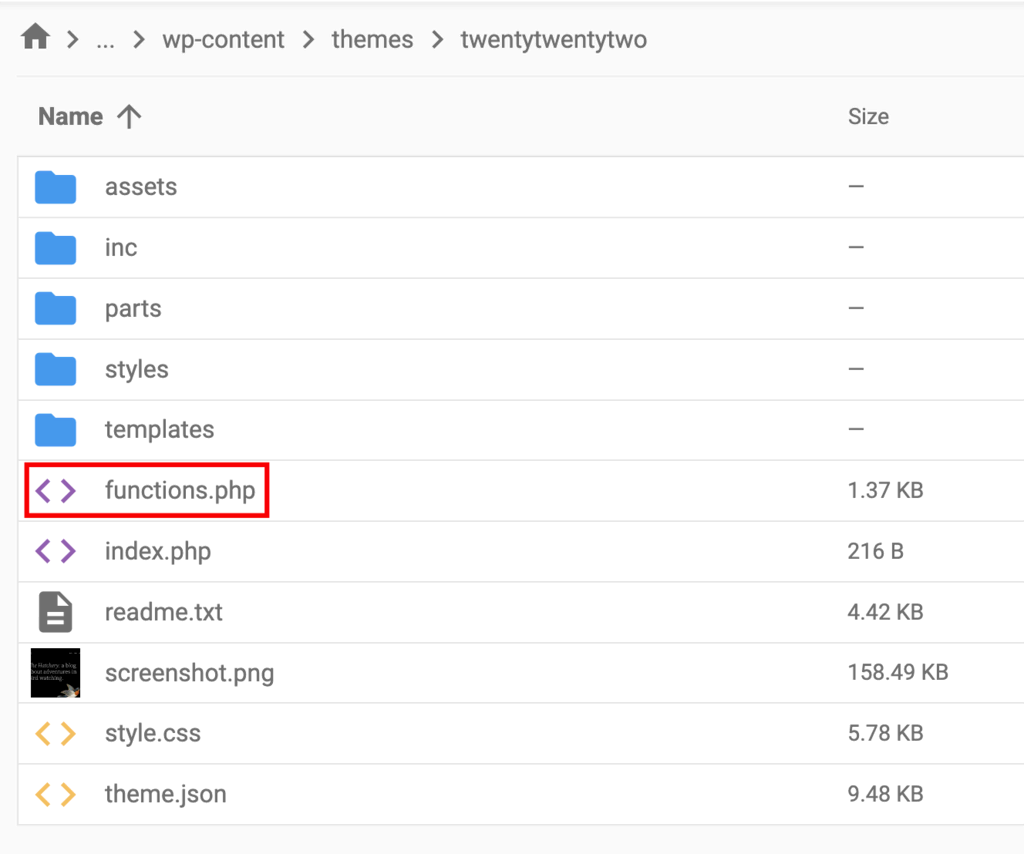
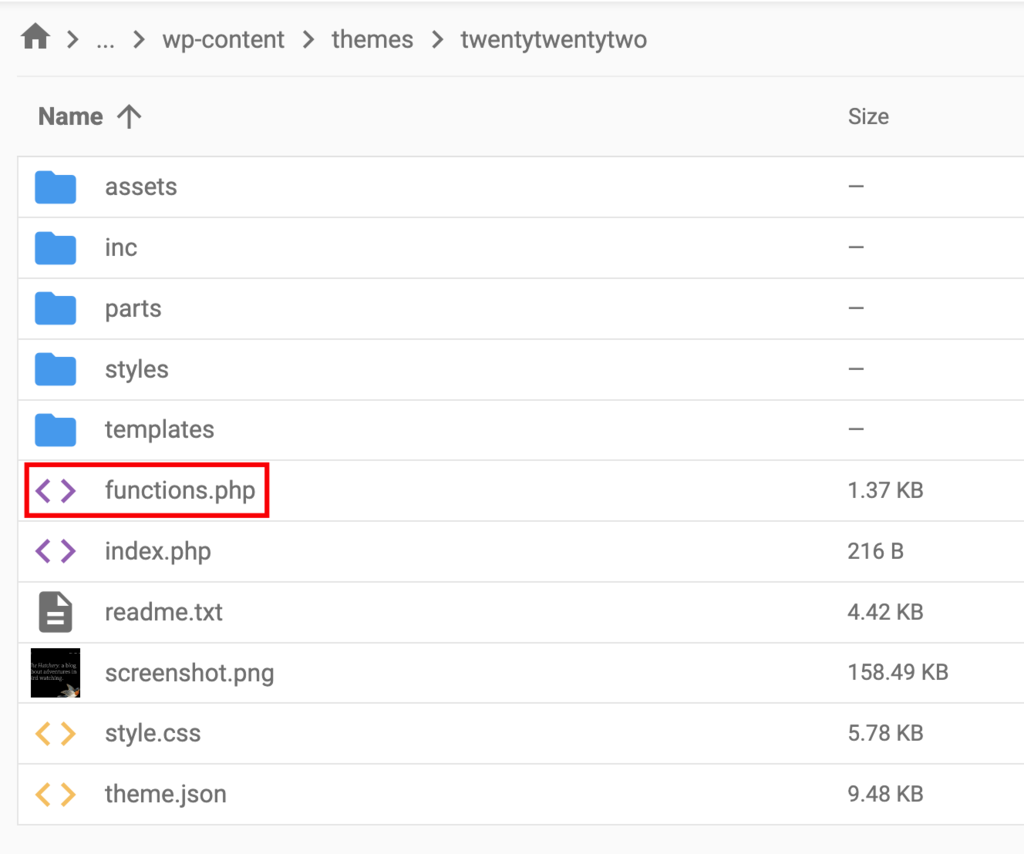
The functions.php file helps in linking CSS. It controls the theme’s functionality. First, find the file in your theme folder. Next, open it with a text editor. Then, use the wp_enqueue_style() function. It links your CSS file to the theme. This keeps the theme organized. Make sure to add the correct path. This ensures the CSS is applied.
Enqueuing is adding stylesheets safely. It prevents conflicts with other themes. To enqueue, use the wp_enqueue_style() function. First, give your stylesheet a name. Next, provide the path of your CSS file. Then, add dependencies if needed. Finally, specify the version number. This helps browsers know when to update styles. Always enqueue styles in the functions.php file. This keeps your theme clean and efficient.
Customizing Theme Styles
Changing the look of your WordPress theme is fun. Use CSS to modify existing styles. Find the style.css file in your theme folder. Look for the class or ID you wish to change. Make sure you know what each selector does. Alter the colors, fonts, or layout. Save your changes. Refresh your site to see the new look.
Adding new styles gives your site a unique feel. Create a new CSS file. Name it custom-style.css. Add your new styles inside this file. Include the file in your theme’s functions.php. Use wp_enqueue_style() to load it. Write your CSS rules clearly. Test them to ensure they work. Watch your site transform with every style.
Using Developer Tools
Explore developer tools to craft your CSS stylesheet. Start by inspecting elements to understand existing styles. Save your stylesheet and upload it to your WordPress theme. Transform your site’s look with personalized designs and enhance user experience.
Inspecting Elements
Developer tools help you see your website’s code. Right-click on a webpage. Choose “Inspect” to open the tools. You will see the HTML and CSS. Click on an element to view its styles. This shows how the page is made. You can find which style affects the element. It’s like looking under the hood of a car. This is very useful for making changes.
Testing Css Changes
In developer tools, you can test new CSS rules. Click on the CSS tab. Try adding or changing styles. See what happens on the page. This won’t change your actual site yet. It only shows what it could look like. You can try different colors and fonts. Test as much as you want. Then, copy the changes to your own stylesheet.
Responsive Design Techniques
Creating a CSS style sheet for a WordPress theme involves understanding responsive design techniques. Start by organizing your CSS rules for different devices. Upload the style sheet via the WordPress dashboard or FTP, ensuring it adapts beautifully across screens.
Media Queries
Media queries change designs for different screens. They help sites look good on phones, tablets, and desktops. Use media queries in CSS to set rules for screen sizes. For example, text size can change for small screens. Images can resize or hide on tiny screens. Media queries make layouts flexible. They adapt to user needs and devices. This keeps sites user-friendly. Responsive design relies on media queries.
Flexible Layouts
Flexible layouts adjust to different devices. They use CSS to change the size and position of elements. This means a website can look good on any screen. Use percentages instead of fixed pixels in CSS. This helps content fit in any window size. Flexible layouts make websites easy to use. They improve user experience. Websites look neat and organized. This keeps visitors happy and engaged.
Uploading Css To WordPress
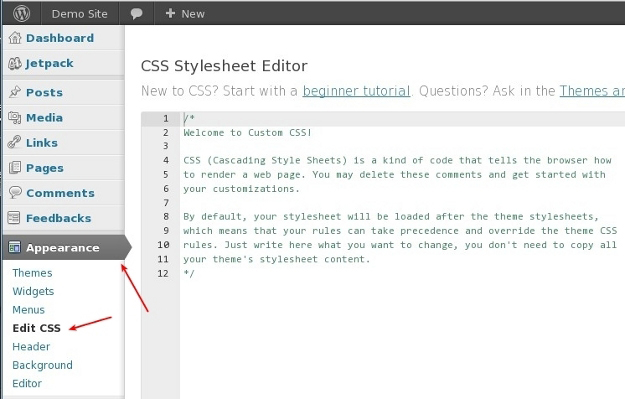
First, log in to your WordPress dashboard. Find the Appearance tab on the left. Click on it. Then, select Theme Editor. On the right, you will see files. Look for style.css. Click on it to open. You can now add or edit your CSS styles. Don’t forget to save your changes. This method is quick and easy. Use it for simple edits.
FTP means File Transfer Protocol. You need an FTP client like FileZilla. Open your FTP client. Enter your website’s FTP details. This includes host, username, and password. Find the folder named wp-content. Inside, open the themes folder. Choose your theme’s folder. Upload your new or edited style.css file here. This method is useful for advanced changes. Remember, always backup your files first.
Troubleshooting Common Issues
Creating a CSS stylesheet for a WordPress theme requires understanding basic CSS rules. Save the file with a. css extension and upload it to your theme’s directory. Use the WordPress dashboard to apply and test the new styles.
Dealing With Cache Problems
Cache can cause frustration. Changes to CSS might not show. Clear the browser cache first. Use incognito mode to bypass cache. WordPress has plugins for clearing cache. WP Super Cache is popular. Check your server settings. Server cache can be tricky. Make sure it refreshes often. Look for caching options in your hosting panel. Restart your browser after clearing cache. This often helps.
Resolving Conflicts With Other Styles
Conflicts can occur with styles. Themes and plugins may have different styles. Use Inspect Element to find conflicts. Look for the Style tab. Prioritize your CSS using !important tag. It forces styles to apply. Be careful with this tag. It can disrupt other styles. Custom CSS should be added last. This ensures it overrides others. Check for duplicate classes. They can cause confusion. Rename them if needed.
Frequently Asked Questions
How To Start Creating Css For WordPress?
To start creating CSS for WordPress, first access your theme files via FTP or WordPress dashboard. Locate the stylesheet, typically named `style. css`. Open it with a text editor and begin adding or modifying styles. Remember to save changes and refresh your website to see updates.
Where To Find WordPress Theme Stylesheet?
You can find the WordPress theme stylesheet in your theme directory. Access it via FTP or the WordPress dashboard. Navigate to `wp-content/themes/your-theme-name`. The stylesheet is usually named `style. css`. This file contains all the CSS rules for your theme’s design elements.
How To Upload Css To WordPress Theme?
Upload CSS to a WordPress theme using the WordPress dashboard or FTP. For the dashboard, go to Appearance > Theme Editor. Select the `style. css` file and paste your CSS code. Save changes. For FTP, locate the `style. css` file, open it, and add your CSS.
Save and upload.
Can Css Affect WordPress Theme Design?
Yes, CSS significantly affects WordPress theme design. It controls the layout, colors, fonts, and overall visual style. By modifying CSS, you can customize the appearance to match your brand. Changes in CSS can enhance user experience and improve the aesthetic appeal of your website.
Conclusion
Creating a CSS stylesheet for your WordPress theme is straightforward. Start with basic styles. Customize colors, fonts, and layout. Upload the stylesheet carefully. Check your changes on different devices. Make sure the design is responsive. Keep experimenting with styles. Always backup your files before making changes.
Style sheets enhance your site’s appearance. They improve user experience significantly. Invest time in learning CSS. The knowledge pays off in the long run. Remember, practice makes perfect. Enjoy designing your WordPress site.


