
Are you looking to give your WordPress site a fresh, unique look that truly stands out? Creating a new template in your WordPress theme can be the key to unlocking endless design possibilities.
Imagine having the power to customize your site’s appearance to perfectly match your brand and vision. You don’t need to be a tech wizard to make this happen. With just a few straightforward steps, you can design a template that reflects your personal style and meets your website’s specific needs.
Whether you’re a blogger, entrepreneur, or creative professional, this guide will show you exactly how to create a new template in WordPress, ensuring your site is as captivating as your content. Keep reading to discover how you can take control of your website’s design and make it truly your own.
Choosing The Right Theme
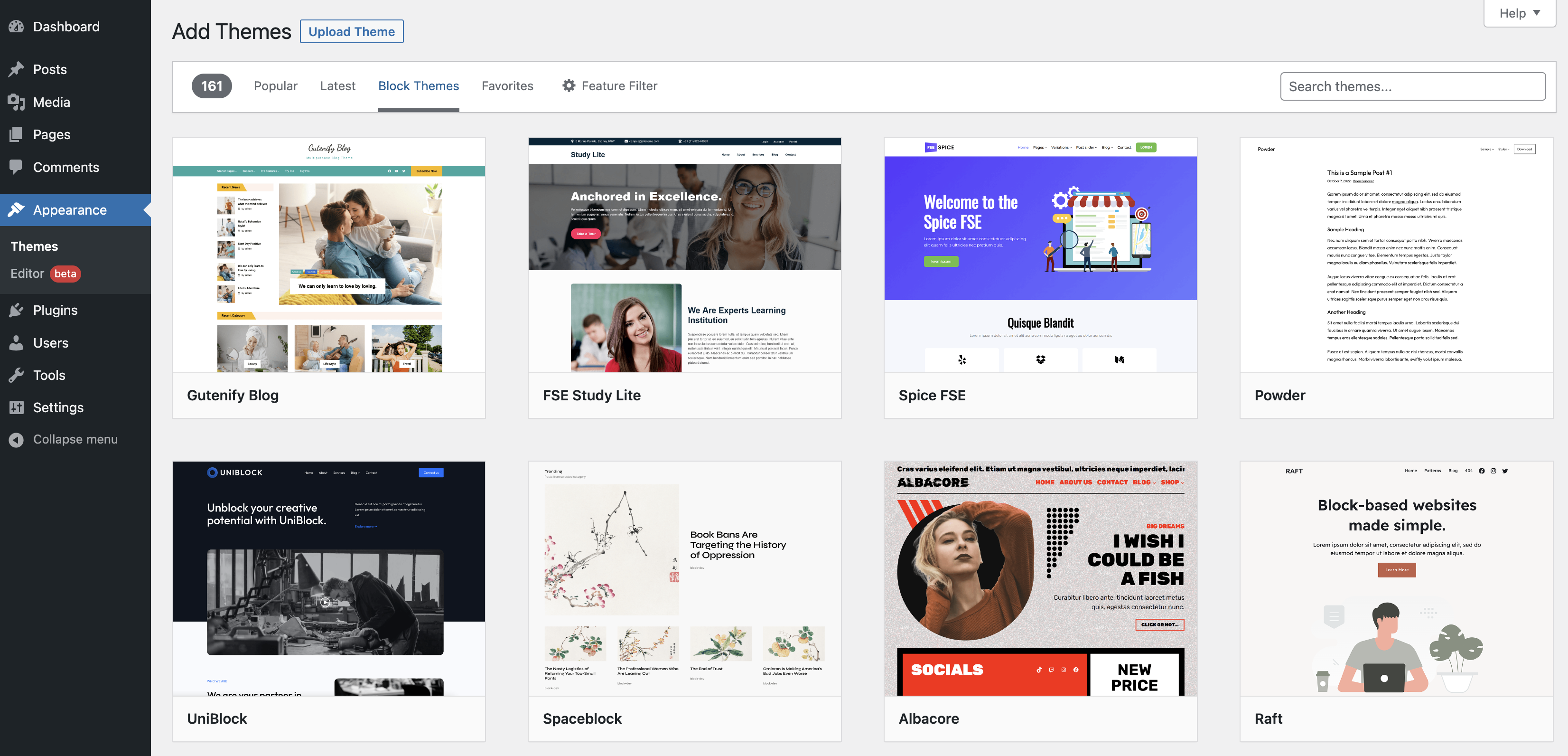
Start by looking for a WordPress theme that fits your needs. Themes change how your site looks. Some themes are fast. Others are slow. Check the theme’s reviews. Good reviews mean a good theme. Bad reviews mean problems.
Think about the design. Is it easy to read? Does it look nice? Some themes have many features. Do you need all of them? Pick a theme that matches your style. A simple theme might be best.
Check if the theme is responsive. It should work on phones and computers. Make sure the theme is easy to customize. You should be able to change colors and fonts. This will help make your site unique.
Setting Up A Child Theme
Creating a child theme starts with copying your main theme. This keeps it safe for changes. You need a new folder for your child theme. Name it something easy to remember. Inside this folder, make two files. First, a style.css file. Second, a functions.php file. These help your child theme work well.
In style.css, add your theme’s details. This includes the name, author, and version. Use these lines to start your file. Functions.php connects your child theme to the main theme. Write codes that link both themes. This way, your changes show up without harm.
Creating A New Template File
Start by opening your theme folder. Inside, find the ‘templates’ directory. Create a new file. Name it something like ‘my-custom-template.php’. The name should be unique. Use a descriptive name. It helps identify the template later.
Open the new file in a text editor. Add a comment at the top. Write Template Name: followed by your chosen name. This helps WordPress recognize the template. Next, add the basic HTML structure. Use php get_header(); ? to include the header. Add php get_footer(); ? for the footer. Save the file. Your template is now ready to use.
Customizing The Template
Adding custom code makes your template unique. Insert your code in the theme files. This will help you add new features. Always save your changes.
Using template tags helps you pull data from WordPress. Tags like get_header() or the_content() are useful. They make it easy to display dynamic content.
Incorporating CSS styles gives your template a new look. You can add styles in the style.css file. Use simple CSS to change colors and fonts. This makes your site look nice and clean.
Integrating With WordPress
First, open your WordPress theme folder. Find the template files inside. Create a new file with a unique name. Use the HTML and PHP code to build your template. Save your file. Make sure it has a .php extension. Add a header comment to your file. This tells WordPress about your template. Include Template Name in the comment. This helps WordPress recognize your template.
Go to your WordPress dashboard. Click on Pages. Choose a page you want to edit. Find the Page Attributes section. Select your new template from the dropdown menu. Click Update to save changes. Now your page uses the new template. Check the page on your website. Ensure everything looks good. You can repeat this for other pages.
Credit: wpexperts.io
Testing The New Template
Always check your new template for errors. Look for broken links. Make sure images appear correctly. Verify all buttons work. Test every feature. Ensure text is readable. Fix any issues quickly.
Checking For Errors
Errors can ruin a website. Broken features confuse users. Ensure all links go to the right page. Make sure forms send data. Test on different browsers. Double-check all functions. Fix broken elements fast. Keep the user experience smooth.
Ensuring Responsiveness
Websites must work on all devices. Check your template on phones. Test on tablets too. Make sure the layout adjusts. Text should be clear. Images should fit well. Links must be easy to tap. Responsiveness keeps users happy.
Optimizing For Performance
Speed matters. Slow pages can frustrate users. Compress images to make them smaller. Use a good caching plugin. This saves user data. It helps the page load faster. Reduce the number of plugins. Too many plugins can slow your site. Clean up your code. Remove unnecessary CSS and JavaScript. This reduces load time.
Good user experience is key. Make navigation easy. Users should find what they need quickly. Use simple fonts and colors. This makes reading easier. Ensure your site is mobile-friendly. Many people use phones to browse. Test your site speed. Use tools like Google PageSpeed Insights. Check for any slow elements. Fix them for a better experience.
Credit: wordpress.org
Troubleshooting Common Issues
Creating a new template in WordPress can present challenges. Start by understanding your theme’s structure and file hierarchy. Ensure you save changes and refresh to see updates.
Debugging Tips
Errors can be confusing. Start by checking your error log. It shows where the problem is. Look for missing files or incorrect code. Check if plugins are causing trouble. Turn off each plugin one by one. Does the error go away? If yes, the plugin might be bad. Try updating it.
Fixing Compatibility Problems
Sometimes themes and plugins don’t work well together. Ensure your theme is up-to-date. Check if plugins need updates too. New versions fix many issues. Test your site after updates. See if the problem still exists. Use the WordPress compatibility checker. It helps find conflicts. Also, check for PHP version issues. Some themes need a newer version to work.

Credit: wordpress.com
Frequently Asked Questions
How Do I Start Creating A WordPress Template?
To create a WordPress template, begin by accessing your theme’s folder. Duplicate an existing template file and rename it. Customize the code to suit your needs using HTML, CSS, and PHP. Save your changes and upload the file back to your server.
Test the template on your site.
Which Files Are Essential For A New Template?
The essential files for a new template include index. php, style. css, and functions. php. Index. php is the main template file, while style. css manages the design. Functions. php allows you to add custom features. Ensure these files are properly configured to integrate seamlessly with your WordPress theme.
Can I Use A Child Theme For Templates?
Yes, you can use a child theme to create templates. Child themes inherit styles and functions from the parent theme, allowing you to make modifications without altering the main theme. This ensures your changes remain intact during theme updates, offering a safer way to customize templates.
How To Test My New WordPress Template?
To test your new WordPress template, assign it to a page within your site. Navigate to the WordPress dashboard, select the desired page, and choose your template from the dropdown menu. Preview the page to ensure it displays correctly, checking layout, functionality, and responsiveness.
Conclusion
Creating a new template in WordPress is straightforward. It enhances your site’s design. Customize your site to reflect your vision. Start by understanding the basics. Follow the steps mentioned above. Practice makes perfect. Experiment with different layouts. Explore new possibilities.
Your site will stand out. Users will appreciate the unique experience. WordPress offers flexibility and control. Tweak settings to match your needs. Keep learning and growing. Your skills improve with time. Enjoy the process of creativity. Transform your site into a visual masterpiece.
Your efforts will pay off. Readers will notice your hard work. Happy designing!


