
Are you ready to unlock the potential of your website with a robust database? Connecting MySQL to your web host is the key to creating dynamic and interactive web experiences.
Imagine effortlessly managing data, powering your applications, and enhancing user engagement—all at your fingertips. But how do you get started? In this guide, you’ll discover simple steps to seamlessly link MySQL with your web host. Whether you’re building a personal blog or a complex e-commerce site, understanding this process is crucial.
By the end, you’ll have the confidence to make your website more powerful and efficient. Keep reading to transform your web hosting experience and elevate your online presence!
Choosing The Right Web Host
Shared hosting is like sharing a room with friends. Many websites use the same server. It’s often cheaper. But, it might be slower. Busy neighbors can affect speed. It suits smaller sites.
Dedicated hosting is like having your own house. One server only for you. It’s faster and safer. Costs more, but worth it for big sites. More control and options.
Check if the host supports MySQL. Many hosts do, but not all. Look for easy setup options. Some hosts offer one-click installs. This saves time and effort. Ask about database limits. Bigger sites need more space. Ensure the host offers enough.
Setting Up Your Mysql Database
First, log into your web host control panel. Look for the MySQL Databases section. Click on it to open. You will see an option to create a new database. Enter a name for your database. It should be easy to remember. Click Create to finish.
Always set up a new user for your database. This keeps it safe. Go to the User Management section. Click Add New User. Enter a username and password. The password should be strong. Always use a mix of letters and numbers. Assign this user to your new database. Set permissions to control what the user can do. Only give what is necessary.
Accessing Mysql On Web Host
cPanel is a tool to manage websites. It has a MySQL Databases section. You can create a new database here. Click New Database. Give your database a name. You also need a user for the database. Create a user and set a password. This user will access the database. Remember the username and password.
SSH is a way to connect to your web host. Use it to access MySQL databases. You will need an SSH client. Connect using your SSH credentials. Once connected, you can run MySQL commands. Remote access is another option. Enable it in the database settings. This allows connections from your computer to the web host. Make sure to use secure passwords.
Configuring Your Connection
Connection strings tell your web host how to find your MySQL database. They include server name, username, and password. Set each parameter carefully. Server name shows where the database lives. Username and password keep your data safe. Make sure these details match the ones provided by your web host. Double-check every entry to avoid mistakes. A small error can cause big problems.
Testing ensures your connection works well. Use simple commands to test. Connect to the server first. If it succeeds, it means the setup is correct. If it fails, look for errors. Check the connection string and parameters. Fix any mistakes you find. Repeat the test until it works. A good connection means your website will run smoothly.
Troubleshooting Connection Issues
Connection problems are common with MySQL and web hosts. Incorrect login details are a frequent error. Check your username and password. Database name should be correct too. Firewall settings can block connections. Ensure the port is open. IP address needs to be whitelisted. Ask your host for help if unsure.
Logs help find problems. Enable MySQL logging for error tracking. Check the error log file for details. Diagnostic tools can assist. Use them to test connections. Database management software often includes these tools. They show connection status. Look for specific error codes. These codes guide you to solutions. Consult documentation for help. Many hosts offer guides. These guides explain common issues. Follow the steps carefully.
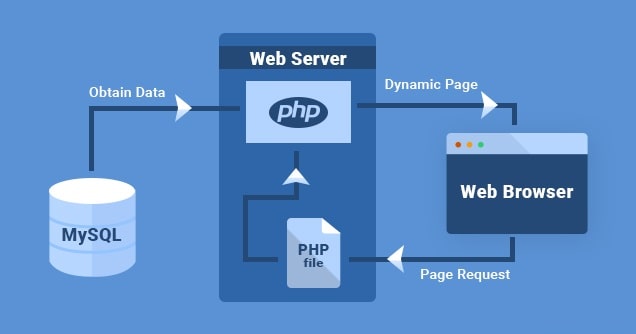
Credit: www.milesweb.com
Best Practices For Security
Use encryption to keep data safe. SSL helps protect information. It makes sure that data is secure when sent. Without SSL, data can be easy to steal. Always choose a web host that offers SSL. This adds an extra layer of safety. Ensure all connections are encrypted. This stops anyone from reading your data.
A firewall acts like a gate. It blocks bad traffic from entering. Set up a firewall to protect your database. Only allow trusted IPs to access it. This is called IP whitelisting. List only the IPs you trust. This keeps unwanted users away. Update your firewall settings often. It is important to keep your data safe.
Using Mysql With Popular Cms
Connecting MySQL to a web host simplifies data management for popular CMS platforms. Start by accessing your hosting account’s control panel. Then, locate the MySQL databases section to create a new database and user. Once set up, link the database to your CMS by entering the credentials in its configuration file.
WordPress Database Integration
WordPress connects with MySQL easily. It uses a wp-config.php file. This file stores database details. You need a database name. You also need a username and password. Enter these in the wp-config.php file. MySQL stores all WordPress data. Posts, pages, and comments are safe. Automatic updates keep everything current. Plugins can help manage databases. Backup is important. It keeps data safe.
Joomla And Drupal Connections
Joomla uses MySQL for its database needs. You set up a configuration.php file. This file holds database information. It’s simple. Drupal also connects to MySQL. It uses a settings.php file. Add database details there. Both CMS need a database host. It is usually localhost. Remember to check database permissions. This ensures smooth operation. Regular updates are needed. They fix bugs and improve security.
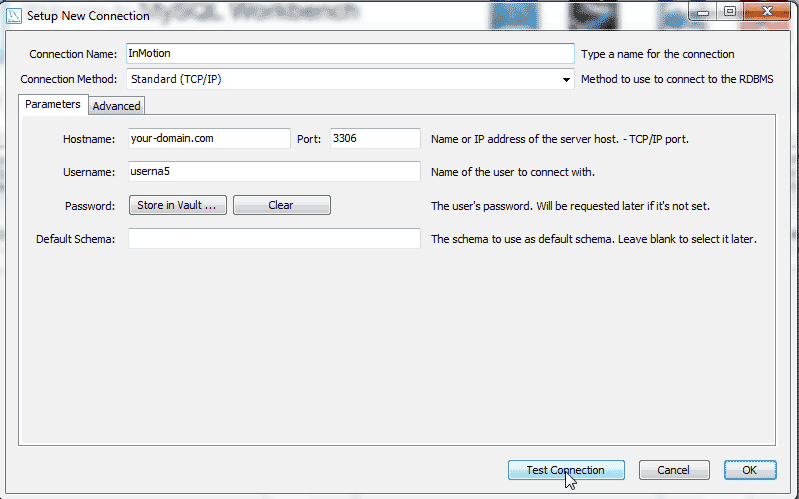
Credit: www.inmotionhosting.com

Credit: m.youtube.com
Frequently Asked Questions
How To Connect Mysql With Host?
Install MySQL client and server. Use command: `mysql -h [hostname] -u [username] -p [database]`. Enter password when prompted. Ensure firewall allows MySQL connections.
How Do I Connect A Mysql Database To My Website?
Connect MySQL to your website using PHP. Install MySQL, create a database, and use PHP’s `mysqli_connect()` function. Ensure database credentials match your configuration. Test the connection with a simple query to verify functionality. Secure your database by using prepared statements to prevent SQL injection attacks.
How To Connect A Database In Web Hosting?
Access your web hosting control panel. Find the database section, usually labeled “MySQL Databases. ” Create a new database and user. Assign user to the database with necessary permissions. Use connection details like database name, user, and password to connect via your web application’s configuration files.
How To Connect Mysql Database To Localhost?
Install MySQL and a web server like XAMPP. Open the XAMPP Control Panel and start Apache and MySQL. Access phpMyAdmin by navigating to http://localhost/phpmyadmin in your browser. Use the credentials to connect to your MySQL database. Ensure your database is created and accessible.
Conclusion
Connecting MySQL to your web host is simpler than it seems. Begin by gathering necessary credentials. Secure your database, then ensure proper settings. Test the connection to confirm success. Troubleshooting common issues helps keep your database running smoothly. Remember, practice makes perfect.
Regularly update your skills for better management. Stay informed about new MySQL features. These tips will help you handle your database effectively. Keep learning, and soon, you’ll manage connections confidently. With time, connecting databases becomes a routine task. Happy hosting and database management!


