
Are you ready to take your website to the next level? Connecting a database to your web hosting is an essential step that can significantly enhance your site’s performance and functionality.
Whether you’re running a blog, an e-commerce platform, or a dynamic web application, knowing how to seamlessly link your database is crucial. Imagine having your data organized, easily accessible, and efficiently managed—sounds perfect, right? In this guide, you’ll discover straightforward steps to connect your database in web hosting effortlessly.
Say goodbye to confusion and hello to a streamlined process that saves you time and hassle. We’ll break down complex concepts into simple, actionable instructions, ensuring you feel confident every step of the way. By the end of this article, you’ll have the knowledge to boost your site’s efficiency and provide a better experience for your users. So, let’s dive in and unlock the potential of your website together!
Choosing The Right Database
There are many types of databases. Relational databases like MySQL are very popular. They store data in tables. NoSQL databases like MongoDB are different. They store data in documents. Cloud databases offer flexibility. They are managed online.
Graph databases are unique. They handle relationships well. Each type has its own uses. Choose based on your needs.
Think about your data size. Big data needs special databases. Check the security features. Your data must stay safe. Consider costs. Some databases are free. Others cost money.
Look at ease of use. Simple databases save time. Check for support. Good support helps in emergencies. Always test before deciding.

Credit: m.youtube.com
Setting Up Your Web Hosting Environment
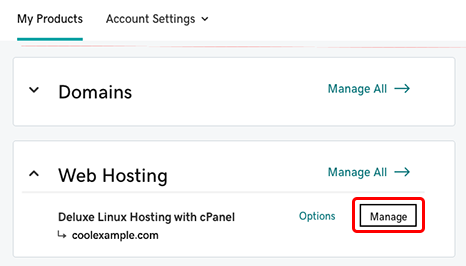
Start by logging into your web hosting account. Find the control panel or cPanel option. Click on it to open. The control panel is where you manage your website. You can find tools for databases here. Look for a section named Databases or MySQL. This is where you will create and manage your databases.
In the database section, click on Create Database. Enter a name for your new database. Keep it simple and easy to remember. After naming it, click on Create. Your database is now ready. Remember to create a username and password for it. This keeps your data safe. You can now connect this database to your website.
Database Connection Methods
PHPMyAdmin is a popular tool to manage databases online. It is easy to use. Open your web hosting control panel. Find PHPMyAdmin and click it. You will see a list of your databases. Select the database you want to use. PHPMyAdmin lets you run SQL queries. You can also create or delete tables. Remember to save your changes. Always log out when finished to keep your database safe.
The command line is another way to connect to a database. Open your terminal. Type the command to connect. It looks like this: `mysql -u username -p`. Enter your password when asked. You can now run commands like SELECT or UPDATE. To exit, type `exit` and press Enter. Always check your commands before running them. Mistakes can change your database.

Credit: www.youtube.com
Configuring Connection Parameters
Host and Port Settings are very important. The host is like a computer name. It tells where your database lives. The port is like a door number. It tells how to reach the database. Usually, the host is a web address. Sometimes, it’s an IP number. The port is often 3306 for MySQL. Check with your web host for details. Ensure settings are correct. Wrong settings can cause errors.
User Authentication keeps your data safe. You need a username and password. The username is like your name. The password is secret. Never share your password. Create a strong password. Use numbers and letters. Make it hard to guess. Always keep it safe.
Testing Database Connectivity
Database errors can be frustrating. First, check your login details. Ensure the username and password are correct. Next, verify the database server address. Is it typed correctly? Check network settings. Sometimes a firewall blocks connections. Disable it temporarily to test. Confirm your database is running. Use the control panel to restart it if needed. Lastly, examine error messages. They often provide clues. Follow the steps mentioned to resolve issues.
Data transfer ensures information moves smoothly. Start by checking permissions. Ensure users have access. Next, verify data paths. They should be correct and accessible. Test with small data first. This helps identify problems early. Use tools to monitor transfers. They show progress and errors. Confirm data integrity afterward. Compare source and destination records. This ensures no loss or corruption. Follow these steps for successful data transfer.
Security Best Practices
Protect your database by keeping access credentials safe. Use strong passwords with a mix of letters, numbers, and symbols. Never share passwords with others. Change them regularly to keep them secure. Store passwords in a secure password manager. This helps you remember and protect them easily. Avoid using simple words as passwords. Hackers can guess them quickly. Always log out after accessing the database. This prevents unauthorized access.
A firewall helps keep your database safe. It blocks unwanted access from the internet. Set up firewall rules to control who can access your database. Only allow access from trusted IP addresses. This ensures only known users can connect. Regularly check and update your firewall settings. This keeps your database protected from new threats. Avoid allowing access from unknown sources. This keeps your data safe and secure.
Optimizing Database Performance
Faster data search can be achieved with indexing. Think of it as a book’s index. It helps locate information quickly. Each index is like a shortcut. It reduces search time. For big databases, this is crucial. Query optimization ensures efficient data retrieval. Simple queries are better. Complex queries slow things down. Always check your database queries. Ensure they’re optimized. This saves time and resources.
Regular maintenance keeps databases healthy. Remove unused data. This frees up space. Check for errors often. Fix them immediately. Update database software regularly. New updates improve performance. Back up your data. Always. It prevents data loss. Regular checks ensure everything runs smoothly. A clean database is a fast database.
Monitoring And Maintenance
Establishing a connection between your database and web hosting ensures smooth data flow. Regular monitoring helps identify potential issues early. Maintenance keeps everything running efficiently, reducing downtime and improving performance.
Automated Backups
Setting up automated backups is crucial. It saves your data from loss. Backups should run daily. This keeps the database safe. Choose a reliable hosting provider. Ensure they offer backup services. Test backups regularly. Verify data integrity. Use cloud storage for safety. Keep multiple copies. Store them in different locations. This prevents data corruption.
Performance Monitoring Tools
Performance monitoring tools help track database health. They show server load. They display query speed. Choose tools that alert you. Alerts notify if issues arise. Use tools with dashboards. Dashboards provide easy data visualization. They help identify slow queries. Optimize database based on this data. Faster databases improve user experience. Select monitoring tools wisely. Ensure they fit your needs.
Credit: www.godaddy.com
Frequently Asked Questions
How To Connect Database To Web Server?
To connect a database to a web server, install database software and configure settings. Use appropriate drivers or connectors. Establish connection through scripts using languages like PHP or Python. Ensure security protocols and test for successful connectivity. Regularly update and maintain the system for optimal performance.
How To Connect To Mysql Database From Host?
Connect to MySQL by installing MySQL client software. Use the command: `mysql -h host -u username -p`. Enter your password when prompted. Ensure the host, username, and password are correct. Check firewall settings if connection issues persist.
How Do You Create A Database And Connect It To A Website?
Create a database using MySQL or PostgreSQL. Connect it to a website using PHP or Python scripts. Ensure proper configuration in the server settings. Use secure credentials and test the connection thoroughly for functionality. Optimize the database for fast data retrieval to enhance website performance.
How To Connect Database To Domain?
Connect your database to a domain by configuring DNS settings. Update the domain’s A record to point to your server IP address. Ensure your server is running database software compatible with your domain. Verify connection by accessing the database through the domain URL using appropriate credentials.
Conclusion
Connecting your database in web hosting can be simple. Follow clear steps. Secure your data. Ensure smooth performance. Practice regular backups. Keep your software updated. Troubleshoot issues promptly. Understanding these basics helps you manage your site effectively. Remember, a well-connected database boosts your site’s reliability.
It supports user interactions and data management. Always prioritize security and efficiency. This approach will enhance your site’s functionality. Now, you’re equipped to handle database connections. With practice, you’ll gain confidence. Start today and see positive results. Stay informed and proactive.
Your web hosting journey begins here.


