
Are you ready to give your WordPress site a fresh look that captures your unique style? Connecting a theme to WordPress is the first step to making your website truly your own.
Whether you’re launching a blog, setting up an online store, or creating a portfolio, the right theme can transform your site and make it stand out. But here’s the catch—figuring out how to connect a theme might seem daunting at first.
Don’t worry, you’re not alone. Many people find themselves stuck at this stage. Imagine how satisfying it will be to finally see your vision come to life on your screen! This guide will walk you through each step, so you can confidently and easily connect a theme to your WordPress site. Let’s dive in and unlock the potential of your website together!

Credit: www.godaddy.com
Choosing The Right Theme
Free themes are easy to find. They cost nothing. But they might have fewer features. Premium themes cost money. They often offer more features. More support too. Choose a theme that fits your needs. Think about your budget. Both types have their pros and cons.
Responsive design means a theme looks good on all devices. Phones, tablets, and computers. A responsive theme makes your site easy to use. It adjusts to different screen sizes. This keeps visitors happy. They can read your site easily. Google likes responsive sites too. It helps your site rank better.
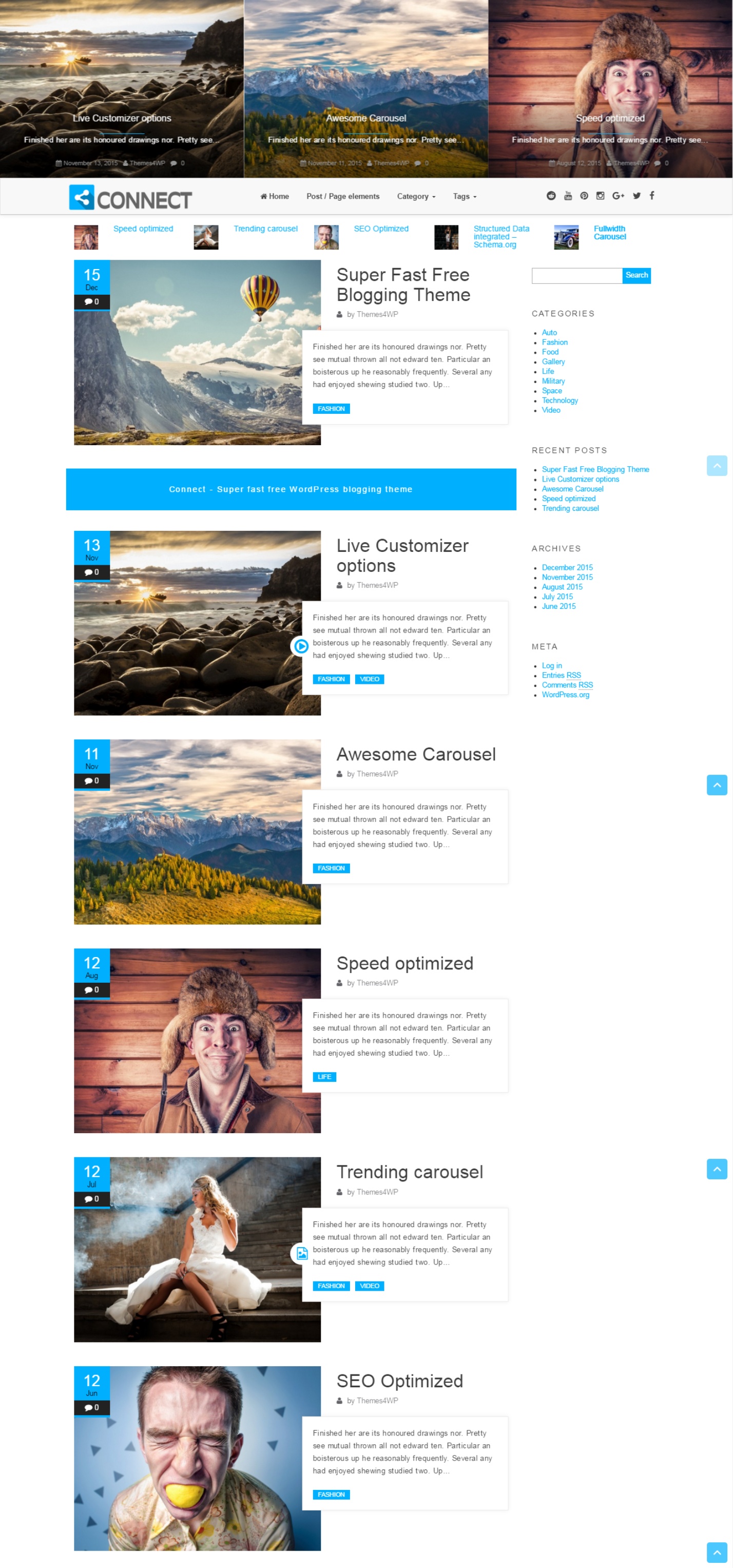
Themes with customization options let you make changes. Change colors. Change fonts. Add your own logo. These changes make your site unique. Some themes offer more options. Others offer less. Pick a theme that lets you customize. This way, your site can match your style.
Credit: themes4wp.com
Preparing For Installation
Ensure your site is safe. Create a backup before making changes. Use plugins or manual methods for backup. Save your files on a different device or cloud. Backup prevents data loss.
Check if the theme works with your WordPress version. Look for theme requirements. Check if it works on mobile devices. Visit forums for user feedback. Ensure compatibility to avoid issues.
Prepare files needed for installation. Download the theme from a trusted source. Have the theme’s zip file ready. Read the theme’s documentation. Collect login details for your WordPress site. Ensure everything is ready for a smooth installation.
Installing A Theme Via WordPress Dashboard
Find the Theme Directory on your WordPress Dashboard. Click on Appearance, then go to Themes. You will see a button named Add New. Click it. Browse through the available themes. You can use the search bar to find a specific theme. Once you find a theme you like, click Install. Then, activate it to use.
Download the theme as a zip file on your computer. Go to your WordPress Dashboard. Click on Appearance, then Themes. Press the Add New button. Now, click on Upload Theme. Use the Choose File button to find your zip file. After selecting, click Install Now. Finally, activate the theme to see it live.
Installing A Theme Via Ftp
You need an FTP client to connect to your server. Choose a simple and free one. FileZilla is a good option. Install it on your computer. You will need your FTP credentials. Find these in your hosting account. Look for FTP settings. Write down the hostname, username, and password. Open your FTP client. Enter your credentials. Click Connect.
First, download the theme file on your computer. It is usually in a .zip format. Extract the file. Look for a folder with the theme name. In your FTP client, find the wp-content/themes directory. Drag and drop the theme folder here. Wait for the upload to finish. Check if all files are transferred. Now, go to your WordPress dashboard. Navigate to Appearance and then Themes. You should see your new theme. Click Activate to use it.
Activating Your Theme
Easily connect a theme to WordPress by navigating to the Appearance section in your dashboard. Select “Themes” and click “Add New” to browse and choose from available options. Activate your chosen theme to give your website a fresh look.
Locating The Installed Theme
Find your theme in the WordPress dashboard. Click on Appearance. Then, select Themes. Your installed theme is there. Choose the theme you want. Click Activate to use it.
Customizing Basic Settings
Access the Customizer in your dashboard. Go to Appearance and select Customize. Here, you can tweak your site. Change colors, fonts, and layouts. Adjust the menu and widgets. Save changes to see them live.
Credit: help.market.envato.com
Customizing Theme Appearance
The WordPress Customizer helps to change how a theme looks. It is easy to use. Find it in the dashboard. Click on “Appearance” then “Customize”. See many options to change things. Colors, fonts, and more. These changes show in real time. Save them to see on your site. It is a good tool for beginners. Play around to see what looks best.
Changing theme code is for advanced users. Access the code through the “Theme Editor”. Find it in the dashboard. Click on “Appearance” then “Theme Editor”. Be careful when editing code. It can break your site. Always make a backup first. Seek help if unsure. Many online forums can assist. Code changes allow for deeper customization.
Ensuring Theme Functionality
Testing theme features is important. First, check all buttons and links. Do they work? Next, look at images. Do they show correctly? Test the theme on mobile. Is it easy to read? Try different browsers. Does the theme look the same? Check loading speed. Is it fast? Slow themes are bad. Look at the layout. Is it neat? Test the widgets. Are they useful? Check any plugins. Do they work well?
Problems may occur. First, update the theme. Old themes can break. Next, check the plugins. Some may cause issues. Disable them one by one. See if the theme works. Check for coding errors. Look at the theme files. Fix any mistakes you find. Contact support if needed. They can help. Use the theme guide. Follow instructions closely.
Updating Your Theme
The easiest way is through automatic updates. Themes often update themselves. This keeps your site safe and fresh. You get new features with each update. Make sure your theme supports automatic updates. Many themes do this without asking.
Sometimes, you need to update manually. First, download the latest theme version. Next, log in to your WordPress dashboard. Go to the ‘Appearance’ tab. Click ‘Themes’. Find the theme you want to update. Upload the new version. Activate it. Always back up your site before manual updates. This prevents data loss. Follow these steps carefully.
Ensuring Theme Security
Themes need regular updates. Updates fix bugs and improve security. A theme without updates can be risky. Hackers look for old themes. Updated themes protect your site. Always check for theme updates. Update as soon as possible. This keeps your site safe.
Child themes are very helpful. They allow custom changes. Original themes stay safe and untouched. Child themes take parent theme features. They inherit all design and functions. Changes in child themes do not affect the parent. This keeps the main theme secure. Use child themes for custom designs. They protect your hard work from updates.
Frequently Asked Questions
How Do I Install A WordPress Theme?
To install a WordPress theme, navigate to your dashboard. Click on “Appearance” and then “Themes. ” Select “Add New” and browse available themes. You can upload a theme if you have a ZIP file. Once chosen, click “Install” and “Activate” to apply the theme.
Can I Connect Themes Without Coding?
Yes, you can connect themes without coding. Use the WordPress dashboard to install and activate themes easily. Many themes offer customization options through built-in settings. This allows you to adjust layouts, colors, and fonts without any coding knowledge.
What Are Popular WordPress Theme Sources?
Popular sources for WordPress themes include the WordPress Theme Directory, ThemeForest, and Elegant Themes. These platforms offer a wide range of themes, from free to premium options. They cater to various needs and industries, ensuring you find the perfect theme for your website.
Why Is Theme Compatibility Important?
Theme compatibility ensures your website functions properly across devices and browsers. A compatible theme prevents layout issues and broken features. Always check compatibility with the latest WordPress version and plugins. This ensures smooth performance and enhances user experience on your site.
Conclusion
Connecting a theme to WordPress enhances your site’s look instantly. It allows customization to fit your brand or style. Themes offer various features to boost user experience. Following the right steps makes setup easy and efficient. Beginners should not feel overwhelmed.
Practice makes perfect. Explore different themes to find one that suits your needs best. Remember, a well-chosen theme improves your site’s appeal. Enjoy the process and learn as you go. Embrace the creativity themes bring to your WordPress site. Start today and watch your site transform beautifully.


