
Are you ready to transform your website into a unique masterpiece? Creating a custom WordPress theme is your ticket to standing out in the digital crowd.
Whether you’re a seasoned coder or a curious beginner, building a theme from scratch can seem like a daunting task. But don’t worry—I’m here to guide you through it, step-by-step. Imagine having full control over every pixel and function of your site.
Your vision, your rules. No more settling for off-the-shelf solutions that don’t quite fit your brand. By the end of this article, you’ll discover how to bring your vision to life, armed with the knowledge and confidence to code your very own WordPress theme. Stay with me to unlock the secrets of creating a website that truly reflects who you are. Let’s dive in and get coding!

Credit: www.dreamhost.com
Understanding WordPress Themes
A WordPress Theme is like a dress for your website. It changes how your site looks. Themes control colors, fonts, and layout. You can pick a theme from the WordPress library. Some themes are free, while others cost money. Themes make sites look pretty and organized. They are important for your site’s design.
Custom themes offer special benefits. They let you design a unique site. No other site will look like yours. Custom themes are faster. They are built for your needs. This means better performance. They also improve security. You control what goes into the theme. This makes your site safer. Custom themes help your brand stand out. Your site will match your brand colors and style.

Credit: belovdigital.agency
Setting Up Your Development Environment
Create a custom WordPress theme by setting up your development environment. Begin by installing necessary tools like a text editor and local server. Follow with configuring WordPress and theme files for a seamless development process.
Essential Tools And Software
Begin with a text editor like Visual Studio Code. It’s free and easy to use. A code editor helps you write and edit files. Next, install Node.js. It lets you run JavaScript on your computer. For version control, use Git. It tracks changes in your code. You’ll need a local server too. Try WAMP or XAMPP. They help run WordPress on your computer.
Installing WordPress Locally
First, download WordPress from the official site. Save it to your computer. Next, unzip the file. Move it to your local server folder. Open your browser and type localhost in the address bar. Follow the steps to set up WordPress. You’ll create a database. Use phpMyAdmin for this. Choose a name for your database. Finally, complete the installation.
Creating The Theme Structure
Crafting the theme structure forms the backbone of coding a custom WordPress theme. Start by organizing files like header. php and footer. php. This setup ensures easy navigation and a cohesive design.
Theme Directory And Files
Start with a new folder in the wp-content/themes directory. Name the folder as your theme. Inside, create the essential files: style.css, index.php, and functions.php. These files form the backbone of your theme. The style.css file contains theme details like name and author. Index.php is the main template file. Functions.php holds custom functions and theme support features. Keep the file names simple. Use lowercase letters and hyphens.
Understanding Template Hierarchy
The template hierarchy defines how WordPress selects which template file to use. WordPress looks for specific templates based on the type of page. For example, it uses single.php for single posts, and page.php for pages. If these files don’t exist, it defaults to index.php. Understanding this hierarchy helps in building custom page layouts. This allows unique designs for posts, pages, and archives.
Developing The Core Files
Start with the style.css file. It defines your theme’s look. Ensure to add a header comment. This tells WordPress about your theme. Use CSS to style your theme. Include fonts, colors, and layout. Then, create the functions.php file. It adds features to your theme. Use it to add scripts and styles. Also, enable theme support options. It’s a powerful file. Keep it simple and clean.
The index.php file is important. It’s a template for displaying posts. You can customize it. Use HTML and PHP to create your layout. Other template files enhance your theme. Include header.php and footer.php. They hold the top and bottom sections. Use single.php for single posts. Each file serves a purpose. Keep files organized. It helps in theme development.
Incorporating Html And Css
Start with a clear plan. Decide how you want your site to look. Draw a simple sketch. Use HTML to create the basic structure. Headers, paragraphs, and images are key. Make sure the layout is easy to navigate. Users should find information quickly. Divide content into logical sections. This helps users understand the site. Use HTML tags correctly. They give meaning to your content. Semantic tags are important. They improve accessibility and SEO.
CSS is used for styling. It makes your site look pretty. Choose colors that match your theme. Fonts should be easy to read. Size and spacing matter. They affect readability. Use CSS classes to style elements. This keeps your code clean. Test styles on different devices. Make sure the site looks good everywhere. Responsive design is key. It adapts to screens of all sizes. Use media queries for this. They help with flexible layouts.
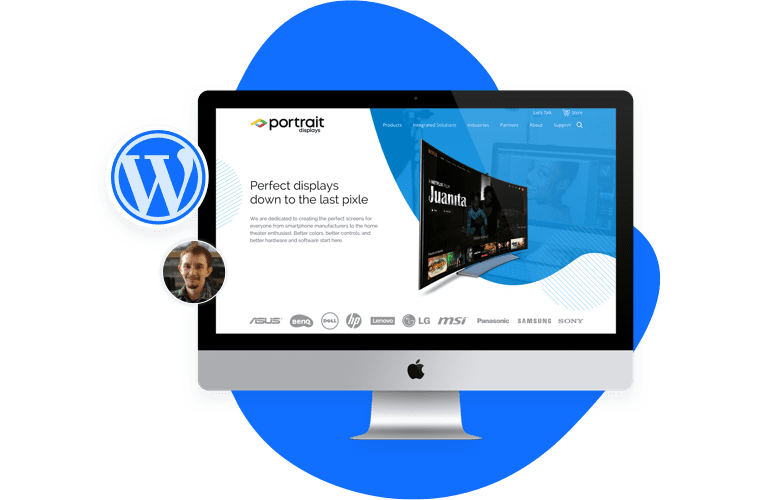
Credit: www.sayenkodesign.com
Adding Dynamic Content With Php
Crafting a custom WordPress theme lets you add dynamic content using PHP. It enables customization of layout and features, tailoring the site to fit specific needs. PHP functions enhance interactivity, making the theme responsive and engaging for visitors.
Using WordPress Loop
The WordPress Loop is a tool to display posts. It checks if there are posts. If yes, it shows them. Each post shows a title and content. The Loop is powerful. It can show many posts or just one. You can add custom code inside the Loop. This changes how posts look. Use the Loop to make your theme unique. It’s important for dynamic content. Learn the Loop well. It helps your theme shine.
Customizing With Conditional Tags
Conditional Tags change how content displays. They check conditions first. If a post is sticky, it shows differently. If a page is home, it looks special. Tags like is_home() and is_single() are useful. They help tailor your site. Use them wisely. They control what users see. Conditional Tags make your theme smart. They offer a personalized experience. Use them to enhance your site.
Integrating Javascript For Interactivity
JavaScript adds dynamic elements to custom WordPress themes. Enhance user experience by creating interactive features. Engage visitors with sliders, pop-ups, or dynamic content updates.
Including Javascript Files
First, make a new JavaScript file. Save it in your theme folder. Then, open the functions.php file. Use the wp_enqueue_script function. This adds your JavaScript file to WordPress. Remember to use the correct path. This helps WordPress find your file easily.
Using Jquery In WordPress
WordPress includes jQuery by default. But, it is in safe mode. To use it, write
jQuery(document).ready(function($) {. This changes the dollar sign to work with WordPress.
Write your jQuery code inside this function. Make your site interactive and fun!
Customizing Theme Features
Crafting a custom WordPress theme involves coding unique features tailored to your needs. Begin by modifying theme files using PHP and CSS. Enhance your theme with personalized options and functionalities to create a distinct user experience.
Adding Widgets And Menus
Widgets make websites fun and useful. Add them to your theme. Use the WordPress Dashboard. Find the Appearance tab. Click on Widgets. Drag and drop widgets into sidebars. Menus help users find pages. Go to Appearance. Choose Menus. Add pages to menus. Save changes. Now, your site has easy navigation.
Creating Custom Post Types
Custom post types are cool. They make your site unique. Use them for special content. Open the functions.php file. Write code to register your post type. Give it a name. Set labels like ‘name’ and ‘singular name’. Choose features like ‘title’ and ‘editor’. Save your work. Custom posts are ready. They show in your dashboard.
Testing And Debugging
Building a custom WordPress theme involves thorough testing and debugging. Check every feature for errors. Ensure all functions work smoothly. Debugging helps find and fix issues. This process improves your theme’s performance and reliability. Regular testing keeps your theme user-friendly.
Cross-browser Testing
Web browsers display websites in different ways. A theme might look good in one but not another. Test your theme in Chrome, Firefox, Safari, and Edge. This ensures it works everywhere. Make sure buttons, images, and text appear correctly. Use tools like BrowserStack for testing. It shows how your theme looks on different browsers. This helps find problems early.
Debugging Common Issues
Debugging means fixing problems in your theme. Check for broken links and missing images. Look for spelling mistakes in the code. Sometimes, styles don’t work right. Check CSS for errors. JavaScript can also break the page. Use the browser’s developer tools. They help find and fix bugs. This makes your theme work better.
Deploying Your Theme
Deploying your custom WordPress theme involves uploading files to the server. Test for errors to ensure smooth functionality. Adjust settings in the WordPress dashboard for optimal display.
Preparing For Launch
Ensure your theme is ready for launch. Check all links. Test every page. Make sure images load quickly. Review your theme’s code. Correct any errors. Check for broken links. Optimize for speed. Use a tool to test. Keep it simple. Make sure your theme is responsive. It should look good on phones. It should look good on tablets. People use different devices. Your theme must adapt.
Uploading To A Live Server
Use an FTP client. It’s a tool to transfer files. Connect to your server. You need login details. Find the “wp-content/themes” folder. Upload your theme files there. Wait for upload to finish. Check your site. Visit it in a browser. Make sure everything works. Activate your theme. Do this in the WordPress dashboard. Click “Appearance,” then “Themes.” Your theme should be listed. Click “Activate.” Test your site again. Make sure it looks correct. Fix any issues you find.
Frequently Asked Questions
What Is A Custom WordPress Theme?
A custom WordPress theme is a unique design created specifically for a website. It allows for complete control over the site’s appearance and functionality. Unlike pre-made themes, custom themes can be tailored to meet specific branding and user experience needs, enhancing the website’s overall performance and aesthetics.
How Do I Start Coding A Theme?
Begin by setting up a local development environment using tools like XAMPP or MAMP. Next, create a new theme folder in the WordPress themes directory. Include essential files like `style. css`, `index. php`, and `functions. php`. Use HTML, CSS, and PHP to build the theme structure and add custom features.
Which Files Are Essential For A Theme?
Essential files for a WordPress theme include `style. css`, `index. php`, and `functions. php`. `style. css` defines the theme’s styling and metadata. `index. php` is the main template file, and `functions. php` is used for custom functions and features. These files form the backbone of any WordPress theme.
Can I Use Frameworks In Theme Development?
Yes, using frameworks like Bootstrap or Foundation can simplify theme development. They provide pre-built CSS, JavaScript components, and grid systems, enhancing responsiveness and saving time. Integrating these frameworks can help create modern, responsive designs that work well across various devices.
Conclusion
Creating a custom WordPress theme can seem daunting. Start small. Break tasks into manageable steps. Focus on HTML and CSS basics first. Then, gradually learn PHP functions. Explore WordPress documentation and forums. They offer valuable help. Testing is crucial. Ensure your theme works across devices.
Keep design simple and functional. Listen to user feedback. It guides improvements. Coding takes patience and practice. Celebrate small wins. Each one builds your skills. Share your journey with others. You’ll learn even more. Enjoy the process. Your unique theme will reflect your creativity.


