
Have you ever wondered about the extent of your admin access in WordPress? It’s crucial to know what permissions you have, especially if you’re managing a website or collaborating with others.
Understanding your admin access can help you keep your site secure and ensure you have all the necessary tools at your disposal. Imagine the peace of mind that comes from knowing exactly what you can do within your WordPress dashboard.
Whether you’re troubleshooting issues, adding new features, or simply ensuring your site runs smoothly, having a clear grasp of your admin privileges can make all the difference. We’ll walk you through simple steps to check your admin access in WordPress. You’ll learn how to verify your permissions without any tech jargon or complicated processes. Dive in to unlock your site’s full potential and ensure you’re equipped to manage it effectively!

Credit: www.greengeeks.com
Accessing WordPress Dashboard
Enter your username and password to login. Look for the login page URL. It usually ends with /wp-admin. Type in your details. Click the login button. Wait for the page to load. If you see errors, check your details again. Make sure your password is correct.
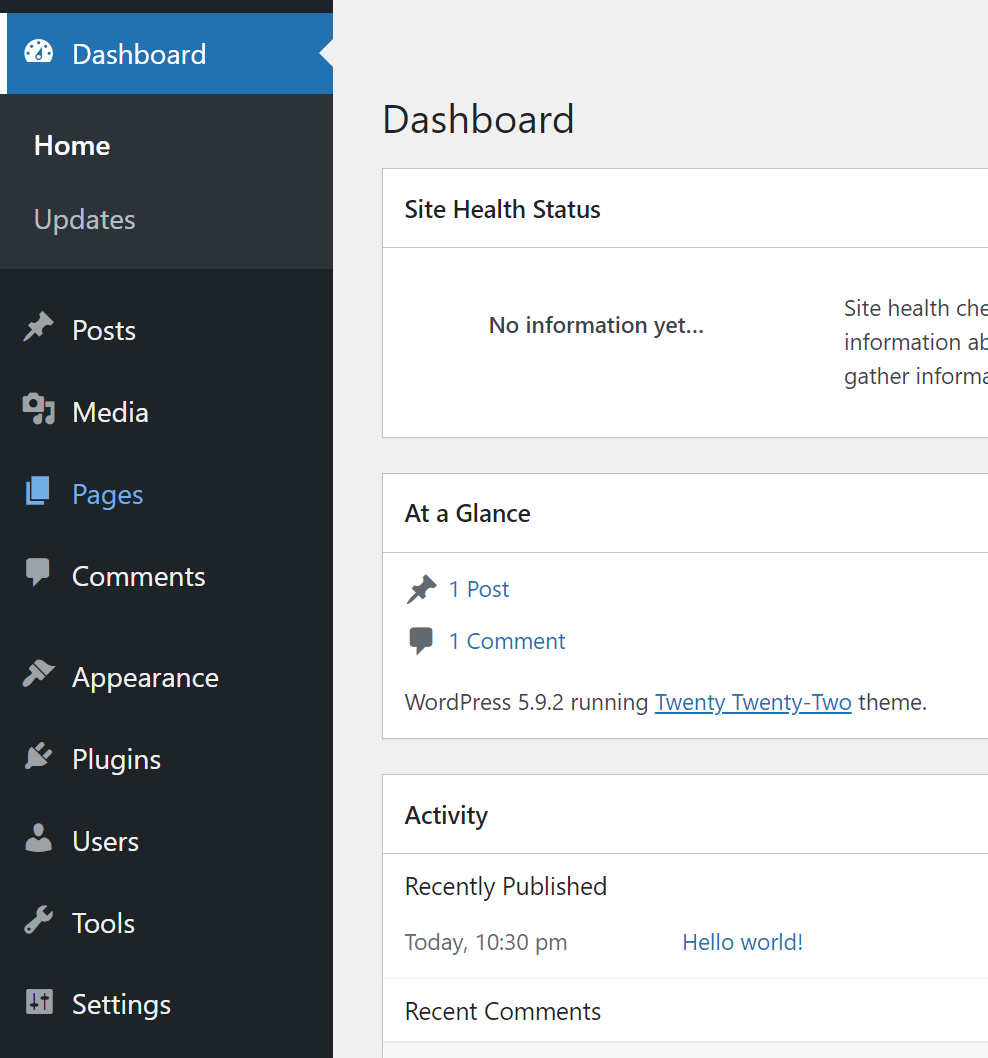
The dashboard is your control center. See many menu options on the left side. Click on Posts to see your posts. Choose Pages to view pages. For settings, click Settings. Want to add new items? Use the Add New button. Each menu has different features. Explore each one to understand better. Always check your user role. It shows what you can do.
Credit: jetpack.com
Finding User Role Information
Go to the WordPress dashboard. Click on Users in the sidebar. You will see a list of users. Find your username in the list. Click on your name to open your profile. Look for the Role section. This shows your current role. It tells if you have admin access.
WordPress has different user roles. Each role has different powers. The Administrator role has the most power. They can change settings and add new users. Editors can edit and publish posts. Authors can write and publish their posts. Contributors can write but not publish. Subscribers can only read content.
Checking Admin Capabilities
Open your WordPress dashboard. Find the menu on the left side. This menu has many options. It shows your admin capabilities. See if you have settings and tools options. These options are important. They help you manage your site. If you see them, you have some admin access. Not seeing these options means less access.
Click on settings to explore. You can change site details here. Tools allow you to manage the site. You might find import and export tools. These help in moving data. Look for user management tools. They show user roles and permissions. If you can use these tools, you have more admin powers. Always be careful. Changes affect the site.
Using Plugins For Role Insights
Explore admin access in WordPress using plugins designed for role insights. These tools help identify your admin privileges clearly and efficiently. Simplifying the process ensures you understand your permissions with ease.
Installing User Role Plugins
You can use plugins to see your admin access. First, search for User Role plugins in your WordPress dashboard. Many plugins are free. Click “Install” and then “Activate”.
These plugins help you see what you can do. They show your admin powers. This makes it easy to know your role.
Analyzing Role Capabilities
Once installed, open the plugin settings. Here, you will find a list of your capabilities. Check what tasks you can perform.
Some plugins display this information in a table. Look for tasks like “edit posts” or “manage users”. This shows what you can and cannot do.
Modifying User Roles
Open the WordPress dashboard to change user roles. Click on “Users” in the menu. Here, you see all users listed. Find the user you want to modify. Click “Edit” next to the user’s name. Look for the “Role” dropdown. Choose a new role from the list. Save your changes by clicking “Update User”. You have changed the user role.
Plugins can help change roles easily. Search for role management plugins in WordPress. Install and activate a plugin you like. Go to the plugin settings. You can see options to change roles. Select the user you want to update. Pick a new role for them. Save your settings. This is an easy way to manage user roles.
Troubleshooting Access Issues
Sometimes, you might not have full access in WordPress. This can be due to permission errors. Check your role in WordPress settings. You might be an editor or subscriber, not an admin. If you can’t see certain options, this might be the case. You can ask another admin to check your role. They can change it if needed. Always ensure you are logged in with the right account. Sometimes, it’s a simple mistake.
Can’t fix the issue? Contact WordPress support for help. They can guide you on what to do next. Provide them with details about your problem. The more they know, the quicker they can help. Use their chat or email options. Support teams are friendly and ready to assist. Don’t hesitate to reach out.

Credit: support.hcommons.org
Frequently Asked Questions
How Can I Find My Admin Access Level In WordPress?
To check your admin access level, log into your WordPress dashboard. Navigate to “Users” and then “All Users. ” Here, you can see your role and permissions. If you’re an “Administrator,” you have full access. Other roles like “Editor” or “Author” have limited permissions.
What Roles Have Admin Privileges In WordPress?
In WordPress, the “Administrator” role has full admin privileges. This includes managing site settings, themes, plugins, and users. Other roles like “Editor” and “Author” have restricted access. They can manage content but not site settings. Always review your user role for specific permissions.
Can I Change My WordPress Admin Access Level?
Yes, you can change your admin access level if you have sufficient permissions. Log into your WordPress dashboard and navigate to “Users” then “All Users. ” Select your profile and choose a different role from the dropdown menu. Remember, only an “Administrator” can change roles.
Why Can’t I Access Certain WordPress Settings?
If you can’t access certain WordPress settings, your user role might be limited. Only “Administrators” have full access to settings and plugins. Check your role by navigating to “Users” and then “All Users. ” Consider contacting an administrator if you need additional permissions.
Conclusion
Understanding your admin access in WordPress is crucial. It helps maintain site security. Always review your roles and capabilities regularly. This ensures you have the necessary permissions. If unsure, consult WordPress support or forums. They offer valuable insights. Staying informed about your access rights is essential.
It aids in efficient website management. Remember, knowledge of your access levels empowers better control. Keep learning and exploring WordPress features. It’s a continuous journey. With this guide, managing your WordPress access becomes simpler. Stay proactive and safeguard your site effectively.
Your efforts ensure a smoother WordPress experience.


