
Are you looking to customize your WordPress site without risking all your hard work? Switching to a child theme is your safest bet.
Imagine being able to tweak your website’s design and functionality without the fear of losing your changes during updates. Sounds ideal, right? In this guide, you’ll discover exactly how to change your WordPress theme to a child theme. By the end, you’ll feel confident in making these changes, knowing your original theme stays untouched, and your website remains uniquely yours.
Ready to unlock the full potential of your WordPress site? Let’s dive in!
Why Use A Child Theme
Switching to a child theme in WordPress protects your website’s customizations. It allows for easy updates without losing changes. This method ensures a stable and secure site while keeping your design intact.
Benefits Of Child Themes
Child themes are safe for your website. They help you keep changes intact. Parent themes get updates. These updates can erase your custom changes. With a child theme, your changes stay safe. You can make custom styles and designs. All without changing the main theme. This makes your site look unique. You also get to learn more. Creating a child theme helps you practice coding. It’s like a puzzle. Each piece fits into the bigger picture.
Avoiding Theme Updates Issues
Theme updates are important. They bring new features and security fixes. But updates can change your site. They might remove your custom settings. With a child theme, you keep your settings safe. The main theme can update freely. Your changes remain untouched. This ensures your site stays the same. Updates won’t break your work. It’s like having a shield. Your custom work is protected.
Credit: www.hostpapa.com
Preparing For The Change
Backup your site before making changes. Use a plugin like UpdraftPlus. This saves your data. You can also manually backup. Download files and database. Keep them safe. Backups protect from mistakes. Errors can happen. Always have a backup. It is your safety net. Never skip this step. It is very important.
Choose a parent theme carefully. It should be stable. Check theme reviews. Look for good ratings. Popular themes often have updates. Updates keep themes secure. Check features of the theme. Make sure they fit your needs. Look at the design. It should match your style. Choose wisely. The parent theme is the base for your child theme.
Creating A Child Theme
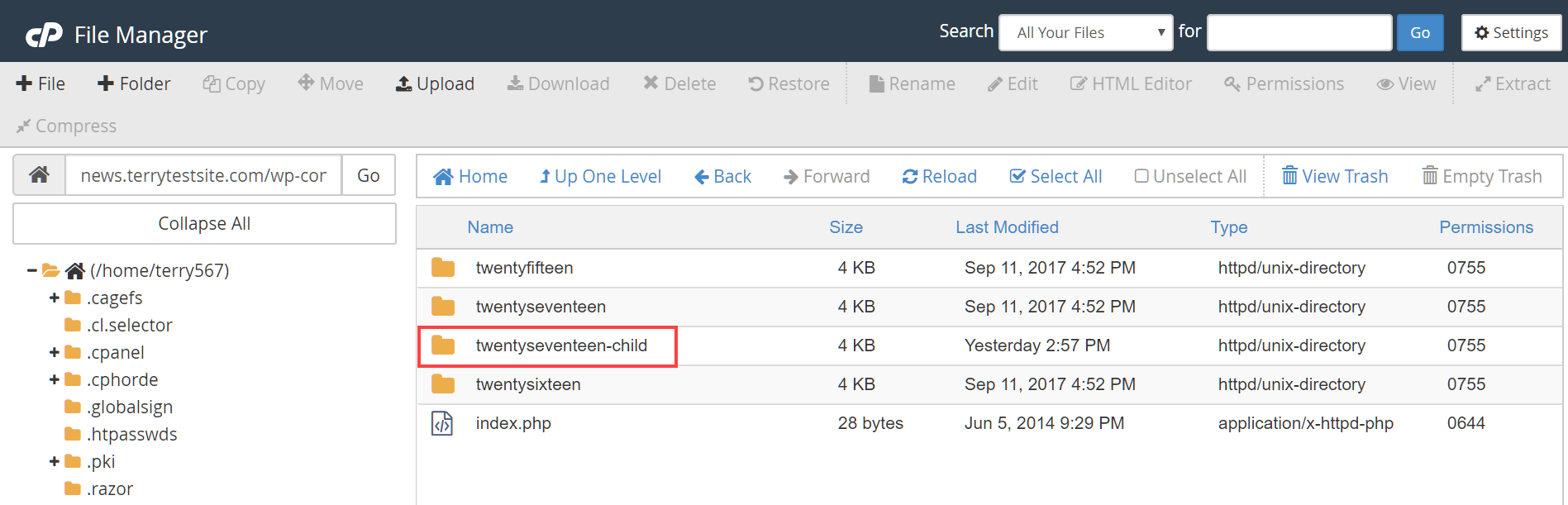
First, go to your WordPress themes folder. It is in the wp-content directory. Create a new folder there. Name it something like mytheme-child. This helps in keeping files organized. Ensure the name is unique. Avoid spaces or special characters.
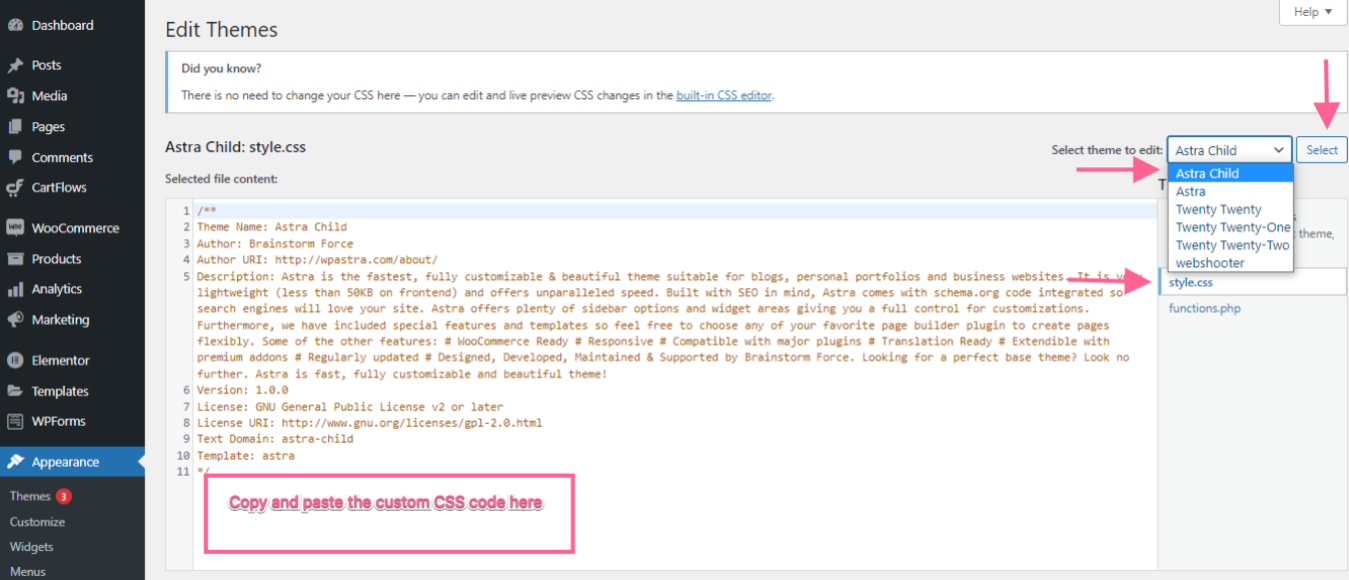
Open a text editor. Create a new file. Name it style.css. Inside, add basic theme details. Use this format:
        /
        Theme Name: MyTheme Child
        Template: mytheme
        /
Save the file. Place it in the child theme folder. This file tells WordPress about your child theme.
Create another file. Name it functions.php. Add this code:
php
        function mytheme_enqueue_styles() {
            wp_enqueue_style( 'parent-style', get_template_directory_uri() . '/style.css' );
        }
        add_action( 'wp_enqueue_scripts', 'mytheme_enqueue_styles' );
        ?
This code ensures your child theme uses the parent theme’s styles. Save the file. Put it in the child theme folder.
Credit: wpastra.com
Activating The Child Theme
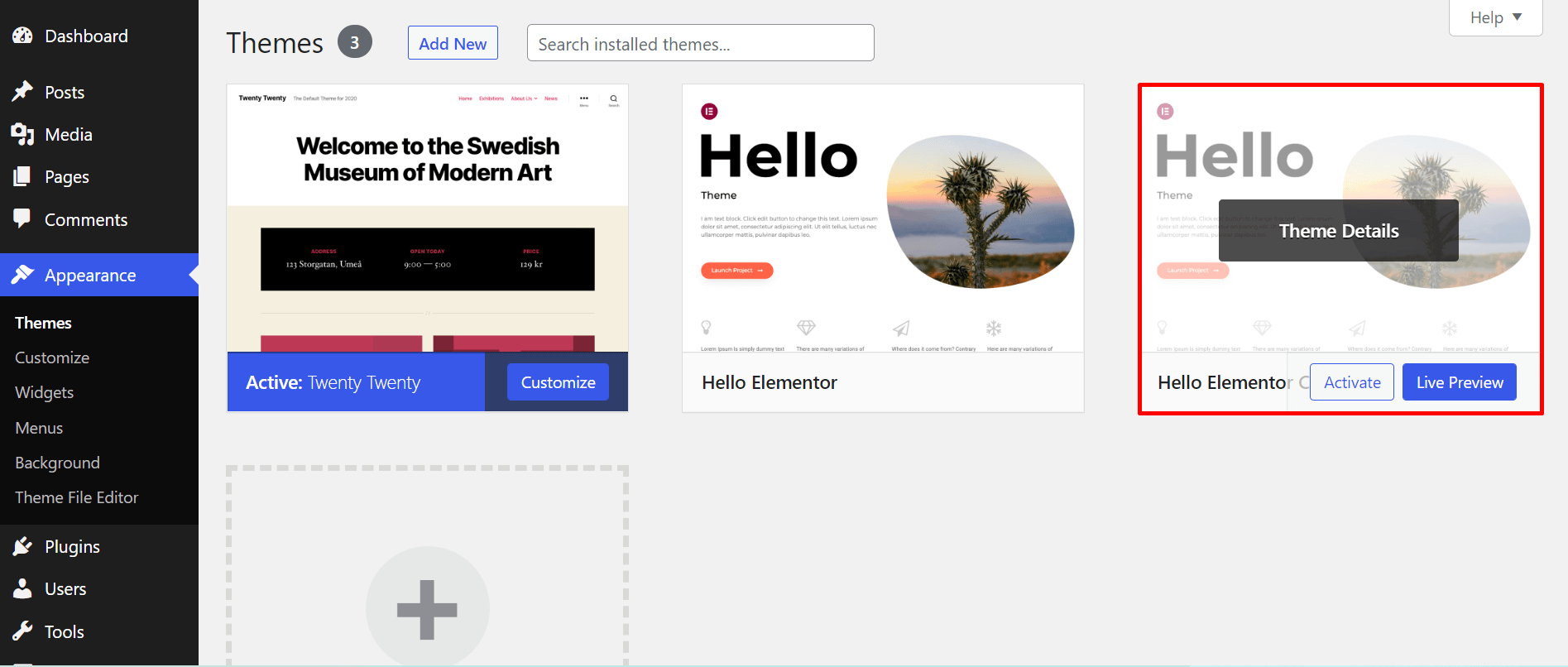
First, download your child theme files. They should be in a zip. Go to your WordPress dashboard. Click on Appearance, then Themes. Hit the “Add New” button. Choose the “Upload Theme” option. Select the child theme zip file. Click “Install Now”. After installation, press “Activate”. The child theme is now ready.
Go to your WordPress dashboard. Click on Appearance, then Themes. Find the child theme you installed. Click the “Activate” button. Your site now uses the child theme. All your settings are safe. You can now customize the child theme. Enjoy your new look.
Customizing The Child Theme
Switching to a child theme enhances customization without altering the main theme. It offers flexibility for unique design tweaks. Safeguard original settings while experimenting with styles and functions effortlessly.
Adding Custom Css
Custom CSS changes the look of your WordPress site. Open the child theme folder. Find the style.css file. Add your CSS code there. Use simple commands to change colors. Adjust fonts and sizes. Save your changes. Refresh your site to see the new design. Always backup before editing. This prevents loss of original settings. CSS is powerful. Use it to make your site unique.
Modifying Theme Functions
Theme functions add features to your site. Open the functions.php file in your child theme. Write PHP code to add or modify functions. Use simple functions to change menus. Add widgets or modify headers. Always test your code. Errors can break your site. Backup files before changes. Use WordPress guides for help. Functions enhance your site. They add custom features easily.
Testing The New Setup
First, see if the website looks right. Click on different pages. Do images and text appear correctly? Check for missing pictures or text. Try resizing the browser. Does it still look good? These checks are important. They help you find any display issues early. Fix any errors before going live. This makes sure visitors have a good experience.
Next, check if all plugins work well. Go to your WordPress dashboard. Click on each plugin. See if they still work with the new theme. Some plugins might not be compatible. Test forms, sliders, and galleries. Make sure they function properly. If a plugin causes problems, find an alternative. Keeping plugins updated is vital. It ensures the site remains secure and functional.
Troubleshooting Common Issues
Sometimes, your child theme may not show all styles. This happens when the parent theme’s stylesheet is not loaded. Always enqueue the parent theme’s styles in the functions.php file. Use this code:
wp_enqueue_style('parent-style', get_template_directory_uri() . '/style.css');.
Check if the file paths are correct. Clear your browser cache to see changes.
Theme conflicts can cause errors. They happen when two themes use the same resources. Deactivate plugins that are not needed. Switch to the default theme to see if the problem goes away. If it does, the child theme has a conflict. You might need to edit the child theme files. Make sure all functions and styles are unique. This avoids conflicts with the parent theme.
Maintaining Your Child Theme
Switching from a WordPress theme to a child theme ensures safe customization. A child theme inherits features from the main theme while allowing changes. This method protects your website’s design during updates, providing a worry-free customization experience.
Updating Parent Themes Safely
Regular updates keep your theme secure. Always check for updates from the parent theme. These updates fix bugs and improve security. Child themes help keep custom changes safe. They don’t break when the parent theme updates.
Use a staging site before updates. This lets you test changes. You can make sure nothing breaks. Always backup your site before updates. Backups save your work if something goes wrong.
Regular Backups And Security
Backups protect your site. Make them often. Save them in a safe place. Use a plugin to help with backups. These plugins are easy to use. They automate the process.
Security is important. Protect your site from hackers. Use strong passwords. Update plugins and themes. Security plugins help keep your site safe. They alert you to problems. Regular checks keep your site secure.
Credit: happyaddons.com
Frequently Asked Questions
What Is A WordPress Child Theme?
A WordPress child theme is a sub-theme that inherits the functionality and styling of another theme, known as the parent theme. It allows you to modify the parent theme without altering its core files, ensuring updates won’t overwrite your customizations.
Why Use A Child Theme In WordPress?
Using a child theme preserves your customizations when updating the parent theme. It ensures stability and prevents loss of changes during updates. It also allows for easier management and modification of specific styles or functionalities in your WordPress site.
How To Create A WordPress Child Theme?
To create a child theme, first set up a new theme folder. Next, create a style. css file and a functions. php file. In style. css, specify the parent theme as a template. Use functions. php for custom functions and enqueue styles from the parent theme.
Can I Switch Back To Parent Theme?
Yes, you can switch back to the parent theme anytime. Go to the WordPress dashboard, navigate to Appearance > Themes, and activate the parent theme. Ensure you have backed up any changes before switching to prevent data loss.
Conclusion
Changing your WordPress theme to a child theme is wise. It ensures customization without losing core updates. Follow the steps carefully to avoid errors. Backup your site before making changes. Use reliable plugins for seamless transitions. A child theme keeps your site secure and flexible.
Learning this skill enhances your WordPress experience. Practice makes the process quicker and easier. Enjoy the benefits of a personalized site. Keep exploring new design possibilities. Remember, a child theme offers stability and freedom. Happy customizing your WordPress site!


