
Are you looking to give your WordPress site a fresh look by changing its theme logo? Whether you’re rebranding or simply want to update your site’s appearance, switching your theme logo can make a big impact.
You might feel overwhelmed if you’re new to WordPress, but don’t worry—changing your theme logo is easier than you think. Imagine the satisfaction of seeing your updated logo prominently displayed on your site, instantly improving its visual appeal and reinforcing your brand identity.
You’re just a few clicks away from making this change. Read on to discover simple steps that will guide you through the process seamlessly, ensuring your site looks exactly how you want it to. Let’s dive into a straightforward guide that empowers you to take control of your website’s aesthetics and make it stand out.
Credit: wpengine.com
Accessing WordPress Dashboard
First, open your browser. Type your website URL. Add /wp-admin at the end. You will see the login page. Enter your username. Then, enter your password. Click the login button. You will enter the WordPress dashboard.
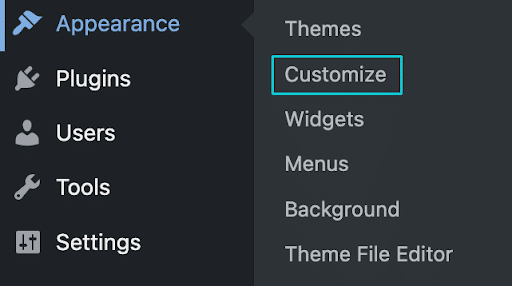
Look at the left menu. Find the Appearance option. Click it. A dropdown will show. Choose Customize. You will enter the theme settings. Here, you can change the logo. Click on the logo option. Upload your new logo. Save changes.
Remember to check the logo size. It should fit well. Preview your site. Ensure the logo looks good. Make adjustments if needed.
Navigating To Theme Customizer
Start by logging into your WordPress dashboard. Look for the Appearance option on the left. Click on it to see more choices. Find the Customize option and click it. This opens the Theme Customizer. The customizer lets you make changes to your site. You can change colors, fonts, and logos here. It’s a simple tool for beginners. Explore the options available. Most themes have a logo setting.
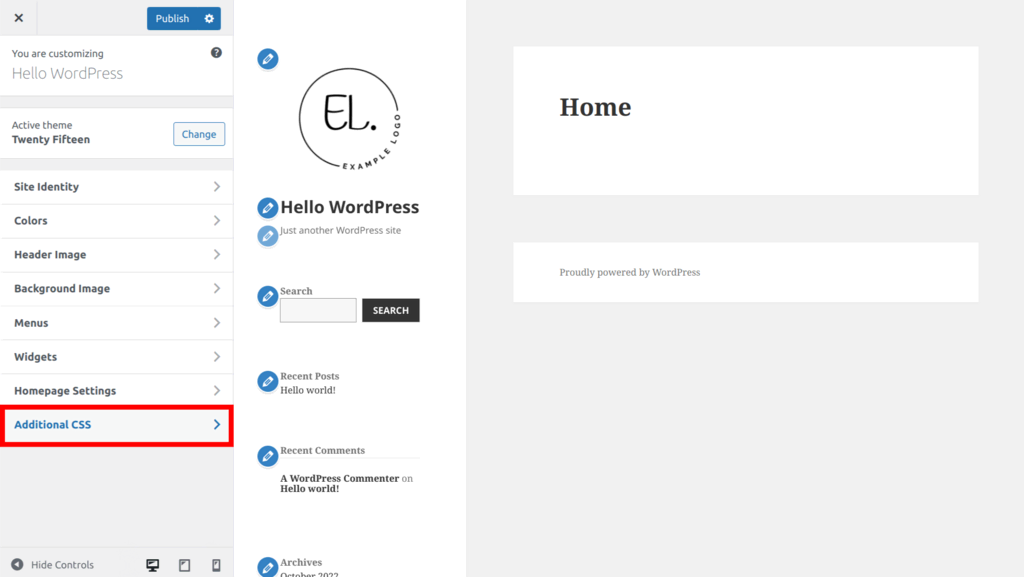
Click on Site Identity in the customizer. Here, you can change the logo. Upload a new logo from your computer. Ensure your logo fits well. Check if it looks good on your site. Save changes before leaving. Your new logo will appear on your site now. Always preview changes first. This helps avoid mistakes.
Locating Logo Settings
First, log in to your WordPress dashboard. Find the menu on the left side. Look for the Appearance option. Click on it. A new menu will appear. Select Customize. This opens the WordPress customizer.
In the customizer, find the Site Identity section. Click on it. You will see the Logo option. Here, you can change your theme logo. Click on the Change Logo button. Upload your new logo. Ensure your logo is the right size. WordPress will show a preview. If it looks good, save changes. Your new logo is now live.
Uploading New Logo
The best logo formats are PNG and JPEG. PNG is popular for its quality. It supports transparent backgrounds. JPEG is good for simple logos. It has a smaller file size. But it may lose some quality. Choose wisely for a better look.
Logo size should fit your theme. Most themes have suggested sizes. Check your theme settings. Usually, a width of 250 pixels is good. Height can be around 100 pixels. This size keeps logos clear and sharp. Adjust the logo size in a photo editor. Save it when ready.
Saving Changes
Click the Save button after changing your theme logo. This keeps your new logo. Always remember to save after editing. Your changes won’t show up without saving. Look for the save option on the screen. It might be at the top or bottom. Some themes have it in the sidebar. Refresh your page to see your new logo.
Try visiting your site in a new tab. This lets you check if everything works. Sometimes, changes need time to appear. Give it a few minutes. If the logo doesn’t show, try clearing your browser cache. This helps fix display issues. Ask for help if you face problems.
Credit: 10web.io
Previewing New Theme Logo
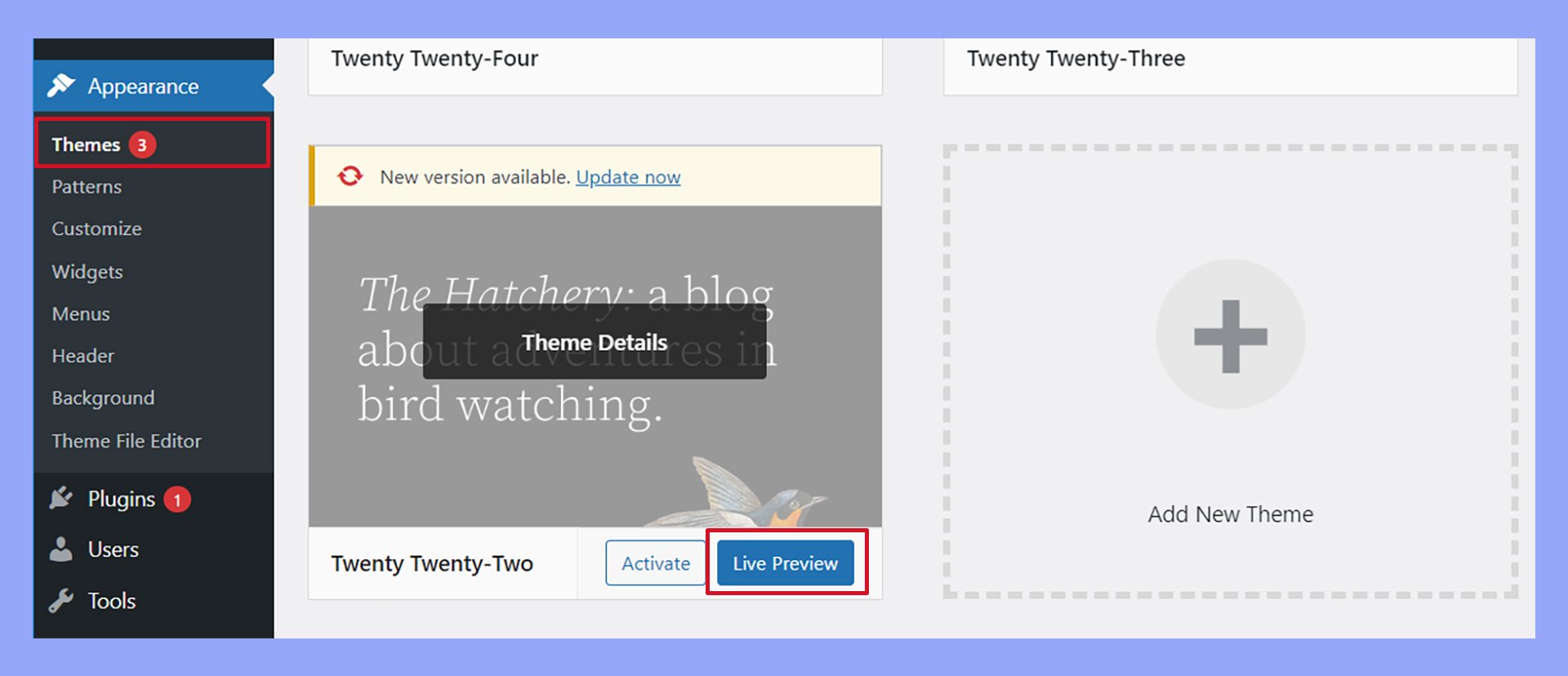
Click on the customize button in your WordPress dashboard. This is where you will find the option to change the logo. Choose the site identity tab. Here, you can upload your new logo. Make sure the logo is clear. It should fit well with the theme design.
After uploading, you will see a preview of the logo. This allows you to check if it looks good. If needed, you can adjust the size. Make sure the logo is not too big or too small. A good size helps your site look professional. Once satisfied, click publish to save the changes.
Troubleshooting Common Issues
Changing the theme logo in WordPress involves accessing the theme customizer. Navigate to ‘Appearance,’ select ‘Customize,’ then find ‘Site Identity. ‘ Upload your new logo and save changes to update your site’s appearance instantly.
Logo Not Displaying
Sometimes, the logo might not show up. Check the file type. Ensure it is JPEG or PNG. These are common types. Also, look at the file size. Large files may cause problems. Reduce the size if needed. Another check is the upload path. Confirm it is correct in the theme settings. Lastly, clear the cache. This might solve the issue.
Image Quality Problems
A blurry logo can be frustrating. First, check the image resolution. It should be clear and sharp. Use a resolution of 72 DPI or more. Also, check the dimensions. The image should fit the logo space properly. If too small, it might stretch and blur. Adjust the dimensions for a better fit. Lastly, consider using an SVG file. SVGs keep their quality when resized. This helps in preserving clarity.
Alternative Methods To Change Logo
Changing a theme logo in WordPress offers several methods. Customize it through the theme settings or upload a new logo via the WordPress dashboard. Explore plugins for more advanced logo adjustments. These options provide flexibility to tailor your site’s appearance.
Using Plugins
Plugins help you change the theme logo easily. Install a logo plugin from the WordPress store. Find and activate a plugin like “Logo Customizer.” This plugin lets you upload a new logo. Navigate to the plugin settings. Click on “Upload Logo.” Choose the image file from your computer. Click “Save.” Your new logo appears on your site. Plugins save time and effort. They are simple to use. Many plugins are free. Some offer extra features for a small fee. Always check plugin reviews. Ensure it works well with your theme. Avoid plugins with bad ratings. They may cause problems.
Editing Theme Code
Editing theme code needs careful steps. Go to your WordPress dashboard. Find “Appearance” and click “Theme Editor.” Look for “header.php” file. This file has logo code. Find the logo image URL in the code. Replace it with your new logo URL. Save changes and check your site. Your new logo should appear. Editing code is risky. You might break your site. Always backup your site first. Use a child theme to prevent loss. Only edit code if you know how. Ask for help if unsure. Mistakes can be hard to fix. Code changes need patience. Follow instructions carefully.
Credit: www.hostinger.com
Frequently Asked Questions
How Do I Change The WordPress Theme Logo?
To change your WordPress theme logo, navigate to Appearance > Customize > Site Identity. Upload your desired logo image. Save changes to update. Make sure the logo fits the theme dimensions for optimal display.
How Do I Change The Icon Image On WordPress?
Log in to WordPress dashboard. Go to “Appearance,” then “Customize. ” Select “Site Identity” to upload your new icon. Save changes.
How Do I Change The Theme Image In WordPress?
To change the theme image in WordPress, go to Appearance > Customize. Click on “Header Image” or “Background Image. ” Upload your new image and click “Save & Publish. ” Make sure your image fits the recommended dimensions for optimal display.
How Do I Add A Custom Logo In WordPress?
Go to “Appearance” then “Customize” in your WordPress dashboard. Click on “Site Identity. ” Upload your custom logo and save changes. Ensure the logo is optimized for web use. Check your theme’s settings for logo dimensions. Your logo should now appear on your site.
Conclusion
Changing your WordPress theme logo is simple and rewarding. First, access your WordPress dashboard. Then, navigate to the Appearance section. Choose the Customize option. Here, find the Site Identity or Header section. Upload your desired logo. Save your changes. Your new logo should now appear.
This process enhances your site’s look. It helps in branding and recognition. Regular updates keep your site fresh. Customization is key to a unique presence. Follow these steps for a smooth update. Enjoy your refreshed website appearance.


