
Have you ever felt that your WordPress website layout doesn’t quite reflect your vision or brand? You’re not alone.
The good news is, changing the layout of your WordPress theme can be easier than you might think. Imagine having a website that not only looks great but also captivates and engages your visitors, making them want to explore every corner of your site.
This article will guide you through the steps to transform your WordPress theme layout, ensuring it resonates with your style and enhances user experience. Whether you’re looking to tweak a few elements or completely revamp your site’s appearance, you’ll find the insights and tools you need right here. Don’t let an outdated layout hold you back—let’s dive in and unlock the full potential of your WordPress site.
Choosing A Suitable Theme
Know your website’s purpose. Is it for business or a blog? Different sites need different layouts. Business sites might need a clean look. Blogs may need a friendly vibe. Think about your audience. What do they like? Their needs shape your theme choice. Your theme should match your site’s goals. Get a theme that fits your style. This makes your site unique. Identify what you want first. It helps in finding the right theme.
Many themes are popular on WordPress. Some are free, others paid. Free themes are basic but functional. Paid themes have more features. They offer better support and customization. Themes like Astra and OceanWP are well-liked. They are flexible and easy to use. Divi is another popular choice. It is powerful and customizable. Choose a theme that is easy to manage. Check user reviews before selecting. Good reviews mean the theme is reliable.
Installing A New Theme
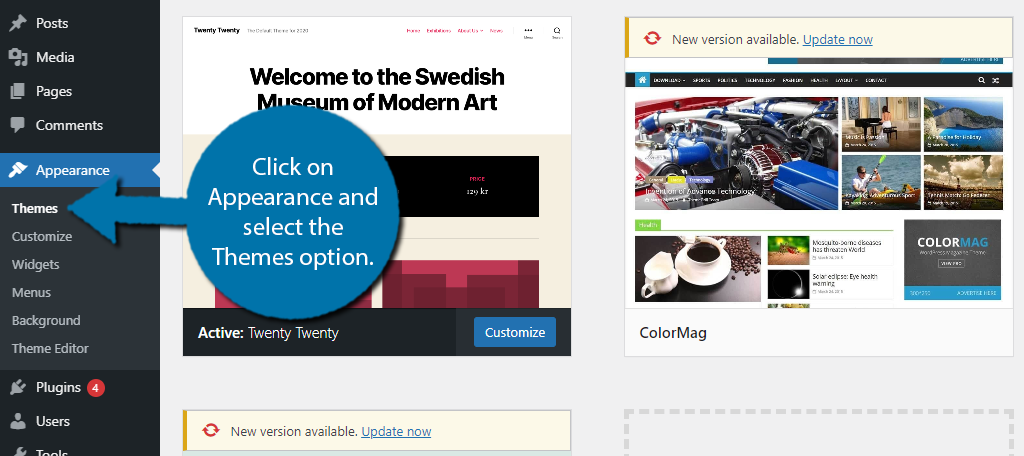
The WordPress Theme Directory offers many free themes. Begin by logging into your WordPress dashboard. Find the “Appearance” tab. Click on “Themes” to open the theme manager. Then, click “Add New” to browse the directory. Use the search bar to find themes you like. Click “Preview” to see how a theme looks. If you like it, click “Install” and then “Activate”. Now, your site has a new look. Easy and quick.
Sometimes, you may have a custom theme on your computer. First, make sure the theme file is in a .zip format. Go to the “Appearance” tab, then “Themes”. Click “Add New”. Next, click “Upload Theme”. Choose the .zip file from your computer. Click “Install Now” and wait. Once done, click “Activate”. Your custom theme is now live.
Customizing Theme Settings
The WordPress Customizer is a tool to change your theme. It is easy to use. Find it in the WordPress dashboard. Click on “Appearance,” then “Customize.” Here, you can see many options. These options help you change the theme. You can change colors and fonts. You can add widgets too.
Adjusting Site Identity
Site Identity is important. It includes your site’s name and tagline. You can also add a logo. Go to the Customizer. Click on “Site Identity.” Here, you can change the site name. Add a new tagline if you want. Upload a logo to make it look nice. Don’t forget to save changes.
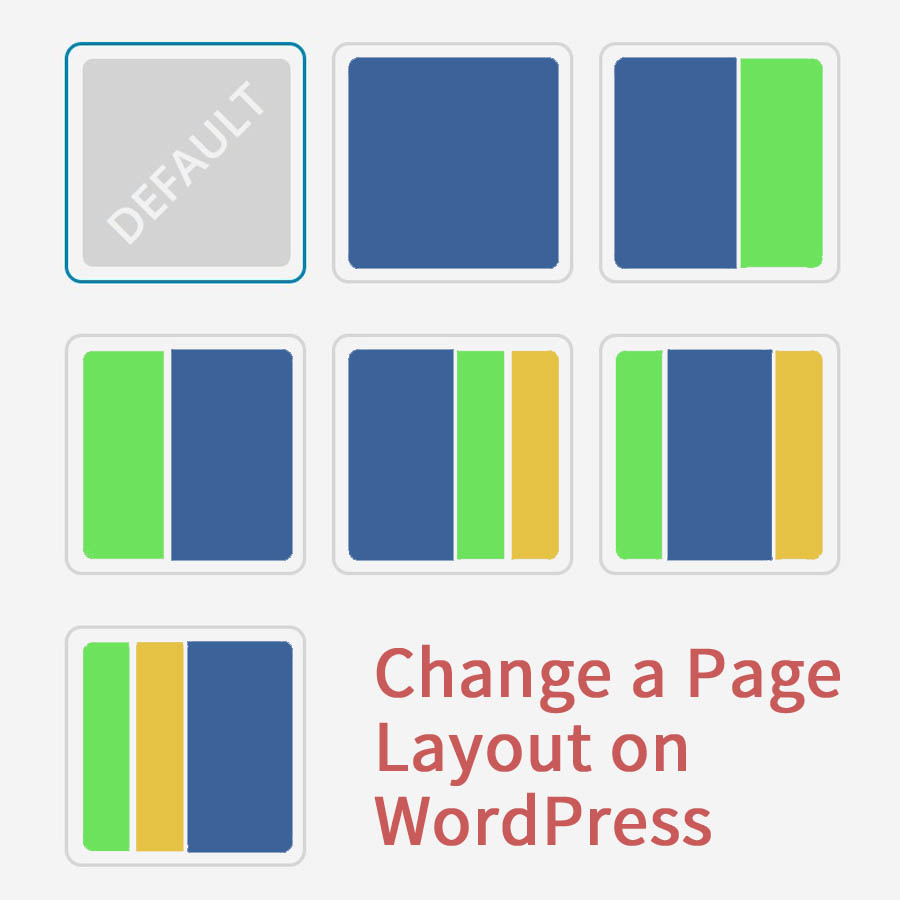
Credit: slocumthemes.com
Modifying Layout With Page Builders
Page builders offer an easy way to change the layout of a WordPress theme. Drag-and-drop tools make editing simple. Customize your theme without coding skills, adding unique features quickly.
Introduction To Page Builders
Page builders help change the look of your site. These tools are easy to use. They let you design pages by dragging and dropping. Many people like page builders because they don’t need coding skills. Anyone can use them. They offer many templates and options. This makes designing fun and simple. Choosing the right page builder can make your site unique.
Top Page Builder Plugins
There are many great page builder plugins. Elementor is very popular. It has a free version and is easy to learn. Beaver Builder is another top choice. It works well with many themes. Divi Builder is known for its flexibility. It offers many design options. These plugins give you the power to create beautiful pages.
Adjusting Widgets And Menus
Widgets make your website special. They add useful tools. You can place widgets in different areas. First, go to the Appearance menu. Click on Widgets. Here, you will see a list. Choose a widget from the list. Drag and drop it to your desired location. You can also remove or edit widgets. This makes your site more personal. Try different widgets. Find what works best for you.
Menus guide visitors through your site. They help find pages easily. Start by clicking on Appearance. Then choose Menus. Create a new menu or edit an old one. Add pages or links to your menu. You can change the order of items. Drag them up or down. Save changes when done. Your menu is now ready to help visitors. Keep your menu simple. This makes navigation easy.
Utilizing Custom Css
CSS is like the clothes of a website. It changes how things look. You can change colors, sizes, and more. First, find the right part to change. Use the browser’s inspect tool. This helps you see the code. Copy the CSS you want to change. Then, paste it into the custom CSS box in WordPress. Make small changes and see what happens. This helps you learn. Always save your changes.
Tools help see if CSS changes work. Use the browser’s inspect tool. It shows what CSS does. You can try changes here before saving. Another tool is CodePen. It lets you test CSS online. There is also Stylus, a browser extension. It helps test CSS on live sites. Each tool helps you learn more about CSS.
Exploring Child Themes
Child themes are like helpers for your main theme. They let you change your website without breaking it. You can update your theme safely. All your changes stay put. This way, you don’t lose your work. Child themes are also easy to use. They help you learn more about WordPress. Your site stays unique and customized.
First, make a new folder in your theme’s directory. Name it something like “my-child-theme“. Inside, make a file called style.css. Write some code in it. You need the theme’s name and template. Next, make another file. Call it functions.php. This file helps with extra code. Now, activate your child theme in WordPress. Go to your dashboard and find themes. Click on your new child theme. Your theme will now have a new look.
Credit: www.greengeeks.com
Optimizing For Mobile Responsiveness
Mobile users are everywhere today. They browse websites on phones and tablets. A mobile-friendly design ensures everyone sees your site well. This means text is easy to read. Buttons are big enough to click. Images load quickly. A good design helps keep visitors on your site. They are more likely to come back. Google also ranks mobile-friendly sites higher. So, this is very important for SEO.
Check your site on different devices. Use a phone and a tablet. Try a computer too. Make sure it looks good on all screens. Use tools like Google’s Mobile-Friendly Test. They help find problems. Fix any issues you see. Test again after making changes. This keeps your site working well for everyone.
Troubleshooting Common Issues
Changing a WordPress theme layout often leads to common issues. Fix these by checking theme settings. Customize layouts using WordPress Customizer or theme-specific options for a personalized look.
Dealing With Theme Conflicts
Theme conflicts can cause layout issues. Start by deactivating plugins one by one. Check if the layout fixes itself. If it does, the last plugin might be the problem. Try using a different plugin with the same function. Some themes might not work well together. Test by switching to a default WordPress theme. See if the issue remains. If it disappears, your original theme could be the cause.
Restoring Previous Layout
Always backup your site before making changes. Use a plugin like UpdraftPlus for this. If your layout breaks, go to your backup. Restore the old version. This brings back your previous settings. Always keep a copy of your custom CSS if you use it. You can paste it back after restoring. This saves time and effort.
Credit: crocoblock.com
Frequently Asked Questions
How Do I Change The Layout In A WordPress Theme?
To change the layout in a WordPress theme, access the WordPress dashboard. Navigate to “Appearance” and select “Customize. ” Choose “Layout” or “Theme Options” to modify settings. Some themes require additional plugins for layout changes. Save your adjustments and preview to ensure satisfaction.
Always back up your website before making changes.
How Do I Change The Style Of My WordPress Theme?
Access the WordPress dashboard and navigate to “Appearance. ” Select “Customize” to modify theme styles. Use the built-in options or add custom CSS for further changes. Save your updates to apply them. Always preview before finalizing to ensure desired outcomes.
How Do I Change The WordPress Theme Template?
Go to WordPress dashboard, click “Appearance,” then “Themes. ” Choose a new theme, click “Activate. ” Customize as needed. Backup before changes.
How Do I Change The Page Format In WordPress?
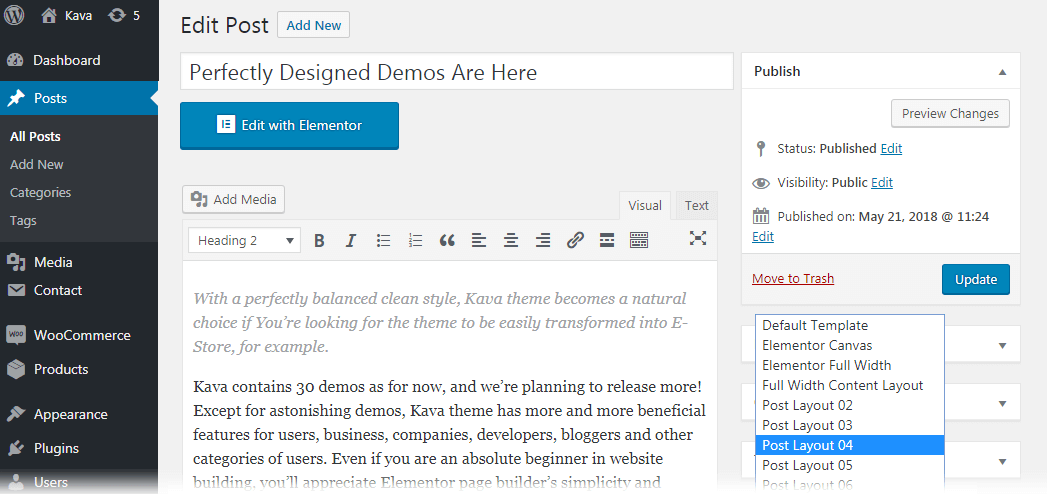
To change page format in WordPress, access the “Page Attributes” section in the editor. Select your desired template from the dropdown menu. You can also customize with plugins or edit theme files for advanced formatting. Always preview changes to ensure the desired layout is achieved before publishing.
Conclusion
Changing your WordPress theme layout can enhance your site’s look. You now have the tools to make those adjustments confidently. Experiment with different layouts and find what suits your brand best. Remember, consistency is key for a professional appearance. Keep your audience in mind while making changes.
A user-friendly design invites more visitors. Regular updates ensure your site remains fresh and appealing. With practice, you can easily create a layout that stands out. Start exploring today and see the difference it makes. Happy designing!


