
Are you tired of seeing the same old homepage on your WordPress site? Changing your homepage can give your website a fresh look and better showcase what matters most to you.
Whether you want to highlight your latest blog posts, feature a custom page, or create a landing page that grabs attention, this simple change can make a big difference. You’ll discover easy, step-by-step instructions to change your WordPress homepage quickly—no technical skills needed.
Keep reading to unlock the secret to making your site truly yours and keeping your visitors hooked from the very first click.

Credit: www.greengeeks.com
Choosing Your Homepage Type
Choosing the right homepage type is important for your WordPress site. It shapes the first impression visitors get. Your homepage can either show your latest blog posts or a static page with fixed content. Each choice fits different website goals and styles.
Static Page Vs Latest Posts
A static page shows the same content all the time. It is good for businesses, portfolios, or personal sites. You can design it to highlight key information.
Latest posts display your newest blog entries on the homepage. This suits blogs and news sites. Visitors see fresh content every time they visit.
Benefits Of Each Option
Static pages offer control over what visitors see first. You can guide them to important sections easily. It helps build a strong brand image.
Latest posts keep your homepage dynamic and updated. Regular visitors find new articles quickly. It also encourages more frequent visits.
Credit: smart.dhgate.com
Accessing WordPress Settings
Changing your homepage on WordPress starts with accessing the right settings. These settings control what visitors see first on your website. Knowing how to find them makes the process easy and quick.
WordPress has a simple menu system. It guides you to the options needed for homepage changes. Follow clear steps to reach the place where you can make edits.
Navigating To Reading Settings
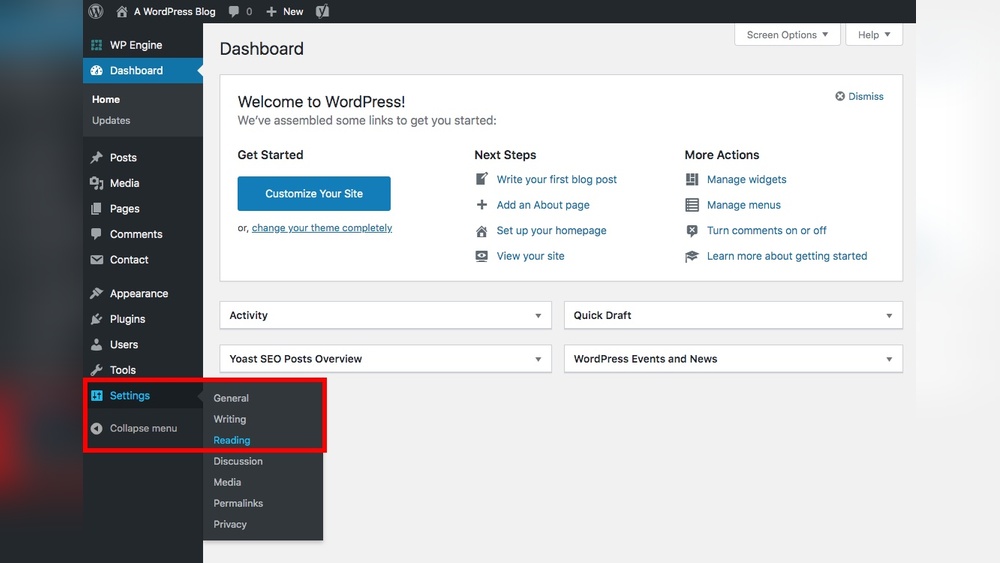
First, log in to your WordPress dashboard. This is the control center for your site. On the left side, find the menu panel. Look for “Settings” near the bottom.
Hover over “Settings” to see more choices. Click on “Reading” from the list. This section holds options for what visitors see.
Locating Homepage Options
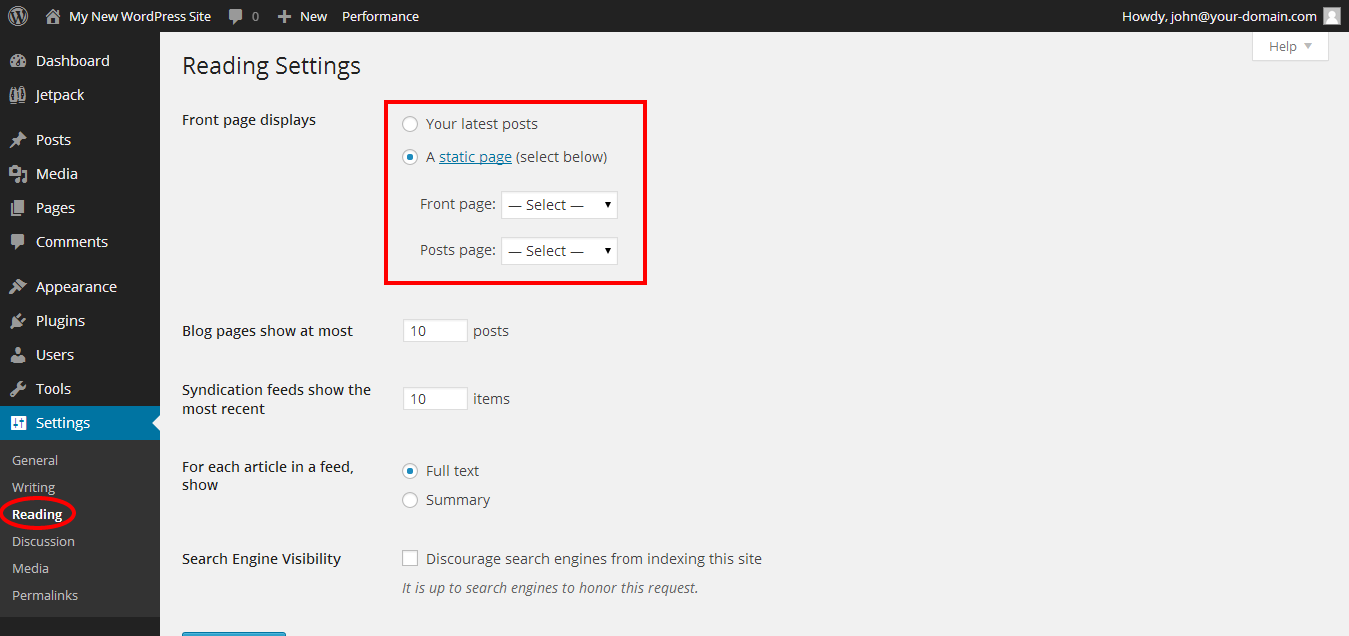
In the Reading Settings, find the “Your homepage displays” area. Here, you choose between showing your latest posts or a static page. Select “A static page” to set a custom homepage.
Below this, you will see dropdown menus. One for your homepage, another for your posts page. Pick the page you want as your homepage from the list. Save changes to apply the new setting.
Setting A Static Homepage
Setting a static homepage in WordPress lets you control what visitors see first. Instead of showing your latest posts, a static page provides a fixed welcome screen. This is useful for business sites, portfolios, or any site that needs a clear introduction.
You can choose an existing page or create a new one to serve as your homepage. Let’s explore both options step by step.
Selecting A Page As Homepage
Go to your WordPress dashboard. Navigate to Settings, then Reading. Find the option labeled “Your homepage displays.”
Select “A static page.” In the dropdown menu, choose the page you want as your homepage.
Click “Save Changes” to apply. Your selected page now appears first to visitors.
Creating A New Page For Homepage
From the dashboard, go to Pages and click “Add New.”
Give your page a name, like “Home.” Add content that welcomes visitors and explains your site.
Publish the page. Then return to Settings > Reading. Select “A static page” and pick your new page as homepage.
Save the changes. Your new page is now the first thing visitors see.
Using Latest Posts As Homepage
Using the latest posts as your homepage in WordPress keeps your site fresh. Visitors see your newest content first. This setup works well for blogs and news sites. It helps engage readers by showing them recent updates immediately.
Enabling Latest Posts Display
Log in to your WordPress dashboard. Go to the Settings menu and select Reading. Find the option labeled “Your homepage displays.” Choose “Your latest posts.” Click the Save Changes button. Your homepage will now show your most recent blog posts automatically.
Customizing Post Display Settings
Adjust how many posts appear on the homepage in the Reading settings. Enter a number in the “Blog pages show at most” field. This controls how many posts visitors see at once. You can also decide if you want full posts or summaries. Select your preferred option under “For each article in a feed, show.” Save the changes to apply your settings.
Customizing Homepage Appearance
Customizing your WordPress homepage lets you create a unique look for your website. It helps you show the most important content first. You can control the images, text, and layout. This makes your site more attractive and user-friendly. A well-designed homepage keeps visitors interested and guides them to explore more.
Editing Homepage Content
Start by changing the text and images on your homepage. Use the WordPress editor to add or remove sections easily. You can update headlines, paragraphs, and photos to match your message. Keep your content clear and simple. Use short sentences and easy words for better understanding. Regular updates keep your homepage fresh and relevant.
Using Page Builders For Design
Page builders offer simple tools to design your homepage visually. Drag and drop elements like buttons, images, and text blocks. This method does not require coding skills. Popular builders include Elementor and Beaver Builder. They allow you to see changes in real-time. Customize colors, fonts, and layouts to fit your brand style. This approach saves time and improves site appearance.
Credit: kinsta.com
Saving And Previewing Changes
After setting up your new homepage in WordPress, saving and previewing changes is crucial. This step ensures your site looks exactly how you want before going live. It avoids mistakes and helps deliver a smooth user experience.
Saving your settings locks in your choices. Previewing shows how your homepage appears to visitors. Both steps help confirm the site works well on all devices.
Applying Settings
First, click the “Save Changes” button in the WordPress Customizer or Settings page. This action stores your new homepage settings securely. It prevents data loss and keeps your edits intact.
WordPress may take a moment to update. Avoid closing the browser during this time. Wait for the confirmation message that changes are saved.
Checking Homepage On Different Devices
Use the preview option to view your homepage on various screen sizes. WordPress offers device icons to switch between desktop, tablet, and mobile views. This helps spot layout issues and fix them early.
Testing on real devices also matters. Open your site on a phone, tablet, and computer. Check images, text, and buttons for proper display. Make adjustments if anything looks off.
Troubleshooting Common Issues
Troubleshooting common issues can save time and stress. Sometimes the homepage does not update as expected. Other times, theme conflicts cause problems. Knowing how to spot and fix these issues helps maintain a smooth website experience. This section covers the most frequent problems and simple fixes.
Homepage Not Updating
Changes to the homepage may not show immediately. Clear your browser cache first. Old data can stop new content from appearing. Also, clear your WordPress cache if you use a caching plugin. This often solves the problem quickly.
Check if your homepage is set correctly under Settings > Reading. Sometimes, the wrong page is chosen. Make sure you saved your changes after editing the homepage.
Theme Conflicts Affecting Homepage
Some themes may block homepage changes. Test this by switching to a default WordPress theme like Twenty Twenty-One. If the homepage updates work with the default theme, your theme is causing the issue.
Update your theme to the latest version. Older versions might not support new WordPress features. Contact the theme developer for support if problems continue.
Frequently Asked Questions
How Do I Set A Static Homepage In WordPress?
To set a static homepage, go to Settings > Reading in your WordPress dashboard. Select “A static page,” then choose your desired page as the homepage. Save changes to apply the new homepage setting instantly.
Can I Use A Blog Page As My Homepage?
Yes, you can set a blog page as your homepage. In Settings > Reading, select “Your latest posts” to display blog posts on the homepage. This option makes your homepage dynamic and updates it with new posts automatically.
How Do I Change The Homepage Layout In WordPress?
Changing the homepage layout depends on your theme or page builder. Use the theme customizer or a page builder plugin like Elementor to customize sections, design, and content layout easily. Always save changes before previewing.
Will Changing The Homepage Affect Seo Rankings?
Changing your homepage can impact SEO if URLs or content change drastically. Keep key SEO elements like title, meta description, and keywords consistent. Use redirects if you change URLs to maintain rankings.
Conclusion
Changing your WordPress homepage is simple and quick. Just follow the steps carefully. Choose a page that fits your site’s goal. Update your settings to show the new page. Check your site to see the change live. Regular updates keep your website fresh and clear.
This small change helps visitors find what matters most. Keep experimenting until your homepage feels just right. Your website’s front door should welcome every visitor well.


