

Are you looking to make your WordPress website more vibrant and engaging? Changing the font color is one of the simplest yet most effective ways to catch your visitors’ attention and highlight important information.
Whether you want to match your brand colors or just add a splash of personality to your content, knowing how to change font color in WordPress gives you full control over your site’s look and feel. In this guide, you’ll discover easy, step-by-step methods to update your text color quickly—no technical skills needed.
Keep reading, and you’ll be able to make your website truly stand out in no time!
Credit: essential-blocks.com
Change Font Color With Block Editor
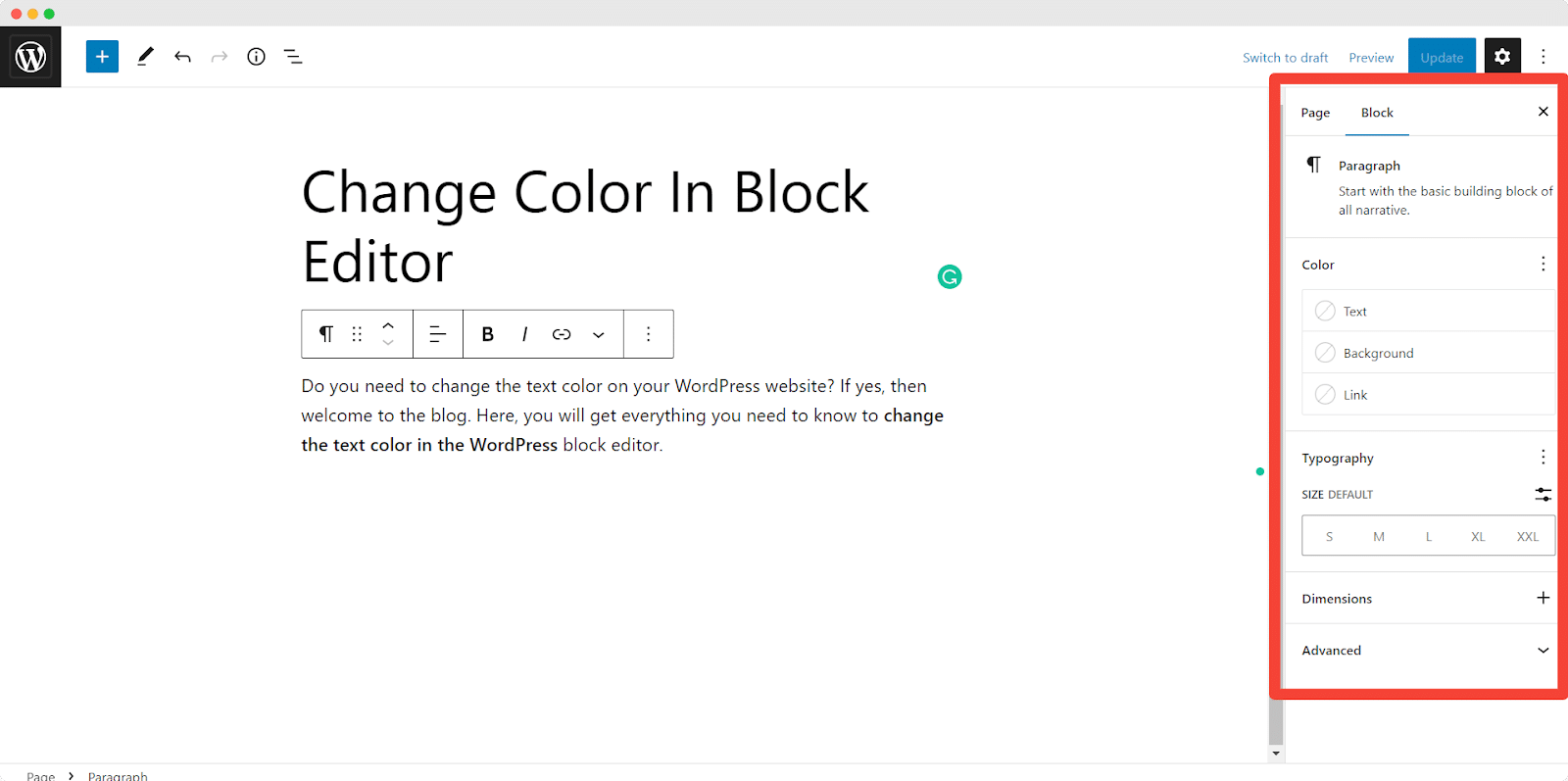
Changing font color in WordPress is easy with the Block Editor. This editor gives simple tools to customize your text’s look. You can highlight important points or match your brand colors quickly. Let’s explore how to change font color using the Block Editor step-by-step.
Select Text In Paragraph Block
First, click on the paragraph block where your text is. Then drag your mouse over the words you want to change. This action highlights the text. You can select a single word, sentence, or the whole paragraph. Selecting text is the first step to applying new font colors.
Use Text Color Button
After selecting the text, look for the toolbar above the block. Find the “Text Color” button, usually a small colored circle or letter “A.” Click this button to open a color palette. This palette shows preset colors you can apply to your text. Click on a color to change the font color immediately.
Apply Custom Colors
For unique colors, choose the “Custom Color” option in the palette. A color picker will appear. Use it to select any color you want by moving the slider or entering a hex code. This option helps match exact brand colors or any shade you prefer. After picking a color, the text changes instantly. Click outside the palette to close it and save your choice.
Credit: www.ryrob.com
Modify Colors Using Classic Editor
The Classic Editor in WordPress lets you change font colors easily. It is a simple way to customize your text. No coding skills are needed. This method works well for small edits or blog posts. Follow these steps to modify colors using the Classic Editor.
Highlight Text To Edit
Open your post or page in the Classic Editor. Use your mouse to select the text you want to change. Highlight the exact words or sentences carefully. Only the highlighted text will change color.
Access Text Color Options
Look for the toolbar above the editing area. Find the button that looks like a letter “A” with a color bar below it. Click this button to open the color palette. This palette shows various color choices for your text.
Choose And Save Color
Pick a color from the palette that fits your style. Click on the color to apply it to the highlighted text. Review the color in the editor to ensure it looks right. Save your post or page to keep the changes live.
Use Theme Customizer For Global Colors
Changing the font color across your WordPress site creates a consistent look. The Theme Customizer offers a simple way to set global colors. This tool changes text color everywhere, so you don’t need to edit each page. It helps keep your website design clean and professional.
Using the Theme Customizer saves time and makes your site look uniform. It works well for headings, body text, and links. Follow these steps to adjust font colors using the Customizer.
Open WordPress Customizer
Start by logging into your WordPress dashboard. Then, go to the left menu and click on “Appearance.” Choose “Customize” from the dropdown. This opens the WordPress Customizer panel on the screen.
The Customizer shows a live preview of your site. It lets you make changes and see results instantly. This is where you will set your global font colors.
Navigate To Colors Section
Inside the Customizer, find the “Colors” or “Typography” section. The exact name depends on your theme. Click on it to open the color options. Here, you can adjust font colors for different parts of your site.
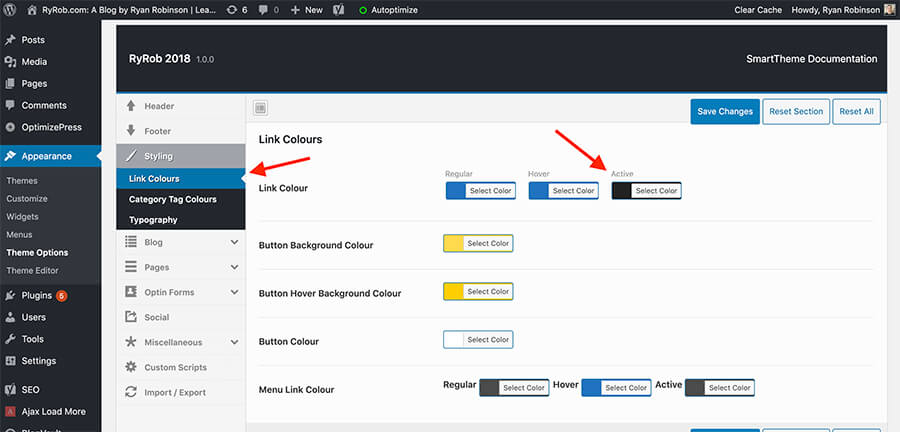
Look for settings labeled “Text Color,” “Body Font Color,” or “Link Color.” These control the main text colors used globally. Some themes also let you change heading colors here.
Set Default Font Colors
Pick a color for your main body text that is easy to read. Avoid very light or very dark colors on your background. Next, choose colors for headings and links that match your brand style. Use the color picker or enter a hex code.
After selecting colors, check the live preview to see how they look. Adjust if needed for better contrast and readability. Finally, click “Publish” to save your changes and apply them site-wide.

Credit: www.youtube.com
Change Colors With Page Builders
Changing font colors in WordPress can be simple with page builders. These tools let you adjust colors visually. No coding skills are needed. You can see changes as you make them. This helps create a colorful, engaging website fast. Three popular page builders are Elementor, Divi, and Beaver Builder. Each has easy steps to change font colors.
Edit Text In Elementor
Open the page with Elementor editor. Click on the text you want to change. The left panel shows text settings. Find the “Style” tab and click it. Under “Text Color,” select a new color. Use the color picker or enter a hex code. The text color changes immediately. Save or update your page to keep changes.
Adjust Font Colors In Divi
Launch the Divi Builder on your WordPress page. Click the text module you want to edit. In the settings window, go to the “Design” tab. Scroll to “Text” and find the color option. Pick a new font color with the color wheel. Divi shows the change in real time. Save your module and update the page to apply.
Customize Colors In Beaver Builder
Start Beaver Builder and open your page. Click on the text block to edit it. In the editing popup, look for font color options. Choose a color from the palette or add a custom code. The text color updates on the spot. Click “Done” and then “Publish” to save your changes.
Apply Css For Advanced Control
Applying CSS gives full control over font color in WordPress. It lets you customize colors beyond basic editor options. CSS changes apply site-wide or to specific elements, making your design consistent. Understanding how to add and use CSS helps create a unique look. This section explains easy ways to apply CSS for font color.
Add Custom Css In Theme Settings
Most WordPress themes include a custom CSS area. Find it in Appearance > Customize > Additional CSS. Paste your CSS code here to change font colors globally. For example, to change all paragraph text color, use:
p { color: 333333; }This code sets paragraph text to a dark gray color. Changes appear instantly after saving. This method is safe and does not alter theme files directly.
Use Inline Css For Specific Text
Inline CSS changes font color for a single text block or word. Edit your post or page and switch to the Text or HTML editor. Add the style attribute inside a tag like this:
Your text hereThis example colors only the selected text red. Inline CSS works well for small, specific changes without affecting other content.
Incorporate Color Codes And Names
CSS accepts color names and codes. Use simple names like red, blue, or green for basic colors. Hex codes like ff0000 give exact shades. RGB and HSL formats also work for custom colors.
Example using a hex code:
h2 { color: 1e90ff; }This sets all
headings to a bright blue. Using color codes ensures consistent appearance across devices and browsers.
Tips For Stunning Text Colors
Choosing the right text colors makes your WordPress site look professional and inviting. Great colors catch the eye and improve readability. Use simple rules to pick colors that stand out and fit your style.
These tips help you create stunning text colors that work well on all devices and screens. Focus on contrast, brand colors, and the feelings colors create. This approach keeps your content clear and attractive.
Ensure Good Contrast
Text must be easy to read against its background. Dark text on a light background or light text on a dark background works best. Poor contrast makes your content hard to see and drives visitors away.
Test your color choices on different screens. Use tools to check if the contrast meets accessibility standards. Clear text helps everyone enjoy your content without strain.
Match Brand Colors
Use colors that reflect your brand’s identity. Pick shades from your logo or website palette. This keeps your site consistent and memorable.
Stick to a few main colors for text. Too many colors can confuse visitors and look messy. Consistent colors build trust and make your site look polished.
Use Color Psychology
Colors affect emotions and actions. Blue feels calm and trustworthy. Red grabs attention and creates urgency. Green shows growth and health.
Choose colors based on what you want visitors to feel. Use bright colors for calls to action. Soft colors work well for background text. This helps guide readers naturally through your site.
Frequently Asked Questions
How Do I Change The Text Color In WordPress?
Select the text block in WordPress editor, click the text color button, and choose your desired color from the palette.
How Do I Modify The Color Of The Text?
Select the text you want to change. Open the font or text color tool in the toolbar or side panel. Click the color option, then pick your desired color from the palette. Save changes to apply the new text color.
How Do You Customize Fonts In WordPress?
To customize fonts in WordPress, go to Appearance > Customize > Typography. Select desired fonts for headings and body text. Alternatively, use plugins like Google Fonts for more options. Save changes to apply new fonts site-wide instantly.
How Do I Change The Font Color In My Website?
Select the text you want to change. Click the font or text color tool in the toolbar. Choose your desired color from the palette. For websites, use CSS color property with color names, hex codes, or RGB values to style fonts.
Conclusion
Changing font color in WordPress is simple and quick. Use the built-in editor or customize global styles. Pick colors that match your website’s theme and improve readability. Always preview your changes before publishing. This helps ensure your text looks great on all devices.
Practice these steps to make your content more attractive. Keep your website user-friendly and visually appealing. Enjoy designing with confidence and ease.


