
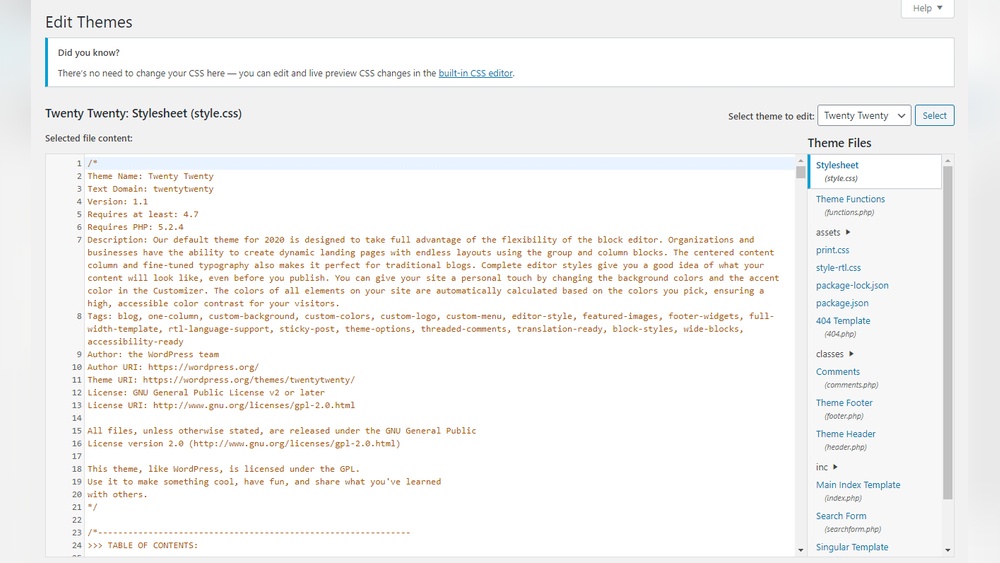
Want to make your WordPress site look exactly the way you imagine? Changing the CSS is the key.
But if you’re unsure where to start or worried about breaking your site, you’re not alone. This guide will walk you through simple, step-by-step ways to change CSS in WordPress—without stress or confusion. By the end, you’ll have the power to customize your site’s style and stand out from the crowd.
Ready to transform your website’s look? Let’s dive in.
Credit: www.inmotionhosting.com
Why Customize Css In WordPress
Customizing CSS in WordPress lets you control how your site looks. It changes colors, fonts, and layout without changing the main theme. This makes your site unique. It also improves user experience and site branding. Small CSS tweaks can make a big difference in design and feel.
Benefits Of Css Customization
Custom CSS helps you create a site that stands out. It improves site speed by avoiding heavy plugins for design. You can fix layout issues that themes do not address. CSS changes keep your site mobile-friendly and easy to use. It saves money by reducing the need for paid themes or tools.
Common Use Cases
Many users change CSS to adjust colors and fonts. Others customize buttons and menus for better navigation. Some fix spacing problems between text and images. CSS customization also helps hide elements you do not want visitors to see. It lets you add animations or hover effects for better interaction.
Preparing To Edit Css
Editing CSS in WordPress allows you to change the look of your website. Before making changes, prepare carefully. This helps avoid mistakes and keeps your site safe. Take time to back up your site and choose the right tools. These steps make editing easier and safer.
Backing Up Your Site
Backing up your site is very important. It saves a copy of your files and database. If something goes wrong, you can restore your site quickly. Use a reliable backup plugin or your hosting service’s backup option. Save the backup file on your computer or cloud storage. Always back up before editing CSS. This keeps your site safe from errors.
Choosing The Right Tools
Pick tools that fit your skill level and needs. WordPress has built-in editors like the Customizer or Theme Editor. These are simple for small CSS changes. For advanced edits, use a code editor like Visual Studio Code or Sublime Text. A good tool helps you write clean, error-free CSS. Avoid editing CSS directly on a live site without tools. Choose a tool that makes your work easier and safer.
Editing Css Via WordPress Customizer
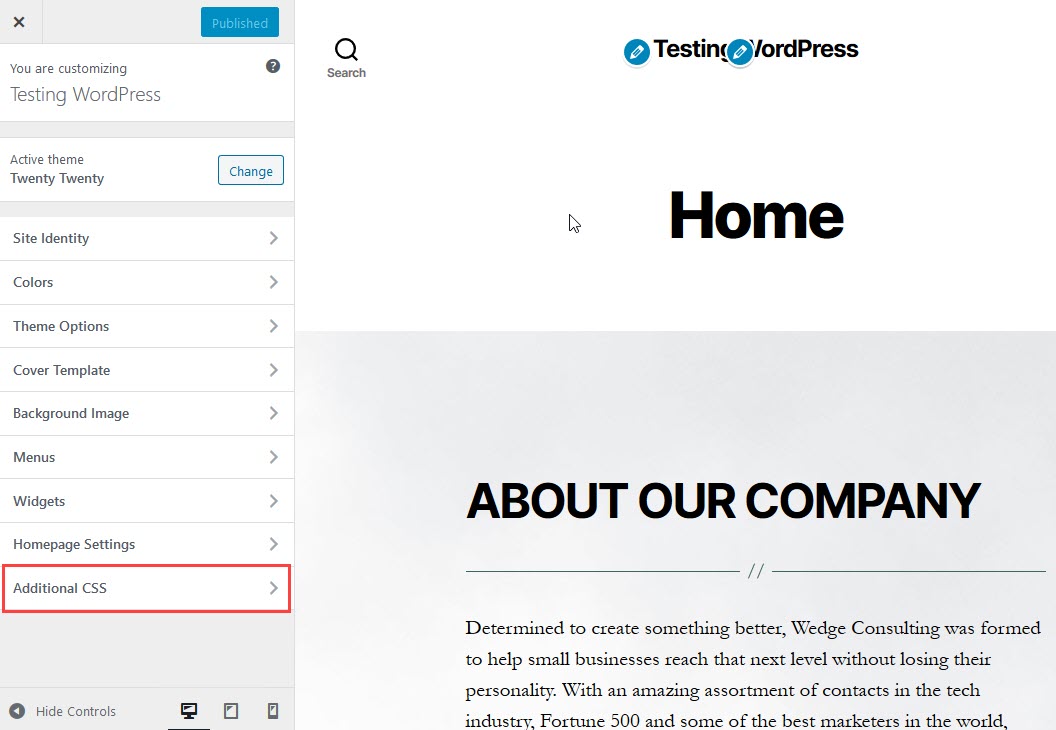
Editing CSS via the WordPress Customizer is an easy way to change your site’s look. You can add custom styles without touching theme files. This method is safe and updates appear instantly. It helps keep your changes even after theme updates. The Customizer also shows a live preview of your edits.
Accessing The Additional Css Panel
Start by logging into your WordPress dashboard. Go to Appearance and then click on Customize. Scroll down to find the “Additional CSS” panel. Click this panel to open a blank area for your CSS code. This space is where you write your custom styles. It is simple and ready for use.
Writing And Previewing Css
Type your CSS code in the box provided. The live preview updates as you type. This helps you see changes without saving first. Use simple CSS rules like changing colors or fonts. Check your changes on different screen sizes. The Customizer allows you to test on mobile and desktop views. When satisfied, click Publish to save your work.

Credit: stackoverflow.com
Using A Child Theme For Css Changes
Using a child theme for CSS changes protects your website’s design. It keeps your custom styles safe during theme updates. This method is simple and effective. You can change the look without breaking the original theme. The child theme works like a copy but lets you add your own code.
Creating A Child Theme
Start by creating a new folder in your themes directory. Name it clearly, like “yourtheme-child”. Inside, add a style.css file. This file tells WordPress about your child theme.
Add a header to style.css with details like theme name and template. The template must match the parent theme folder name. Next, create a functions.php file to load the parent styles. This setup links your child theme to the parent.
Adding Custom Css To Child Theme
Write your CSS rules in the child theme’s style.css. These styles override the parent theme’s CSS. Change colors, fonts, or layouts easily. Use simple selectors to avoid conflicts.
After saving, activate the child theme in your WordPress dashboard. Check your site to see the changes. Edit the child theme CSS anytime. Your changes stay safe from updates and keep your site unique.
Editing Css Through Plugins
Editing CSS through plugins offers a simple way to customize your WordPress site. Plugins let you add custom styles without touching theme files. This keeps your changes safe during updates. You can see your design changes live and adjust easily.
Using plugins for CSS is great for beginners and those who want quick tweaks. Most plugins come with a clean interface to write or paste CSS code. Some even offer live previews or save multiple style sets. This helps you control your site’s look step by step.
Popular Css Plugins
Several plugins stand out for editing CSS in WordPress. “Simple Custom CSS” allows you to add custom styles easily. “WP Add Custom CSS” offers a user-friendly editor and supports multiple sites. “SiteOrigin CSS” has a visual editor that shows changes in real time. These plugins help you manage CSS without coding stress.
How To Use Plugins Safely
Choose plugins from trusted sources like the WordPress Plugin Directory. Check ratings and recent updates before installing. Always back up your site before making changes. Avoid using many CSS plugins at once to prevent conflicts. Test your site on different devices after adding styles. Keep your plugins updated to fix bugs and security issues.
Best Practices For Css Customization
Customizing CSS in WordPress allows you to change your site’s look and feel. Following best practices keeps your code clean and your site fast. Well-structured CSS is easier to maintain and update.
Good CSS also helps your website work well on all devices. Visitors expect smooth experiences on phones, tablets, and computers. Proper CSS customization ensures your design adapts to different screen sizes.
Keeping Code Organized
Organize your CSS by grouping related styles together. Use comments to label sections clearly. This helps you and others understand the code quickly.
Avoid repeating styles. Use classes and IDs to target elements precisely. Keep your file size small by removing unused CSS.
Use consistent naming rules for classes. This reduces confusion and errors. Save your custom CSS in a child theme or custom CSS plugin to protect changes from updates.
Ensuring Mobile Responsiveness
Test your site on various devices regularly. Use media queries to adjust styles based on screen size. This keeps your site readable and usable on small screens.
Prioritize flexible layouts with relative units like percentages or ems. Avoid fixed widths that break layouts on mobile devices. Make buttons and links large enough to tap easily.
Check font sizes and spacing for mobile readability. Optimize images to load quickly on slower connections. Responsive CSS improves user experience and search rankings.
Troubleshooting Css Issues
Troubleshooting CSS issues in WordPress can be tricky but is essential for a clean website look. Problems may cause your site to display incorrectly or not as you planned. Fixing these issues quickly keeps your visitors happy and your site professional.
Understanding common CSS errors helps you spot problems fast. Using browser developer tools makes finding and fixing errors easier. Both skills improve your ability to manage your WordPress site’s style.
Common Errors And Fixes
One common mistake is missing or incorrect CSS selectors. Check if your CSS targets the right elements. Another error is syntax mistakes like missing semicolons or braces. These small errors stop CSS from working properly.
Conflicts between different CSS files can cause styles to override each other. Use unique class names to avoid this. Also, make sure your CSS file is properly linked in WordPress. Broken links prevent styles from loading.
Using Browser Developer Tools
Browser developer tools help you inspect and test CSS live on your site. Right-click any element and select “Inspect” to see its styles. You can edit CSS directly in the tool to test changes before updating your files.
Use the developer console to find errors in your CSS or JavaScript. It shows messages that explain what went wrong. This tool also helps identify which CSS rule is causing a problem.
Learning these tools saves time and helps you fix CSS issues fast. Practice using them on your WordPress site to improve your skills.
Credit: www.8theme.com
Frequently Asked Questions
How Do I Edit Css In WordPress?
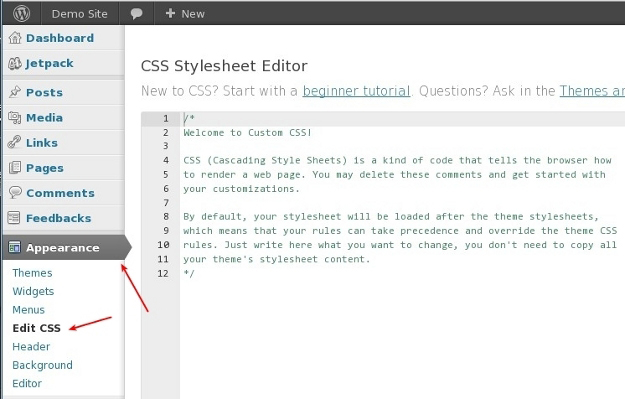
You can edit CSS in WordPress by using the Customizer’s “Additional CSS” section. It allows safe, live preview changes. Alternatively, use a child theme or a CSS plugin for advanced edits without affecting the core theme files.
Can I Change Css Without Coding In WordPress?
Yes, WordPress lets you change CSS without coding using visual page builders or customizer tools. These tools provide user-friendly interfaces for styling elements without writing code, making it easy for beginners to customize site appearance.
What Is The Best Way To Add Custom Css In WordPress?
The best way is to add custom CSS via the WordPress Customizer’s “Additional CSS” panel. It’s safe, update-proof, and shows live previews. For complex changes, use a child theme or a dedicated CSS plugin to keep styles organized.
Will Changing Css Affect My WordPress Site Speed?
Minimal CSS changes usually don’t affect site speed. However, excessive or poorly optimized CSS can slow loading times. Always keep CSS clean and minimal to maintain fast page performance and a good user experience.
Conclusion
Changing CSS in WordPress can improve your website’s look quickly. You only need basic steps to get started. Use the built-in customizer or edit style sheets carefully. Always save a backup before making changes. Small tweaks can create a big difference in design.
Keep your site simple and easy to read. Practice often to feel more confident. Your site will stand out with the right style. Try changing CSS today and see the results yourself.


