
Are you looking to customize your WordPress site and make it truly yours? One small but significant change you might be considering is updating the copyright information in your theme.
This detail not only reflects your brand identity but also adds a personal touch to your website. But how do you actually change it without breaking a sweat or breaking the site? The process might seem daunting at first, but fear not.
In this guide, you’ll discover the simple, step-by-step method to update the copyright in your WordPress theme. By the end of this article, you’ll be equipped with the knowledge to confidently make this change, enhancing your site’s professionalism and personal flair. Ready to take control of your website’s footer? Let’s dive right in and transform that generic copyright text into something that represents you.
Credit: www.wpcrafter.com
Understanding Copyright In WordPress Themes
Copyright tells who owns the theme. It is often found at the bottom of a website. WordPress themes come with their own copyright rules. You can see these rules in the footer section. Changing it is possible but requires care. Make sure to respect the original creators. They spent time making the theme. Always give them credit if you change the copyright. This is fair and right. Also, follow any rules they set. Some themes ask you to keep their name even if you change other parts. It’s like saying thank you. This is important. Being respectful is key. It helps everyone enjoy better themes.
Accessing Theme Files
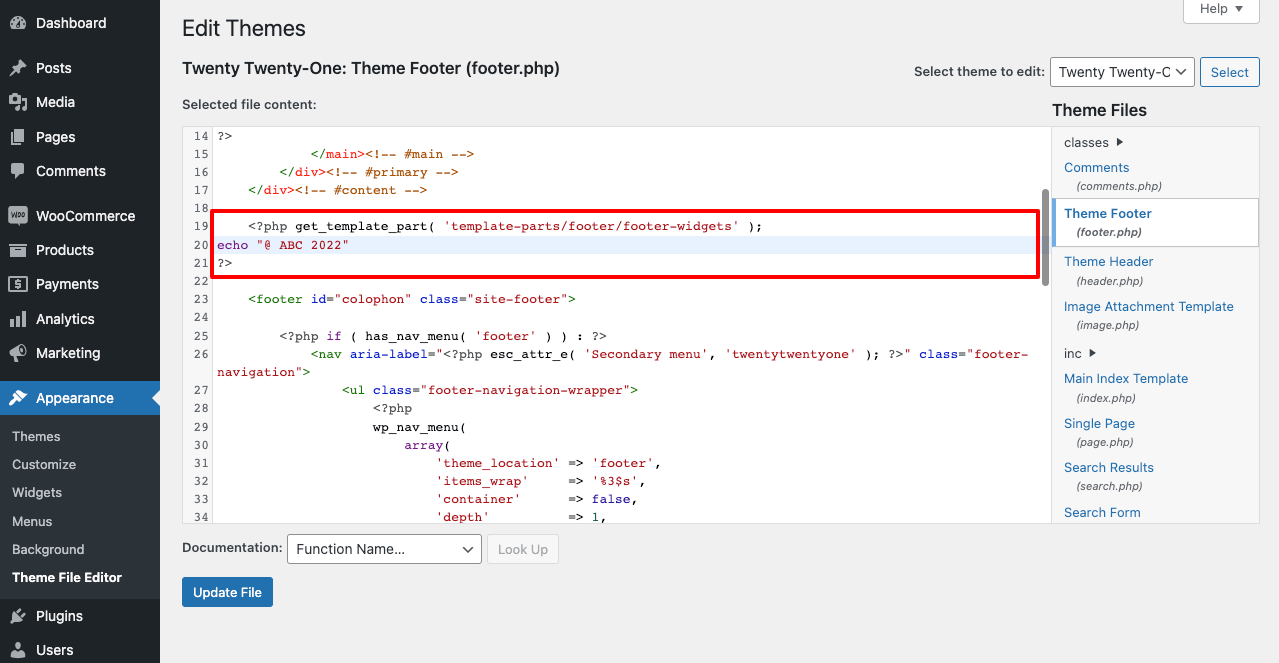
Open your WordPress dashboard. Go to Appearance then Theme Editor. You will see the theme files on the right. Find the footer.php file. Click on it to open. Look for the copyright text inside. Edit the text to your preference. Save your changes. Refresh your site to see the update.
Use an FTP client like FileZilla. Connect to your server. Navigate to the wp-content/themes folder. Find your theme folder. Open it to see the files. Locate footer.php. Download it to your computer. Open it in a text editor. Change the copyright text. Upload the edited file back. Check your site for changes.
Locating The Copyright Text
First, open your WordPress dashboard. Find the Appearance menu. Click on Theme Editor. This area holds theme files. Look for footer.php. It is usually on the right side. Open it. Here, you will see the code. Find the text with the copyright. It might be in a or tag. Edit the text carefully. Save changes when done.
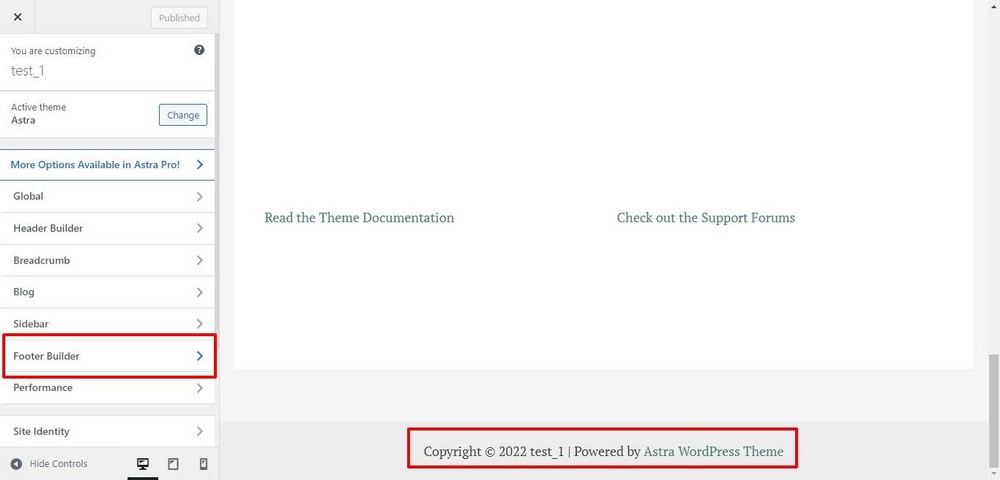
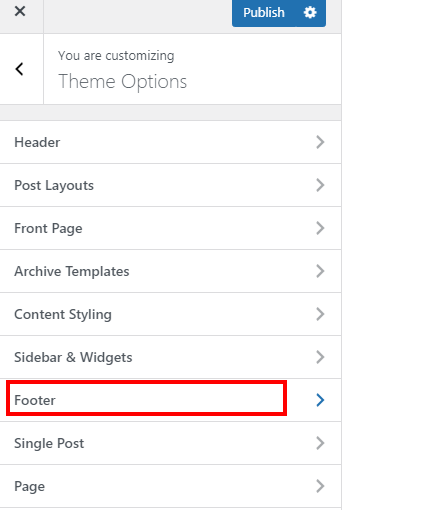
Some themes have easier options. Go to the dashboard. Click on Appearance. Then, choose Customize. Look for Footer options. There might be a copyright text box. Edit the text there. Changes appear instantly. Remember to click Publish after editing.
Editing The Copyright Text
Access your WordPress dashboard. Go to Appearance and click Customize. Look for Footer or Additional CSS. Find the copyright text. Here, you can edit it. Type your new text. Save the changes. Check your site. The new copyright should show now. This way is easy and safe. It keeps your theme updates intact.
Use a code editor for this method. Access your WordPress files. Go to wp-content/themes. Find your theme folder. Locate the footer.php file. Open it in the editor. Look for the copyright code. Edit the text here. Save the file. Refresh your site. Check if changes appear. Be careful not to delete other code. This method needs some coding knowledge.
Using Child Themes
Creating a Child Theme is simple. A child theme helps keep changes safe. First, make a new folder in the themes directory. Name it after your theme and add “-child”. Next, create a style.css file. This file should have a special header. Include the child theme name and parent theme name. Link the parent theme with @import in the style.css. Now, your child theme is ready.
Overriding the Parent Theme’s Copyright is easy. Find the copyright code in the parent theme. It’s often in the footer.php file. Copy this code. Paste it into your child theme’s functions.php file. Change the text to your new copyright message. This will display your copyright instead of the parent theme’s. Remember to save your changes. Your copyright is now updated.
Credit: happyaddons.com
Ensuring Legal Compliance
WordPress themes often come with specific licenses. It’s important to know these licenses. They tell you what you can change. Some themes are free to modify. Others need a special permission. Always check the theme’s license file. It might be in a folder named “docs” or “license”. This file will have all the details. Read it carefully. This helps you avoid legal troubles.
Giving credit is crucial when using themes. Many themes need proper attribution. This means mentioning the original creator. Usually, this is done in the footer area. Keep the creator’s name visible. Some themes provide a guide on how to credit them. Follow these instructions. It shows respect and keeps you compliant.
Testing And Updating
Check your website after changing the copyright. Look for any mistakes. Open your site in different browsers. Ensure all text appears correctly. Click links to see if they work. If you find an error, fix it quickly. Double-check the footer section. Sometimes updates can undo changes. Stay alert for these issues. Ask someone else to look too. They might see something you missed.
Themes get updates often. These updates can overwrite your changes. Keep a note of changes you made. Save this note somewhere safe. Always check after a theme update. Look at the footer first. Changes can disappear after updates. Reapply changes if needed. Backup your site before updating themes. This helps if something goes wrong. Regularly check for new updates.
Credit: mekshq.com
Common Mistakes To Avoid
Avoid editing theme files directly when changing WordPress copyright. Use a child theme to prevent updates from erasing changes. Backup your site first to ensure no data loss.
Avoiding Theme File Overwrites
Changing copyright in WordPress needs care. Directly editing theme files can be risky. Updates might erase your changes. Instead, use a child theme. It helps to keep your edits safe. A child theme copies the main theme. It protects your work during updates. Always back up your site before changing anything. This way, you can restore your work if something goes wrong.
Preventing Loss Of Customizations
Many people lose their custom changes. This happens if they don’t save properly. Saving changes in the wrong place can be bad. Use custom CSS for style edits. It keeps your work safe. Plugins can help too. They save changes even if the theme updates. Always check your work. Make sure everything is saved correctly. This way, your site stays just how you like it.
Frequently Asked Questions
How Do I Change The Copyright In WordPress?
To change the copyright in WordPress, navigate to Appearance > Customize. Select Footer, then edit the copyright text. Save changes to update your site. You might also need to edit the footer. php file in your theme folder. Ensure you have a backup before making changes.
Can I Remove Copyright From A WordPress Theme?
You can remove the copyright notice from a WordPress theme by editing its footer. php file. Ensure your actions comply with the theme’s license agreement to avoid legal issues. Always check the theme’s documentation or contact the developer for guidance on modifying copyright elements legally.
How To Change Copyright Year Automatically In WordPress?
Edit your theme’s footer. php file. Use the PHP code: “. This code updates the copyright year automatically. Ensure you have a child theme to prevent updates from overwriting changes. Always back up your site before making changes.
How Do I Add Copyright To My WordPress Site?
To add copyright to your WordPress site, go to Appearance > Customize > Widgets. Add a Text Widget to the footer area. Enter your copyright text, save, and publish. Use plugins like “WP Copyright” for more features. Regularly update the year for accuracy.
Conclusion
Changing the copyright in a WordPress theme is straightforward. Follow the steps carefully. First, access the theme editor. Locate the footer. php file. Edit the copyright text. Save your changes. Refresh your site to see updates. Always back up your files before editing.
This prevents data loss. Customizing your WordPress theme offers flexibility. It lets you personalize your site’s footer easily. Consider your site’s design and branding. Ensure copyright changes align with your overall theme. These simple adjustments enhance your site’s professional look.
Now, your site reflects your unique touch.


