
Are you tired of the same old look of your blog? Changing your WordPress theme can breathe new life into your site and captivate your audience.
Whether you want a sleek, modern design or something more whimsical, switching themes is a simple way to make a big impact. Imagine your blog with a fresh layout that reflects your style and enhances your content’s appeal. In this guide, we’ll walk you through the process of changing your blog theme on WordPress, ensuring that you make the transition smoothly and confidently.
You’ll discover tips to avoid common pitfalls and learn how to customize your new theme to truly make it yours. Keep reading to unlock the potential of your blog’s design and make it stand out in the digital landscape.

Credit: cyberchimps.com
Choosing The Right Theme
Think about your blog’s purpose. Is it a travel blog? Or maybe a cooking site? Each blog type needs a different look. A travel blog might need big images. A cooking blog could need recipe layouts. Make a list of what you need. Colors, fonts, and space are key. Find themes that match your needs.
Free themes are easy to find. They save money. But they might lack features. Premium themes offer more options. They can be more secure. Support is often better with premium themes. Budget is important. Decide how much you want to spend.
Check if the theme works with your plugins. Some themes might not be compatible. Update your plugins and themes often. This keeps your site safe. Look for themes that support mobile devices. Mobile users should have a good experience. Test your theme on different browsers. Make sure it looks right everywhere.
Preparing For A Theme Change
First, save your current theme. This is very important. Use a plugin for backup. Many free plugins are available. Choose one that is easy to use. Always keep your backup safe. You might need it later.
A child theme is a copy. It saves your changes. Without it, updates erase your edits. Create a child theme first. You can use a plugin for this. There are many free options. This keeps your changes safe.
Make a list of features you want. Write them down. It helps to stay focused. Some features are must-have. Some are nice-to-have. Prioritize them. This makes theme selection easier. Choose a theme that fits your needs.
Installing A New Theme
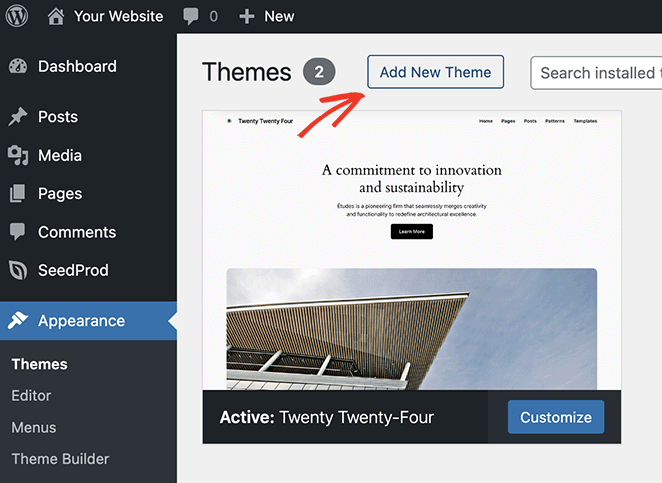
First, log in to your WordPress Dashboard. Look on the left side. Find the Appearance tab. Click on it. A menu will drop down. Choose Themes from this menu. This will show all your current themes.
To find new themes, click on Add New. Many themes will appear. These are free themes. You can search for specific themes. Use the search bar on top. You can also filter by features. Check boxes to find themes you like. Click Install when you find a theme. Then press Activate to use it.
Have a theme file? Click Add New under Themes. Then, choose Upload Theme. Click Choose File. Find your theme on your computer. It should be a .zip file. Click Install Now. After it installs, click Activate. Your new theme is now live.
Customizing Your Theme
The WordPress Customizer helps you make changes easily. You can see your changes live. It’s like magic! Click on Appearance in your dashboard. Then choose Customize. Here, you can edit many things. It’s simple and fun. Change your blog’s look in minutes.
Bright colors can make your blog pop. Choose colors that match your style. Fonts are letters. They can be big or small. Find fonts that are easy to read. Use the Customizer to change these. Click on Fonts and Colors sections. Make your blog look great!
Widgets add cool features to your blog. They can show recent posts or images. Menus help people find stuff. They sit at the top of your blog. Add new items to your menu. Use the Customizer to drag and drop items. Widgets and menus make your blog friendly.
Testing The New Theme
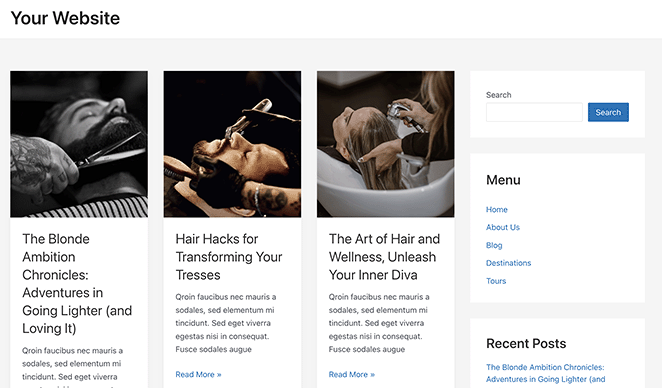
Explore changing your blog’s look with WordPress themes. Navigate to your dashboard, select “Appearance,” and click “Themes. ” Preview and activate your chosen theme to test its visual appeal. Enhance your blog’s aesthetics effortlessly.
Checking For Mobile Responsiveness
Most users browse sites on phones. Ensure your theme looks good on all screens. Check buttons and menus. They should be easy to tap. Fonts must be clear and readable. Use tools to simulate different devices. Watch for layout issues. Fix them quickly.
Ensuring Cross-browser Compatibility
Browsers can show sites differently. Test your theme on Chrome, Firefox, and Safari. Look for changes in layout or colors. Fix any problems you find. Everyone should have the same experience. Even on different browsers.
Testing Site Speed And Performance
Fast sites keep users happy. Use tools to check your site’s speed. Look at load times for pages. Optimize images and scripts. Speed boosts user experience. It also helps with search rankings.
Credit: www.seedprod.com
Maintaining Your Theme
Regular updates keep your theme safe and efficient. Developers fix bugs and add new features. You get the best version of your theme. Updates improve speed and security. Always update to enjoy these benefits. Follow the update notifications in WordPress.
Always keep a backup of your current theme. This helps if something goes wrong. Use plugins to create backups easily. Store backups in a safe place. You can restore your theme if needed. This prevents data loss.
Check your theme for bugs often. Bugs can make your site slow. They can also break features. Use tools to find issues quickly. Fix bugs as soon as you find them. Keeping your theme bug-free makes your blog reliable.
Credit: www.seedprod.com
Frequently Asked Questions
How Do I Change The WordPress Blog Theme?
To change your WordPress blog theme, log into your dashboard. Navigate to “Appearance” and select “Themes. ” Browse, then click “Activate” on your chosen theme. Ensure compatibility and preview before activation for best results.
How Do I Change The Blog Style In WordPress?
To change your blog style in WordPress, go to the dashboard, click on “Appearance,” and select “Themes. ” Choose a theme you like and activate it. Customize further using the “Customize” option for layout, colors, and fonts. Save changes to update your blog style.
How Do I Change The Template Of My WordPress Blog?
To change your WordPress blog template, navigate to the Dashboard. Select “Appearance” then “Themes. ” Choose a new theme from the available options or upload one. Click “Activate” to apply the chosen template. Customize your theme using the “Customize” option under “Appearance.
“
How Do I Change The Layout Of My WordPress Blog Post?
To change your WordPress blog post layout, access the WordPress dashboard. Navigate to “Appearance” and select “Customize. ” Choose “Layout” to modify settings. Save changes to update the layout.
Conclusion
Changing your WordPress blog theme is simple and rewarding. A new theme can refresh your blog’s look and feel. Start by exploring different themes that fit your style. Follow the steps to install and activate your chosen theme. Remember, a good theme should be responsive and user-friendly.
It enhances your readers’ experience. Regularly update your theme for security and performance. Always test your blog after changing themes to ensure everything works smoothly. Your blog’s appearance is important. So, take the time to choose wisely. Happy blogging!


