
Are you ready to take your WordPress site to the next level? Imagine having a unique theme that perfectly reflects your brand and style.
You don’t have to settle for generic themes anymore. Building your own WordPress theme can seem challenging, but it’s an exciting opportunity to express your creativity and stand out in the digital crowd. In this guide, you’ll discover the step-by-step process to create a custom theme tailored specifically for your needs.
Whether you’re a seasoned developer or a curious beginner, this article will empower you to transform your website with a theme that’s truly your own. Stick around, and you’ll be amazed at what you can achieve!
Understanding WordPress Themes
WordPress themes change how your website looks. They control layout, colors, and fonts. A theme can make your site look bright or dark. Each theme has its own design and style. Some themes are free, others cost money. Themes help make your website unique. You can choose a theme that fits your style.
Themes have two main parts: templates and stylesheets. Templates decide the layout of each page. Stylesheets control colors and fonts. You can mix and match templates and styles. This makes your site special. Building your own theme lets you control everything. It’s fun and creative.
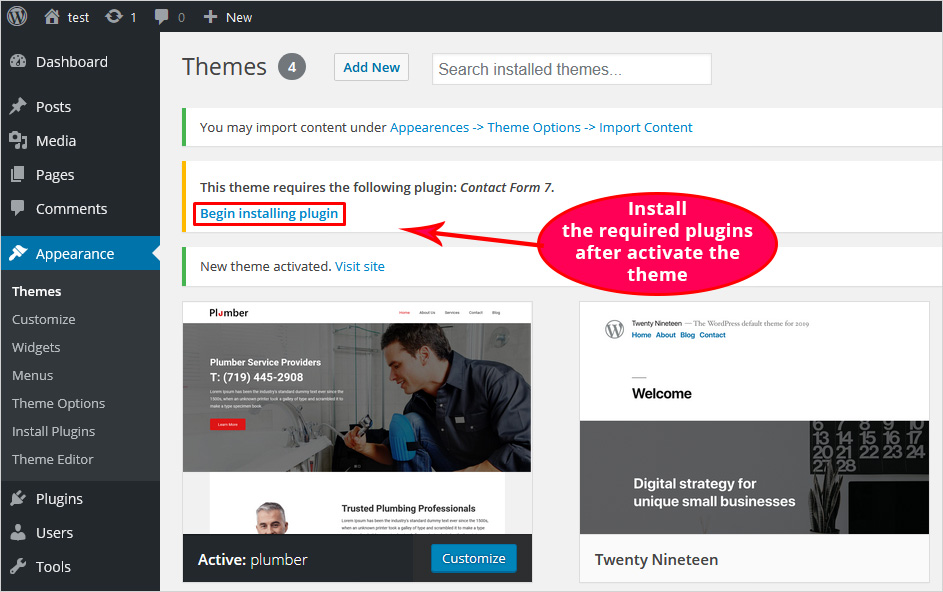
Credit: blog.templatetoaster.com
Setting Up Your Development Environment
Start building your own WordPress theme by setting up a local development environment. Install WordPress on your computer. Use tools like XAMPP or MAMP to create a local server. This setup allows you to test and develop your theme efficiently before going live.
Choosing The Right Tools
Building your own WordPress theme can be fun. Start by choosing the right tools. Text editors like Atom or VS Code are popular. They help write and edit code easily. Another tool is Git for tracking changes. It helps keep your files organized. Use design tools like Adobe XD or Figma. They help design your theme before coding. Pick tools that suit your style and needs. Right tools make your work smoother.
Configuring Local Server
A local server lets you test your theme. Local by Flywheel and XAMPP are good choices. They create a WordPress site on your computer. First, download and install the software. Create a new site and name it. Set up PHP and MySQL in the server settings. Test your theme here before going live. Local servers help catch errors early. They make theme development easier.
Creating Essential Theme Files
The index.php file is the main file for your theme. It tells WordPress how to show your website. The style.css file is for your theme’s look. It controls colors, fonts, and layout. Every theme needs these two files. They are like the bones and skin of your theme. Make sure to save them in the theme folder. This is very important.
The header.php file is where you add the top part of your site. This includes the logo and navigation menu. The footer.php file is for the bottom part. You can add copyright text and links here. These files make your theme look complete. They are like the bookends of your site.
The functions.php file is like a toolbox. It holds special features for your theme. You can add custom code here. This file can make your theme do more things. It is very powerful. Use it to add features without plugins. Keep it simple at first. Later, add more features as you learn.
Designing Your Theme
Use CSS to make your theme look unique. Change the colors, fonts, and spacing. These make your site special. CSS helps in aligning text and images. It also helps in adding backgrounds. Play with styles until you are happy. CSS makes your site look neat and tidy.
JavaScript adds fun to your site. It makes buttons move or change color. Use it for sliders or pop-ups. JavaScript makes your site lively. It can also help with forms. Add it to make things happen on click. It brings your site to life.
Implementing WordPress Features
Creating your own theme in WordPress allows for unique customization and design. Start by understanding the structure of WordPress themes. Learn to use templates, stylesheets, and functions to shape your site’s appearance and functionality.
Using WordPress Hooks
WordPress hooks are magic tools. They let you add extra functions. Hooks can change how your theme works. There are two types of hooks: actions and filters. Actions do things at specific times. Filters change data before it shows up. You can use hooks to add custom code. This makes your theme special. Always test your hooks well. They must work without errors. Keep your code clean and organized. This will make future changes easy.
Adding Menus And Widgets
Menus help users find pages. Widgets add fun features to the site. You can add menus in the WordPress dashboard. Choose the menu location and add links. Widgets are added in the sidebar or footer. Choose widgets that are useful. Add a calendar or search box if needed. Always check if menus and widgets look good. They must fit your theme style. Make sure they work on phones too. This helps users have a good experience.
Custom Post Types And Taxonomies
Custom Post Types let you create different content. This can be events or products. You can add custom post types in the theme code. Taxonomies group content together. They help organize posts. Use them to create categories or tags. This makes your site easy to navigate. Test your custom post types and taxonomies. Check if they show up correctly. Ensure they work with your theme. This keeps the site looking nice and tidy.
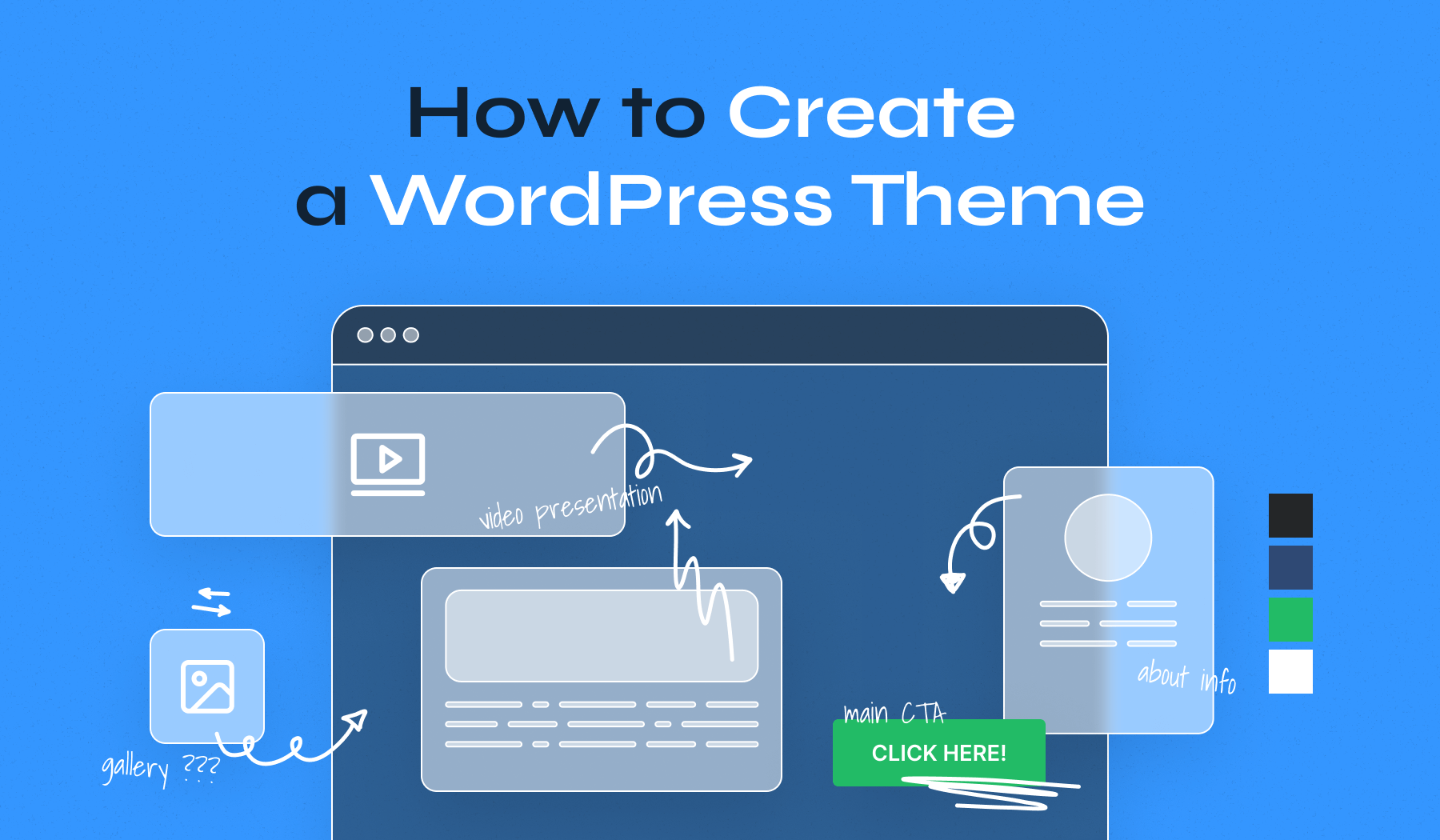
Credit: www.wpzoom.com
Testing And Debugging Your Theme
Ensuring cross-browser compatibility is key for a smooth user experience. Each browser can show your theme differently. To check, open your theme in popular browsers. These include Chrome, Firefox, and Safari. Look for any layout changes or broken elements. Fix these issues to make your theme consistent.
Utilizing debugging tools can help find errors in your theme. Many tools are available for this task. Use the built-in developer tools in browsers. Press F12 or right-click and select “Inspect.” Look at the Console tab for any red error messages. These show problems in your code. Correct these errors to keep your theme running well. Also, plugins like Query Monitor can be helpful. They provide extra information on your site’s performance.
Optimizing Theme Performance
Building your own WordPress theme requires careful attention to performance optimization. Focus on efficient code structure and streamlined design. Use lightweight elements and minimize unnecessary plugins to ensure faster loading times and better user experience.
Minifying Css And Javascript
Minifying your CSS and JavaScript is a smart step. It makes files smaller. This helps your site load faster. Remove extra spaces and comments from the code. This is called minification. Many tools can help you. Try using online minifiers or plugins like WP Rocket. They make the process easy. A fast site improves user experience. It also boosts your site’s ranking.
Leveraging Caching Techniques
Caching helps by storing data for quick access. This reduces load time. Use plugins like W3 Total Cache or WP Super Cache. They create static pages. These pages load faster for visitors. Caching saves server resources. It also enhances site speed. A faster site keeps visitors happy. It also improves SEO performance.
Publishing Your Theme
Crafting a custom WordPress theme involves selecting a design, coding templates, and integrating features. Start by learning basic HTML, CSS, and PHP to bring your ideas to life. Use WordPress’s built-in tools and documentation for guidance throughout the development process.
Preparing For WordPress Repository
Before sharing your theme, check its compatibility with WordPress standards. Ensure it follows the latest coding practices. Check for errors and fix them. A clean code is important.
Next, choose the right license for your theme. Most themes use the GPL license. This allows users to modify and share your theme. It’s a common and trusted choice.
Prepare the documentation for your theme. This helps users understand how to install and use it. Include steps for setup and customization. Clear instructions make users happy.
Check everything twice. Make sure your theme is ready for the WordPress repository. This is where people will find and use your theme.

Credit: www.youtube.com
Frequently Asked Questions
Can I Create My Own WordPress Theme?
Yes, you can create your own WordPress theme. Use HTML, CSS, PHP, and JavaScript. Customize it using WordPress Theme Development tools. Ensure it is responsive and optimized for SEO. You can find tutorials and resources online to guide you through the process.
Which Theme Builder Is Best For WordPress?
Elementor is the top choice for a WordPress theme builder. It offers a user-friendly interface and extensive customization options. Its drag-and-drop feature simplifies design tasks. With numerous templates and widgets, it caters to both beginners and professionals. Elementor’s seamless integration enhances WordPress functionality and supports responsive design.
How Do I Create My Own Template In WordPress?
To create a WordPress template, open your theme folder. Create a new PHP file. Add the necessary HTML and WordPress template tags. Save and upload the file to your theme directory. Access it via the WordPress dashboard by selecting it as a template for your pages.
How To Make A WordPress Theme Free?
To create a free WordPress theme, learn HTML, CSS, and PHP basics. Use WordPress’s Theme Development Handbook. Design your theme layout, code it, and test on a local server. Utilize tools like Underscores for a starter theme. Submit to WordPress Theme Directory for sharing.
Conclusion
Creating your own WordPress theme is an exciting journey. You gain control over design and functionality. This process can enhance your skills. It helps you understand WordPress better. With patience and practice, you can create unique themes. They can reflect your style and meet your needs.
Remember, keep learning and experimenting. Explore different tutorials and resources. These will guide you through challenges. Each theme you build improves your expertise. Your creativity will shine through your work. Enjoy the process of building and learning. Your WordPress journey is just beginning!


