
Losing your WordPress site’s data can be a nightmare. Imagine all your hard work, posts, and customizations disappearing in an instant.
That’s why backing up your site on Bluehost is not just smart—it’s essential. In this guide, you’ll learn simple, clear steps to secure your website’s data without any hassle. Whether you’re a beginner or just want peace of mind, this article will show you exactly how to protect your site so you never have to worry about losing it.
Keep reading, because your website’s safety depends on what you do next.
Credit: www.bluehost.com
Why Backup Your WordPress Site
Backing up your WordPress site is a key step to protect your online work. It saves all your content, settings, and designs. This safety net helps you avoid losing everything after a problem. Regular backups make managing your site safer and easier.
Risks Of Data Loss
Data loss can happen anytime. A website crash, hacking attack, or server failure can delete your files. Mistakes during updates or plugin installations may also break your site. Without a backup, recovering lost data is tough or impossible. Your hard work can vanish in seconds.
Benefits Of Regular Backups
Having frequent backups means quick recovery after issues. You can restore your site to a previous state fast. It reduces downtime and avoids losing visitors or customers. Backups also allow safe testing of new features. You can try changes without fear of permanent damage.
Backup Options On Bluehost
Backing up your WordPress site on Bluehost is crucial for safety. It protects your content and settings from loss or damage. Bluehost offers different ways to back up your site. You can choose between automatic and manual options. Both methods are simple and effective.
Automatic Backup Services
Bluehost provides automatic backup services for WordPress sites. These backups run on a schedule without any effort from you. Your site data, including files and databases, get saved regularly. You can restore your site from these backups easily. Automatic backups reduce the risk of losing important data. They give peace of mind by keeping your site safe at all times.
Manual Backup Methods
Manual backups let you save your site whenever you want. You can use Bluehost’s cPanel or WordPress plugins to create backups. Download your website files and export your database manually. This method gives you control over when and what to back up. It is useful before making big changes to your site. Manual backups serve as an extra layer of security for your WordPress site.
Backing Up Via Bluehost Cpanel
Backing up your WordPress site through Bluehost cPanel keeps your data safe. It saves all site files and databases in one place. You can restore your site if anything goes wrong. This method is simple and reliable. You do not need extra tools or plugins.
Follow these steps to create and download a full backup. This way, your website’s content and settings stay secure.
Accessing Cpanel
Start by logging into your Bluehost account. Find the “Advanced” tab in the main menu. Click it to open cPanel. This panel holds all the tools to manage your website. Look for the “Files” section inside cPanel. Here, you will find the backup options.
Creating A Full Backup
In the “Files” area, click “Backup.” Choose “Download a Full Website Backup.” Select the backup destination as “Home Directory.” Click “Generate Backup.” Bluehost will prepare your full backup. This process may take a few minutes depending on your site size.
Downloading Backup Files
After generating the backup, go back to the “Backup” page. Scroll to the “Backups Available for Download” section. Find your latest backup file. Click the file name to start downloading. Save it to a safe place on your computer. Keep this backup for emergencies or site migration.
Using WordPress Plugins For Backup
Backing up your WordPress site is essential for safety. Plugins make this task simple and fast. They save your files and database automatically. This way, you avoid losing data from mistakes or hacks. Using plugins is one of the easiest ways to protect your site on Bluehost.
Popular Backup Plugins Compatible With Bluehost
Many backup plugins work well with Bluehost hosting. UpdraftPlus is a favorite. It offers easy backup and restore options. BackWPup is another great choice. It can save your site to cloud storage. Jetpack also includes backup features with security tools. These plugins fit well with Bluehost’s setup and provide strong protection.
Setting Up And Scheduling Backups
After installing a backup plugin, setup is quick. Choose what parts of the site to save. Files, database, or both can be included. Next, pick a backup schedule. Daily or weekly backups work best for most sites. Set the plugin to save backups to remote storage. Options include Google Drive or Dropbox. Automatic backups keep your site safe without extra work.
Backing Up WordPress Files And Database Manually
Backing up your WordPress site manually is a smart way to keep your data safe. This process involves saving two key parts: your WordPress files and the database. Both are important to restore your site if needed. Doing this yourself gives you control over your backup and helps avoid relying on plugins or hosting tools.
Manual backups require access to Bluehost’s control panel and some basic tools. You will export your database using phpMyAdmin and download your WordPress files via FTP. These steps are simple and effective for securing your website data.
Exporting The Database Via Phpmyadmin
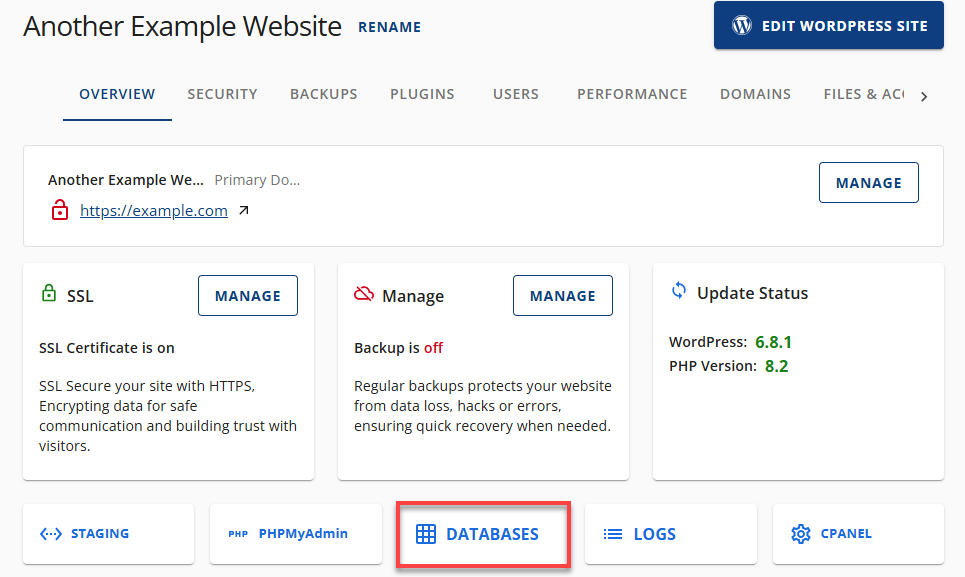
Start by logging into your Bluehost control panel. Find the “Databases” section and open phpMyAdmin. Inside phpMyAdmin, select your WordPress database from the list on the left. Click the “Export” tab at the top of the page. Choose the “Quick” export method and keep the format as SQL. Click “Go” to download the database file. Save this file in a safe place on your computer. This file contains all your site’s posts, pages, and settings.
Downloading WordPress Files Via Ftp
Next, use an FTP client like FileZilla to connect to your Bluehost server. Enter your FTP credentials from the Bluehost control panel. Once connected, navigate to the folder where WordPress is installed. Select all files and folders, including wp-content, wp-includes, and wp-admin. Download them to a folder on your computer. These files include your themes, plugins, and media uploads. Keep this backup with your database file for full site restoration.

Credit: www.bluehost.com
Restoring Your WordPress Site From Backup
Restoring your WordPress site from a backup is vital after a crash or error. It helps you bring your website back online quickly. Having a reliable backup means less stress and downtime. This section explains two easy ways to restore your site using Bluehost and WordPress tools.
Restoring Via Bluehost Tools
Bluehost offers built-in tools to restore your WordPress site easily. Log in to your Bluehost account and go to the “My Sites” section. Select the site you want to restore. Click the “Manage Site” button, then choose “Backups.”
Bluehost shows a list of available backups with dates. Pick the backup you want and click “Restore.” The system will begin restoring your site automatically. This process takes a few minutes. After completion, check your site to confirm it works properly.
Restoring Using Backup Plugins
Backup plugins make restoring WordPress sites simple and fast. Popular plugins include UpdraftPlus and BackupBuddy. First, install and activate the plugin on your WordPress dashboard. Open the plugin settings and find the restore option.
Upload your backup file or select one stored in the cloud. Click the restore button. The plugin will replace your current site data with the backup. Wait for the process to finish. Visit your site to ensure everything is restored correctly.
Best Practices For Backup Management
Proper backup management keeps your WordPress site safe. It prevents data loss and saves time during recovery. Following best practices helps maintain smooth site operations. This section explains key backup habits and security tips.
Backup Frequency
Backup your site regularly. For active sites, daily backups are best. Less active sites can backup weekly. Set automatic backups on Bluehost to avoid missing schedules. Frequent backups reduce the risk of losing recent changes.
Storage And Security Tips
Store backups in multiple places. Use cloud storage and local drives for safety. Encrypt backup files to protect sensitive data. Keep your backup files separate from your main hosting. Regularly check backup files to ensure they work correctly.

Credit: www.youtube.com
Frequently Asked Questions
How Do I Backup My WordPress Site On Bluehost?
Log in to your Bluehost account and access the cPanel. Use the Backup Wizard or File Manager to download your site files and databases. Regular backups ensure your site data is safe and easy to restore if needed.
Can I Schedule Automatic Backups On Bluehost?
Yes, Bluehost offers automatic backups through its CodeGuard service. This feature schedules regular backups without manual intervention. It helps protect your WordPress site by saving copies of your files and database automatically.
Where Are Bluehost WordPress Backups Stored?
Backups are stored in your Bluehost hosting account or on external CodeGuard servers. You can access them via the control panel for easy restoration. It’s essential to keep backups in a secure location.
How Often Should I Backup My WordPress Site?
Backup frequency depends on your update rate. For active sites, daily or weekly backups are best. Less active sites can opt for monthly backups. Regular backups minimize data loss risks.
Conclusion
Backing up your WordPress site on Bluehost is simple and smart. Regular backups keep your data safe. You avoid losing important content or settings. Use Bluehost’s tools or plugins to save your site. Store backups in more than one place.
Check your backups often to ensure they work. A solid backup plan saves time and stress. Protect your website and keep it running smoothly. Stay prepared for any unexpected issues.


