

Losing your WordPress website’s data can feel like a nightmare. Imagine all your hard work, posts, and settings disappearing in an instant.
But here’s the good news: backing up your site is simpler than you think. By learning how to back up your WordPress website properly, you protect your content and save yourself from hours of stress. You’ll discover easy steps to create reliable backups that keep your website safe—so you can focus on growing your online presence without worry.
Keep reading, and take control of your website’s future today.
Credit: www.wpbeginner.com
Why Backup Your WordPress Site
Backing up your WordPress site is very important. It protects your work and saves time. Without backups, you risk losing everything. Backups act like a safety net for your website data. They keep your content safe from unexpected problems. Knowing why backups matter helps you keep your site secure and running.
Risks Of Not Backing Up
Websites face many risks every day. Hacking can steal your data or damage your site. Server crashes can delete your files without warning. Software updates may cause errors that break your website. Human mistakes, like accidental deletions, happen often. Without backups, these problems can cause permanent loss. Losing your site means losing visitors and income. Recovery without a backup is costly and slow.
Benefits Of Regular Backups
Regular backups give peace of mind. You can restore your site quickly after problems. Backups protect your work from hackers and errors. They help fix issues caused by updates or changes. You can try new features without fear. Backups reduce downtime and keep visitors happy. Saving backups often makes your website safer. It is a simple step that saves time and stress.
Types Of WordPress Backups
Understanding the types of WordPress backups helps protect your website effectively. Backups save your site’s data and files. They are essential to recover from errors or hacks. Different backup types serve different needs. Choose the right backup type for your site’s safety.
Full Backups
Full backups save everything on your WordPress site. This includes all files, plugins, themes, and the database. A full backup creates a complete copy of your website. It takes more storage but offers the best protection. Restoring a full backup returns your site exactly as it was.
Partial Backups
Partial backups save only specific parts of your website. You can back up just the database or files. This type uses less space and is faster. Partial backups are useful for quick saves after small changes. They do not provide full site protection.
Manual Vs Automated Backups
Manual backups require you to save your site data yourself. You must remember to do this regularly. Automated backups run on their own schedule. They reduce the risk of forgetting to back up. Automated options often include email alerts and cloud storage.
Preparing For Backup
Preparing for a WordPress backup is an important step. It helps protect your website data from loss or damage. Before starting, you need to make some key decisions. These choices affect how easy and safe your backup will be. This section guides you through the preparation process. It covers selecting the right backup method and storage options.
Choosing A Backup Method
Pick a backup method that fits your needs and skills. Manual backups require downloading files and database. This method gives full control but takes time. Automated backups use plugins or hosting tools. They save time and reduce errors. Some plugins offer scheduled backups. This means your site backs up automatically at set times. Think about your website size and update frequency. Choose a method that matches your comfort with technology.
Selecting Storage Options
Decide where to store your backup files safely. Local storage means saving backups on your computer. It is fast but risky if your computer fails. Cloud storage keeps backups on remote servers. Services like Google Drive or Dropbox offer this. Cloud storage protects data from local device damage. Some hosting providers include backup storage. Check your host’s options before choosing. Always keep multiple backup copies in different places. This prevents losing data during unexpected events.
Credit: shortpixel.com
Backing Up Using Plugins
Backing up a WordPress website using plugins is a simple and effective way to protect your data. Plugins automate the backup process and save time. They allow you to create copies of your entire site, including files and databases. This ensures you can restore your site quickly after a problem.
Many plugins offer features like scheduled backups, cloud storage options, and easy restoration. These tools help even beginners manage backups without technical skills. Using plugins reduces the risk of losing important content or settings.
Popular Backup Plugins
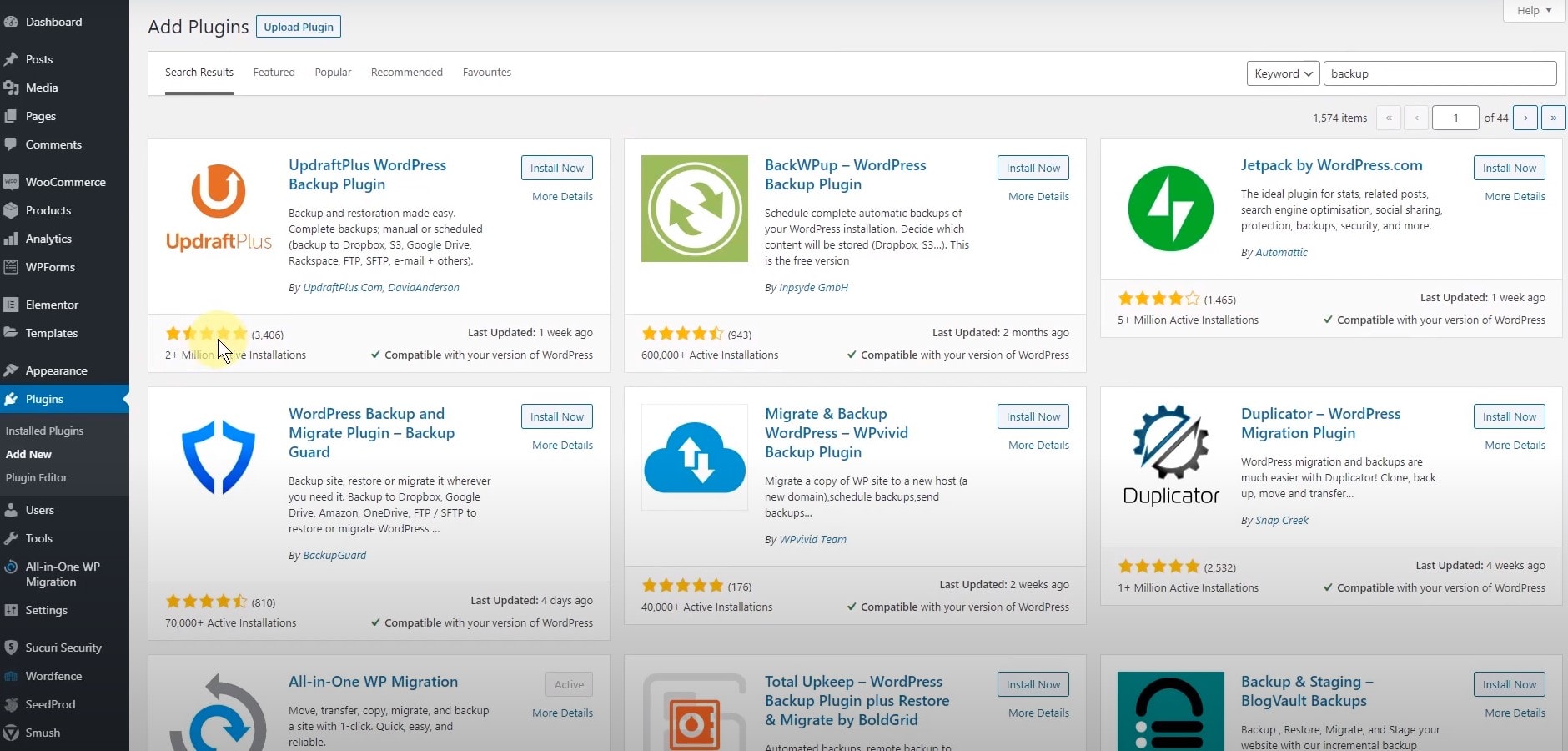
Several backup plugins are trusted by WordPress users. UpdraftPlus is one of the most popular. It supports backups to cloud services like Google Drive and Dropbox. BackWPup is another choice, offering free and premium versions. It allows full backups and easy restoration.
VaultPress focuses on security and real-time backups. It is part of Jetpack and includes malware scanning. Duplicator helps with site migration and backup. It creates a package of your site files and database.
Step-by-step Plugin Setup
First, log in to your WordPress dashboard. Go to Plugins and click Add New. Search for the backup plugin you want. Click Install and then Activate.
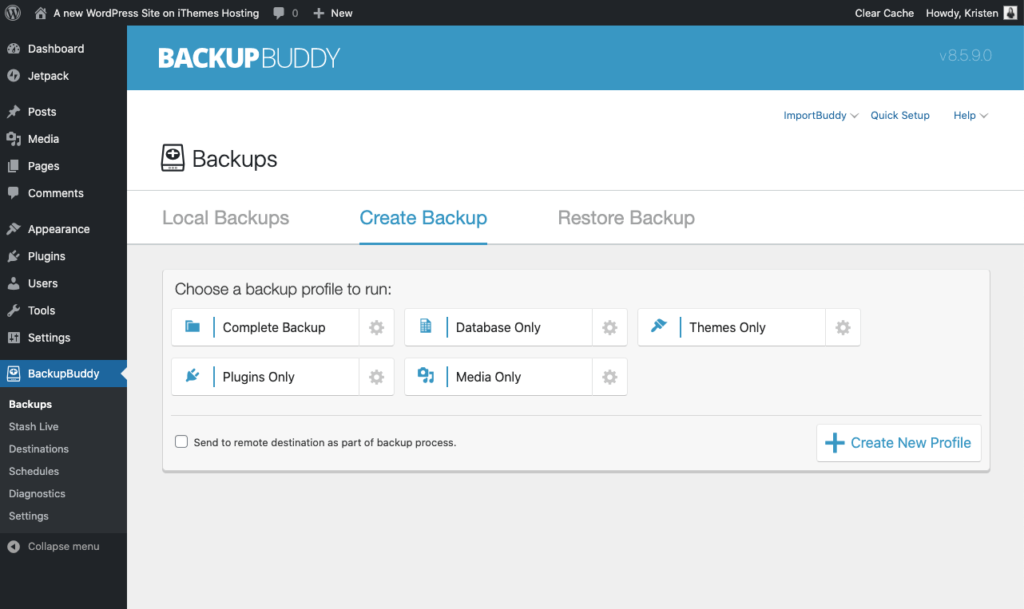
Next, find the plugin in your dashboard menu. Open its settings or backup page. Choose where to store your backups, like cloud or local storage. Set a backup schedule, such as daily or weekly.
Start your first backup by clicking the backup button. Wait until the process completes. Download a copy to your computer for extra safety. Check your backups regularly to confirm they work.
Manual Backup Process
Backing up your WordPress site manually is a reliable way to keep your data safe. This process involves saving your website files and database separately. It may take some time but gives you full control over your backup. Understanding these steps helps you protect your site from data loss.
Backing Up Files Via Ftp
First, connect to your website using an FTP client. Use your hosting details to log in. Locate the root folder of your WordPress site. This folder usually contains wp-content, wp-admin, and wp-includes.
Download all these files to your computer. This process copies your themes, plugins, and uploads. Keep this backup in a secure place for later use.
Exporting The Database
Your WordPress database stores all your posts, pages, and settings. Access your hosting control panel and open phpMyAdmin. Select your WordPress database from the list.
Click on the Export tab. Choose the Quick export method and select SQL format. Click Go to download the database file. Store this file safely with your website files.
Storing And Managing Backups
Storing and managing backups is key to protecting your WordPress website. Good backup storage keeps your data safe and easy to access. It helps restore your site quickly after problems or hacks. Organizing backups well saves time and reduces stress.
Cloud Storage Solutions
Cloud storage offers a secure place to save your backups online. It protects your files from local device failures. Popular options include Google Drive, Dropbox, and Amazon S3. These services allow easy access from anywhere. They also offer automatic syncing to keep backups updated. Cloud storage usually includes encryption for added security. Choose a plan with enough space for all your backups.
Local Storage Best Practices
Local storage means saving backups on physical devices like external hard drives or USB sticks. Keep these devices in a safe and dry place. Use multiple devices to avoid losing all backups at once. Regularly update your backups to keep them current. Label each backup with the date and website version. Test your backups from time to time to make sure they work. Local storage gives quick access without internet dependency.
Restoring Your WordPress Site
Restoring your WordPress site brings it back to life after problems. Backups save your content, settings, and design. Restoring means using these backups to fix your site quickly. This process protects your work and keeps your site running smoothly.
Restoring From Plugin Backups
Many WordPress plugins create backups automatically. They store files and database snapshots safely. To restore, open the plugin dashboard. Find the backup you want and click restore. The plugin replaces old files with backup files. This method is fast and easy. It works well for beginners and experts.
Restoring From Manual Backups
Manual backups include files saved by you or your host. To restore, access your hosting control panel or FTP. Upload the backup files to the correct folders. Replace the old WordPress files carefully. Then, import the database backup using phpMyAdmin. This method takes more time but offers full control.
Backup Frequency And Scheduling
Backing up your WordPress website regularly is key to keeping your data safe. The frequency and timing of backups depend on how often your site changes. Setting a good schedule helps you avoid losing important updates or content. It also saves time by automating the process.
How Often To Backup
Consider how often you add new posts or change your site. For active blogs, daily backups work best. For smaller sites, weekly backups may be enough. E-commerce sites need more frequent backups to protect orders and customer data. Always back up before making big changes to your site. This keeps your work safe and easy to restore.
Automating Backup Schedules
Automatic backups reduce the risk of forgetting to save your data. Many WordPress plugins let you schedule backups easily. Choose a time when your site has low traffic. Night or early morning hours are usually best. Set your plugin to save backups to a secure location. Cloud storage or remote servers keep your files safe from local issues.
Troubleshooting Backup Issues
Backing up a WordPress website is crucial for keeping your data safe. Sometimes, backups may not work as expected. Troubleshooting backup issues helps ensure your site data is secure. Understanding common problems and solutions can save time and stress.
Common Backup Errors
Backup processes can fail due to several reasons. One frequent error is insufficient server space. This problem stops backups from completing. Another issue is incorrect file permissions. These prevent backup tools from accessing necessary files. Timeouts during backup can also cause failures. Large websites are more prone to this. Sometimes, plugin conflicts interfere with backup operations. Outdated backup plugins often create errors. Finally, network problems can disrupt backup connections.
Solutions And Tips
Free up server space to avoid storage issues. Check your hosting provider’s limits and clear unnecessary files. Set correct file permissions to allow backups access. Use a plugin or your hosting control panel to adjust permissions. Increase PHP execution time to prevent timeouts. Contact your host for help with server settings. Deactivate other plugins to find conflicts affecting backups. Update your backup plugin regularly for better performance. Use a stable internet connection during backups. Schedule backups during low-traffic hours to reduce errors.
Credit: solidwp.com
Frequently Asked Questions
How Often Should I Back Up My WordPress Website?
You should back up your WordPress site at least once a week. For active sites, daily backups are ideal. Regular backups protect your data from loss due to hacks, errors, or updates. Automating backups ensures your website is always safe and up to date.
What Are The Best Plugins For WordPress Backups?
Popular WordPress backup plugins include UpdraftPlus, BackupBuddy, and BackWPup. These plugins offer automated backups, cloud storage integration, and easy restoration. Choose a plugin that fits your needs and budget to keep your site secure and backed up regularly.
Can I Back Up My WordPress Site Manually?
Yes, you can manually back up your WordPress site by downloading files via FTP. You also need to export the database using phpMyAdmin. Manual backups give you full control but require technical knowledge and regular effort to stay updated.
Where Should I Store My WordPress Backups Securely?
Store backups in multiple locations like cloud storage (Google Drive, Dropbox) and local drives. Offsite storage protects your data from server crashes or hacking. Always keep at least one backup copy outside your hosting environment for safety.
Conclusion
Backing up your WordPress website protects your work and data. Regular backups save you from unexpected problems. Use plugins or manual methods to keep copies safe. Store backups in different places for extra security. Check your backups often to ensure they work well.
Taking simple steps now saves time and stress later. Keep your website safe by backing up today.


