
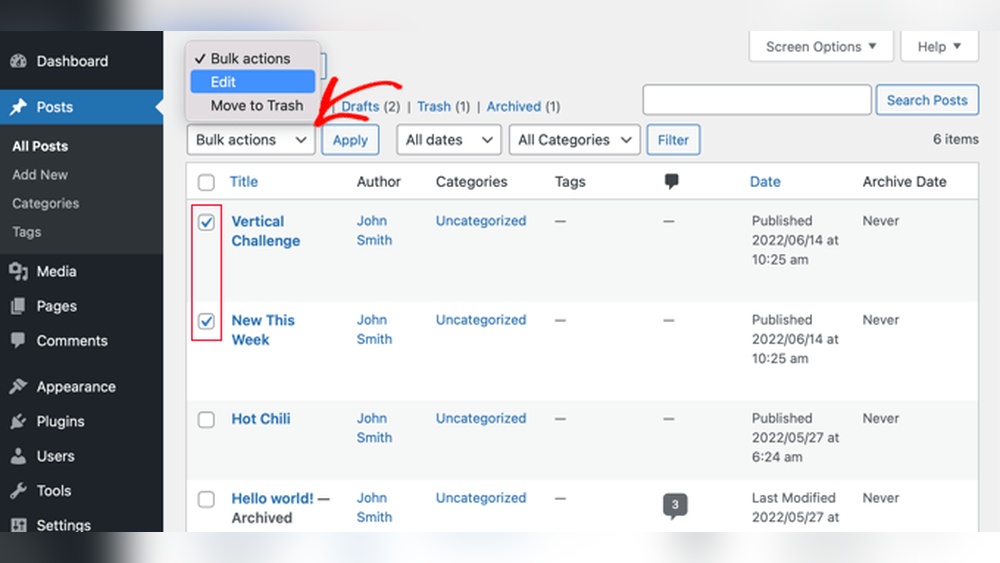
Are you looking for a simple way to organize your WordPress site without deleting old posts? Archiving your posts might be the perfect solution.
It helps you keep your content tidy and easy to navigate while preserving valuable information for your visitors. You’ll discover easy steps to archive your posts on WordPress quickly and effectively. By the end, you’ll have a cleaner site that works better for you and your audience.
Ready to get started? Let’s dive in!
Benefits Of Archiving Posts
Archiving posts on WordPress brings many benefits to your website. It keeps your site neat and well-organized. Archiving also helps visitors find older posts easily. This practice improves your website’s overall quality and performance.
Below are some key advantages of archiving posts on WordPress.
Improved Site Navigation
Archiving creates a clear structure for your site. Visitors can browse older content without confusion. It reduces clutter on main pages. This makes your website easier to explore. Visitors spend more time on your site. They find what they need faster.
Enhanced User Experience
Archived posts keep content accessible and tidy. Visitors feel less overwhelmed by too many posts. They enjoy a smoother browsing experience. This encourages visitors to return to your site. A better user experience improves your site’s reputation.
Better Content Management
Archiving helps you organize posts by date or topic. You can focus on new content creation. Older posts remain available but do not crowd the site. Managing your content becomes simple and efficient. This saves time and effort for site owners.
Preparing Your WordPress Site
Preparing your WordPress site is the first step to archiving posts smoothly. This stage sets a strong base. It helps avoid data loss and keeps your site running well. Taking time now saves trouble later.
Backup Your Website
Backing up your website protects your content. Create a full backup before making changes. Use tools like UpdraftPlus or BackupBuddy for easy backups. Store backup files in a safe place. This step keeps your data safe from errors or crashes.
Choose The Right Theme
Select a theme that supports archiving features. The theme should be fast and mobile-friendly. Check if it handles large post archives well. A clean, simple design helps visitors find archived posts easily. Avoid themes with too many complex features.
Install Essential Plugins
Plugins add useful functions to your site. Install archiving plugins like WP Archive or Simple Yearly Archive. Use SEO plugins such as Yoast SEO for better search visibility. Keep plugins updated for security and performance. Only use trusted plugins to avoid conflicts.
Creating Post Archives
Creating post archives helps visitors find your content easily. Archives group your posts by date, category, or type. This organization improves user experience and SEO. WordPress offers several ways to create post archives.
Using Built-in WordPress Features
WordPress has built-in archive pages for posts by date, author, and category. These pages are automatically generated. You only need to enable them in your theme. Most themes display archives in widgets or menus. This method is simple and requires no coding.
Setting Up Custom Post Types
Custom post types let you create new content types beyond posts and pages. Examples include portfolios, testimonials, or products. Each type can have its own archive page. Use plugins or add code to register custom post types. This method gives more control over content organization.
Organizing By Categories And Tags
Categories and tags group posts by topic and keywords. Categories show broad topics, tags cover specific details. Both create archive pages automatically. You can display these archives in menus or widgets. This helps visitors find related content quickly.
Credit: rankmath.com
Using Plugins For Archiving
Using plugins to archive posts on WordPress simplifies the process. Plugins add features without needing coding skills. They organize content automatically and keep your site clean. Plugins save time and make archiving easy for everyone.
Top Plugins To Consider
Several plugins help with archiving posts efficiently. “Simple Yearly Archive” creates clean archives by year. “Archive Control” lets you customize which posts appear in archives. “WP Archive Page” builds neat, easy-to-navigate archive pages. These plugins work well for most WordPress sites.
How To Install And Configure Plugins
Go to your WordPress dashboard and select “Plugins.” Click “Add New” and type the plugin name in the search box. Hit “Install Now” and then “Activate.” After activation, find the plugin settings in the dashboard. Adjust options like archive style and post selection. Save changes before leaving the page.
Automating Archive Updates
Most archiving plugins update automatically when you add posts. This keeps your archive fresh without extra work. Some plugins allow scheduling archive updates. Set the timing to daily, weekly, or monthly. Automating saves time and keeps your archives organized.
Customizing Archive Pages
Customizing archive pages helps visitors find posts easily. A good archive page shows posts clearly. It also matches the website style. Custom archive pages improve user experience and keep visitors longer.
Editing Archive Templates
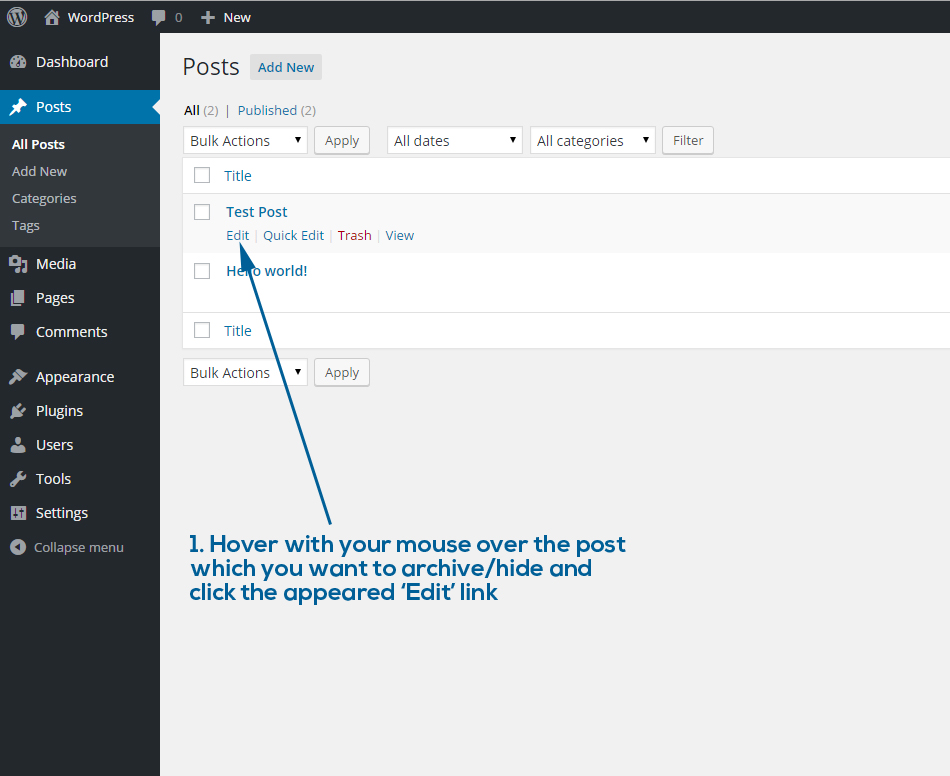
Edit archive templates to change how posts show. Use WordPress theme files like archive.php or category.php. Customize these templates with HTML and PHP. Change the post order, add images, or show summaries. Small edits make archives clearer and more inviting.
Adding Filters And Search Options
Filters let users sort posts by date or category. Search boxes help find specific posts fast. Use plugins or code to add these features. Filters and search improve navigation. Visitors spend less time searching and more time reading.
Improving Archive Layouts
Good layout arranges posts neatly. Use grids or lists for better view. Add spacing and headings to separate sections. Make sure the layout looks good on mobile devices. A clean layout keeps visitors interested and reduces bounce rates.
Credit: psdtowp.net
Managing Archived Content
Managing archived content on WordPress keeps your site clean and organized. It helps control what visitors see and what stays hidden. Proper management lets you schedule, restore, or delete posts easily. This section explains how to handle archived posts effectively.
Scheduling Post Archives
Set a date to archive posts automatically. WordPress allows you to schedule when a post moves to the archive. This keeps your blog fresh and relevant. Use the post editor to set the publishing or expiration date. It saves time and keeps old content out of sight.
Restoring Archived Posts
Bring archived posts back to your active blog anytime. Go to your archive list and select the post. Change its status from “archived” to “published.” This makes the post visible again to your readers. It’s useful for reposting or updating content.
Deleting Or Permanently Removing Archives
Remove archived posts permanently to free up space. Navigate to the archive section and select unwanted posts. Use the delete option to erase them forever. This action cannot be undone. Only delete posts you no longer need or want.
Tips For Effective Content Organization
Organizing your WordPress posts helps keep your site tidy and user-friendly. Good content organization saves time. It also makes finding posts easier. Clear structure improves your site’s SEO and visitor experience.
Consistent Naming Conventions
Use clear, simple names for your posts. Keep a pattern for titles and file names. For example, include the date and topic in the title. This helps you find posts fast. It also helps search engines understand your content better.
Regular Content Audits
Check your posts often. Remove old or irrelevant content. Update posts with new information. This keeps your site fresh and reliable. Regular audits improve your site’s ranking and user trust.
Utilizing Tags And Categories
Sort your posts with tags and categories. Categories group similar content broadly. Tags describe specific details within posts. Use both to help visitors find related posts easily. This also helps search engines index your site well.

Credit: www.greengeeks.com
Frequently Asked Questions
How Do I Archive Posts On WordPress Easily?
To archive posts on WordPress, create a new category named “Archive. ” Assign older posts to this category. Then, use the category archive page to display archived content. This method keeps your site organized and improves user navigation.
Can I Archive Posts Without Deleting Them?
Yes, archiving posts keeps them published but less visible. You can change their category or use plugins to hide posts from the main blog page. This way, posts remain accessible but don’t clutter your site.
Are There Plugins For WordPress Post Archiving?
Several plugins help archive WordPress posts, like WP Archive or Simple Yearly Archive. These tools automate archiving by date or category, improving site structure and user experience. Choose one that fits your needs and install it from the plugin repository.
Does Archiving Posts Affect Seo Rankings?
Properly archiving posts does not harm SEO. It can improve SEO by organizing content and reducing site clutter. Ensure archived posts remain accessible with proper links and meta tags for best SEO results.
Conclusion
Archiving posts on WordPress keeps your site clean and organized. It helps visitors find older content easily. You can archive posts by date, category, or tag. This method also improves your site’s performance. Regularly archiving ensures your blog stays user-friendly.
Try these steps to manage your posts well. Keep your WordPress site neat and simple. It makes blogging more enjoyable for you and your readers.


