

Want to make your WordPress site more connected and engaging? Adding your social media profiles is the easiest way to do that.
When your visitors see your social links, they feel more connected to you and your brand. Plus, it drives more traffic to your social accounts, boosting your online presence. In this post, you’ll learn simple, step-by-step methods to add your social media to WordPress quickly—no tech skills needed.
Keep reading, and you’ll have your social icons live in no time!
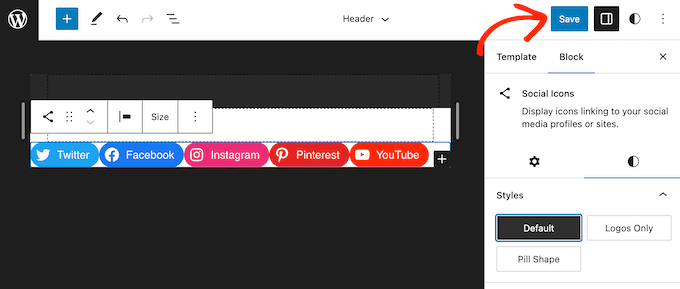
Credit: www.wpbeginner.com
Choosing The Right Social Media Platforms
Choosing the right social media platforms is key for your WordPress site. Each platform has unique features and audiences. Picking the right ones helps you connect better with visitors. It also boosts your site’s reach and engagement.
Popular Platforms For WordPress
Facebook is great for sharing updates and building communities. Twitter works well for quick news and short messages. Instagram focuses on images and videos, perfect for visual content. LinkedIn suits professional and business content. Pinterest attracts users interested in ideas and inspiration. These platforms integrate easily with WordPress.
Matching Platforms To Your Audience
Think about who visits your site. Younger users may prefer Instagram or TikTok. Professionals lean toward LinkedIn. Hobbyists might use Pinterest or Facebook groups. Choose platforms where your audience is active. This ensures better interaction and sharing. Focus on quality over quantity to keep your social media manageable.
Using WordPress Plugins
Using WordPress plugins makes adding social media to your site easy. Plugins provide ready tools to connect your social profiles. They save time and improve your site’s look. You don’t need to write code. Choose a plugin that fits your needs and style. Follow simple steps to install and set it up. Your visitors can then see and follow your social media.
Top Plugins For Social Media Integration
Several plugins offer smooth social media integration. “Social Icons Widget” adds clickable icons to sidebars. “Smash Balloon Social Photo Feed” shows Instagram feeds on your site. “Shared Counts” displays share buttons for posts. “Simple Social Icons” lets you pick icon styles easily. Each plugin has unique features and design options. Choose one that matches your website’s theme and purpose.
Installing And Activating Plugins
Go to your WordPress dashboard. Click on “Plugins” then “Add New.” Type the plugin name in the search bar. Find the plugin and click “Install Now.” Wait for the installation to finish. Click “Activate” to start using the plugin. The plugin will appear in your dashboard menu. You can now begin customizing its settings.
Configuring Plugin Settings
Open the plugin settings from the dashboard. Enter your social media profile links. Choose icon styles and placement on your site. Decide where icons will appear—header, footer, or sidebar. Save the changes after adjusting all options. Preview your site to check the appearance. Adjust settings again if needed. Proper configuration ensures a neat, user-friendly display.
Adding Social Media Icons Manually
Adding social media icons manually to your WordPress site gives you full control over their look and placement. You can choose the style, size, and colors to match your website design. This method requires some basic knowledge of HTML and CSS but offers flexibility that plugins might not provide.
Manual addition is perfect for small websites or users who want a clean, lightweight solution. It also helps avoid extra plugin load, which can slow your site down. Below are simple steps to add social media icons using custom code.
Using Custom Html And Css
First, create a container in your WordPress page or widget area using the Custom HTML block. Inside this container, add the HTML code for your social media icons. You can use tags with classes or embed SVG icons directly.
Next, write CSS to style these icons. Use CSS to control size, color, spacing, and hover effects. Add the CSS either in the Customizer under “Additional CSS” or in your child theme’s stylesheet. This makes the icons look neat and consistent across your site.
Linking Icons To Your Profiles
Each icon must link to your social media profile. Wrap the icon HTML in an anchor tag . Use the full URL of your profile as the href attribute.
Set the anchor tag to open links in a new tab by adding target="_blank". This keeps visitors on your site while they check your social media. Also add rel="noopener noreferrer" for security and better SEO.

Credit: webdesign.tutsplus.com
Embedding Social Media Feeds
Embedding social media feeds on WordPress makes your site lively and interactive. Visitors see fresh content without leaving your page. This keeps them engaged longer and builds trust. Feeds also show your active presence on social platforms.
Embedding is simple and does not require deep coding skills. WordPress supports many social media widgets and plugins. These tools help you display posts, tweets, or updates directly on your site. Below are ways to embed popular social media feeds.
Facebook And Instagram Feeds
Facebook and Instagram allow embedding posts or entire feeds. Use official plugins like Facebook Page Plugin for WordPress. It shows your Facebook timeline and works well on all devices. For Instagram, plugins like Smash Balloon Instagram Feed are popular. They display photos and videos from your Instagram account. Customize how feeds look by adjusting colors and layout. Embed feeds to share updates and attract followers easily.
Twitter And Linkedin Widgets
Twitter offers widgets to embed timelines or individual tweets. Visit Twitter Publish to get the embed code. Paste it into a WordPress text or HTML block. The feed updates automatically with your latest tweets. LinkedIn provides a Company Profile Plugin for websites. It displays your company updates and follower count. Use LinkedIn’s embed code for simple integration. These widgets help show your professional activity and connect with visitors.
Optimizing Social Media Placement
Optimizing the placement of social media icons and feeds on your WordPress site helps visitors find and use them easily. Proper placement improves visibility and encourages more clicks. It also creates a smooth experience for users, making them stay longer on your site. Thoughtful placement can boost your social media following and website traffic.
Best Locations For Icons And Feeds
Place social media icons where visitors expect to see them. The top right corner of your header is a common spot. The footer is another good place because it appears on every page. Sidebars also work well, especially on blogs or content-heavy sites.
Social media feeds show live updates and keep your site dynamic. Add feeds to your homepage or sidebar. Keep feeds visible but not overwhelming. Avoid placing too many feeds in one spot. Balance the site layout to maintain a clean look.
Improving User Engagement
Make icons large enough to click easily. Use familiar social media logos for quick recognition. Add hover effects to show interactivity. This encourages visitors to click and follow your accounts.
Embed social media feeds that display interesting and relevant content. Fresh posts keep visitors interested and encourage interaction. Invite users to share or comment on your content. Engagement grows when users feel involved.

Credit: smashballoon.com
Troubleshooting Common Issues
Adding social media to WordPress can sometimes cause issues. These problems can affect how your links or icons show on your site. Fixing these problems helps visitors see your social media clearly and easily. Below are common issues and easy fixes to keep your social media looking good.
Fixing Display Problems
Sometimes social media icons do not show up or look broken. Check if the plugin or widget is active. Clear your website cache to see recent changes. Make sure your theme supports social media plugins. Update plugins and WordPress to the latest version for better compatibility. Try switching to a default theme to find if the issue is theme-related.
Ensuring Mobile Compatibility
Many users visit websites on mobile devices. Social media icons must look good on phones and tablets. Use responsive plugins that adjust to screen size. Test your site on different devices to check icon size and placement. Avoid large icons that may slow down loading on mobile. Keep your design simple for easy navigation on small screens.
Frequently Asked Questions
How Do I Add Social Media Icons To WordPress?
You can add social media icons using plugins or widgets. Popular plugins include Social Icons Widget and Smash Balloon. Simply install, activate, and configure your accounts for display on your site.
Can I Link Multiple Social Media Profiles On WordPress?
Yes, WordPress allows linking multiple profiles. Use social media plugins or theme options to add various platforms like Facebook, Twitter, and Instagram easily.
Is It Possible To Display Live Social Media Feeds On WordPress?
Yes, you can display live feeds using plugins like Smash Balloon or Custom Twitter Feeds. These update automatically and keep your site content fresh.
How Do I Add Social Media Buttons To WordPress Posts?
Use social sharing plugins like AddToAny or Sassy Social Share. These add buttons for readers to share your posts on their social media accounts.
Conclusion
Adding social media to your WordPress site is simple and useful. It helps visitors find your profiles easily. You can choose from many plugins or add links manually. Keep your icons clear and in visible spots. Regularly update your links to stay current.
Social media presence boosts your site’s reach and engagement. Start adding your social media today and connect with more people. Small steps can make a big difference.


