
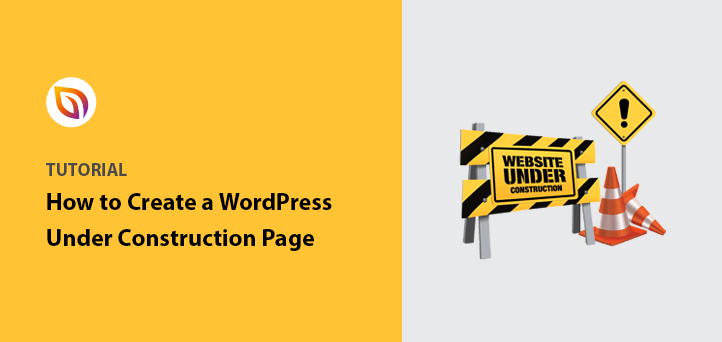
Are you working on your WordPress site but don’t want visitors to see unfinished pages? Adding an under construction page is the perfect solution.
It keeps your audience informed while you build, and it creates a professional impression. In this guide, you’ll learn simple, step-by-step ways to set up an under construction page quickly—no technical skills needed. Keep reading, and you’ll have your site ready to impress visitors, even before it’s fully live.
Choose The Right Plugin
Choosing the right plugin is key to creating a good under construction page. The plugin controls how your page looks and works. It can help keep visitors informed while your site is not ready. Picking a tool that fits your needs saves time and effort.
Many plugins offer different designs and options. Some are easy to use, while others have advanced features. The right plugin matches your skills and the message you want to share.
Popular Under Construction Plugins
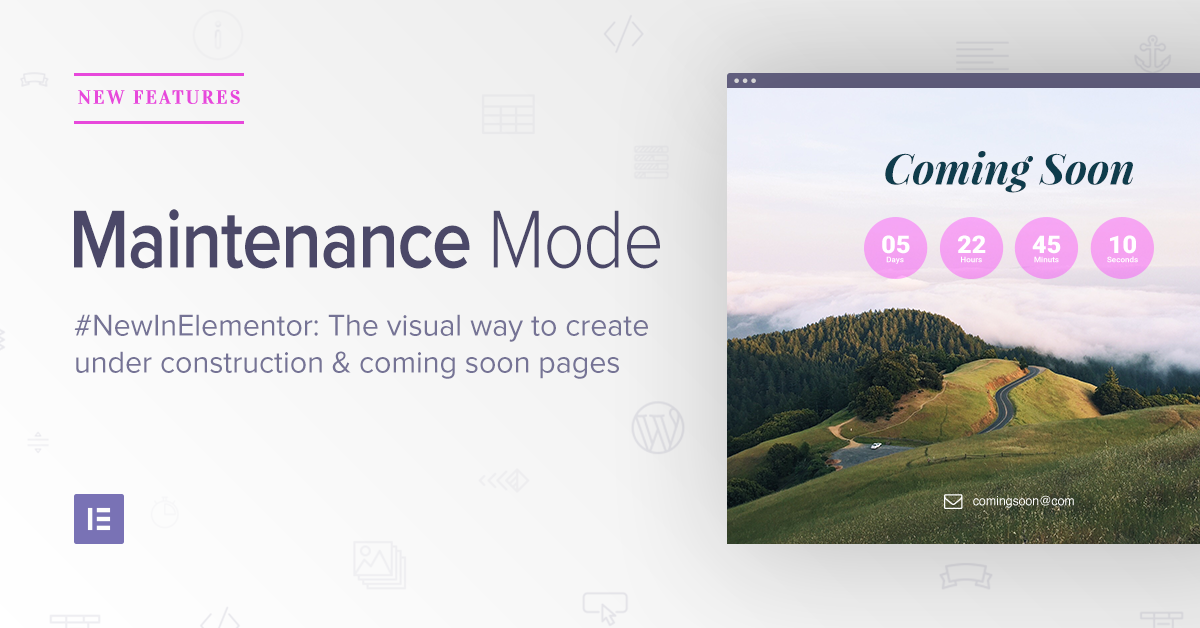
Several plugins stand out for building under construction pages. “SeedProd” is well-known for its drag-and-drop builder and templates. “Elementor” also offers under construction modes with easy editing. “WP Maintenance Mode” provides simple setup with basic features. “Coming Soon Page & Maintenance Mode” is another choice with good customization options.
Plugin Features To Consider
Look for plugins that offer responsive design. Your page should look good on phones and tablets. Check if the plugin allows easy message editing and image uploads. Email capture forms can help collect visitor contacts. SEO settings help search engines understand your page. Also, consider plugins that support social media links. Fast loading speed and regular updates are important too.
Credit: www.seedprod.com
Install And Activate Plugin
Installing and activating a plugin is the first step to add an under construction page in WordPress. Plugins offer an easy way to customize your site without coding. You only need to find the right plugin and activate it. This process takes just a few minutes. It is simple and straightforward for all users.
Finding Plugins In WordPress Dashboard
Log in to your WordPress dashboard. On the left menu, find and click “Plugins.” Then click “Add New.” Use the search bar to type “under construction.” You will see a list of plugins related to under construction pages. Look at the ratings and reviews to choose a reliable plugin. Select one that fits your needs and has good feedback.
Step-by-step Installation Process
After finding the plugin, click the “Install Now” button. Wait a few seconds for the installation to complete. When it finishes, click “Activate.” Activation makes the plugin ready to use on your website. You can now customize the under construction page settings in the plugin menu. This quick process helps your visitors know the site is under maintenance.
Configure Under Construction Settings
Configuring the under construction settings is an important step in setting up your WordPress page. It lets you control how the page looks and who sees it. This part makes sure visitors get the right message while your site is not ready. You can choose a style, change the text and images, and decide who can view the page.
Selecting A Template
Start by picking a template for the under construction page. Templates give a ready design that fits different styles. Choose one that matches your brand or site purpose. Look for a clean and simple design. This helps visitors understand your message quickly. Many WordPress plugins offer several templates to choose from.
Customizing Content And Design
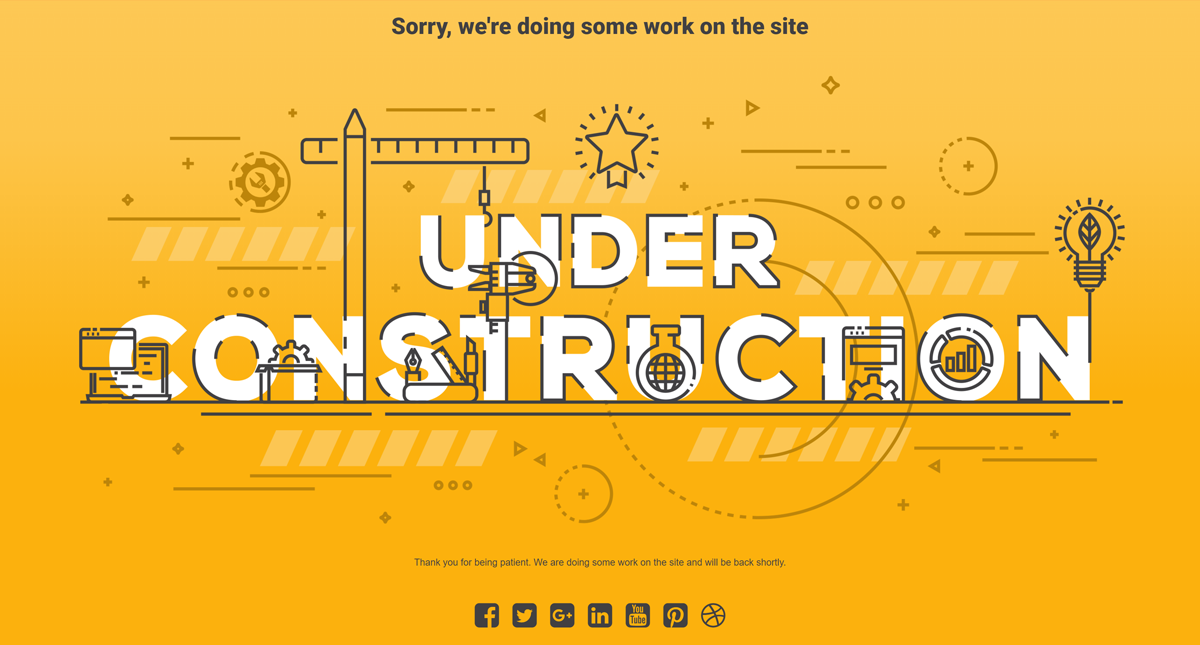
Change the text to tell visitors what is happening. Use short sentences that explain why the site is under construction. Add your logo or an image to keep the page personal. Adjust colors to match your brand. Keep the design neat and easy to read. Avoid clutter that can confuse visitors.
Setting Visibility Options
Decide who can see the under construction page. You might want only visitors to see it, but allow admins to access the full site. Some plugins let you hide the page from search engines. This stops unfinished pages from showing in search results. Set a schedule to turn off the page automatically when your site is ready.
Credit: wordpress.org
Enable Under Construction Mode
Enabling under construction mode helps visitors know your site is not ready yet. It shows a simple page while you work on your WordPress site. This keeps your audience informed and stops confusion.
Many WordPress plugins make this process easy. You can activate the mode with just a few clicks. The page will appear to visitors, but you can still see the full site.
Activating The Page
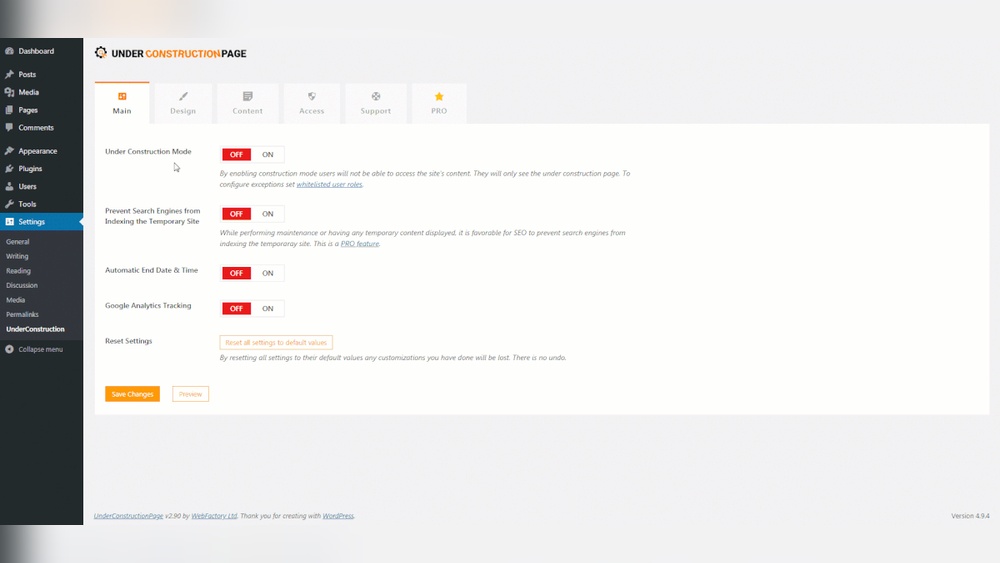
Go to your WordPress dashboard. Find the plugin you want for under construction mode. Most plugins have a clear option to turn on the mode. Click “Activate” or “Enable” to start.
Set up the page content if needed. You can add a message, logo, or countdown timer. Save your changes to apply the settings.
Testing The Under Construction Page
Open your website in a new browser or private window. This shows how visitors see the page. Check if the under construction message appears correctly.
Make sure the design looks good on phones and tablets. Fix any issues in the plugin settings. Test again until the page works as you want.
Manage User Access
Managing user access is a key step in setting up an under construction page on WordPress. It controls who can see the website and who cannot. This makes sure only the right people, like site owners or developers, get full access during updates.
Proper user management keeps visitors away from unfinished content. It also allows admins to work without interruptions. This section explains how to control access effectively.
Allowing Admin Access
Admin users need full access to the website during construction. Use a plugin that lets you whitelist admin roles. This way, admins see the live site while others see the under construction page.
Set your plugin to recognize logged-in admins automatically. This avoids the need for extra login steps. Admins can test and update the site smoothly.
Restricting Visitor Access
Visitors should see only the under construction page. Block all other pages and content from public view. Use plugins that redirect visitors to the construction page.
Check that search engines also see the under construction page. This prevents unfinished pages from being indexed. Visitors get a clear message that the site is coming soon.
Credit: elementor.com
Disable Under Construction Page
Disabling the under construction page on your WordPress site is important when your site is ready for visitors. It helps you switch from a temporary page to the full website. Follow these simple steps to turn off maintenance mode and remove the plugin if needed.
Turning Off Maintenance Mode
Log in to your WordPress dashboard. Find the plugin that controls the under construction page. Most plugins have a clear option to disable the mode. Click the button or toggle to turn off maintenance mode. Your site will become visible to visitors immediately.
Removing The Plugin If Needed
If you no longer want to use the under construction plugin, you can remove it. Go to the Plugins section in your dashboard. Find the under construction plugin in the list. Click “Deactivate” first, then click “Delete” to remove it completely. This keeps your site clean and fast.
Tips For Effective Under Construction Pages
Creating an effective under construction page helps keep visitors informed and engaged. This page shows that your site is not ready yet but will be soon. It builds trust and maintains interest during the downtime. Use simple tips to make your under construction page useful and inviting.
Adding Contact Information
Include clear contact details on the page. Provide an email address or phone number visitors can use. This allows people to reach you with questions or feedback. It also shows you care about their needs. Keep the contact info easy to find and read.
Using Engaging Visuals
Use images or graphics to attract attention. A clean and simple design works best. Visuals can explain your message quickly. Avoid clutter or too many colors. Choose pictures that match your brand style. This makes the page look professional and appealing.
Setting Up Email Notifications
Set up email alerts to gather visitor interest. Offer a signup form for updates on your site. This helps build a list of potential users. Notify them when your website goes live. Make the signup process quick and simple.
Frequently Asked Questions
How Do I Create An Under Construction Page In WordPress?
You can create an under construction page using plugins like SeedProd or Elementor. Install and activate the plugin, then customize your page. Activate the under construction mode to display the page to visitors while you build your site.
Can I Customize The Under Construction Page Design?
Yes, most plugins offer customizable templates and design options. You can change colors, text, images, and layout to match your brand. This helps maintain professionalism and keeps visitors engaged while your site is under construction.
Will An Under Construction Page Affect My Seo?
No, an under construction page usually includes a “noindex” tag to prevent search engines from indexing it. This avoids harming your SEO rankings during site development. Once live, disable the under construction mode to allow indexing.
How Long Should I Keep The Under Construction Page Active?
Keep the under construction page active only as long as needed to complete your site. Prolonged use may frustrate visitors and impact your brand reputation. Aim to launch your site as soon as it’s ready.
Conclusion
Adding an under construction page keeps visitors informed during website changes. It helps maintain professionalism and trust with your audience. The process is simple and quick in WordPress. Just follow the steps carefully and choose the right plugin or method.
Your site stays clean and users know when to return. This small effort improves user experience and prepares your site for launch. Keep your visitors engaged even when your site is not ready.


