
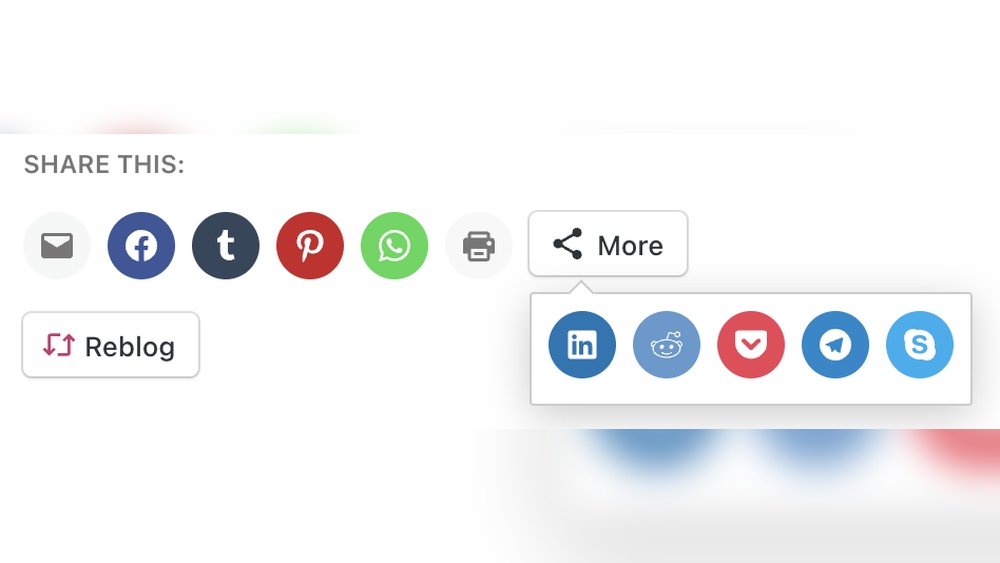
If you want more people to see your WordPress content, adding social sharing buttons is a smart move. Imagine your visitors sharing your posts with just one click—instantly spreading your message across their networks.
This simple step can boost your traffic and grow your audience faster than you think. In this guide, you’ll learn exactly how to add social sharing buttons to your WordPress site, even if you’re not tech-savvy. Keep reading, and you’ll have your site ready to attract more shares and more visitors in no time.
Credit: happyaddons.com
Choosing The Right Social Sharing Plugin
Choosing the right social sharing plugin for your WordPress site is important. The right plugin helps visitors share your content easily. It also fits your website’s style and needs. You want a plugin that is simple to use and works well on all devices. This section will guide you through popular options and features to consider.
Popular Plugin Options
Several plugins are popular for social sharing on WordPress. Some well-known ones include ShareThis, AddToAny, and Social Warfare. These plugins offer different styles and button placements. They support many social networks like Facebook, Twitter, and LinkedIn. You can choose one based on how it looks and functions on your site.
Key Features To Look For
Look for plugins that load fast and do not slow down your website. Easy customization is important to match your site’s design. Mobile-friendly buttons ensure good user experience on phones and tablets. Check if the plugin shows share counts, which can boost trust. Compatibility with your WordPress version and other plugins matters too.
Free Vs Premium Plugins
Free plugins offer basic sharing features and are good for most sites. Premium plugins provide extra options like advanced analytics or more button styles. Consider your budget and needs before choosing premium. Sometimes, free versions are enough for simple sharing. Upgrade only if you need more control or detailed reports.
Credit: wpcode.com
Manual Method: Adding Social Buttons With Code
Adding social sharing buttons to your WordPress site helps visitors share your content easily. The manual method uses simple code to place buttons exactly where you want. This way, you control the design and functionality without extra plugins.
Manual coding may seem hard at first. But following step-by-step instructions makes it simple. The process includes adding HTML for icons, styling with CSS, and inserting the code into your theme files.
Adding Html For Social Icons
Start by creating the HTML structure for your social buttons. Use anchor tags () to link to social networks. Inside each link, add an icon using either images or font icons like Font Awesome.
Example:
Replace YOUR_URL with the page URL you want to share. This HTML creates clickable icons linking to share pages.
Styling Buttons With Css
Use CSS to make the buttons look neat and consistent. Set sizes, colors, spacing, and hover effects. This enhances user experience and site design.
Example CSS:
.social-buttons a { display: inline-block; margin-right: 10px; font-size: 20px; color: 333; text-decoration: none; transition: color 0.3s ease; } .social-buttons a:hover { color: 0073e6; } This CSS styles the icons with a base color and changes color on hover. Adjust colors to match your site’s theme.
Inserting Code Into WordPress Theme
Place your HTML and CSS code into the WordPress theme files. Use a child theme to prevent losing changes after updates.
Insert the HTML in template files like single.php or page.php where you want buttons to show. Add CSS in the theme’s style.css or via the WordPress Customizer under Additional CSS.
Editing files requires access to the WordPress dashboard or FTP. Always back up files before making changes. This method ensures your social buttons appear exactly where you want them.
Installing And Configuring Plugins
Adding social sharing buttons to WordPress is easier with plugins. These tools help you place sharing options quickly without coding. Installing and configuring plugins allows you to customize button look and where they appear. This section guides you through the steps to install, style, and enable sharing buttons on different content types.
Plugin Installation Steps
Go to your WordPress dashboard. Find the “Plugins” menu on the left. Click “Add New.” Use the search box to find a social sharing plugin. Popular choices include “Social Warfare” or “AddToAny.” Click “Install Now” on your chosen plugin. Wait for the installation to finish. Press “Activate” to enable the plugin on your site.
Setting Up Button Styles And Placement
After activation, access the plugin settings in the dashboard. Choose your preferred button style. Options often include icons, text, or combined buttons. Select the button size and color to match your website design. Decide where to place buttons—top, bottom, or side of posts. Save your changes to apply the new style and placement.
Enabling Sharing For Different Post Types
Plugins usually allow sharing on posts, pages, or custom types. Open the plugin’s display settings. Check the boxes for content types you want to share. For example, enable buttons on blog posts and product pages. This ensures visitors can share all important content. Save the settings to activate sharing on selected post types.
Positioning Social Sharing Buttons
Positioning social sharing buttons is key to boosting user engagement. Proper placement makes sharing easy and natural. Buttons should fit well with your content and site design. Thoughtful positioning helps visitors find and use them quickly. This section covers common and effective placement options for WordPress social sharing buttons.
Above Or Below Content
Placing buttons above your content grabs attention early. Visitors see sharing options before reading. This encourages sharing even before finishing the post. Buttons below content work well too. After reading, users decide to share or not. Choose one or both positions based on your layout. Keep buttons visible but not distracting.
Floating Sidebar Buttons
Floating sidebar buttons stay visible while scrolling. They follow readers down the page. This constant presence increases chances of sharing. Sidebars usually hold social icons vertically. Ensure they do not cover important content. Choose contrasting colors for clear visibility. Floating buttons suit blogs with long posts.
Mobile-friendly Placement
Mobile users need easy access to sharing buttons. Small screens require simple, uncluttered placement. Use larger, touch-friendly buttons for mobiles. Place them at the top or bottom of the screen. Avoid blocking text or navigation elements. Test your site on different devices for best results. Mobile-friendly buttons improve sharing rates significantly.
Optimizing For Performance And User Experience
Adding social sharing buttons to WordPress can boost your site’s reach and user interaction. Yet, these buttons must not slow down your site or confuse visitors. Optimizing for performance and user experience ensures your site stays fast and easy to use. This section covers key steps to keep your social sharing buttons efficient and user-friendly.
Minimizing Impact On Load Time
Slow websites lose visitors quickly. Social sharing buttons often load scripts from third-party servers. Choose lightweight plugins or code snippets that load only essential files. Use asynchronous loading to prevent buttons from blocking the main content. Limit the number of buttons to avoid extra requests. Compress images and icons for faster loading. These small steps keep your site quick and responsive.
Ensuring Accessibility
Everyone should use your site comfortably. Make sure sharing buttons have clear labels for screen readers. Use proper HTML tags and ARIA attributes. Ensure buttons can be reached and activated using a keyboard. Choose high-contrast colors so buttons are visible to users with poor vision. Accessible buttons improve the experience for all visitors and comply with web standards.
Testing Button Functionality
Broken buttons frustrate users and reduce sharing. Test each button on different devices and browsers. Verify they link correctly to social platforms. Check that counters, if used, update properly. Test buttons with and without JavaScript enabled. Fix any issues before going live to ensure smooth sharing. Regular testing keeps your social features reliable and user-friendly.

Credit: www.wpbeginner.com
Tracking Social Shares And Engagement
Tracking social shares and engagement helps understand how readers interact with your content. It shows which posts get shared the most and bring visitors back. This information helps improve your blog’s reach and effectiveness.
You can track shares and engagement using tools built into social sharing plugins or by connecting with external analytics services. These methods give insights into user behavior and the overall impact of your social buttons.
Using Plugin Analytics
Many social sharing plugins include built-in analytics features. These tools show the number of shares for each post. They also track which social networks your visitors use the most. This data helps identify popular content and sharing trends quickly.
Plugin analytics are easy to access from your WordPress dashboard. They provide real-time information without extra setup. This makes monitoring social engagement simple and efficient.
Integrating With Google Analytics
Google Analytics can track social shares and clicks from your buttons. Set up event tracking to record these actions. This lets you see how social sharing contributes to your site traffic.
Integrating Google Analytics gives detailed reports on user behavior. You can find out which posts drive the most social traffic. This data helps improve your content strategy based on actual user interest.
Measuring Impact On Traffic
Tracking shares alone is not enough. You must measure how social sharing affects your website traffic. Look for increases in visitors after a post gets shared.
Check metrics like page views, session duration, and bounce rate. These show how engaged your visitors are after clicking a social share. Measuring traffic impact helps focus efforts on content that attracts and retains readers.
Frequently Asked Questions
What Are Social Sharing Buttons In WordPress?
Social sharing buttons let visitors share your content on social media platforms. They increase your website’s visibility and traffic by encouraging easy sharing.
How Do I Add Social Sharing Buttons Without Plugins?
You can add buttons manually using HTML and CSS. Insert the code in your theme files or widgets, but it requires coding knowledge.
Which Plugin Is Best For WordPress Social Sharing?
Popular plugins include Social Warfare, Monarch, and Sassy Social Share. They offer customizable buttons, easy setup, and analytics to track shares.
Can Social Sharing Buttons Affect Website Speed?
Yes, some plugins may slow your site. Choose lightweight plugins and optimize settings to maintain fast loading times.
Conclusion
Adding social sharing buttons makes your WordPress site more interactive. Visitors can easily share your content with friends. This helps increase your website’s reach and traffic. Choose simple plugins or manual methods for best results. Keep buttons visible but not distracting.
Test them on different devices to ensure they work well. Small steps like these improve user experience and site popularity. Start adding sharing buttons today to connect with a wider audience.


