
Want to make your WordPress site more engaging and connected? Adding social media widgets is one of the easiest ways to do just that.
Imagine your visitors instantly seeing your latest posts, photos, or tweets right on your site—without leaving the page. This not only boosts your online presence but also keeps your audience hooked longer. You’ll discover simple steps to add social media widgets that fit your style and goals.
Ready to turn your site into a social hub? Let’s dive in.
Choosing The Right Social Media Widgets
Choosing the right social media widgets is important for your WordPress site. The right widgets help visitors connect with your social profiles easily. They also improve user experience and keep your site looking good. Pick widgets that match your site’s style and goals. Avoid clutter by selecting only what you need. This section explains how to choose the best social media widgets for your site.
Popular Widget Types
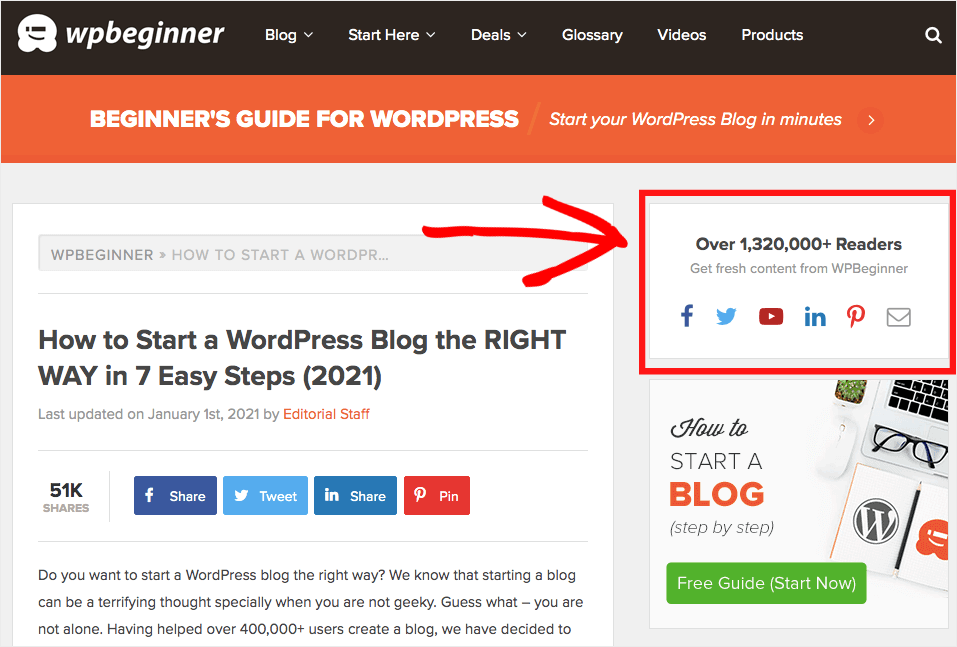
Social media widgets come in many forms. Common types include follow buttons, share buttons, and social feeds. Follow buttons link directly to your social profiles. Share buttons let visitors share your content on their accounts. Social feeds display your latest posts from platforms like Instagram or Twitter. Choose widgets that suit how you want users to interact with your site.
Selecting Based On Site Goals
Think about what you want to achieve. Do you want more followers? Share buttons may help. Need to show recent updates? Social feeds work well. Want simple links to profiles? Follow buttons are best. Your site’s purpose guides your choice. Pick widgets that support your main goals clearly and simply.
Compatibility With WordPress Themes
Not all widgets fit every theme. Some may look out of place or not work properly. Test widgets on your theme before adding them permanently. Choose widgets that match your site’s design and colors. Check if the widget is responsive for mobile devices. Good compatibility keeps your site clean and professional.
Preparing Your WordPress Site
Before adding social media widgets, prepare your WordPress site carefully. Preparation helps avoid errors and keeps your site running smoothly. Follow simple steps to get your site ready for new features.
Updating WordPress And Plugins
Start by updating WordPress to the latest version. Updates fix bugs and improve security. Next, update all plugins installed on your site. Updated plugins work better with new widgets. Outdated software can cause conflicts or slow down your site.
Creating A Backup
Create a full backup of your website before making changes. Backups protect your data if something goes wrong. Use a reliable backup plugin or your hosting service tools. Save the backup file on your computer or cloud storage. This step gives peace of mind and safety.
Enabling Widget Areas
Check if your WordPress theme supports widget areas. Widget areas are spaces where you place widgets like social media buttons. Common widget areas include sidebars and footers. If needed, enable widget areas in the theme settings. This allows you to add and manage widgets easily.
Using Plugins To Add Widgets
Using plugins is an easy way to add social media widgets to WordPress. Plugins save time and offer many features. They let you display social icons, feeds, and share buttons with little effort. No coding skills needed. Just pick a plugin, install it, and set it up. This method works well for beginners and experts alike.
Top Social Media Plugins
Several plugins stand out for social media widgets. Smash Balloon Social Photo Feed shows Instagram photos beautifully. Social Icons Widget by WPZOOM adds simple icon links to profiles. Easy Social Share Buttons lets visitors share content easily. Choose one that fits your needs and style. Check plugin reviews and updates before selecting.
Installing And Activating Plugins
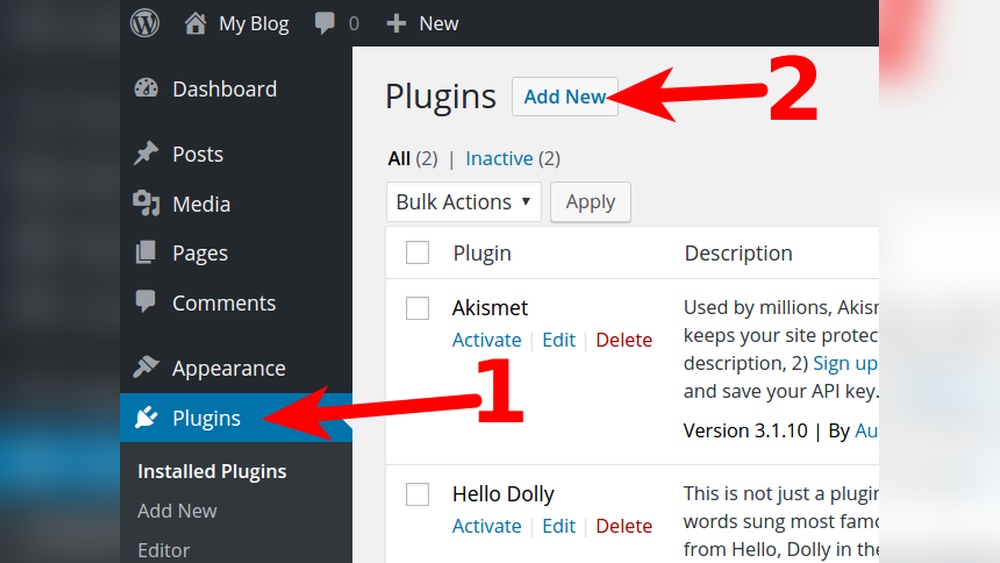
Log in to your WordPress dashboard. Go to Plugins > Add New. Type the plugin name in the search box. Click Install Now on the chosen plugin. After installation, click Activate. The plugin is now ready to use. Repeat this for all social media plugins you want.
Configuring Plugin Settings
Open the plugin settings from the dashboard menu. Link your social media accounts by entering usernames or tokens. Choose which widgets to display and where. Customize icon styles, colors, and sizes to match your site. Save changes and check the site to see the widgets live. Adjust settings anytime for better look or function.
Adding Widgets Manually
Adding social media widgets manually lets you control where and how your social links appear. This method works well for simple customizations. It also helps avoid extra plugins that slow down your site.
Manual addition requires a little code knowledge. Don’t worry, the steps are clear and easy to follow. You can add widgets to sidebars, footers, or any widget-ready area.
Using Custom Html Widgets
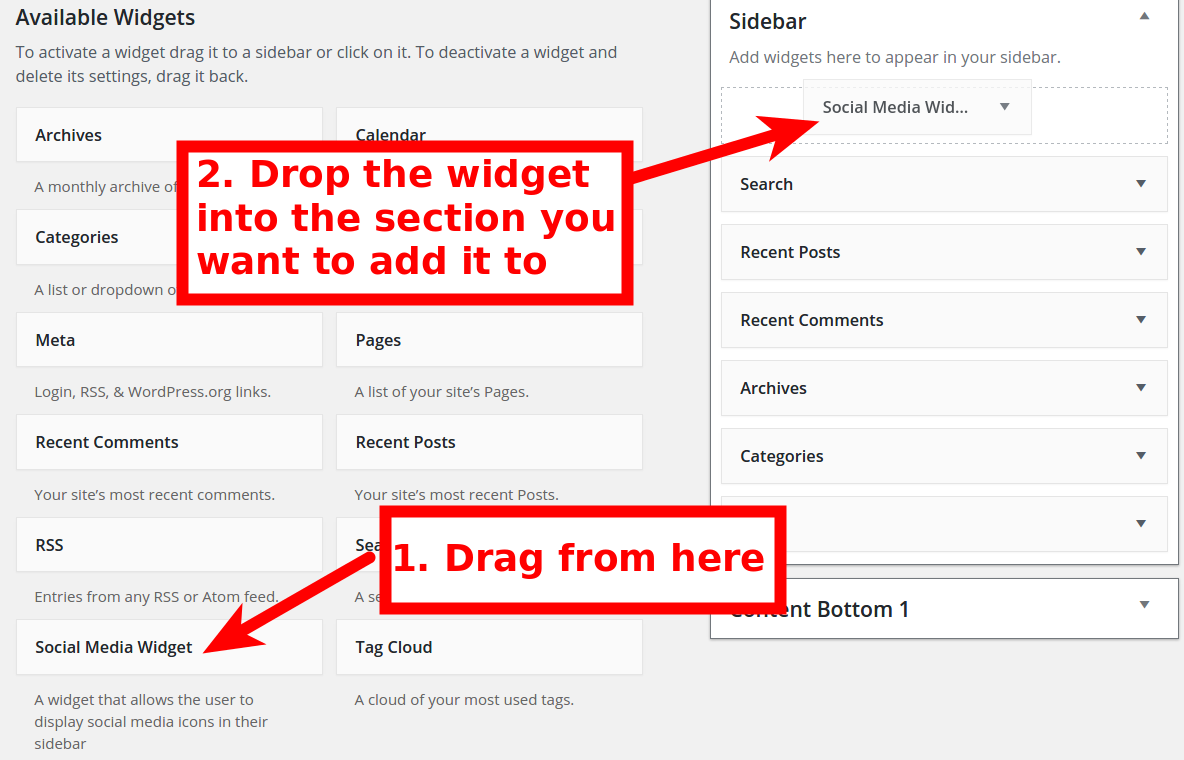
Custom HTML widgets allow you to insert your own code into WordPress areas. Go to the Appearance menu, then Widgets. Choose the Custom HTML widget and drag it to a sidebar or footer.
Paste your social media HTML code inside the widget. This can be icons, links, or embedded posts. Save and preview your site to see the widget live.
Embedding Social Media Codes
Social media platforms provide embed codes for posts, buttons, and feeds. Copy the code from your social media site. Paste it inside the Custom HTML widget or directly into a page or post.
Embedding codes show live content from your social accounts. This keeps your site fresh and interactive. Check each platform’s instructions to get the correct code.
Placing Widgets In Sidebars And Footers
Sidebars and footers are popular spots for social media widgets. They appear on many pages, increasing visibility. In WordPress, go to Appearance, then Widgets.
Drag your Custom HTML or other social widgets to the sidebar or footer area. Arrange them in the order you want. Save changes and visit your site to check placement.
Customizing Widget Appearance
Customizing the appearance of social media widgets helps them blend well with your website. It improves user experience and keeps your site looking neat. Small changes in size, color, and style can make a big difference. This section guides you on how to adjust these settings easily.
Adjusting Sizes And Colors
Start by setting the widget size to fit your page layout. Choose a size that is visible but not too large. Adjust the width and height in the widget settings or with CSS code. Pick colors that match your website’s theme. Use your brand colors for consistency. Avoid bright or clashing colors that distract visitors.
Responsive Design Tips
Ensure your widget looks good on all devices. Use percentage widths instead of fixed pixels for better flexibility. Test the widget on phones, tablets, and desktops. Add CSS media queries to change styles on smaller screens. Keep fonts and buttons easy to tap on mobile devices. This helps keep visitors engaged longer.
Adding Animations And Effects
Animations catch attention without overwhelming visitors. Use simple hover effects like color changes or scale transforms. Avoid heavy animations that slow down your site. Small fades or slide-ins create a smooth appearance. Test animations on different browsers for compatibility. Keep your site fast and user-friendly.
Credit: smashballoon.com
Testing And Troubleshooting
After adding social media widgets to your WordPress site, testing and troubleshooting is important. This step makes sure the widgets work correctly and look good on your pages. It also helps find and fix any problems that might stop visitors from using the widgets properly.
Testing and troubleshooting help keep your site user-friendly. It improves visitor experience and keeps your site running smoothly. Let’s explore how to check widget functionality, common issues, and ways to optimize speed.
Checking Widget Functionality
Start by visiting the pages where you placed the social media widgets. Make sure each widget loads fully and shows the correct icons and links. Try clicking on the icons to confirm they direct to the right social media profiles.
Check the widgets on different devices and browsers. This reveals if they appear and work well everywhere. Refresh the page to see if the widgets load quickly each time. Test interactive features like sharing buttons or follow counts to ensure they respond properly.
Common Issues And Fixes
Widgets may not appear due to plugin conflicts or theme problems. Deactivate other plugins one by one to find conflicts. Switch to a default WordPress theme to test if your theme causes issues.
Broken links happen when URLs are wrong. Double-check the social media profile links inside the widget settings. Clear your site cache to update widget display after changes.
If widgets load slowly or not at all, check your internet connection and hosting speed. Update the widget plugin to the latest version for better compatibility and security.
Optimizing For Speed
Slow widgets can hurt user experience and SEO. Use lightweight widget plugins that do not add extra code. Limit the number of social media widgets on a page to reduce load time.
Enable caching plugins to speed up page loading. Compress images used in widgets to reduce file size. Test site speed with tools like Google PageSpeed Insights to find areas to improve.
Fast, well-working social media widgets keep visitors engaged and improve your site’s performance.
Enhancing Engagement With Widgets
Social media widgets make your website more interactive and lively. They help visitors connect with your profiles easily. This connection boosts user involvement and encourages sharing. Adding these widgets is a smart way to keep your audience engaged longer on your site.
Encouraging User Interaction
Widgets invite visitors to like, comment, and share content. Interactive buttons make it simple to follow your social channels. This interaction builds a community around your website. It also motivates users to return for updates and new posts.
Linking To Multiple Platforms
Widgets can link to several social media accounts at once. This gives visitors many ways to connect with you. Offering multiple options suits different user preferences. It broadens your reach across Facebook, Twitter, Instagram, and more.
Using Analytics To Track Performance
Social media widgets often include tracking features. These tools show how users interact with your buttons. Analytics reveal which platforms drive the most traffic. This data helps improve your social media strategy over time.
Credit: www.inmotionhosting.com
Credit: smashballoon.com
Frequently Asked Questions
How Do I Add Social Media Widgets To WordPress?
You can add social media widgets using WordPress plugins or embed codes. Plugins offer easy setup and customization. Embed codes are manually added via widgets or theme files. Both methods help display social icons, feeds, or share buttons effectively on your site.
What Are The Best Plugins For Social Media Widgets?
Popular plugins include Smash Balloon, Social Icons Widget, and Sassy Social Share. These plugins are user-friendly, lightweight, and customizable. They support multiple social platforms and offer responsive designs. Choosing the right plugin depends on your specific social media needs and website style.
Can Social Media Widgets Slow Down My WordPress Site?
Yes, some widgets can impact loading speed if not optimized. Use lightweight plugins, enable caching, and limit the number of widgets. Proper optimization ensures faster load times while still displaying your social media content effectively.
Are Social Media Widgets Mobile-friendly On WordPress?
Most modern social media widgets are responsive and mobile-friendly. They automatically adjust to different screen sizes for optimal user experience. Always test your widgets on multiple devices to ensure they look great on smartphones and tablets.
Conclusion
Adding social media widgets to your WordPress site boosts user interaction. Visitors can easily follow and share your content. Choose widgets that fit your site’s style and needs. Keep your site clean by not adding too many widgets. Regularly update widgets to avoid bugs or slowdowns.
Social media integration helps grow your audience step by step. Start simple and improve your site’s connection with users. This small change makes your website more lively and useful.


