
Looking to boost your website’s reach and connect with your audience more easily? Adding social media to your WordPress site is one of the smartest moves you can make.
It’s simple, effective, and can drive more traffic to your content faster than you might expect. In this guide, you’ll discover easy steps to integrate your favorite social networks seamlessly. Ready to turn your site into a social hub that keeps visitors coming back?
Let’s dive in and make your WordPress site work harder for you!
Credit: support.pipdig.co
Benefits Of Social Media Integration
Social media integration brings many benefits to your WordPress site. It connects your website with popular social platforms. This connection helps you reach more people and grow your online presence.
Adding social media buttons or feeds makes sharing easy. Visitors can quickly share your content with their networks. This simple step can boost your site’s visibility and popularity.
Driving Traffic To Your Site
Social media shares bring more visitors to your website. Every share is a chance to attract new users. More traffic means more opportunities for sales or leads.
Active social media links encourage visitors to explore your content. It creates a steady flow of people coming back to your site.
Enhancing User Engagement
Social media integration invites users to interact with your content. Comments, likes, and shares make users feel involved. This interaction builds a loyal community around your site.
Engaged visitors spend more time on your pages. They are more likely to return and recommend your site to others.
Improving Seo Rankings
Social signals help search engines recognize your site’s popularity. Shared content gets noticed by Google and other engines. This recognition can improve your search rankings.
Good SEO means higher visibility in search results. It drives organic traffic without extra advertising costs.
Choosing The Right Social Media Platforms
Choosing the right social media platforms is key for your WordPress site. Not every platform suits every website or audience. Picking the best ones helps you reach the right people and grow your presence.
Think about where your audience spends time online. Focus on platforms that fit your content style and business goals. Quality matters more than quantity.
Popular Platforms For WordPress
Facebook is great for building community and sharing updates. Instagram works well for visual content like photos and videos. Twitter suits quick news and conversations. LinkedIn fits professional and B2B sites. Pinterest is perfect for creative and lifestyle content. YouTube supports video-focused blogs.
WordPress offers many plugins to integrate these platforms easily. Choose plugins that match your chosen social media channels for smooth sharing and display.
Matching Platforms To Your Audience
Know your audience’s age, interests, and habits. Younger users prefer Instagram and TikTok. Professionals lean toward LinkedIn. Visual content lovers enjoy Pinterest and Instagram. News seekers often use Twitter.
Focus on platforms where your audience is most active. This ensures your social media efforts bring real engagement. Test and adjust your choices over time for best results.
Using WordPress Plugins For Social Media
Using WordPress plugins for social media makes connecting your website with social networks easy. Plugins help add social icons, share buttons, and feeds without coding. They save time and give your site a professional look.
Plugins also let visitors share your content quickly. This can increase your site traffic and audience engagement. Many plugins come with customization options to match your site’s style.
Top Plugins To Consider
Several popular plugins work well for social media on WordPress. Social Snap offers simple share buttons and social follow links. Monarch by Elegant Themes provides stylish buttons and pop-ups. Sassy Social Share supports many social networks and is lightweight. Social Warfare focuses on fast loading and easy sharing. Choose one that fits your needs and budget.
Installing And Activating Plugins
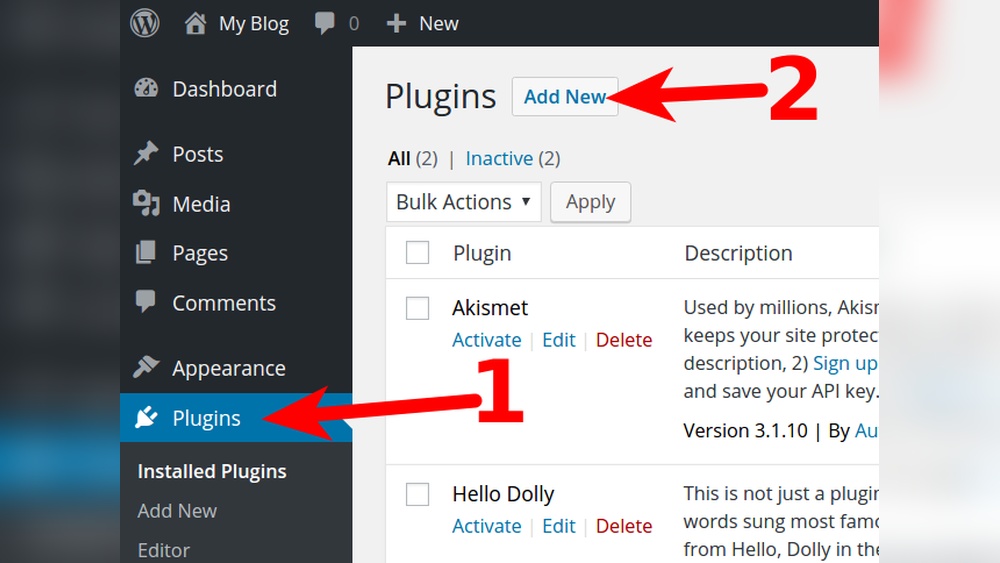
Go to your WordPress dashboard and click “Plugins.” Select “Add New” and type the plugin name in the search box. Click “Install Now” on the plugin you want. After installation, click “Activate” to start using it.
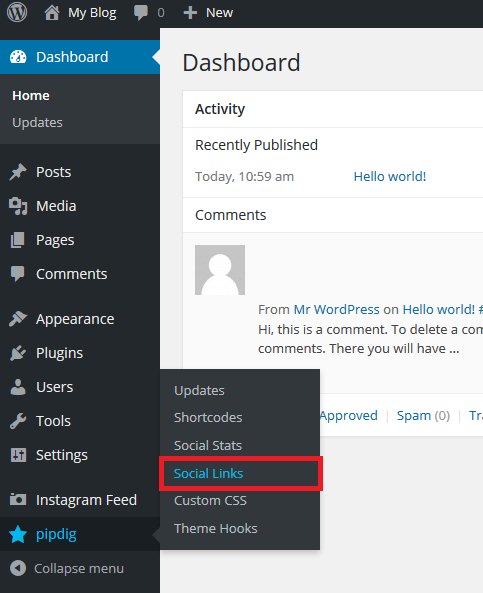
Once activated, configure the plugin settings. Add your social media profiles and choose button styles. Place buttons in posts, pages, or widget areas. Check your site to see how they appear and work.
Credit: smashballoon.com
Adding Social Media Buttons Manually
Adding social media buttons manually on WordPress gives full control over their look and placement. You can place buttons exactly where you want on your site. No need to rely on plugins or extra tools.
This method uses simple code snippets. It works well for posts, pages, widgets, or menus. A basic understanding of HTML helps but is not required.
Inserting Buttons In Posts And Pages
Open the post or page editor in WordPress. Switch to the HTML or text view. Paste the social media button code where you want it to appear.
Use official icon links or embed simple HTML with icons and URLs. Adjust size and spacing with basic CSS if needed. Preview to check the buttons’ look before publishing.
Adding Buttons To Widgets And Menus
Go to Appearance > Widgets in your WordPress dashboard. Add a Custom HTML widget to your sidebar or footer area. Paste your social media button code inside the widget.
For menus, use a Custom Link in Appearance > Menus. Insert the social media profile URL. Use icons as menu labels by adding HTML or CSS for styling. Save and view changes live on your site.
Customizing Social Media Icons
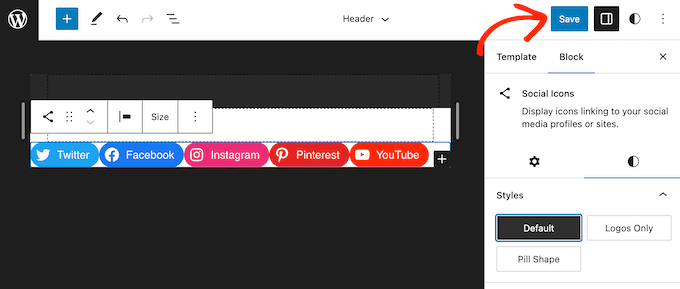
Customizing social media icons on your WordPress site helps match your brand style. Icons that look good and fit well encourage visitors to connect with your social profiles. Simple tweaks can make icons stand out without overwhelming your page.
Focus on style and size first. Then find the best place to show your icons. Both steps improve user experience and site design.
Choosing Icon Styles And Sizes
Pick icon styles that fit your website’s look. Flat, colored, or outline icons each give a different feel. Choose one that blends with your color scheme and theme.
Keep icon sizes consistent. Too big or too small icons can distract visitors. A good size is usually between 24px and 48px. Test sizes to see what looks balanced on your site.
Positioning For Maximum Impact
Place social icons where visitors easily notice them. Common spots include the header, footer, or sidebar. These areas get more views without interrupting content.
Try placing icons near important content or calls to action. This encourages clicks and increases social engagement. Avoid cluttering your page with too many icons.
Linking Social Media Accounts Properly
Linking social media accounts properly on WordPress helps visitors find your profiles easily. It builds trust and boosts your online presence. Proper links guide users directly to your social pages without confusion.
Ensuring Correct Urls
Use the exact web address of your social media profile. Check for typos or missing characters in the URL. Wrong URLs lead to error pages or different profiles. Copy the link from your social media site’s address bar. Paste it directly into your WordPress social media links section. Test each link to confirm it opens the right page.
Setting Links To Open In New Tabs
Set social media links to open in new browser tabs. This keeps visitors on your website while exploring your social media. Use the target=”_blank” attribute in your link code. This small step improves user experience and site engagement. It stops users from leaving your site completely. Make sure this setting is applied to every social link on your site.
Tracking Social Media Traffic
Tracking social media traffic helps you understand how visitors find your WordPress site. It shows which social channels bring the most visitors. This data guides you to improve your content and marketing strategies. Knowing the source of traffic also helps increase engagement and sales.
Using Google Analytics
Google Analytics tracks traffic from all sources, including social media. Set up an account and connect it to your WordPress site. Use UTM parameters to tag your social media links. This helps identify which posts drive traffic. Check the “Acquisition” section in Google Analytics. Look for “Social” to see visits from platforms like Facebook and Twitter.
Monitoring Plugin Analytics
Many WordPress plugins offer built-in social media tracking. Plugins like Jetpack and MonsterInsights show social traffic data inside your dashboard. This saves time by keeping all info in one place. They provide reports on clicks, shares, and visitor behavior. Use this data to understand how users interact with social buttons on your site.
Best Practices For Boosting Traffic
Boosting traffic through social media on WordPress needs smart and steady efforts. Following best practices helps reach more people and keeps them coming back. Focus on quality content, easy sharing options, and active communication. These steps build trust and grow your audience over time.
Regularly Updating Content
Fresh content attracts visitors and search engines. Update your posts and pages often with new information. Regular updates show your site is active and reliable. This encourages visitors to return and share your content.
Encouraging Social Sharing
Make sharing simple with clear social media buttons on your site. Place them where readers can easily see and use them. Short, engaging messages increase the chance of shares. Sharing spreads your content and brings more traffic.
Engaging With Followers
Respond to comments and messages quickly. Show appreciation for feedback and questions. Interaction builds a loyal community around your site. Active engagement keeps followers interested and more likely to visit again.
Credit: www.wpbeginner.com
Frequently Asked Questions
How Do I Add Social Media Icons To WordPress?
You can add social media icons using plugins like Social Icons Widget. Install, activate, then add icons via widgets or menus easily.
Which Plugin Is Best For WordPress Social Media Integration?
Popular plugins include Social Icons Widget, Smash Balloon, and Social Warfare. Choose based on features, ease of use, and customization options.
Can I Link Multiple Social Media Accounts On WordPress?
Yes, most plugins allow linking multiple social media profiles. This helps visitors connect with you across various platforms.
How To Customize Social Media Buttons On WordPress?
Most plugins offer customization options like color, size, shape, and placement. Adjust these to match your site’s design for better user experience.
Conclusion
Adding social media to your WordPress site helps you connect with more people. It makes sharing your content easy and quick. Choose the right plugins or widgets that fit your site’s style. Keep your social links visible and updated for best results.
With simple steps, you can boost your site’s reach and interaction. Try adding social media today and see the difference it makes.


