
Want to make your WordPress site more connected and engaging? Adding social media links is one of the easiest ways to do that.
When your visitors can quickly find your profiles, they’re more likely to follow, share, and interact with your content. But if you’re unsure how to add those links or worried it might be complicated, don’t worry—you’re in the right place.
This guide will show you simple, step-by-step methods to add social media links on WordPress, so you can boost your online presence and grow your audience effortlessly. Keep reading to unlock the full potential of your website!
Credit: www.isitwp.com
Choose The Right Social Media Platforms
Choosing the right social media platforms is key for your WordPress site. It helps reach the right audience and grow your presence online. Not every platform fits every business or blog. Picking the best ones saves time and brings more visitors.
Understand Your Audience
Know who visits your site. What age are they? What do they like? Different groups use different platforms. Younger people use TikTok and Instagram more. Older users prefer Facebook or LinkedIn. Match your social media to your audience’s habits.
Focus On Your Content Type
What kind of content do you create? Photos and videos work well on Instagram and YouTube. Articles and news fit better on Facebook and LinkedIn. Choose platforms that suit your content style. This makes sharing easier and more effective.
Check Platform Popularity
Some platforms have more active users. Facebook still holds a large user base. Instagram grows fast with visual posts. Twitter is good for quick updates. Pick platforms where your potential followers spend time.
Consider Your Time And Resources
Managing many platforms takes effort. It’s better to do well on a few than poorly on many. Pick platforms you can update often. Consistency matters more than quantity in social media.
Select A Suitable Plugin
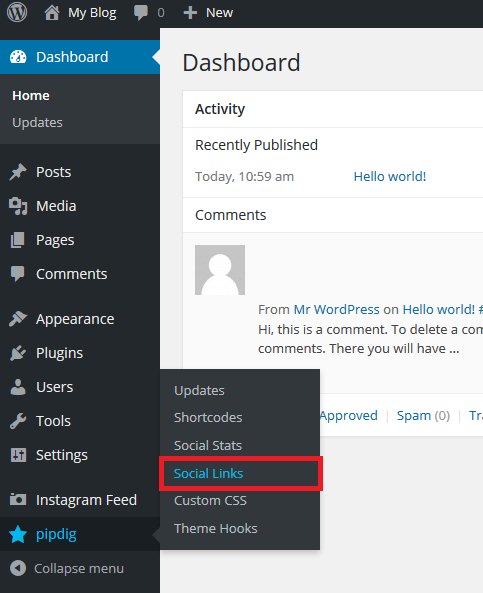
Selecting the right plugin helps you add social media links easily. Plugins add buttons to your site. Visitors click and visit your social pages. The right plugin fits your website style and needs. It should be simple to use and update. Look for plugins that work well with your WordPress version. Check ratings and reviews for reliability. A good plugin speeds up your site and looks good on mobiles. Avoid plugins with poor support or many bugs. Choose one that shows many social networks.
Popular Social Media Plugins
Some plugins are very popular for adding social links. “Simple Social Icons” offers easy icon customization. “Social Icons Widget” lets you place icons in sidebars. “Smash Balloon Social Photo Feed” shows your Instagram photos. “Monarch” adds social sharing and follow buttons. “Social Warfare” focuses on sharing buttons with good design. These plugins support Facebook, Twitter, Instagram, LinkedIn, and more. Pick one that matches your style and social media needs.
How To Install A Plugin
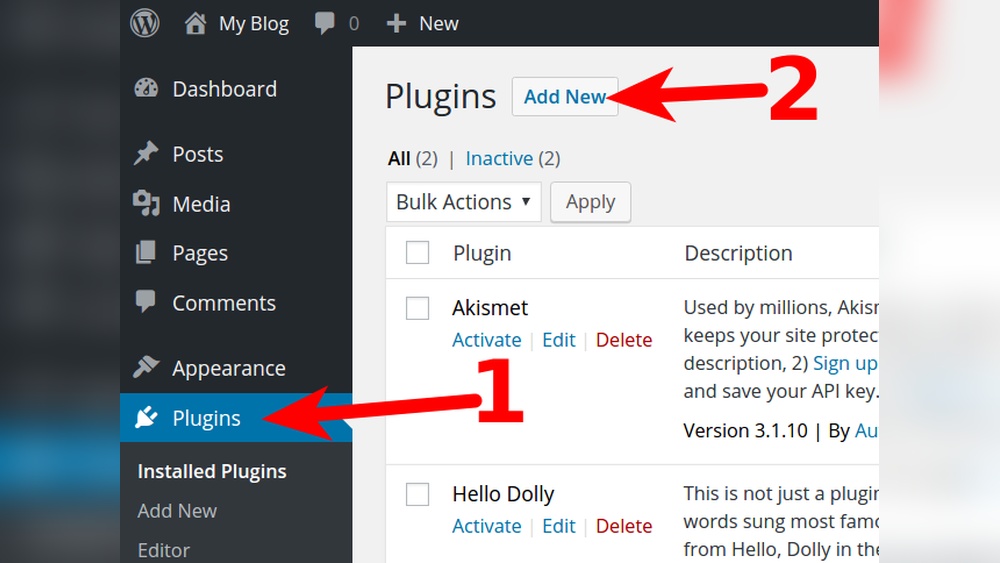
Go to your WordPress dashboard. Find the menu called “Plugins.” Click “Add New” to search plugins. Type the plugin name in the search box. Find the plugin and click “Install Now.” After installation, click “Activate” to enable the plugin. Go to the plugin’s settings to add your social links. Customize the icons and placement on your site. Save your changes and check the front end. Your social media links should now appear.
Add Social Media Links Manually
Adding social media links manually on WordPress lets you control where and how these links appear. This approach works well for simple setups and small websites. You can place your social icons exactly where you want them. No need for extra plugins or complicated steps.
Manual addition means you insert links using built-in WordPress features. It is quick and keeps your site light. Two common ways are using widgets or adding links to menus. Both are easy to do and fit most themes.
Using Widgets
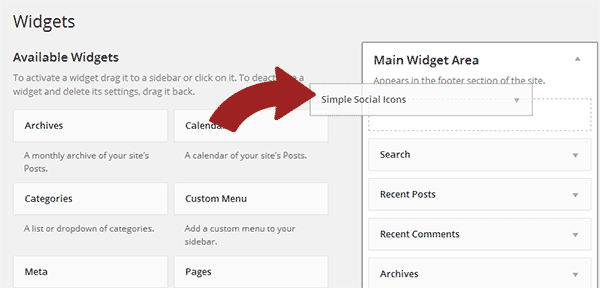
Widgets allow you to add social media links in sidebars or footers. Go to your WordPress dashboard and open Appearance > Widgets. Find the “Custom HTML” or “Text” widget. Drag it to the widget area where you want the links.
Inside the widget, type simple HTML code with your social media URLs. For example, use Facebook. You can add icons by copying icon images from the web and inserting them with the
Adding Links To Menus
Menus are a good place for social media links. Go to Appearance > Menus in your dashboard. Select the menu where you want to add links. Click “Custom Links” on the left side.
Type the full URL of your social media page in the URL box. Enter the name of the network, like “Twitter,” in the Link Text box. Click “Add to Menu.” Drag the new menu item to the position you prefer. Save the menu. Now your social media links will appear in your site’s navigation.
Customize Social Media Icons
Customizing social media icons helps your website look professional and match your style. It also makes your social links more noticeable. You can change the icon style, size, and position to fit your website’s design. This section will guide you through these simple steps.
Changing Icon Style
Start by choosing icon styles that suit your website’s theme. Many WordPress plugins offer different shapes like circles, squares, or rounded edges. Pick colors that match your brand or keep them simple with black or white icons.
Some plugins let you use custom icons or upload your own images. This option gives a unique look to your social media links. Make sure the style is clear and easy to recognize for visitors.
Adjusting Icon Size And Position
Set the icon size to fit your website layout. Too big or too small can distract visitors or go unnoticed. Most tools allow you to increase or decrease icon size with sliders or number inputs.
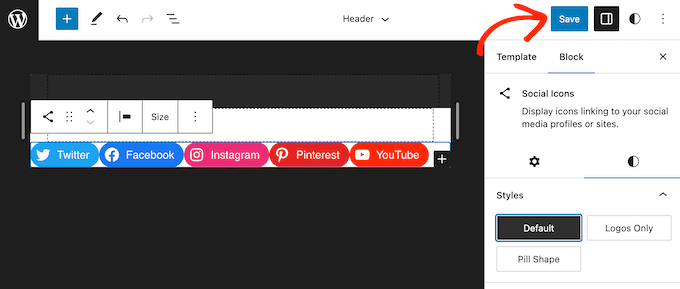
Position icons in areas where visitors expect to find them. Common places include the header, footer, or sidebar. You can align icons horizontally or vertically. Test different positions to see what looks best on your site.
Test Social Media Links
Testing your social media links on WordPress is a key step. This ensures visitors reach your profiles without trouble. It helps maintain a smooth user experience and boosts your site’s trustworthiness. Take time to check each link carefully.
Checking Link Functionality
Click on every social media icon on your site. Confirm each link opens the right page. Broken or wrong links frustrate visitors and reduce site credibility. Fix any incorrect URLs immediately. Use different browsers to test links for consistency.
Ensuring Mobile Compatibility
Test your social media links on various mobile devices. Many users browse on phones and tablets. Links should be easy to tap and open quickly. Check the icons’ size and spacing for touch screens. Mobile-friendly links improve engagement and site ranking.
Credit: support.pipdig.co
Optimize For Better Engagement
Optimizing social media links on your WordPress site improves user interaction. It helps visitors find your profiles quickly and encourages them to connect. Thoughtful placement and clear instructions boost clicks and shares. This section guides you on making links more effective for better engagement.
Placing Links Strategically
Position social media icons where users expect them. Common spots include the header, footer, and sidebar. These areas stay visible across pages. Avoid cluttering the main content area to keep focus. Use consistent sizes and styles for all icons. This creates a clean, professional look and draws attention.
Test the placement on different devices. Mobile users should easily tap links without zooming. Check loading speed to avoid slow pages. Fast sites keep visitors longer and increase chances of clicks. Strategic placement makes your social links hard to miss and easy to use.
Using Call-to-actions
Call-to-actions (CTAs) guide visitors to click your social links. Use simple phrases like “Follow us,” “Join the conversation,” or “See our updates.” Place CTAs near the icons or in menus. This adds purpose and clarity to the links.
Make CTAs clear and inviting without being pushy. Highlight benefits like exclusive content or quick support. Use buttons or colored text to catch the eye. Effective CTAs encourage visitors to connect and engage with your brand online.
Credit: www.wpbeginner.com
Frequently Asked Questions
How Do I Add Social Media Icons On WordPress?
You can add social media icons using WordPress widgets or plugins. Choose a social media plugin, install it, and configure your profile links. Widgets allow easy drag-and-drop placement for icons in sidebars or footers without coding.
Which WordPress Plugins Are Best For Social Media Links?
Popular plugins include Social Icons Widget, Smash Balloon, and Social Media Share Buttons. These plugins offer customizable icon sets, easy linking, and responsive design to fit your site’s style and improve user engagement.
Can I Add Social Media Links To My WordPress Menu?
Yes, you can add social media links to your WordPress menu by creating custom menu items with URLs pointing to your profiles. This places social media icons or text links in your site’s navigation bar for better visibility.
How Do I Make Social Media Links Open In New Tabs?
In the WordPress menu or widget settings, enable the option “Open link in a new tab. ” This keeps visitors on your site while they explore your social profiles, improving user experience and reducing bounce rates.
Conclusion
Adding social media links to your WordPress site is simple and helpful. Visitors can find and follow your profiles easily. This helps you grow your online presence step by step. Use widgets or plugins to place links where they stand out.
Keep your links updated for the best results. Small changes can make your site feel more connected and active. Start adding your social media links today and watch your engagement grow. It’s a quick way to make your website more interactive and friendly.


