

Want to make your WordPress site more connected and engaging? Adding social media links to your footer is a simple way to keep visitors coming back.
Imagine your audience easily finding your Facebook, Instagram, or Twitter with just a click—boosting your reach without extra effort. In this guide, you’ll learn exactly how to add those links step-by-step, even if you’re not a tech expert. Ready to turn your footer into a powerful tool that grows your online presence?
Let’s dive in!
Choose Social Media Platforms
Choosing the right social media platforms is key to connecting with your audience. Not all platforms suit every website or business. Think about where your visitors spend most of their time online.
Focus on platforms that match your content style and goals. Some sites work better for images, others for articles or videos. Pick platforms that highlight your strengths and engage users best.
Understand Your Audience
Know who visits your site. Age, interests, and habits matter. Use this info to select platforms your audience uses often. This helps you reach the right people effectively.
Popular Social Media Platforms
Facebook remains strong for broad audiences. Instagram suits visual content and younger users. Twitter works well for quick updates and news. LinkedIn fits professional and B2B sites. Choose platforms that fit your niche.
Limit The Number Of Platforms
Adding too many links can confuse visitors. Focus on two or three key platforms. This keeps your footer clean and easy to navigate. Quality over quantity helps build stronger connections.

Credit: wpindigo.com
Prepare Social Media Urls
Preparing social media URLs is the first step to add social links in your WordPress footer. These URLs direct visitors to your social profiles. Correct URLs ensure your links work properly and look professional.
Collect the exact web addresses of your social media pages. This process helps avoid broken links or errors in your footer.
Find Your Social Media Profile Urls
Open each social media site where your business has a profile. Copy the full URL from the browser address bar. For example, your Facebook page URL might look like https://www.facebook.com/yourpage. Save these URLs in a document for easy access.
Use Https Urls For Security
Always use URLs that start with https://. Secure URLs protect your site visitors and improve trust. Most social networks support HTTPS by default, so copy the URL directly from the address bar.
Shorten Long Urls If Needed
Some social links may be very long or complex. Use URL shorteners to make them cleaner. Short URLs look better in your footer and are easier to manage.
Access WordPress Footer Settings
Accessing the footer settings in WordPress is the first step to add social media links. The footer appears at the bottom of your website. It is a perfect place to share important links.
You can change footer content through the WordPress dashboard. Each theme offers different footer options. Some themes provide built-in footer settings, while others need widgets or custom code.
Navigate To The WordPress Dashboard
Log in to your WordPress site. The dashboard is the control center. It shows menus for managing your website. Look for the Appearance menu to start editing the footer.
Open The Customize Panel
Under Appearance, click Customize. This opens the live preview panel. Here, you can edit many parts of your site. Find the footer section in the menu. The location depends on your theme.
Locate Footer Settings
In the Customize panel, scroll to find footer options. It might be labeled as Footer, Footer Widgets, or similar. Click it to see available settings. You can add text, links, or widgets here.
Use Widgets For Footer Links
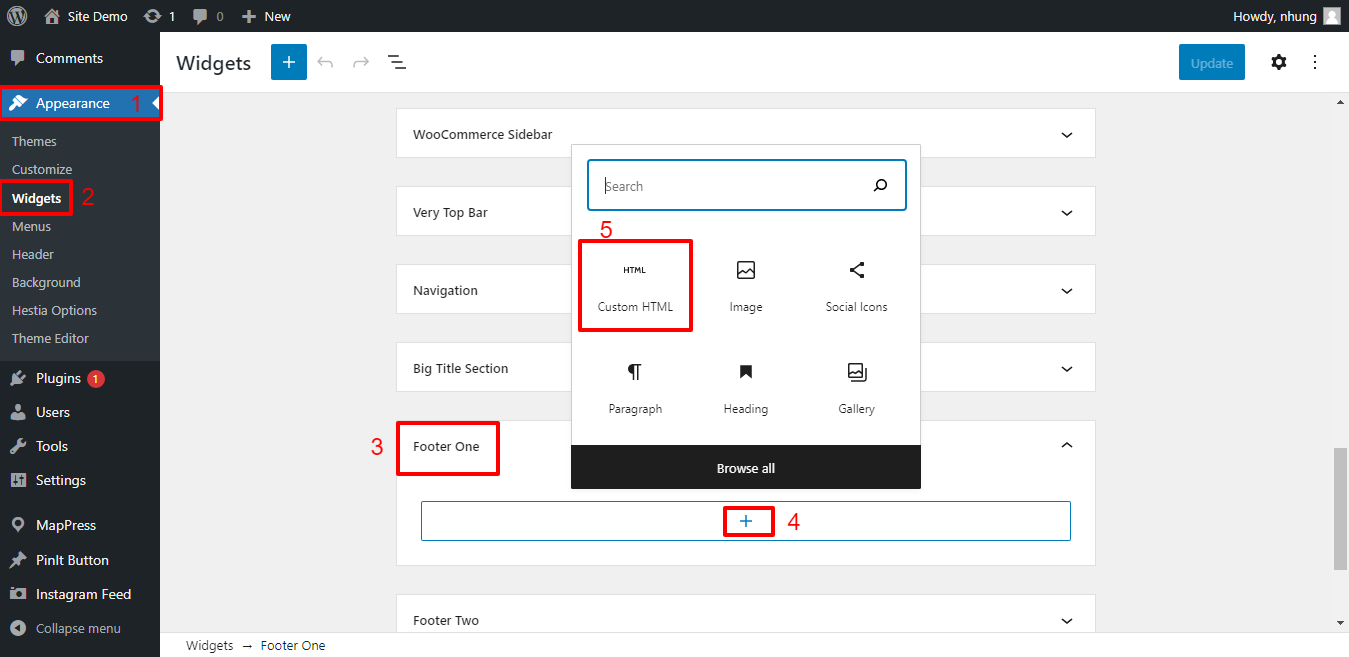
Many themes let you add widgets in the footer. Go to Appearance > Widgets if Customize lacks footer options. Add a Text or Custom HTML widget. Insert your social media links in the widget area.
Save Your Changes
After adding your links, save the settings. Click Publish or Save & Publish in the Customize panel. Check your site’s footer to confirm links appear correctly.
Credit: wpdatatables.com
Use Customizer To Add Links
The WordPress Customizer offers a simple way to add social media links to your site’s footer. This tool lets you make changes and see them live. It is ideal for users who want quick and easy updates. No coding skills required. Follow these steps to add your social media links using the Customizer.
Locate Footer Widgets
Open your WordPress dashboard. Go to Appearance, then click on Customize. Find the section labeled Footer or Widgets. This area controls the footer content. Depending on your theme, the footer widgets might be under different names. Look for Footer Widgets or Footer Areas to proceed.
Add Social Icons Widget
Inside the Footer Widgets section, click Add a Widget. Search for the Social Icons widget or similar. Select it to add to your footer area. This widget displays social media icons automatically. It helps visitors find your social profiles quickly. If your theme has a built-in social widget, use that.
Insert Social Media Urls
After adding the widget, open its settings. Enter the full URL for each social media profile. Use links like https://facebook.com/yourpage or https://twitter.com/yourhandle. Add URLs for all social platforms you want to show. Save changes and preview the footer. Make sure the icons link correctly to your profiles.
Add Links Using Theme Options
Adding social media links to your WordPress footer is simple using theme options. Most WordPress themes have built-in settings for social media. This method does not require coding skills. You can update your footer links quickly and keep your site looking professional.
Find Social Media Section
Start by logging into your WordPress dashboard. Go to the Appearance menu and select Customize. In the Customizer, look for a section named Social Media, Footer, or similar. This area controls the social links in your footer. Some themes place this option under Theme Options or Header & Footer.
Input Urls
Inside the social media section, you will find fields to enter your social profile URLs. Paste the full web address for each platform you want to add. Make sure the URLs are correct to avoid broken links. Add only the networks you use to keep the footer clean and relevant.
Save Changes
After entering your social media URLs, scroll to the top or bottom of the Customizer. Click the Publish or Save button to apply your changes. Visit your website to confirm the social icons appear in the footer. Refresh the page to see the latest updates.
Add Social Links With Plugins
Adding social media links to your WordPress footer helps visitors find and follow your profiles easily. Plugins make this process quick and simple. They offer ready-made tools to display icons and links without coding.
Using plugins saves time and keeps your site looking clean. You can customize icons, colors, and placement with just a few clicks. Let’s explore how to add social media links using plugins.
Choose A Social Media Plugin
Start by selecting a plugin that fits your needs. Popular options include Social Icons Widget, Simple Social Icons, and Social Media Share Buttons. Check plugin ratings and reviews to ensure reliability. Pick one that supports your desired social networks.
Install And Activate Plugin
Go to your WordPress dashboard. Navigate to Plugins > Add New. Search for the plugin by name. Click Install Now, then Activate. The plugin will appear in your admin menu or widgets area.
Configure Plugin Settings
Open the plugin settings from the WordPress dashboard. Add your social media URLs. Choose icon styles and sizes that match your site design. Select the footer area or widget location to display the icons. Save your changes and check your website footer to see the new links.
Add Links Manually With Code
Adding social media links manually in your WordPress footer gives you full control. You can customize the look and place the icons exactly where you want. This method uses simple coding steps. No plugins needed. It helps keep your site fast and clean.
Follow these steps to edit your theme files and add your social media links with HTML and CSS. You will learn to edit the footer.php file, insert social media HTML, and style the links with CSS.
Edit Footer.php File
Start by accessing your WordPress theme files. Go to Appearance > Theme Editor in the WordPress dashboard. Find the footer.php file. This file controls the footer area of your site.
Make a backup copy of footer.php before any changes. This protects you from mistakes. Open the file and look for the spot where you want the social media links to appear. Usually, it is near the closing tag or before the copyright text.
Insert Social Media Html
Use simple HTML to add your social media links. Create an unordered list with list items for each social platform. For example:
Replace the URLs with your actual social media pages. The target="_blank" attribute opens links in new tabs. This keeps visitors on your site.
Style Links With Css
Add CSS to make the social links look good and match your site style. Use the class name you added, like social-links. Example CSS:
.social-links { list-style: none; padding: 0; display: flex; gap: 15px; } .social-links li a { text-decoration: none; color: 333; font-weight: bold; } .social-links li a:hover { color: 0073aa; } Add this CSS in your theme’s style.css file or in the Customizer under Additional CSS. Adjust colors and spacing to fit your design.
Test Social Media Links
Testing social media links in your WordPress footer is essential. It ensures visitors reach your social pages without issues. Broken or wrong links can cause frustration and lose followers.
After adding links, check each one carefully. Click on every icon and see if it opens the right page. This quick step saves you from problems later.
Check Each Link Manually
Open your website in a browser. Scroll to the footer and click each social media icon. Make sure the link directs to the correct social media profile. Confirm it opens in a new tab for better user experience.
Use Online Link Testers
Several free tools test links automatically. Paste your website URL and scan for broken or redirected links. These tools save time and catch hidden errors.
Test On Mobile Devices
Many users visit sites on phones or tablets. Open your site on different devices and test the links. Ensure the icons and links work well on small screens.
Fix Broken Or Wrong Urls
If a link does not work, return to your WordPress editor. Update the URL in the footer widget or menu settings. Double-check the spelling and format before saving changes.
Tips For Effective Footer Links
Effective footer links help visitors find your social media profiles quickly. They also improve your site’s trust and engagement. Simple, clear, and updated links make your footer useful. Below are key tips to keep your social media links effective and visible.
Keep Icons Visible
Use icons that stand out against your footer background. Make sure they are large enough to tap or click easily. Avoid placing icons in crowded or dark areas. Clear spacing around each icon helps visitors recognize them fast. Visibility increases the chance visitors will use your social links.
Use Consistent Design
Choose icon styles that match your website’s look. Stick to one design style for all social icons. Use the same colors or outlines to keep a clean appearance. Consistency builds a professional and trustworthy image. It also helps visitors quickly identify your social media platforms.
Update Links Regularly
Check your social media URLs often to avoid broken links. Remove profiles that are no longer active or relevant. Replace outdated icons with current designs to stay modern. Regular updates keep your footer fresh and useful. This shows visitors you manage your site well and care about their experience.
Credit: ltheme.com
Frequently Asked Questions
How Do I Add Social Media Icons To WordPress Footer?
To add social media icons, use a widget or a plugin. Go to Appearance > Widgets, add a Social Icons widget, and insert your links. Alternatively, install plugins like “Social Icons Widget” for more customization options.
Can I Customize Social Media Links In The Footer?
Yes, you can customize social media links using plugins or theme settings. Change icon style, size, and colors to match your site’s branding easily. Many plugins offer drag-and-drop functionality for simple customization.
Which Plugins Work Best For Footer Social Links?
Popular plugins include “Simple Social Icons,” “Social Icons Widget,” and “Smash Balloon Social Photo Feed. ” These plugins are user-friendly, offer customization, and integrate seamlessly with WordPress footers.
Is It Possible To Add Social Links Without Plugins?
Yes, you can manually add social media links by editing your theme’s footer. php file. Insert HTML code for icons and links, but this requires basic coding knowledge and caution to avoid errors.
Conclusion
Adding social media links to your WordPress footer is simple and effective. It helps visitors find and follow you easily. Use the steps shared here to place your icons correctly. Keep your footer clean and organized for better user experience.
Regularly check links to ensure they work well. This small change can boost your site’s connection with your audience. Start adding your social media links today and make your website more engaging.


