

Want to make your WordPress site more connected and engaging? Adding social media icons is one of the easiest ways to do that.
These small buttons give your visitors a quick path to follow you, share your content, and boost your online presence. If you’re wondering how to add social media icons to your WordPress site without any hassle, you’re in the right place.
Keep reading, and you’ll learn simple steps that anyone can follow—even if you’re not a tech expert. By the end, your site will look more professional and invite more interaction than ever before.
Credit: www.isitwp.com
Choose The Right Social Media Icons
Choosing the right social media icons is key to creating a professional website. Icons guide visitors to your social profiles. They must be clear and easy to recognize. The style of icons should fit your website’s look. This keeps the design clean and inviting. A good choice helps build trust and encourages clicks.
Popular Icon Styles
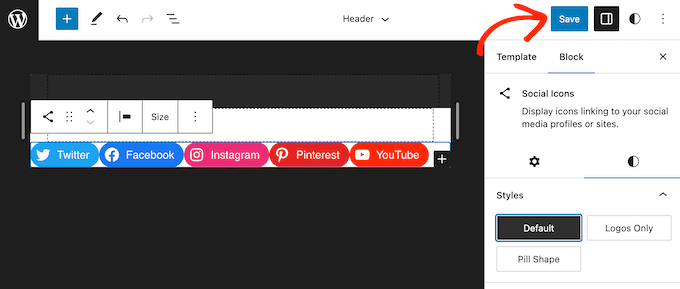
Social media icons come in many styles. Flat icons are simple and modern. They use solid colors without shadows. Outline icons have just the border of the shape. These look neat and minimal. Colored icons show the official brand colors. They stand out and draw attention. Rounded icons have smooth edges. They feel friendly and soft. Choose a style that suits your brand personality.
Matching Your Website Design
Icons should blend well with your website design. Use colors that match or complement your palette. If your site is dark, light icons work best. For light backgrounds, choose dark icons. Size matters too. Icons that are too big or small can distract visitors. Keep them balanced with other page elements. Align icons with your site’s style for a polished look.
Credit: www.wpbeginner.com
Select A Plugin For Social Icons
Selecting the right plugin for social icons is a key step in customizing your WordPress site. The plugin adds social media buttons that link to your profiles. It helps visitors find and follow you easily. Many plugins offer different styles and features. Choosing one depends on your needs and site design. Focus on ease of use and compatibility with your theme.
Top WordPress Plugins
Several plugins are popular for adding social icons. “Simple Social Icons” is easy to use and lightweight. “Social Icons Widget” offers many icon styles and sizes. “WP Social Icons” supports multiple social networks. Each plugin allows you to place icons in widgets or menus. Test a few to see which fits your style best.
Free Vs Premium Options
Free plugins provide basic social icon sets and simple layouts. They work well for most personal blogs or small sites. Premium plugins offer advanced features like animations and custom icon packs. They also provide priority support and regular updates. Choose premium if you want extra design options or business tools. Otherwise, free plugins are enough for basic needs.
Install And Activate The Plugin
Installing and activating a plugin is the first step to add social media icons on WordPress. Plugins make the process easy and fast. You do not need coding skills. Just follow simple steps to install and start using the plugin.
Step-by-step Installation
Go to your WordPress dashboard. Find the “Plugins” menu on the left. Click “Add New.”
In the search bar, type “social media icons.” A list of plugins will appear. Choose one with good ratings and many active installs.
Click the “Install Now” button next to your chosen plugin. Wait a few seconds. Then click “Activate.” The plugin is now ready to use.
Plugin Settings Overview
After activation, find the plugin’s settings page. Usually, it appears under “Settings” or in its own menu.
Settings let you choose icon style, size, and where to show them on your site. You can add links to your social media profiles here.
Make sure to save your changes. Preview your site to see the icons in action. Adjust settings if needed for the best look.
Add Icons To Your Website
Adding social media icons to your website helps visitors find your profiles fast. These icons make your site look modern and connected. You can place them in different spots on your WordPress site. Below are easy methods to add social media icons.
Using Widgets
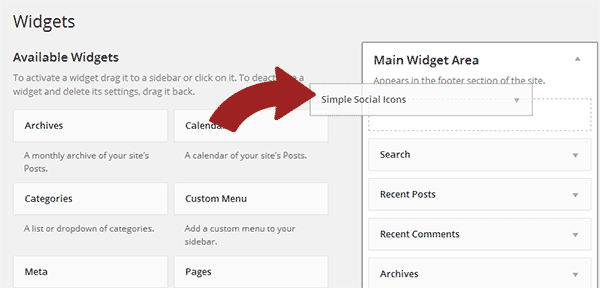
Widgets let you add icons in sidebars or footers. Go to Appearance > Widgets in your WordPress dashboard. Choose a Social Icons widget or Custom HTML widget. Insert your social media links or icons there. Save changes to show icons on your site’s side or bottom area.
Placing Icons In Menus
Menus are another great place for social icons. Navigate to Appearance > Menus. Add custom links with your social media URLs. Use icon plugins or add icon code next to menu labels. This method keeps icons visible in your site’s main navigation.
Adding Icons Via Shortcodes
Shortcodes provide flexible icon placement inside pages or posts. Many plugins offer shortcodes for social icons. Copy the shortcode and paste it where you want icons to appear. This way, icons fit perfectly in your content or widget areas.
Customize Icon Appearance
Customizing the look of your social media icons makes your website stand out. It helps match your site’s style and catch visitor attention. Small changes like size and color can make a big difference. You can also add effects when users hover over icons. These tweaks improve user experience and keep the design fresh.
Size And Color Adjustments
Changing icon size helps fit your website’s layout. Larger icons grab attention, while smaller ones keep things neat. Most WordPress plugins let you pick icon size in pixels or percentages. Color changes highlight your brand colors or create contrast. Use colors that match your site’s palette. This keeps your design consistent and professional.
Hover Effects And Animations
Hover effects add interaction and fun to icons. Simple changes like color shifts or slight zooms make icons feel alive. Animations can include fading, bouncing, or spinning. These effects happen when a visitor moves the mouse over an icon. They guide users to click and explore your social links. Choose effects that fit your site’s style without overdoing it.
Link Icons To Social Profiles
Linking social media icons to your profiles helps visitors find you easily. It also boosts your site’s credibility and engagement. Proper links make sure users reach the right page without errors. Let’s explore how to connect icons with your social accounts correctly.
Gathering Profile Urls
Start by collecting the exact URLs of your social media profiles. Visit each platform and copy the full web address from the browser bar. Use the link that goes directly to your public page or profile. Avoid shortened or tracking links to keep it simple.
Save these URLs in a document for quick access. This helps when adding links to your icons later. Double-check the URLs to ensure they open your profile page correctly.
Ensuring Correct Links
Paste the saved URLs into the link fields of your social media icons. Check each link carefully. Test by clicking the icon and confirming it opens the right profile page.
Use the HTTPS version of URLs for secure connections. Avoid broken or outdated links to keep your site professional. Update links anytime you change your social media URLs or usernames.
Test Icon Functionality
Testing the functionality of your social media icons is crucial. It ensures they work well and improve user experience. Proper testing helps avoid broken links and display issues. Take time to check your icons carefully.
Checking On Different Devices
Icons may look good on a desktop but behave differently on mobile. Test icons on phones, tablets, and desktops. Make sure icons are visible and easy to tap on all screens. This step prevents user frustration and boosts engagement.
Verifying Link Accuracy
Each icon should link to the correct social media page. Click every icon and check if it opens the right profile. Wrong links can confuse visitors and reduce trust. Fix any mistakes immediately to keep your site professional.
Tips To Boost Social Engagement
Boosting social engagement helps your WordPress site reach more people. Social media icons guide visitors to your profiles. Small changes can increase clicks and shares. Focus on clear design and smart placement. Make icons easy to find and use. Encourage visitors to connect and interact.
Best Icon Placement
Place icons where visitors expect to see them. The header or top menu is a strong spot. Visitors often look here first. The footer works well for those who scroll down. Sidebars keep icons visible during reading. Avoid hiding icons in hard-to-find places. Keep them visible on all devices.
Encouraging Clicks
Use clear and simple icon designs. Make icons large enough to tap on phones. Add short text like “Follow us” nearby. Use colors that stand out but match your site. Avoid too many icons at once. Focus on your main social networks. This helps visitors decide where to click.
Credit: www.youtube.com
Frequently Asked Questions
How Do I Add Social Media Icons To WordPress?
To add social media icons, use a plugin like “Social Icons Widget. ” Install, activate, and configure it. Then, add icons to your sidebar or footer via widgets or block editor.
Which WordPress Plugins Add Social Media Icons Easily?
Popular plugins include “Smash Balloon,” “Social Icons Widget,” and “Simple Social Icons. ” They offer easy setup, customizable icons, and flexible placement options for social media links.
Can I Add Social Media Icons Without Plugins?
Yes, you can add icons manually using custom HTML or by editing your theme’s code. Use Font Awesome or upload icon images, then link them to your profiles.
Where Should I Place Social Media Icons In WordPress?
Place icons in visible areas like the header, sidebar, or footer. This improves user engagement and makes your social profiles easy to find and access.
Conclusion
Adding social media icons to your WordPress site is simple and effective. Visitors can easily find and follow your profiles. This helps grow your online presence steadily. Choose the right plugin or theme feature to fit your style. Place icons where they are easy to see.
Keep the design clean and consistent with your site. Small steps like this improve user experience a lot. Stay active on social media to keep your audience engaged. Your website and social accounts work best together. Try adding icons today and watch your connections grow.


