
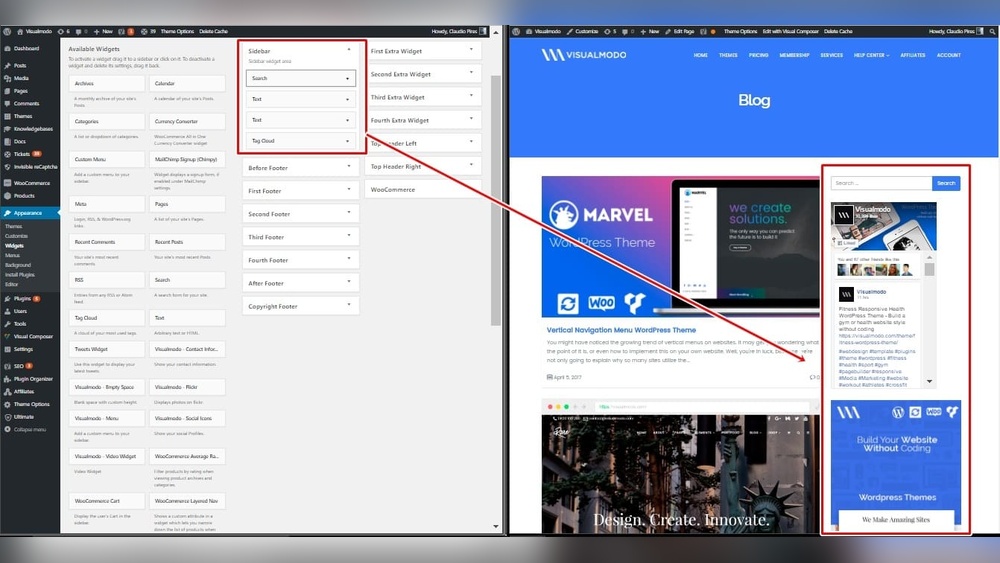
Are you looking to make your WordPress page more organized and user-friendly? Adding a sidebar is a simple way to do just that.
A sidebar lets you display important information, links, or widgets right where your visitors can easily see them. If you’ve ever wondered how to add a sidebar to your WordPress page without hassle, you’re in the right place. This guide will walk you through easy steps that anyone can follow, even if you’re not tech-savvy.
By the end, your site will look sharper and work better—keeping your visitors engaged and coming back for more. Let’s get started!
Choosing The Right Sidebar
Choosing the right sidebar improves your website’s layout and user experience. A sidebar can guide visitors to important content. It also helps keep your site organized. Picking the best sidebar depends on your website’s purpose and design. Consider what content your visitors need most. Think about how a sidebar can support your goals.
Types Of Sidebars
Sidebars come in many styles. You can choose a fixed sidebar that stays visible while scrolling. Floating sidebars move with the page as users scroll. Another option is a collapsible sidebar that hides when not needed. Some themes offer multiple sidebars for different pages. Choose a sidebar type that fits your site layout. Make sure it does not distract from main content.
Selecting Widgets For Your Sidebar
Widgets add useful features to your sidebar. Common widgets include search bars, recent posts, and categories. Social media links and contact info work well too. Pick widgets that give visitors quick access to key info. Avoid clutter by limiting the number of widgets. Organize widgets in a clear order. This helps users find what they want fast.
Credit: 10web.io
Using WordPress Default Sidebar
The WordPress default sidebar is a simple way to add extra content to your pages. It appears on the side of your website and can hold useful information. You can add menus, recent posts, search bars, and more. This makes your site easier to navigate and more interactive.
Using the default sidebar saves time. You do not need to install extra plugins or write code. WordPress already has the tools to customize it. Just follow a few steps to make your sidebar useful and attractive.
Accessing The Widgets Area
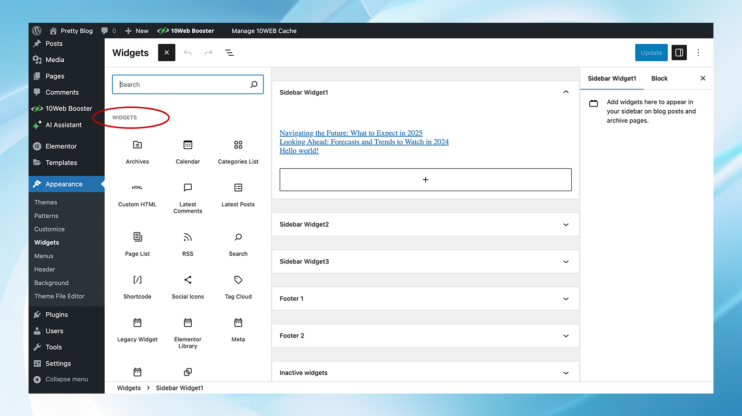
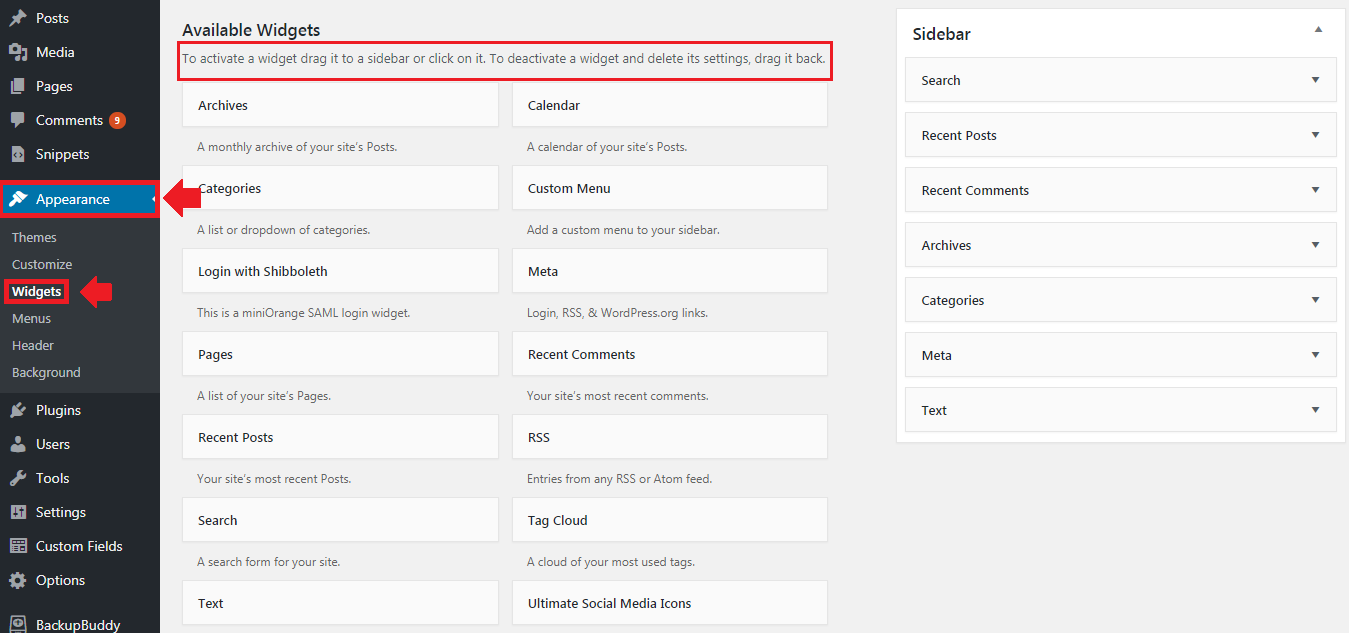
First, go to your WordPress dashboard. Find the “Appearance” menu on the left side. Click on “Widgets.” Here, you see all the widget areas available, including the default sidebar.
The sidebar area is usually named “Sidebar,” “Main Sidebar,” or something similar. Click on it to open. This area shows the current widgets active in your sidebar.
Adding Widgets To Sidebar
On the left, you see many widgets you can add. To add one, drag it into the sidebar area. Drop it where you want it to appear on your site. You can add multiple widgets here.
Some popular widgets are Search, Categories, Recent Posts, and Text. You can also use custom HTML or image widgets. Adding widgets helps you share more information with your visitors.
Customizing Sidebar Widgets
After adding widgets, you can customize them. Click on the widget’s down arrow to open its settings. Change the title or content to fit your needs. Some widgets let you control how many items show.
Make sure to save your changes before leaving. You can reorder widgets by dragging them up or down. Customizing widgets helps your sidebar look neat and work better for visitors.
Adding Sidebar With Page Builders
Adding a sidebar to a WordPress page can improve navigation and user experience. Page builders simplify this task. They let you design sidebars without coding. You can place widgets, menus, and other elements easily. This section explains how to add sidebars using popular page builders.
Popular Page Builders Overview
Page builders are tools that help you design pages visually. Elementor, Beaver Builder, and Divi are popular choices. They offer drag-and-drop interfaces. You can create custom layouts including sidebars. Each builder has unique features but all support sidebar creation.
Creating Sidebar Sections
Start by opening your page in the page builder. Choose to add a new section or column. Set this section as your sidebar area. Adjust its width to fit your design. Keep the sidebar narrow for better readability. Save the layout to keep changes.
Inserting Widgets In Page Builders
Widgets add content to your sidebar. Common widgets include search bars, recent posts, and menus. Drag and drop widgets into the sidebar section. Customize each widget’s settings for your needs. Preview the page to check the sidebar’s look. Make adjustments for the best fit.
Credit: www.greengeeks.com
Custom Sidebar For Specific Pages
Adding a custom sidebar to specific WordPress pages helps tailor your site’s look. It lets you show different content or menus on chosen pages. This makes your site more useful for visitors and improves navigation. You can create unique sidebars with simple tools and settings.
Installing Sidebar Plugins
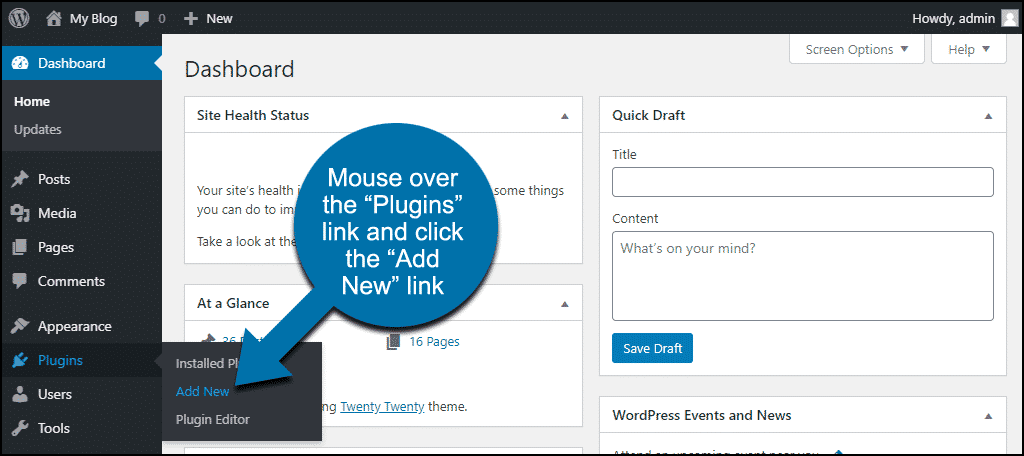
Start by installing a sidebar plugin from the WordPress plugin library. Popular options include Custom Sidebars and WooSidebars. These plugins let you create and manage multiple sidebars. Download and activate the plugin in your WordPress dashboard. This setup is easy and requires no coding skills.
Assigning Sidebars To Pages
After installation, create new sidebars inside the plugin settings. Name each sidebar based on the page or content you want. Then, assign the sidebar to specific pages by selecting them from a list. This way, each page can show a different sidebar. This feature helps target content for various visitors.
Managing Sidebar Visibility
Control where your sidebars appear by adjusting visibility rules. Set conditions like page type, category, or user role. This lets you hide or show sidebars on certain pages. Use the plugin’s options to fine-tune sidebar display. Clear settings help keep your site clean and focused.
Editing Sidebar With Custom Code
Editing your WordPress sidebar with custom code allows you to control its look and content. It helps make your site unique and better suited to your needs. You can add new features or change the sidebar layout by writing code directly in your theme files.
This method requires some care. Making mistakes can break your site or cause errors. Always back up your site before editing any code. Use a child theme to keep your changes safe during updates.
Using Theme Editor Safely
The WordPress Theme Editor lets you change theme files inside the dashboard. It is quick but risky. A small error can crash your site. Always back up files before editing. Use a child theme to avoid losing changes after updates. Test your site after each change to catch problems early.
Adding Sidebar Code To Templates
Sidebars are usually added in template files like sidebar.php. Open the file where you want to add the sidebar. Use the code php get_sidebar(); ? to include the sidebar. You can create a new sidebar file if needed. Register your sidebar in functions.php using register_sidebar(). This tells WordPress where to place widgets.
Styling Sidebar With Css
CSS controls the sidebar’s appearance. Use custom CSS to change colors, fonts, and spacing. Target sidebar classes or IDs in your stylesheet. For example, .sidebar { background-color: f0f0f0; padding: 15px; }. Preview changes on different devices for a good user experience. Keep styles simple for fast loading and easy reading.
Credit: www.library.illinois.edu
Troubleshooting Sidebar Issues
Adding a sidebar to your WordPress page can enhance navigation and user experience. Sometimes, sidebars do not work as expected. Troubleshooting these issues helps keep your website clean and functional. This section covers common problems, fixes, and mobile optimization tips.
Common Sidebar Problems
Sidebars may not appear on some pages. This often happens due to theme restrictions or incorrect widget settings. Widgets might not show if they are inactive or placed in the wrong area. Sometimes, sidebars overlap content or appear too narrow. Broken code or plugin conflicts can also cause sidebar issues.
Fixing Sidebar Display Errors
Check your theme’s sidebar settings first. Ensure the sidebar is enabled for the page type you want. Review widget placement in the Appearance > Widgets area. Clear your site cache after making changes. Disable plugins one by one to find conflicts. Update your theme and plugins to the latest versions. Use a default theme like Twenty Twenty-Three to test sidebar visibility.
Optimizing Sidebar For Mobile
Mobile screens need simpler sidebar layouts. Many themes hide sidebars on small devices automatically. Check your theme’s responsive settings to customize this. Avoid too many widgets that slow down mobile loading. Use collapsible or slide-out sidebars for better space use. Test your page on different devices to ensure the sidebar works well everywhere.
Frequently Asked Questions
How Do I Add A Sidebar To A WordPress Page?
To add a sidebar, go to Appearance > Widgets in your WordPress dashboard. Drag and drop widgets into the sidebar area. Then, assign the sidebar to your desired page using page templates or plugins.
Can I Customize The Sidebar On Specific WordPress Pages?
Yes, you can customize sidebars per page using plugins like “Custom Sidebars. ” This allows you to display different widgets or content on specific pages for better user experience.
Which WordPress Themes Support Sidebars By Default?
Most WordPress themes support sidebars, especially blog and magazine themes. Check your theme documentation or Appearance > Widgets to confirm if sidebars are available for your theme.
Is It Possible To Add Multiple Sidebars On One WordPress Page?
Yes, some themes and plugins support multiple sidebars. You can add sidebars on both left and right sides or create custom sidebar areas for better layout control.
Conclusion
Adding a sidebar to your WordPress page improves navigation and user experience. You can customize it to show menus, widgets, or important links. This helps visitors find what they need quickly. Keep your sidebar clean and relevant for best results.
With simple steps, your website looks more organized and professional. Try different layouts to see what fits your content best. A well-placed sidebar can make your site easier to use and more engaging.


