
Are you looking to make your WordPress site more dynamic and interactive? Adding shortcodes to your widgets can help you do just that—without needing to touch any complex code.
If you’ve ever wondered how to easily insert shortcodes into your widget areas, you’re in the right place. This guide will walk you through simple, step-by-step methods to get your shortcodes working in widgets, so you can customize your site exactly the way you want.
Keep reading, and you’ll have your WordPress widgets doing more in no time!
Why Use Shortcodes In Widgets
Shortcodes let you add special features inside WordPress widgets easily. They save time and make your site look better without coding. Widgets usually hold simple content. Shortcodes bring dynamic content to these small areas.
Using shortcodes in widgets helps you show things like forms, galleries, or buttons. This makes your site interactive. It also keeps your sidebar or footer interesting for visitors.
Benefits Of Shortcodes
Shortcodes make adding complex elements easy. No need to write code for every widget. They keep your site neat and organized. Shortcodes work across many parts of your site. They help maintain consistent design and function. Editing a shortcode updates all widgets using it. This saves a lot of time and effort.
Common Use Cases
Many use shortcodes to add contact forms in sidebars. Others show recent posts or popular products. Some add social media buttons or custom menus. Shortcodes also display event calendars or special offers. They fit perfectly in small widget spaces. This keeps your site fresh and useful.
Credit: www.wpbeginner.com
Preparing Your WordPress Site
Preparing your WordPress site is the first step to add shortcode in widgets. It helps to ensure everything works smoothly. This preparation involves checking your theme and installing necessary plugins. These steps help avoid errors and make the process easier.
Checking Theme Compatibility
Not all WordPress themes support shortcodes in widgets. Some themes disable this feature by default. Check your theme’s documentation or support forum. Look for information about widget shortcode support. You can also test by adding a shortcode in a widget and see if it works.
If your theme does not support shortcodes in widgets, you may need to add a small code snippet. This snippet enables shortcode processing inside widgets. It is a simple fix but requires editing your theme’s functions.php file. Always back up your site before making changes.
Installing Necessary Plugins
Some plugins make shortcode usage easier and more flexible. Plugins like “Shortcode Widget” or “Widget Shortcode” allow you to add shortcodes directly into widgets. Install and activate one of these plugins from the WordPress plugin directory.
These plugins also help if your theme does not support shortcodes in widgets. They add extra options and improve compatibility. Choose a plugin with good ratings and recent updates. This ensures it works well with your current WordPress version.
Adding Shortcodes To Text Widgets
Adding shortcodes to text widgets in WordPress allows users to insert dynamic content easily. Shortcodes help display forms, galleries, or other features inside widget areas. This makes the site more interactive without writing complex code.
By default, WordPress text widgets do not process shortcodes. This means you must enable shortcode support to see the content correctly. The process is simple and can be done in a few steps.
Using Default Text Widget
The default text widget lets you add text or HTML to widget areas. You can paste a shortcode directly inside this widget. For example, add to show a photo gallery.
Without extra steps, the shortcode will appear as plain text. The widget does not convert it to the intended output. This limits the usefulness of shortcodes in text widgets.
Enabling Shortcodes In Widgets
To make shortcodes work in text widgets, add a small code snippet to your theme’s functions.php file. This snippet tells WordPress to process shortcodes inside widgets.
add_filter('widget_text', 'do_shortcode');After adding this code, shortcodes will display their output properly in text widgets. This method requires basic access to your theme files. Use a child theme or a site-specific plugin to keep changes safe.
Credit: elementor.com
Using Custom Html Widgets For Shortcodes
Using Custom HTML widgets allows you to add shortcodes to your WordPress sidebar or footer easily. This method gives you control over where and how your shortcode content appears. It works well when the default text widget doesn’t process shortcodes correctly.
Custom HTML widgets let you insert any shortcode without extra plugins. You just paste the shortcode inside the widget and save it. WordPress then runs the shortcode and shows the output in that widget area.
When To Use Custom Html
Use Custom HTML widgets if your shortcode does not work in a regular text widget. Some themes or WordPress versions block shortcodes in text widgets by default. Custom HTML widgets do not have this restriction.
This widget is best when you want to add complex shortcode content, like forms or galleries. It also works well for developers who want to add custom code alongside shortcodes. If you need to add styling or extra HTML around your shortcode, this widget gives full freedom.
How To Insert Shortcodes
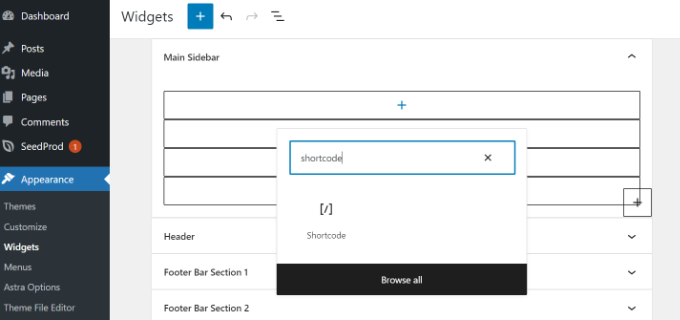
Go to your WordPress dashboard and open Appearance > Widgets. Find the Custom HTML widget and drag it to your desired widget area.
Paste your shortcode inside the content box exactly as it appears. For example, [your_shortcode]. Click Save and visit your website to see the shortcode output.
This method runs the shortcode just like in a post or page. If the shortcode does not show, check if it requires a plugin or if shortcodes are enabled in widgets.
Troubleshooting Common Issues
Troubleshooting shortcode issues in WordPress widgets can be simple. Most problems come from small mistakes or missing settings. This section helps you fix common errors fast. Clear steps make your shortcode work in widgets without fuss.
Shortcode Not Executing
Shortcodes sometimes show as plain text. This happens when WordPress does not process them in widgets. To fix this, add a small code snippet to your theme’s functions.php file:
add_filter('widget_text', 'do_shortcode');This code tells WordPress to run shortcodes inside text widgets. Make sure you place it correctly in your theme files. Also, confirm your shortcode is correct and active. Typos or missing plugins can stop shortcodes from running.
Widget Display Problems
Widgets may not display shortcode content properly. Sometimes, the output looks broken or empty. Check for conflicts with your theme or other plugins. Disable other plugins one by one to find the issue.
Clear your site cache and browser cache. Old cached files can block shortcode updates. Make sure your WordPress and plugins are up to date. Outdated software may cause display problems.
Enhancing Widget Functionality
Widgets help customize your WordPress site easily. Adding shortcodes to widgets improves their power. Shortcodes let you insert dynamic content without coding. This makes your site more interactive and useful. Enhancing widget functionality is key to a better user experience. It also saves time by reusing code snippets in many places.
Combining Shortcodes With Widgets
Shortcodes can work inside text widgets. This allows you to add forms, galleries, or special content. To enable shortcodes in widgets, use a small code snippet in your theme’s functions.php file. This snippet tells WordPress to process shortcodes in widgets. After this, paste your shortcode inside a text widget. The widget will display the shortcode output, not just text.
This method is simple and uses core WordPress features. It works well for basic needs. You can add buttons, sliders, or custom layouts easily. This way, you extend widget use beyond simple text or images.
Using Third-party Widget Plugins
Some plugins make shortcode use in widgets easier. They come with extra options and support. These plugins allow you to add shortcodes to any widget area without coding. They may offer visual editors and shortcode libraries. This saves time and reduces errors.
Popular plugins include “Shortcode Widget” and “Custom HTML Widget.” They let you place shortcodes in sidebars, footers, or headers. This method is user-friendly and perfect for beginners. It also supports complex shortcodes from other plugins.

Credit: qodeinteractive.com
Frequently Asked Questions
How Do I Add A Shortcode To A WordPress Widget?
To add a shortcode to a widget, use the Text or Custom HTML widget. Simply paste your shortcode inside the widget content area and save. WordPress will execute the shortcode and display its output on your site.
Can WordPress Widgets Run Shortcodes By Default?
No, by default, WordPress widgets do not execute shortcodes. You need to enable shortcode support in widgets by adding a small code snippet to your theme’s functions. php file or use a plugin that allows shortcodes in widgets.
What Code Enables Shortcode Execution In WordPress Widgets?
Add this code to functions. php: add_filter(‘widget_text’, ‘do_shortcode’);. It activates shortcode parsing inside text widgets, making shortcodes work without extra plugins. Always backup your site before editing theme files.
Are Plugins Necessary To Add Shortcodes In WordPress Widgets?
Plugins are not necessary but can simplify the process. They offer user-friendly interfaces and extra features to add and manage shortcodes in widgets without coding knowledge. Choose a reliable plugin for best results.
Conclusion
Adding shortcodes to WordPress widgets is simple and useful. It lets you show extra content without coding. You just need to copy the shortcode and paste it in the widget area. This makes your site more flexible and easy to update.
Keep practicing to get comfortable with it. Soon, you will add more features to your site with ease. Try it today and see how it improves your WordPress experience.


