
Are you ready to turn your WordPress site into a powerful online store? Adding a shopping cart to your website might sound tricky, but it doesn’t have to be.
Imagine your visitors easily picking their favorite products and checking out in just a few clicks. This simple feature can boost your sales and keep customers coming back for more. In this guide, you’ll discover easy, step-by-step ways to add a shopping cart to your WordPress site—no tech skills needed.
Stick around, and by the end, you’ll have a smooth, professional online store that works for you.
Choosing The Right Shopping Cart Plugin
Choosing the right shopping cart plugin is key for your WordPress store. It affects how customers shop and how easy you manage sales. The plugin must fit your needs and work well with your website. This choice impacts your store’s success and customer satisfaction. Below are important points to help you decide.
Popular Plugins Comparison
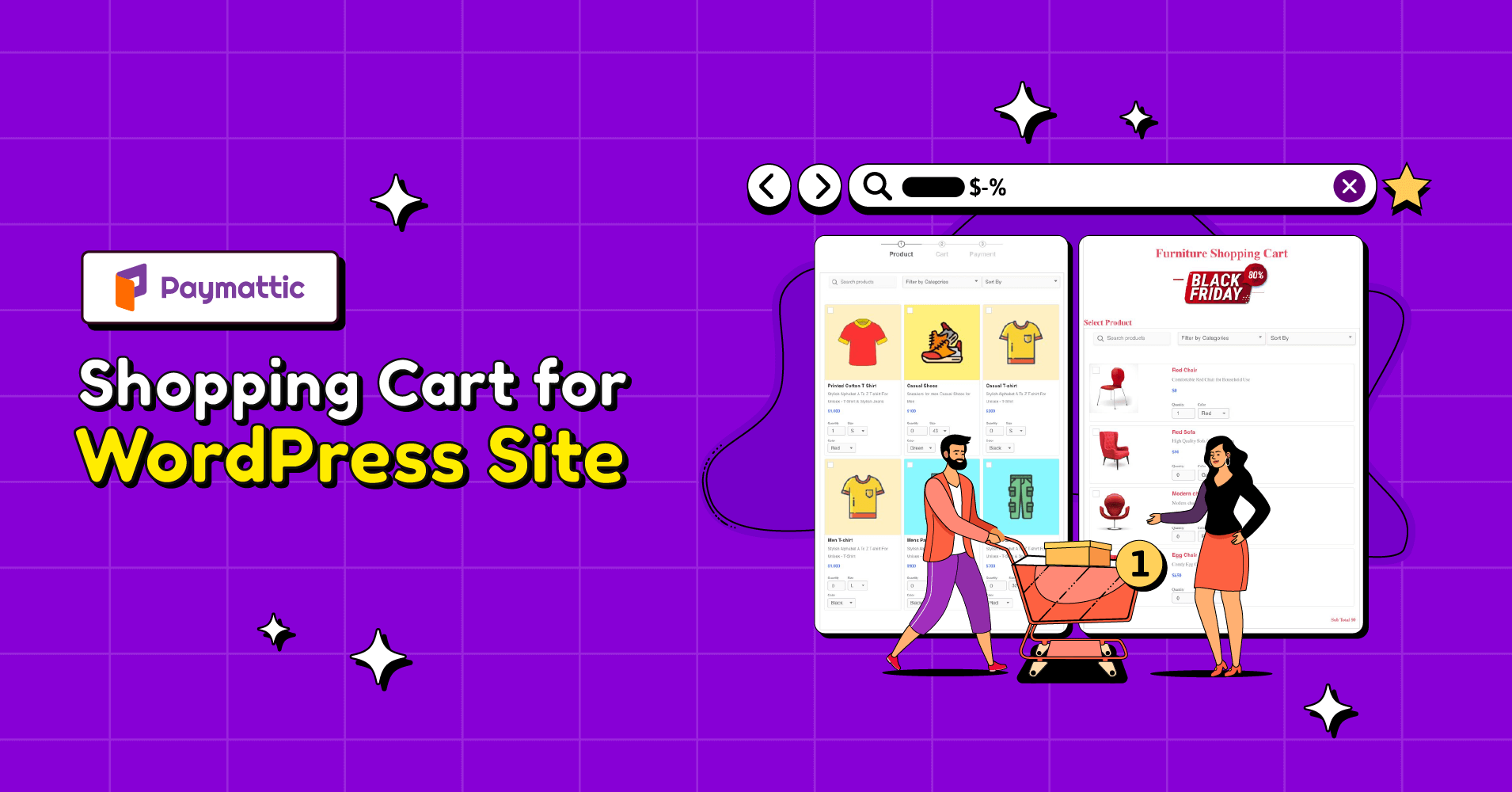
Several plugins stand out for WordPress shopping carts. WooCommerce is the most used. It supports many payment methods and extensions. Easy Digital Downloads suits stores selling digital products. WP Easy Cart is simple and good for small shops. Each plugin offers different tools and ease of use. Choose one that fits your product type and store size.
Key Features To Look For
Look for features like secure payment options. The plugin should support multiple payment gateways. Mobile-friendly design is essential for buyers on phones. Inventory management helps track your stock. Check if it offers shipping options and tax settings. Good customer support is also important. These features make your store reliable and easy to run.
Free Vs Paid Options
Free plugins work well for small stores or beginners. They have basic features and limited support. Paid plugins offer more tools and regular updates. They often include premium support and advanced functions. Consider your budget and store needs. Paid options can save time and improve user experience. Free versions are good to start and test features.
Credit: paymattic.com
Installing The Shopping Cart Plugin
Installing a shopping cart plugin is the first step to sell products on your WordPress site. The right plugin lets visitors add products to their cart and pay easily. This section explains how to install the plugin, activate it, and set it up for the first time.
Plugin Installation Process
Log in to your WordPress dashboard. Go to the “Plugins” menu and select “Add New.” Use the search bar to find a shopping cart plugin like WooCommerce. Click “Install Now” beside the plugin name. Wait a few moments for the plugin to download and install on your site.
Activating The Plugin
After installation, click the “Activate” button. Activating the plugin enables its features on your site. You will see new menu options related to the shopping cart in your dashboard. This step is essential to start using the plugin’s tools.
Initial Configuration
Once activated, the plugin will guide you through setup steps. Enter basic store details like address and currency. Choose payment methods and shipping options. Save your settings to finalize the configuration. This setup ensures your cart works correctly for customers.
Setting Up Product Listings
Setting up product listings is a key step to create a functional online store on WordPress. Clear and well-organized listings help customers find products quickly. This section guides you through adding products, organizing them, and managing images for a better shopping experience.
Adding New Products
Start by opening your WordPress dashboard. Navigate to the product section of your shopping cart plugin. Click on “Add New Product” to begin.
Enter the product name and detailed description. Use simple words and explain the product clearly. Set the price and stock quantity to keep track of availability.
Don’t forget to add product variations if needed, like size or color. Save each product once all details are complete.
Organizing With Categories And Tags
Categories group similar products, making it easier for buyers to browse. Create categories based on product types or themes.
Tags help describe product features or styles in more detail. Use tags like “cotton,” “handmade,” or “summer” to filter products.
Assign each product to a category and add relevant tags. This organization improves navigation and search on your site.
Managing Product Images
Product images attract buyers and show what you sell. Upload clear, high-quality photos for each product.
Use multiple images to show different angles or details. Optimize image size to keep your site fast.
Set a main image as the product’s thumbnail. This image appears in listings and search results.

Credit: www.youtube.com
Configuring Payment Methods
Configuring payment methods is a crucial step in setting up your WordPress shopping cart. It ensures customers can pay safely and easily. Correct payment setup helps build trust and reduces abandoned carts.
You must choose the right payment gateways that suit your store and customers. Each gateway has its own features and fees. Setting them up properly avoids payment errors and delays.
Popular Payment Gateways
Many payment gateways work well with WordPress. PayPal and Stripe are the most common choices. They support credit cards and other payment types. Other options include Square, Authorize.Net, and Amazon Pay. Choose gateways that serve your target audience.
Setting Up Paypal And Stripe
To set up PayPal, create a business account first. Then enter your PayPal email in your WordPress plugin settings. Enable instant payment notifications to track orders automatically.
For Stripe, sign up on the Stripe website. Get your API keys from the dashboard. Paste these keys into your WordPress payment plugin. Stripe accepts major credit cards and mobile payments.
Testing Payment Processing
Test all payment methods before launching. Use sandbox or test modes from PayPal and Stripe. Submit fake transactions to check if payments go through. Confirm order status updates and email notifications.
Fix any errors found during testing. Proper testing avoids lost sales and unhappy customers. Repeat tests after plugin updates or changes.
Customizing Cart And Checkout Pages
Customizing your cart and checkout pages helps create a smooth shopping experience. These pages are where customers finalize their orders. A clear, easy layout keeps buyers happy and reduces abandoned carts. Tailoring these pages to match your brand builds trust and encourages purchases.
Design Options
Choose colors and fonts that match your website style. Use simple buttons and clear labels. Organize product lists and totals neatly. Add your logo for brand consistency. Test different layouts to find what works best. A clean design helps customers focus on buying.
Adding Custom Fields
Custom fields collect extra information from customers. Ask for gift messages or delivery instructions. Use dropdowns or checkboxes for easy input. Keep fields short and relevant. This data helps personalize orders and improve service. Many WordPress plugins let you add these fields easily.
Improving User Experience
Speed up page loading times. Make forms easy to fill with clear instructions. Use progress indicators to show steps. Offer guest checkout to avoid forcing account creation. Provide multiple payment options for convenience. A smooth process keeps customers coming back.
Managing Orders And Customers
Managing orders and customers is a key part of running an online store. It helps keep your business organized and your customers happy. Good management makes sure orders are processed on time and customers get the support they need.
Clear order tracking, easy customer communication, and smooth handling of refunds improve the shopping experience. These steps build trust and encourage customers to return.
Order Tracking
Order tracking lets you see the status of each purchase. It helps you know when an order is placed, packed, shipped, or delivered. Most WordPress shopping cart plugins offer built-in tracking tools. You can also send tracking numbers to customers for their peace of mind.
Tracking reduces confusion and saves time answering questions. It also helps you spot problems early, like delayed shipments.
Customer Communication
Good communication keeps customers informed and satisfied. Send order confirmations and shipping updates automatically. Reply quickly to questions or complaints to show you care.
Use simple language in messages. Clear and polite communication builds trust. Also, consider adding a contact form or live chat on your site for easy access.
Handling Refunds And Returns
Refunds and returns are a natural part of online shopping. Have clear policies on your site to guide customers. Make the process easy and fair.
Use your WordPress plugin to manage refund requests. Confirm receipt of returned items before issuing refunds. Quick responses reduce customer frustration and improve your store’s reputation.
Optimizing For Mobile And Speed
Optimizing your WordPress shopping cart for mobile and speed improves user experience. Fast, smooth sites keep visitors engaged and reduce bounce rates. Mobile-friendly design ensures your cart works well on small screens. Speed improvements help pages load quickly on all devices.
Mobile-friendly Design
Choose a responsive theme that adapts to any screen size. Test your shopping cart on different phones and tablets. Use large buttons and clear fonts for easy tapping. Avoid clutter to keep the checkout process simple. Mobile users should find it easy to browse and buy.
Improving Load Times
Compress images to reduce file size without losing quality. Minimize the use of heavy plugins that slow down your site. Use clean, simple code to speed up page loading. Limit the number of scripts running on your shopping cart pages. Fast load times keep customers from leaving.
Using Caching And Cdn
Caching stores copies of your pages for faster delivery. Enable caching plugins to reduce server load and speed up your site. A CDN (Content Delivery Network) delivers content from servers near your visitors. This reduces delays and improves page load times worldwide. Both caching and CDN boost your site’s performance.
Ensuring Security And Compliance
Security and compliance are crucial when adding a shopping cart to WordPress. Protecting customer data builds trust and keeps your site safe. Follow clear steps to secure your online store and meet legal rules.
Ssl Certificates
SSL certificates encrypt data between your site and customers. This keeps payment details safe from hackers. Most WordPress hosts offer free SSL certificates. Activate it to show “https” in your site URL. This small step boosts customer confidence and improves search rankings.
Data Protection Practices
Keep customer information private and secure. Use strong passwords and update plugins regularly. Limit access to sensitive data only to trusted users. Backup your site often to prevent data loss. Clear privacy policies help customers understand how you use their data.
Compliance With Regulations
Follow laws like GDPR or CCPA depending on your location. These rules protect customer rights and data privacy. Display cookie notices and get user consent where required. Provide options for customers to view or delete their data. Staying compliant avoids fines and builds a reliable brand.
Troubleshooting Common Issues
Adding a shopping cart to WordPress can sometimes bring unexpected issues. Troubleshooting these problems quickly helps keep your store running smoothly. This section explains common problems and easy fixes.
Fixing Plugin Conflicts
Plugins may clash and stop your cart from working. Disable all other plugins except your cart plugin. Check if the cart works after that. Turn on plugins one by one to find the conflict. Update all plugins to their latest versions. Clear your site cache after updates. This often solves compatibility problems.
Resolving Payment Errors
Payment errors can block orders and lose customers. Verify your payment gateway settings are correct. Make sure API keys are entered properly. Test payments using sandbox mode if available. Check that your SSL certificate is active. This secures payments and builds trust. Contact your payment provider if errors persist.
Handling Cart Abandonment
Many shoppers leave carts without buying. Remind them with email notifications or pop-ups. Offer discounts or free shipping to encourage checkout. Simplify the checkout process by reducing steps. Use clear calls to action on buttons. Monitor cart abandonment rates to improve your strategy. Small changes can increase sales significantly.
Credit: www.seedprod.com
Frequently Asked Questions
How Do I Add A Shopping Cart To WordPress?
You can add a shopping cart using plugins like WooCommerce. Install, activate, and configure settings to start selling online easily.
Which WordPress Plugin Is Best For Shopping Carts?
WooCommerce is the most popular and feature-rich plugin. It offers flexibility, payment options, and seamless integration with WordPress.
Can I Customize My WordPress Shopping Cart Design?
Yes, most plugins, especially WooCommerce, allow customization. You can change layouts, colors, and add custom features to match your brand.
Is It Easy To Manage Products In WordPress Carts?
Yes, WordPress plugins provide user-friendly dashboards. You can add, edit, and organize products without coding knowledge.
Conclusion
Adding a shopping cart to WordPress is easier than it seems. Choose a plugin that fits your needs and install it carefully. Customize settings to match your store style and products. Test the cart to ensure smooth checkout for customers.
Keep your site updated to avoid problems later. A simple cart helps sell products and grow your business online. Start today and watch your store improve step by step.


