

Are you looking to make your WordPress site more eye-catching and unique? Adding shapes can instantly boost your design and grab your visitors’ attention.
Whether you want simple circles, squares, or custom shapes, you don’t need to be a design expert to do it. You’ll discover easy, step-by-step ways to add shapes to your WordPress site. By the end, your pages will look more dynamic and professional, helping you stand out from the crowd.
Ready to transform your site? Let’s dive in!

Credit: unlimited-elements.com
Choosing The Right Shape Tools
Choosing the right shape tools is important for designing your WordPress site. The right tools help you create clear and attractive shapes. They save time and give you better control over your design. Different tools fit different needs and skill levels. Knowing your options makes the process easier and more fun.
Built-in WordPress Shape Options
WordPress has some basic shape options in the block editor. You can add simple shapes like circles, squares, and lines. These shapes are easy to use and fit well with text and images. They work well for small design tasks. No extra installation is needed, so you start right away. These options are best for beginners or quick edits.
Using Shape Plugins
Shape plugins bring more shape styles and features. They add new blocks or tools to the editor. Many plugins offer custom shapes like stars, arrows, and polygons. Plugins allow you to change colors, sizes, and borders easily. Some plugins have drag-and-drop features for fast design. They are good if you want more design freedom without coding.
Third-party Design Tools
Third-party design tools let you create shapes outside WordPress. Tools like Canva or Adobe Spark offer advanced shape creation. You can design complex shapes with effects and textures. After creating, export the shapes as images or SVG files. Then, upload them to your WordPress site. This method works well for unique or detailed shapes. It needs more steps but gives great design control.
Adding Shapes With Block Editor
Adding shapes in WordPress is easy with the Block Editor. It helps you make your pages more attractive. Shapes can highlight important parts or separate sections. The Block Editor offers simple tools to insert and adjust shapes. You do not need coding skills to work with shapes here.
Using The Shape Block
The Shape Block is the main tool for adding shapes. Open the Block Editor and click the plus (+) icon. Search for “Shape” and select the block. You can choose from circles, squares, triangles, and more. Click the shape you want to add it to the page. The block will appear where your cursor is. You can add multiple shapes on one page.
Customizing Shape Colors And Sizes
After adding a shape, customize its color and size. Click on the shape to see options on the right panel. Pick a color that fits your page style. Use the slider or input box to change the size. Adjust width and height for a perfect fit. You can also add borders or shadows if available. These changes help your shape stand out or blend in.
Positioning Shapes On The Page
Position shapes precisely using the Block Editor tools. Drag the shape block to move it up or down. Use alignment buttons to place shapes left, center, or right. For finer control, use margin and padding settings. These settings create space around shapes. This keeps your page clean and organized. Proper shape placement improves page flow and reader focus.
Inserting Shapes Via Plugins
Using plugins to insert shapes in WordPress makes the process simple and flexible. Plugins offer ready-made tools to design and place shapes anywhere on your site. This method saves time and does not require coding skills.
Many plugins provide various shapes like circles, squares, arrows, and more. You can customize colors, sizes, and styles easily. Plugins help create unique designs that match your website’s look.
Top Plugins For Shape Design
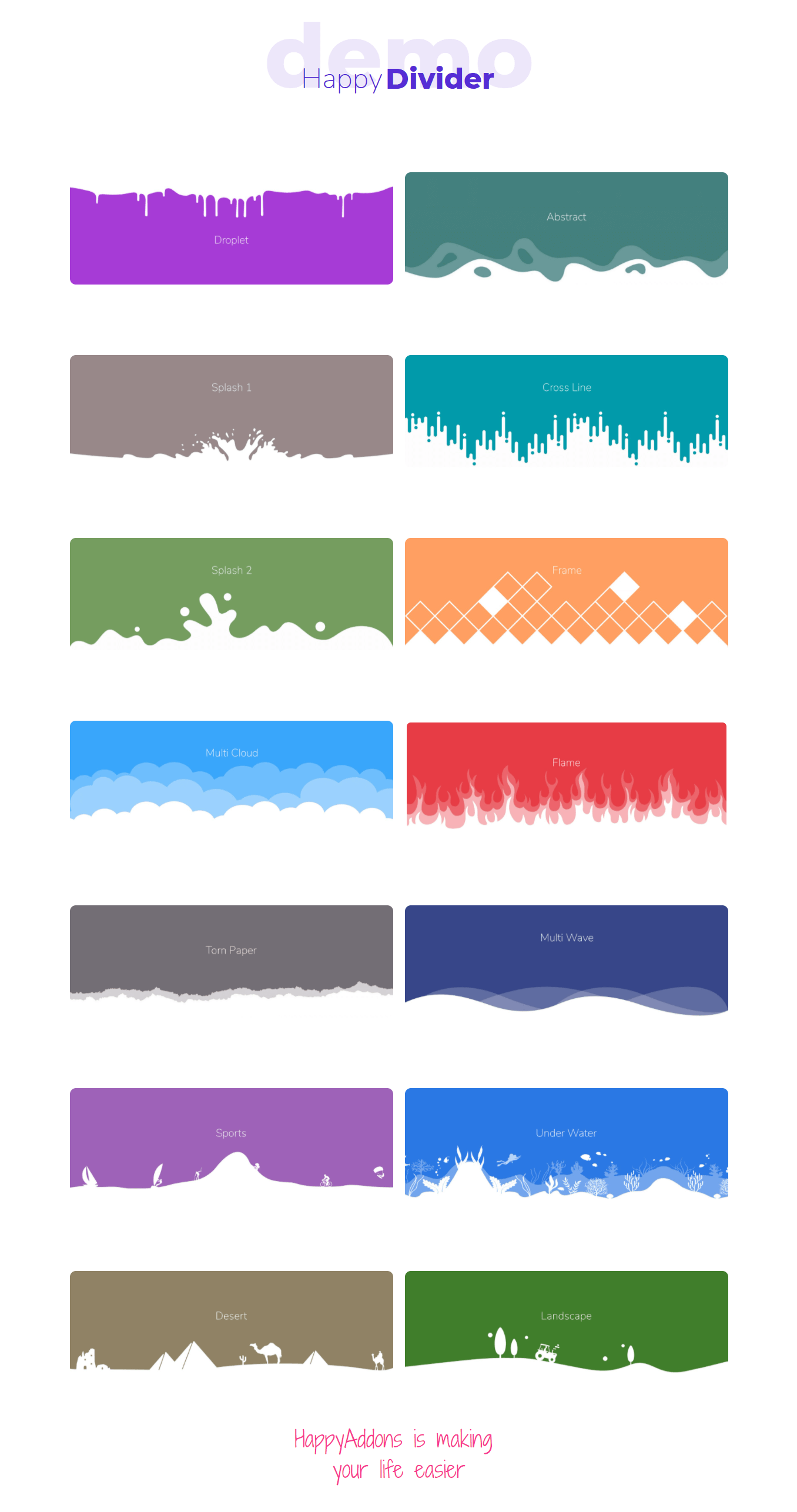
Several plugins stand out for shape design. “WP Draw Attention” lets you add interactive shapes. “Shape Divider” helps create stylish section dividers with shapes. “Ultimate Addons for Gutenberg” offers a collection of shape blocks. Choose a plugin that fits your design needs and is easy to use.
Step-by-step Plugin Installation
Go to your WordPress dashboard. Click on “Plugins” then “Add New.” Type the plugin name in the search bar. Find the plugin and click “Install Now.” After installation, click “Activate.” The plugin is now ready to use. Follow the plugin’s instructions for setup.
Creating Custom Shapes With Plugins
Open the plugin’s shape editor or block. Select the shape type you want. Adjust size, color, and style settings. Some plugins let you add text inside shapes. Preview your design on the page. Save changes and insert the shape into your post or page. Custom shapes enhance your content’s visual appeal easily.
Using Css For Custom Shapes
Using CSS to create custom shapes in WordPress gives you full control over your site’s design. CSS lets you draw shapes without images or plugins. This method keeps your site fast and easy to update.
With CSS, you can create circles, triangles, and other shapes using simple code. You can also animate these shapes to catch visitors’ eyes. Plus, CSS shapes adjust well on different screen sizes.
Basic Css Shape Techniques
Create shapes using properties like border-radius and clip-path. For example, a circle uses border-radius: 50% on a square box. Triangles form with borders and transparent colors. These techniques require only a few lines of CSS.
You can add these styles directly in WordPress blocks or in your theme’s CSS file. This keeps shapes lightweight and easy to manage.
Animating Shapes With Css
CSS animations add movement to your shapes. Use @keyframes to define animation steps. For example, rotate a shape or change its color smoothly. Animations make your site look dynamic and modern.
Keep animations simple to avoid slowing down your site. Short, subtle effects work best for user experience and visual appeal.
Responsive Shape Design
Shapes should look good on all devices. Use relative units like em or percentages instead of fixed pixels. This helps shapes resize on phones, tablets, and desktops.
Media queries let you adjust shape sizes or positions for different screen widths. Responsive shapes improve your site’s usability and appearance everywhere.
Best Practices For Shape Design
Designing shapes in WordPress requires care and attention. Good shape design improves your site’s look and feel. It guides visitors and supports your content. Follow best practices to create shapes that fit well with your design.
Maintaining Visual Balance
Keep shapes balanced on your page. Avoid crowding one side with too many shapes. Use equal space around shapes to create harmony. Choose shapes that match your site’s style. Balance helps visitors focus on important content.
Enhancing User Experience
Shapes should help users, not distract them. Use shapes to highlight buttons or important areas. Make sure shapes are easy to see on all devices. Simple shapes improve navigation and readability. Clear shapes guide users through your content smoothly.
Optimizing Shape Performance
Use lightweight shapes to keep your site fast. Avoid complex shapes that slow down loading. Compress images and use SVG format when possible. Test shapes on different browsers for consistency. Fast-loading shapes improve user satisfaction and SEO.
Credit: happyaddons.com

Credit: www.youtube.com
Frequently Asked Questions
How Can I Add Shapes In WordPress Without Plugins?
You can add shapes using the WordPress block editor’s built-in features. Use the “Shape Divider” block or insert SVG code directly. This method is quick and keeps your site lightweight without relying on extra plugins.
What Are The Best Plugins For Adding Shapes In WordPress?
Popular plugins include “WPBakery Page Builder,” “Elementor,” and “Shapes for Gutenberg. ” These tools offer customizable shape options, easy drag-and-drop interfaces, and enhance page design. Choose one based on your needs and site compatibility.
Can I Customize Shapes Added In WordPress?
Yes, most shape tools and plugins allow color, size, and style customization. You can match shapes to your brand colors and design theme. Customization improves visual appeal and user engagement on your website.
Are Shapes Seo-friendly In WordPress Content?
Yes, properly optimized shapes do not affect SEO negatively. Use descriptive alt text for images and SVGs. Shapes enhance user experience and can support content without slowing down your site.
Conclusion
Adding shapes in WordPress is simple and quick. You just need to follow the steps carefully. Shapes make your website look better and more interesting. Use different shapes to highlight important parts. Experiment with colors and sizes for best results.
Keep your design clean and easy to read. Now, you can create a more attractive website easily. Start adding shapes today and see the difference. Your visitors will enjoy the improved look and feel.


