

Are you looking to make it easier for visitors to find exactly what they need on your WordPress site? Adding a search feature can transform your website experience, helping your audience navigate quickly and boosting your engagement.
You’ll discover simple, step-by-step ways to add a powerful search function to your WordPress site—no tech skills needed. Keep reading, and by the end, you’ll have a tool that keeps your visitors coming back for more.
Choosing The Right Search Plugin
Choosing the right search plugin is key for your WordPress site. It affects how visitors find content. A good search tool saves time and boosts user experience. Some plugins are simple, while others offer advanced features. Pick one that fits your site’s needs and your skill level. Let’s explore popular options, compare their features, and learn how to install them.
Popular Search Plugins For WordPress
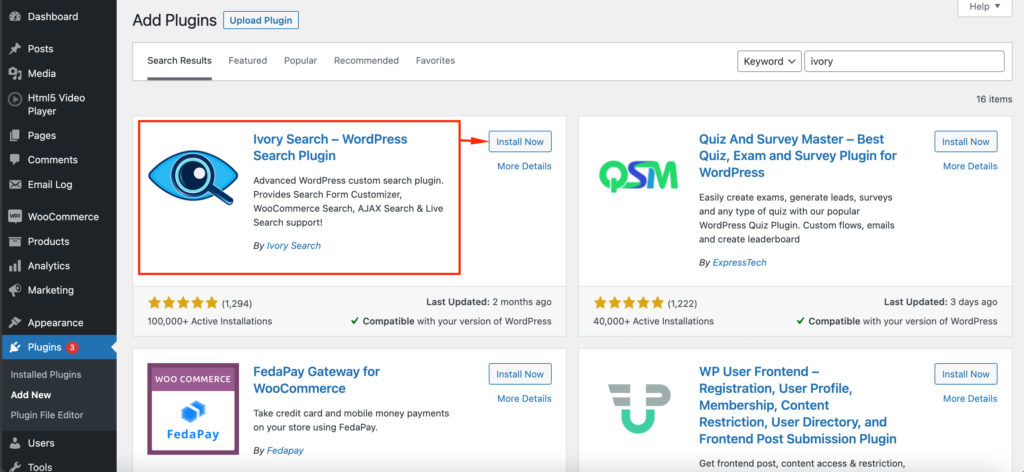
Several search plugins work well with WordPress. The default search is basic but fast. Relevanssi improves search accuracy with better results. SearchWP offers deep content indexing and custom results. Ajax Search Lite provides live search suggestions. Each plugin serves different purposes. Choose based on the features you need.
Comparing Features And Performance
Speed matters in search results. Some plugins slow down your site. Relevanssi balances speed and accuracy well. SearchWP is powerful but uses more resources. Ajax Search Lite offers instant results with AJAX technology. Consider mobile-friendliness too. Look for plugins that update regularly and have good support. This keeps your site secure and fast.
Installing Your Chosen Plugin
Go to your WordPress dashboard. Click on Plugins, then Add New. Search for the plugin name in the search box. Click Install Now and then Activate. Configure settings from the plugin menu. Test the search on your site to make sure it works. Adjust options for best results and user experience.
Setting Up Default WordPress Search
Setting up the default WordPress search is simple and fast. This feature helps visitors find content on your site. It improves user experience and keeps people engaged longer. WordPress has a built-in search tool that works right out of the box. No need for extra plugins or complex setups.
Using the default search lets you add a search box to your site easily. This box appears in sidebars, headers, or footers. You can control where it shows and how it looks. The search results page matches your theme style, keeping your site design consistent. Let’s explore how to use and customize this feature.
Using Built-in Search Widget
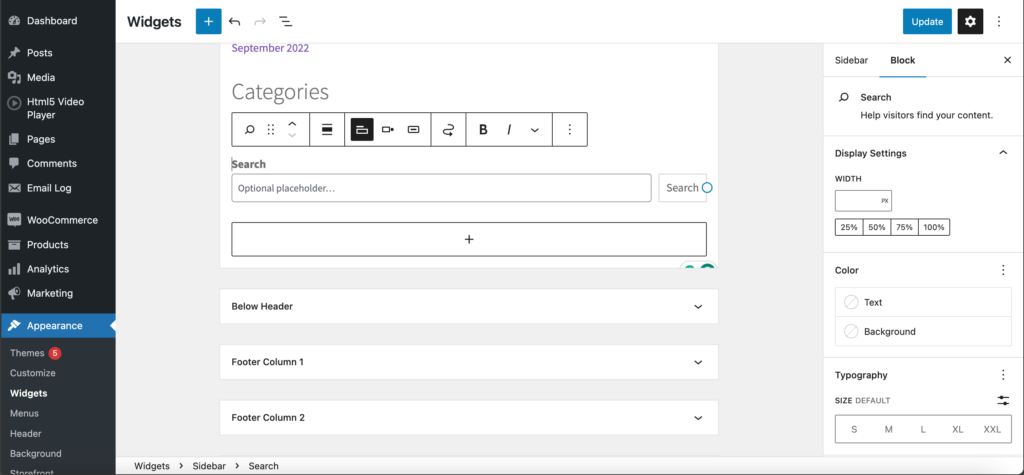
The easiest way to add search is by using the built-in widget. Go to your WordPress dashboard. Then, open Appearance > Widgets. Find the “Search” widget in the list. Drag and drop it to the sidebar or any widget area on your site.
You can add a title for the search box. For example, “Search Site” or “Find Posts.” Save the widget settings. The search box will now appear on your site immediately. Visitors can type keywords and get relevant results quickly.
Customizing Search Appearance
Default search can be styled to match your site’s look. Use the Customizer under Appearance > Customize. Find the widget area where the search box is located. Some themes allow you to change colors, fonts, and sizes here.
For more control, add custom CSS. This lets you change the search box border, background, or button style. You can also change placeholder text inside the search box. Keep the design simple for easy use. A clean search box invites visitors to use it often.
Enhancing Search With Plugins
Plugins can make WordPress search much better and easier to use. They add new features that the default search does not have. Many plugins let you control how search works and what results show up. You can also make search faster and more accurate with the right tools.
Configuring Search Settings
Search plugins let you change settings to fit your site’s needs. You can choose which content types appear in search results. Some plugins allow you to include or exclude pages, posts, or custom content. Setting up search order is also possible. For example, you can show recent posts first or prioritize certain categories. These settings improve user experience by showing relevant results quickly.
Adding Search Filters And Facets
Filters help visitors find exactly what they want. Facets break search results into smaller groups, like categories or tags. Plugins offer options to add filters by date, price, or custom fields. This makes searching faster and more precise. Visitors can narrow down results without typing long queries. Clear filters reduce frustration and help users explore your site better.
Improving Search Speed And Accuracy
Good search plugins use smart algorithms to improve accuracy. They match results based on keywords, synonyms, and relevance. Some plugins use indexing to speed up search queries. Indexing creates a quick reference of your content for faster access. Fast search keeps users engaged and encourages them to explore more pages. Accurate results build trust and satisfaction on your site.

Credit: happyaddons.com
Adding Search To Your Website Layout
Adding search to your website layout helps visitors find content quickly. A clear search option improves user experience and keeps people engaged. Placement matters to make search easy to spot and use.
Placing Search In Header Or Sidebar
The header is a common spot for search. It stays visible on every page. Visitors expect to find search here. Use a simple search box with a button or icon. The sidebar works well too, especially on blogs or content-heavy sites. It is visible while users read content. Choose a spot that fits your site design. Keep the search box easy to find but not distracting.
Embedding Search In Pages And Posts
Embedding search inside pages or posts helps users focus on specific topics. You can add a search box using a shortcode or block editor. This option suits large sites with many pages. It lets visitors search within a particular section. Keep the search box simple and clean. Avoid placing too many search boxes on one page. One well-placed search box can guide visitors better.
Testing And Optimizing Search Results
Testing and optimizing search results is key to making your WordPress search useful. It ensures users find what they need quickly. Good search results boost user experience and keep visitors on your site longer.
Regular checks help spot problems early. Tweaks improve accuracy and relevance. This section guides you through steps to test and optimize WordPress search effectively.
Checking Search Functionality
Start by running multiple searches on your site. Use common and uncommon keywords. See if results match user intent. Check if search works on all devices and browsers. Fix any broken links or missing results.
Test filters and sorting options if available. Confirm search speed is fast. Slow results discourage users. Make sure search bar is easy to find on every page.
Analyzing User Search Behavior
Use tools like Google Analytics to track searches. Look at popular search terms and no-result queries. Understand what users want but can’t find. This insight guides improvements.
Check how often users refine their search. High refine rate may mean poor initial results. Note which pages users visit after searching. It shows if results meet expectations.
Tweaking Settings For Better Results
Adjust search settings based on data. Change relevance rules, like boosting titles over content. Include or exclude specific post types from search. Enable synonyms to catch varied user terms.
Consider plugins for advanced search features. Update search index regularly to include new content. Test changes repeatedly to confirm improvements. Keep refining for the best user experience.
Credit: wedevs.com
Credit: wedevs.com
Frequently Asked Questions
How Do I Add A Search Bar In WordPress?
To add a search bar, go to Appearance > Widgets in your dashboard. Drag the Search widget to your desired sidebar or footer area. Save your changes to enable the search bar on your site instantly.
Can I Customize The WordPress Search Functionality?
Yes, you can customize search using plugins like Relevanssi or SearchWP. These plugins improve search accuracy, add filters, and allow you to style results for better user experience.
Is It Possible To Add Search To A WordPress Menu?
Yes, you can add a search bar to your menu using plugins or by adding custom code. Plugins like “Add Search to Menu” simplify this process without coding.
How To Improve WordPress Search Speed And Relevance?
Use search optimization plugins and limit searchable content types. Index your site properly and exclude irrelevant pages. This enhances speed and provides users with relevant results.
Conclusion
Adding search to your WordPress site helps visitors find content fast. It improves user experience and keeps readers engaged. You can use built-in tools or plugins to add search easily. Choose the method that fits your needs and skills best.
Test your search function to make sure it works well. A simple search bar makes your website more useful and friendly. Start now and help your visitors find what they want.


