
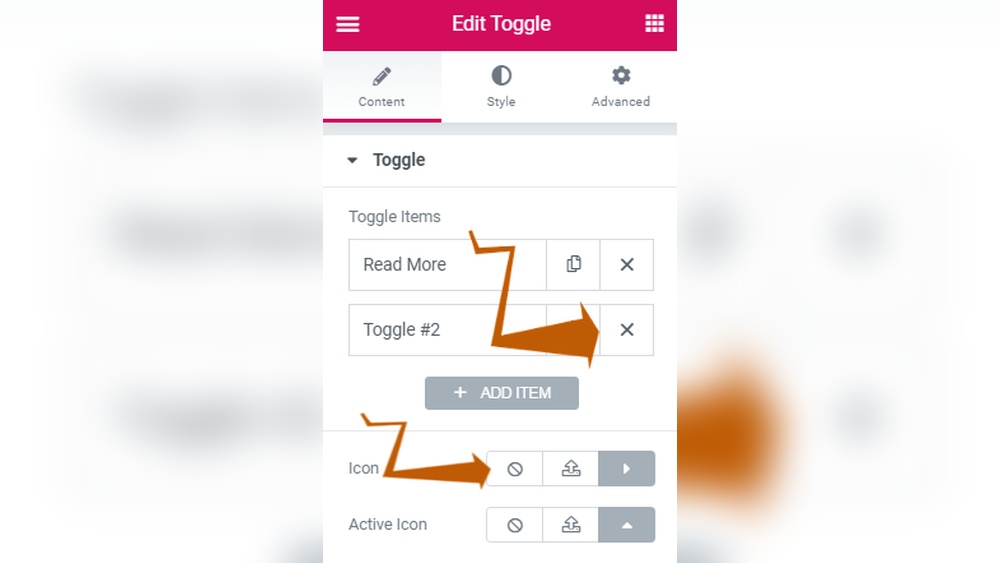
Are you struggling to keep your WordPress blog clean and engaging? Adding a “Read More” button in Elementor can be a game-changer for your website.
It helps you show just a snippet of your content, inviting visitors to click and read the full post. This simple trick not only makes your pages look neat but also boosts user experience and keeps people hooked. You’ll discover step-by-step how to add a “Read More” button in WordPress using Elementor—no coding skills needed.
Let’s dive in and make your site more user-friendly and professional!
Why Add Read More In Elementor
Adding a Read More button in Elementor helps control how much content appears on your page. It keeps your posts neat and stops long texts from overwhelming visitors. This simple tool makes your site easier to use and looks cleaner. Visitors see a short preview and can click to read the full post if they want.
Enhance User Experience
Read More buttons help visitors find information quickly. They avoid long blocks of text that can be hard to read. This feature guides users to the content that interests them most. It makes browsing smooth and less tiring. Visitors stay longer because they can choose what to read.
Improve Page Load Speed
Showing less content at first means your page loads faster. Large posts take more time to display. Read More cuts down the initial text, so pages open quickly. Faster pages keep visitors happy and reduce bounce rates. Speed is key for a good website experience.
Boost Seo Performance
Search engines like organized and easy-to-navigate sites. Using Read More helps keep your content clean and structured. It improves how search engines read your pages. Well-structured pages rank higher in search results. This small step can increase your site’s visibility online.

Credit: www.youtube.com
Preparing Your WordPress Site
Preparing your WordPress site is the first step before adding a Read More button using Elementor. A well-prepared site ensures smooth setup and better results. It also reduces errors during the process. Follow these key steps to get your site ready.
Install Elementor Plugin
Start by installing the Elementor plugin. Go to your WordPress dashboard. Click on Plugins and then Add New. Search for “Elementor” in the search bar. Click Install and then Activate. This plugin helps you design pages with ease. Without it, you cannot add the Read More button with Elementor.
Choose The Right Theme
Pick a theme that works well with Elementor. Some themes offer better compatibility and faster loading times. Themes like Hello Elementor or Astra are great choices. A lightweight theme improves site speed. It also makes customization easier. Avoid themes that are heavy or outdated.
Backup Your Site
Backup your site before making any changes. Use plugins like UpdraftPlus or your hosting provider’s backup tools. This step protects your data if something goes wrong. It lets you restore your site to its previous state. Always backup before installing plugins or changing themes.
Creating A Blog Post With Read More
Creating a blog post with a Read More link helps keep your page neat. It shows a short preview of your post. Readers can click the link to read the full content. This feature improves user experience and keeps your blog looking clean.
Write Your Content
Start by writing your blog post in the WordPress editor. Write clear and simple sentences. Focus on the main points you want to share. Make sure the introduction grabs attention. Keep paragraphs short for easy reading.
Insert Read More Tag In WordPress Editor
Place your cursor where you want to cut the preview. Click the “Insert Read More tag” button in the editor toolbar. This action splits your post into two parts. The first part shows on your blog page. The rest appears after the reader clicks “Read More.”
Preview The Post
Before publishing, preview your post. Check how the Read More link looks. Make sure the first part is interesting enough. Confirm the link works and leads to full content. Adjust if needed to improve clarity and flow.
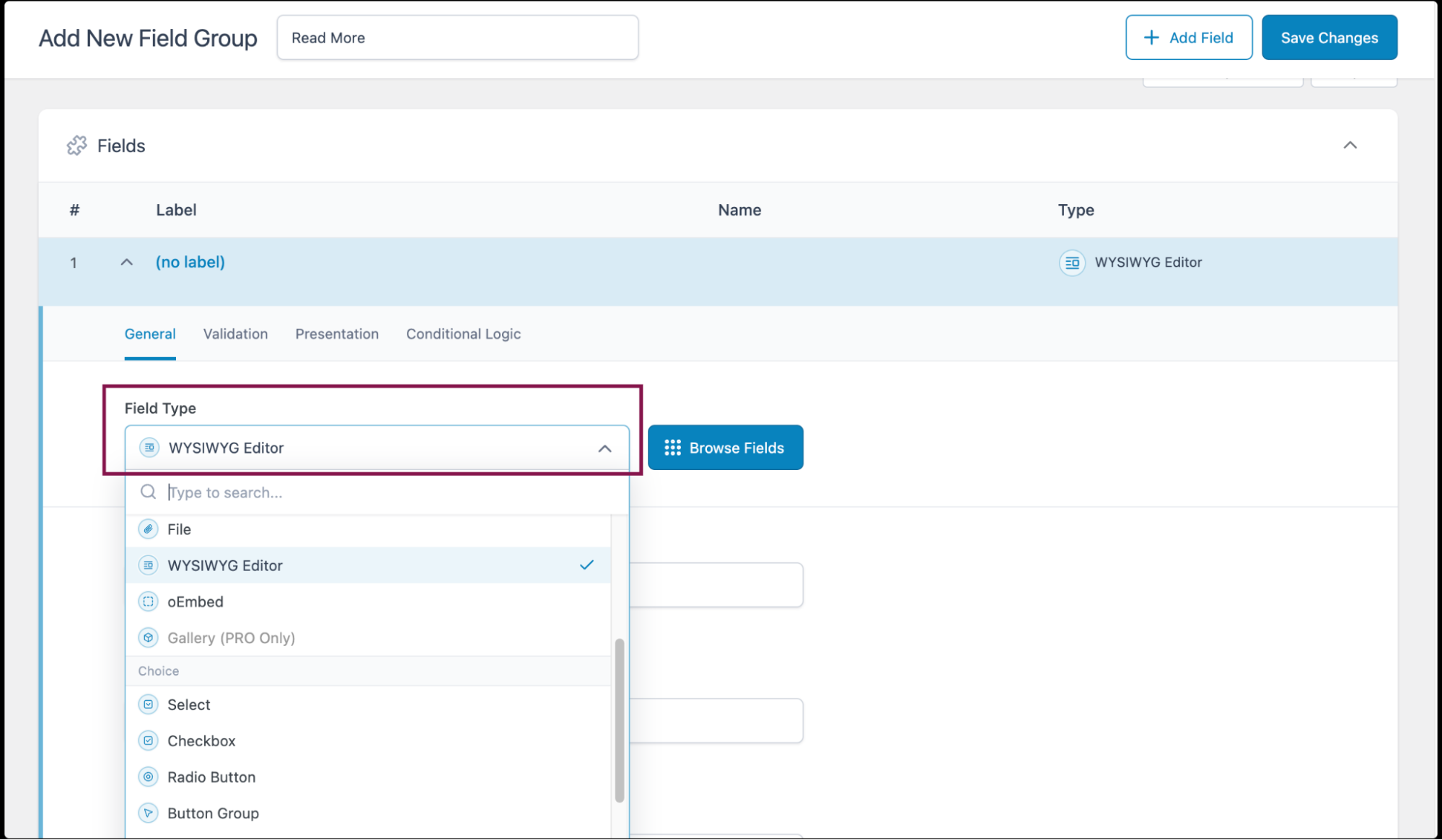
Credit: elementor.com
Adding Read More Button In Elementor
Adding a Read More button in Elementor helps keep your pages clean and organized. It lets visitors see a preview of your content. They can click the button to read the full text. This improves user experience and makes your site look professional.
Use Text Editor Widget
Start by dragging the Text Editor widget to your page. Write or paste your content in the editor box. Highlight the part you want to show as a preview. Keep the rest hidden for now.
The Text Editor widget lets you control the text layout. You can format paragraphs and add basic styling. This setup prepares the content for the Read More button.
Add Button Widget
Next, drag the Button widget below your preview text. Change the button label to “Read More” or any phrase you prefer. Adjust the colors, size, and style to match your site design.
The button widget is easy to customize. It draws attention and invites users to click. Place it right after the preview text for best results.
Link Button To Full Content
Link the button to the full content page or section. Use the URL field in the Button widget settings. You can link to a separate page or a hidden part of the same page.
This connection allows visitors to access the complete article. It keeps your homepage or blog tidy. Visitors get a simple way to explore more without clutter.
Customizing The Read More Button
Customizing the Read More button helps match your site’s style. It makes your blog look professional and clean. Small changes create big impact on user experience.
Elementor offers easy ways to change the button’s look. You can adjust style, size, color, and even add hover effects. These tweaks help grab reader attention and encourage clicks.
Change Button Style
Start by selecting the Read More button in Elementor. Choose from different button shapes like rounded or square. You can also change the border style to solid, dashed, or none. Pick a font that fits your site’s theme. Adjust padding to control button spacing. This makes the button comfortable to click on all devices.
Adjust Button Size And Color
Set the button size to small, medium, or large. Bigger buttons stand out more but use space wisely. Choose a color that contrasts with your background. Bright colors attract attention, while soft tones blend well. Use consistent colors to keep your site uniform. Changing font size inside the button improves readability.
Add Hover Effects
Hover effects add interactivity to the button. Change color or background when users place their mouse over it. You can make the button grow slightly or add a shadow. These effects give feedback to visitors, making the site feel lively. Keep hover effects subtle to avoid distraction.
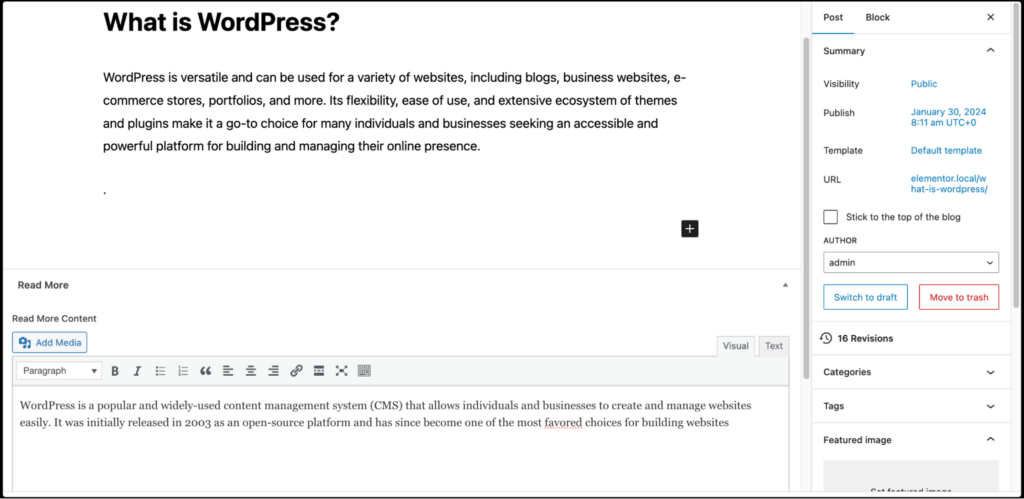
Credit: elementor.com
Using Plugins For Advanced Read More Features
Using plugins can enhance the “Read More” feature in Elementor. Plugins offer more control and extra options than the default widget. They let you create stylish buttons, control text length, and add animations. These tools help make your content cleaner and more interactive.
Top Plugins Compatible With Elementor
Several plugins work well with Elementor for advanced “Read More” features. “Read More Excerpt” allows custom text and button styles. “Elementor Addons & Templates” includes extra widgets for better content display. “WP Show More” offers smooth content toggling and load effects. Each plugin supports easy integration and customization.
Benefits Of Using Plugins
Plugins provide more design options. They save time by automating content trimming. You can set different button styles to match your site theme. Plugins help keep your pages fast by loading content on demand. They also improve user experience by making content easy to explore.
How To Install And Configure
Go to your WordPress dashboard and click “Plugins” then “Add New”. Search for the plugin by name. Click “Install Now” and then “Activate”. Next, open Elementor and edit the page. Insert the new “Read More” widget or shortcode. Adjust settings like text length and button style. Save your changes and preview the page.
Troubleshooting Common Issues
Troubleshooting common issues helps keep your Elementor site smooth. Simple fixes often solve big problems fast. This section covers typical problems with the Read More feature. Clear steps guide you to quick solutions. Stay calm and check each point carefully.
Read More Not Showing
Sometimes the Read More link does not appear on posts. Check if the excerpt length is set correctly. A very short excerpt hides the link. Verify that you use the correct widget for posts. Clear the cache to ensure changes update. Disable conflicting plugins that may block the link. Refresh your page after making changes.
Button Not Linking Correctly
The Read More button may lead to the wrong page or nowhere. Make sure the URL is correct in the button settings. Use relative URLs to avoid errors in different environments. Test the link on multiple devices and browsers. Fix broken permalinks in WordPress settings if needed. Avoid manual URL changes in Elementor that cause mistakes.
Styling Problems
Appearance issues can make the Read More button look odd or invisible. Check the color and font settings in Elementor. Contrast should be enough to see the button clearly. Look for custom CSS that may override styles. Use Elementor’s preview mode to test changes live. Adjust padding and margins to keep layout neat. Save and refresh to apply style fixes.
Tips For Effective Read More Usage
Using the Read More feature in Elementor helps keep your pages clean and easy to read. It makes your site look professional and invites visitors to explore more. Apply some simple tips to make the most of this tool. These tips help you keep readers interested and improve your site’s user experience.
Keep Excerpts Engaging
Write short previews that catch attention. Use clear and simple language. Highlight key points to spark curiosity. Avoid giving away too much detail. The excerpt should make readers want to click and read more.
Place Read More Strategically
Put the Read More link at natural breaks in your content. This helps readers decide when to continue. Avoid placing it too early or too late in the text. Place it where it feels like a pause or a question.
Test Across Devices
Check how your Read More links look on phones, tablets, and desktops. Make sure they are easy to find and click. Confirm the text remains clear and readable. Adjust placement if needed for better user experience on all devices.
Frequently Asked Questions
How To Add A Read More Button In Elementor?
To add a Read More button in Elementor, use the Text Editor widget. Insert the “Read More” tag in your content. Customize the button style using Elementor’s styling options. This helps keep your pages clean and improves user experience by hiding lengthy content.
Can I Customize The Read More Button In Elementor?
Yes, Elementor allows full customization of the Read More button. You can change colors, fonts, size, and hover effects. Use the Style tab in the widget settings to personalize the button. This enhances your site’s design and aligns with your branding.
Does Read More Improve WordPress Page Loading Speed?
Yes, adding a Read More button improves page loading speed. It loads only part of the content initially, reducing page size. Users can click to load full content when needed. This improves user engagement and reduces bounce rates.
Is Read More Compatible With All WordPress Themes?
Read More functionality works with most WordPress themes. However, some themes may require minor CSS adjustments. Elementor’s flexibility ensures compatibility with popular themes. Always test the button on your theme before publishing for best results.
Conclusion
Adding a “Read More” button in WordPress Elementor helps keep pages clean. It lets visitors see a preview and decide to read further. This improves user experience and saves space on your site. You can easily add and customize the button without coding.
Try these steps on your website today. Your readers will appreciate a neat and simple design. Keep your content organized and easy to explore.


