

Are you looking to customize your WordPress site beyond the usual plugins and themes? Adding PHP code directly can unlock powerful new features and give you complete control over how your site works.
But if you’ve never worked with PHP before, it might feel a bit intimidating. Don’t worry—this guide will walk you through simple, step-by-step methods to safely add PHP code to your WordPress site. By the end, you’ll have the confidence to enhance your website exactly the way you want.
Ready to make your WordPress site truly yours? Let’s dive in.
Why Add Php To WordPress
WordPress is a flexible platform that uses PHP as its core language. Adding PHP code allows you to change how your site works. It helps you create features that are not available by default. PHP lets you control the design and functionality of your site.
Using PHP in WordPress is useful for making your website unique. It can improve your site’s performance and user experience. Understanding why to add PHP helps you decide when to customize your WordPress site.
Benefits Of Custom Php
Custom PHP offers many advantages. It lets you tailor your website to your needs. You can create new functions or change existing ones easily. PHP allows better integration with other tools or services. It helps improve site speed by removing unnecessary features. PHP code also gives you full control over your site’s behavior.
Common Use Cases
PHP is often used to add special features. You can create custom forms that collect visitor data. It helps display dynamic content based on user actions. PHP adds new widgets or modifies existing ones. Developers use PHP to fix bugs or improve security. Many use PHP to connect WordPress with external APIs.
Credit: wpshout.com
Preparing Your WordPress Site
Before adding PHP code to your WordPress site, preparation is key. Making changes directly to your site can cause errors or crashes. Taking simple steps protects your site and saves time. Follow these steps to prepare your WordPress site safely.
Backup Your Site
Backing up your site creates a safety copy of your files and database. This copy helps restore your site if something goes wrong. Use plugins like UpdraftPlus or BackupBuddy for easy backups. Store backups in a safe place, such as cloud storage or your computer. Regular backups keep your site safe during updates or code changes.
Set Up A Child Theme
A child theme allows you to modify your site without changing the main theme. Changes in a child theme stay safe during theme updates. Create a child theme by making a new folder and adding a style.css file. Activate the child theme in your WordPress dashboard. Use the child theme to add PHP code safely and keep your site stable.
Adding Php Via Theme Files
Adding PHP code directly via theme files is a common way to customize WordPress sites. It lets you change how your site works without plugins. This method is powerful but needs care. Small mistakes can break your site. Always back up your site before editing theme files.
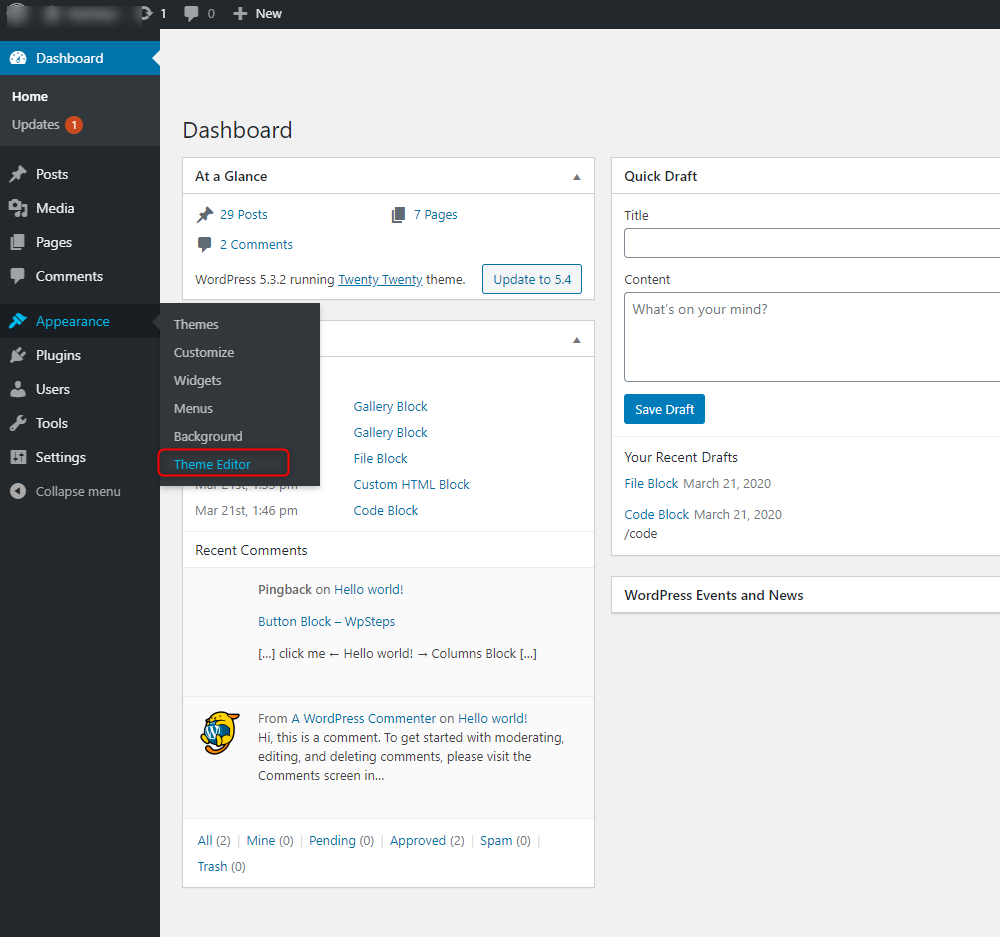
Editing Functions.php
The functions.php file is like a plugin for your theme. It runs PHP code that changes site behavior. To add PHP, open functions.php in a text editor or WordPress theme editor. Place your PHP code at the end of the file but before the closing PHP tag if it exists. Keep your code clean and simple.
Use this file to add custom functions, enable features, or change default actions. Avoid copying large code blocks from unknown sources. Test your site after saving changes to catch errors early.
Using Template Files
Template files control how your site pages look. They include files like header.php, single.php, and page.php. You can insert PHP code in these files to change page content or layout. Open the file where you want to add code and place PHP snippets inside php ? tags.
Use template files for tasks like showing custom messages or displaying extra data. Keep your PHP code short and specific to avoid slowing down the site. Always check your changes on a test site first.
Using Plugins For Php Code
Using plugins to add PHP code in WordPress simplifies the process. Plugins allow users to insert custom code without editing theme files. This method is safer and keeps your website stable. It suits beginners and those who want quick changes.
Popular Php Snippet Plugins
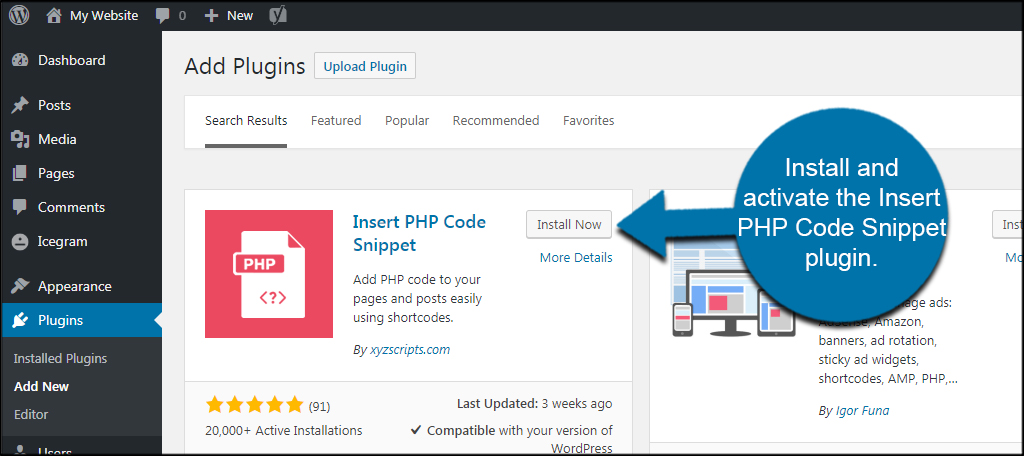
Several plugins let you add PHP snippets easily. “Code Snippets” is a favorite. It offers a user-friendly interface to manage code. Another option is “Insert PHP Code Snippet.” This plugin helps create reusable code blocks. Both plugins keep code organized and avoid theme conflicts.
Adding Code Safely
Always test code on a staging site first. Avoid adding code directly on live sites. Use plugins that offer error checking. Backup your website before adding new snippets. This prevents site crashes and data loss. Keep snippets small and focused for easier debugging.
Embedding Php In Posts And Pages
Embedding PHP code directly into WordPress posts and pages is not straightforward. WordPress does not allow PHP code to run inside the content editor by default. This limits the ability to add dynamic features or custom functions within your posts or pages. Understanding these limits helps find the right method to include PHP safely and effectively.
Limitations In Gutenberg
The Gutenberg editor does not support PHP code in blocks. It treats PHP as plain text and shows it on the page. This can break the layout or expose code to visitors. WordPress removes or disables PHP tags in the editor for security reasons. Direct PHP embedding is not possible without extra tools or code changes.
Workarounds And Alternatives
Use custom plugins or shortcodes to run PHP inside content. Shortcodes act as placeholders that call PHP functions safely. Plugins like “Insert PHP” allow adding PHP code via shortcodes. Another option is creating custom page templates with PHP code. This method keeps PHP in theme files, not in the editor. Always test PHP code on a staging site first to avoid errors.
Credit: wpfactory.com
Testing And Debugging Php Code
Testing and debugging PHP code in WordPress is essential to keep your site running smoothly. Errors in code can break your site or cause unexpected behavior. Catching these problems early saves time and effort. This section helps you test your PHP code and fix common issues.
Enabling Debug Mode
WordPress has a built-in debug mode to help find PHP errors. To turn it on, open your wp-config.php file. Add the line define('WP_DEBUG', true); just before the line that says / That's all, stop editing! Happy blogging. /. This action shows all PHP errors and warnings on your site.
For more detailed logging, add define('WP_DEBUG_LOG', true);. This saves errors to a file named debug.log inside the wp-content folder. Check this file to review issues without showing errors to visitors.
Common Errors And Fixes
Missing semicolons cause syntax errors. Always end each PHP statement with a semicolon.
Undefined variables can appear if you use a variable before setting it. Always initialize variables before use.
Function name conflicts happen if two functions share the same name. Use unique names or prefixes for your functions.
Check for unmatched brackets or parentheses. These cause parsing errors and stop PHP from running.
Use var_dump() or print_r() to inspect variables during debugging. These functions show values clearly.
Best Practices For Php In WordPress
Adding PHP code in WordPress requires careful handling to keep the site safe and running well. Following best practices helps avoid errors and security risks. It also makes the code easier to update and maintain.
Good PHP practices improve site performance and protect user data. They also help developers understand the code faster. Below are key tips for secure and clean PHP coding in WordPress.
Security Tips
Never place PHP code directly in post or page content. Use child themes or custom plugins instead. Always validate and sanitize user input to prevent harmful code. Use WordPress functions like esc_html() and sanitize_text_field(). Avoid using eval() or other risky functions. Keep WordPress, themes, and plugins updated to patch vulnerabilities. Limit PHP file permissions to reduce unauthorized access. Test your code in a safe environment before going live.
Maintaining Code
Write clear, simple PHP code with comments. Use consistent formatting and indentation for readability. Separate custom code into files or plugins, not in core files. Follow WordPress coding standards for better compatibility. Use version control tools like Git to track changes. Regularly review and update your PHP scripts to fix bugs. Backup your site before making major code changes. Clean, maintained code saves time and prevents future issues.
Credit: www.greengeeks.com
Frequently Asked Questions
How Can I Safely Add Php Code To WordPress?
Use a child theme or a site-specific plugin to add PHP code. Avoid editing the parent theme directly to prevent loss during updates. Always backup your site before making changes.
Where Should I Insert Php Code In WordPress?
Insert PHP code in your theme’s functions. php file or a custom plugin. For specific templates, add code directly to template files. Use a code snippet plugin for easier management.
Can I Use Php Code In WordPress Posts Or Pages?
By default, WordPress doesn’t allow PHP in posts or pages. Use plugins like “Insert PHP” to safely run PHP code within content areas. Avoid direct PHP for security reasons.
What Are The Risks Of Adding Php Code In WordPress?
Incorrect PHP code can break your site or cause errors. It may also introduce security vulnerabilities. Always test code on a staging site and use trusted snippets.
Conclusion
Adding PHP code to WordPress can improve your site’s features. Always use child themes or plugins to keep your site safe. Test your code on a staging site first. Keep your PHP simple and clear. Small changes can make a big difference.
With practice, you will feel more confident. Start slow and learn step by step. Coding can be fun and useful for your site. Keep exploring and improving your WordPress skills.


