
Are you looking to expand your website with fresh content, but feeling unsure about how to add a new page in your WordPress theme? You’re not alone.
Many WordPress users find this step a bit daunting at first. But the good news? It’s simpler than you think! Adding a new page can open up countless opportunities for your site, from showcasing new services to sharing your latest blog post.
Imagine the possibilities! By the end of this article, you’ll be equipped with the knowledge to effortlessly integrate new pages into your WordPress theme, and your website will be ready to shine brighter than ever. Stick around, and let’s unlock the full potential of your WordPress site together.
Choosing The Right Theme
Ensure the theme works with all WordPress features. It must be compatible with the latest version. This keeps your site secure and fast. Check if the theme supports all plugins you need. Some themes might not work with specific plugins. This can limit what your site can do. Always read reviews about the theme. Reviews give you an idea of any issues with compatibility. This helps avoid problems later.
Pick a theme that lets you make changes easily. Customizable themes allow you to change colors, fonts, and layouts. This helps make your site unique. Some themes offer built-in customization tools. These tools are simple to use. You don’t need coding skills. Check if the theme has a live preview option. This feature shows changes instantly. It saves time and helps you decide faster.
Credit: www.greengeeks.com
Accessing The WordPress Dashboard
Accessing the WordPress dashboard lets you easily add new pages to your theme. Click “Pages” and select “Add New. ” Name your page, add content, and hit publish to make it live.
Login Process
Start by visiting your site. Add /wp-admin to the URL. This takes you to the login page. Enter your username and password. Click the Login button. You should see the WordPress dashboard. If login fails, check your details. You may reset your password.
Navigating The Dashboard
Once logged in, explore the dashboard. It shows menus on the left. Click Pages to see your pages. The top bar has quick links. Use them to add new content. The dashboard has widgets. They give site information. Click on a menu to see options.
Creating A New Page
Start by going to your WordPress dashboard. Click on Pages and then Add New. A blank page will appear. You need to add a title for your new page. This title will show at the top of the page. It’s important to keep your title simple and clear. For example, use “About Us” or “Contact.” Make sure your title is easy to understand. It helps visitors know what the page is about.
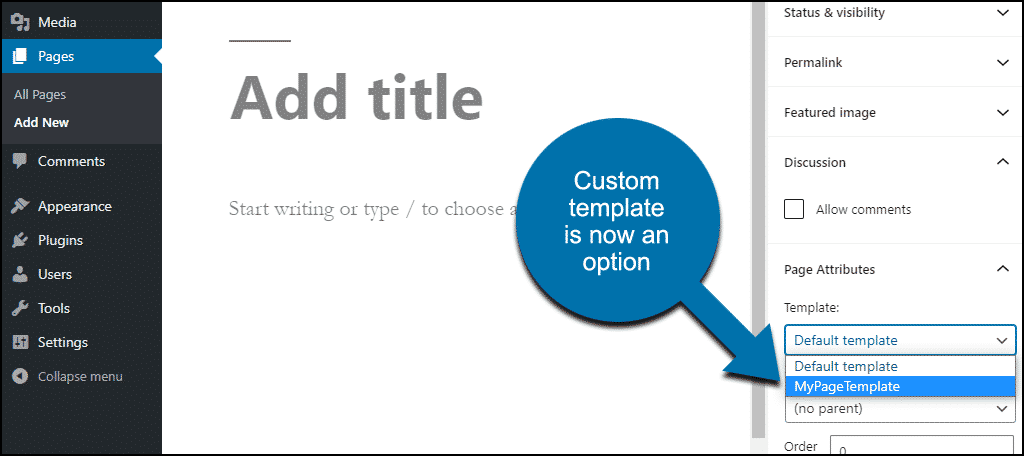
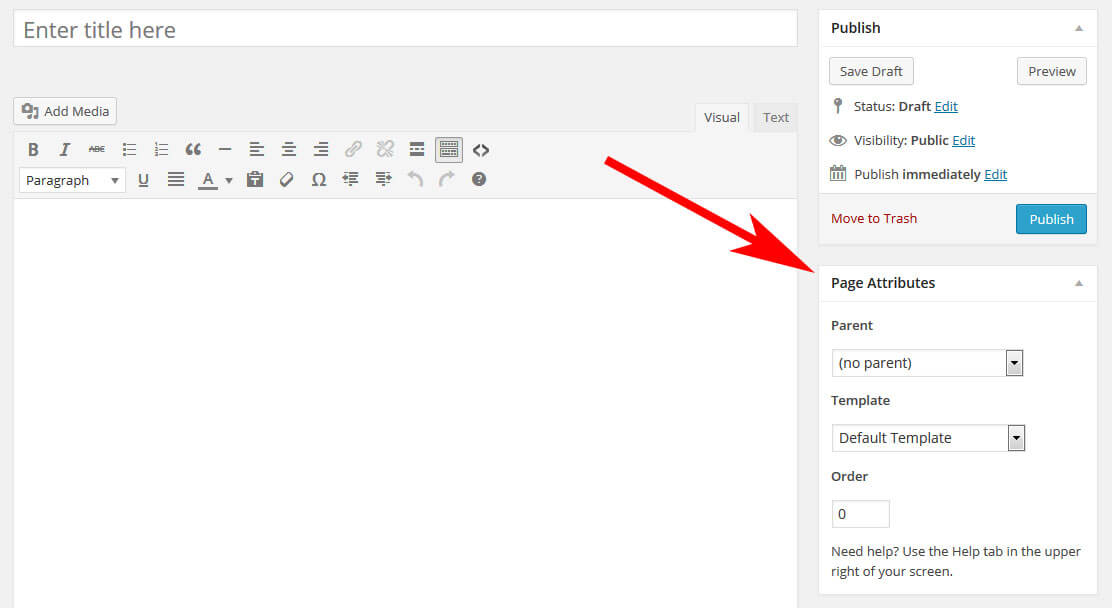
Find the Page Attributes box on the right side. Here, you can choose a page template. A template decides how your page looks. Some themes offer different styles. You might see options like “Full Width” or “With Sidebar.” Choose the one that fits your page’s purpose. If unsure, you can experiment and see what works best. Don’t forget to click Publish when you’re done.
Credit: www.smashingmagazine.com
Configuring Page Settings
Creating a new page in a WordPress theme involves simple steps. First, navigate to your WordPress dashboard and select “Pages. ” Click “Add New” to start customizing your new page. Adjust settings like title, layout, and content to fit your theme’s design.
Page Attributes
Page attributes help in organizing your pages. You can set the parent page. This creates a hierarchy. Choose a template for your page. Templates give different looks. You can also set the order of pages. This affects how pages appear.
To set these attributes, go to the page editor. Find the page attributes section. It’s usually on the right side. Select options from the dropdown menus. Save changes to update the page settings.
Visibility Options
Visibility decides who sees your page. You can make a page public. Everyone can see it. Choose private to restrict access. Only certain users can see private pages. Password-protected pages need a password to view. You set this password.
To change visibility, go to the page editor. Find the visibility settings. Select your preferred option. Save your changes to apply them.
Adding Content To The Page
Creating a new page in a WordPress theme is straightforward. Navigate to your WordPress dashboard, select “Pages,” and then click “Add New. ” Fill in the title and content, then hit “Publish” to make it live.
Using The Block Editor
The Block Editor is easy to use. It helps you create pages in WordPress. Blocks are like building pieces. You can add text, images, and more. Click the plus sign to add a new block. Choose the type of block you want. You can also move blocks up or down. This helps you arrange your content. Make sure to save your changes often. This keeps your work safe.
Incorporating Media
Adding pictures and videos makes your page look nice. Click on the media block to add these. You can upload from your computer. You can also choose from your media library. Select the file you want to add. Adjust the size if needed. You can also add captions to your media. This helps explain what the picture shows. Media makes your page more interesting.
Customizing The Page Layout
Widgets are small tools in WordPress. They help add new features. You can use them to make your page look better. Drag and drop widgets to your page. Change their settings to fit your needs. Popular widgets include calendars, search bars, and social media links. These tools enhance user experience. They help visitors find content quickly. Adding widgets is simple. Just go to your dashboard. Find the widget area under “Appearance”. Select the widgets you like. Place them where you want on the page. Adjust the settings as needed. This makes your page unique.
Adjusting Menu Settings
Menus guide visitors on your website. They show important links. Adjusting menu settings is easy. Start by visiting the “Appearance” tab. Choose “Menus” from the list. You can add new items here. Rearrange them to suit your layout. Use clear names for each menu item. This helps users understand quickly. Save changes to see updates. You can also create sub-menus. They provide extra navigation options. Make sure all links work correctly. Check them after saving. A well-organized menu improves user experience.
Publishing The Page
Creating a new page in a WordPress theme is easy. Navigate to the dashboard, select “Pages,” and click “Add New. ” After adding your content, hit the “Publish” button to make it live on your website.
Previewing The Page
Always preview your page before publishing. This helps to see how the page looks. Click on the Preview button at the top. It opens a new tab. You can check the design and content. Make sure everything is correct. Fix any errors you notice. You can still make changes. This step is very important.
Publishing Options
There are different ways to publish your page. Publish immediately if the page is ready. You can also schedule the page to go live later. Choose a date and time. This option is useful for planning. You may also save as draft if not ready to publish. These options are in the sidebar. Use them to control when the page goes live. Be sure to check everything before final publishing.
Credit: wordpress.org
Troubleshooting Common Issues
Adding a new page in a WordPress theme often involves navigating the admin dashboard. Select ‘Pages’ and choose ‘Add New’ to create your page. Customize using the Gutenberg editor or classic editor, then publish to make it live.
Error Messages
Users often see error messages while adding new pages. These can be frustrating. One common error is the “404 Not Found” message. This means the page link is broken. Check your permalink settings in WordPress to fix this. Another common error is “Internal Server Error”. This can happen because of file permission issues. Changing file permissions can help. Sometimes, error messages appear due to plugin problems. Deactivate plugins to see if the error goes away.
Theme Conflicts
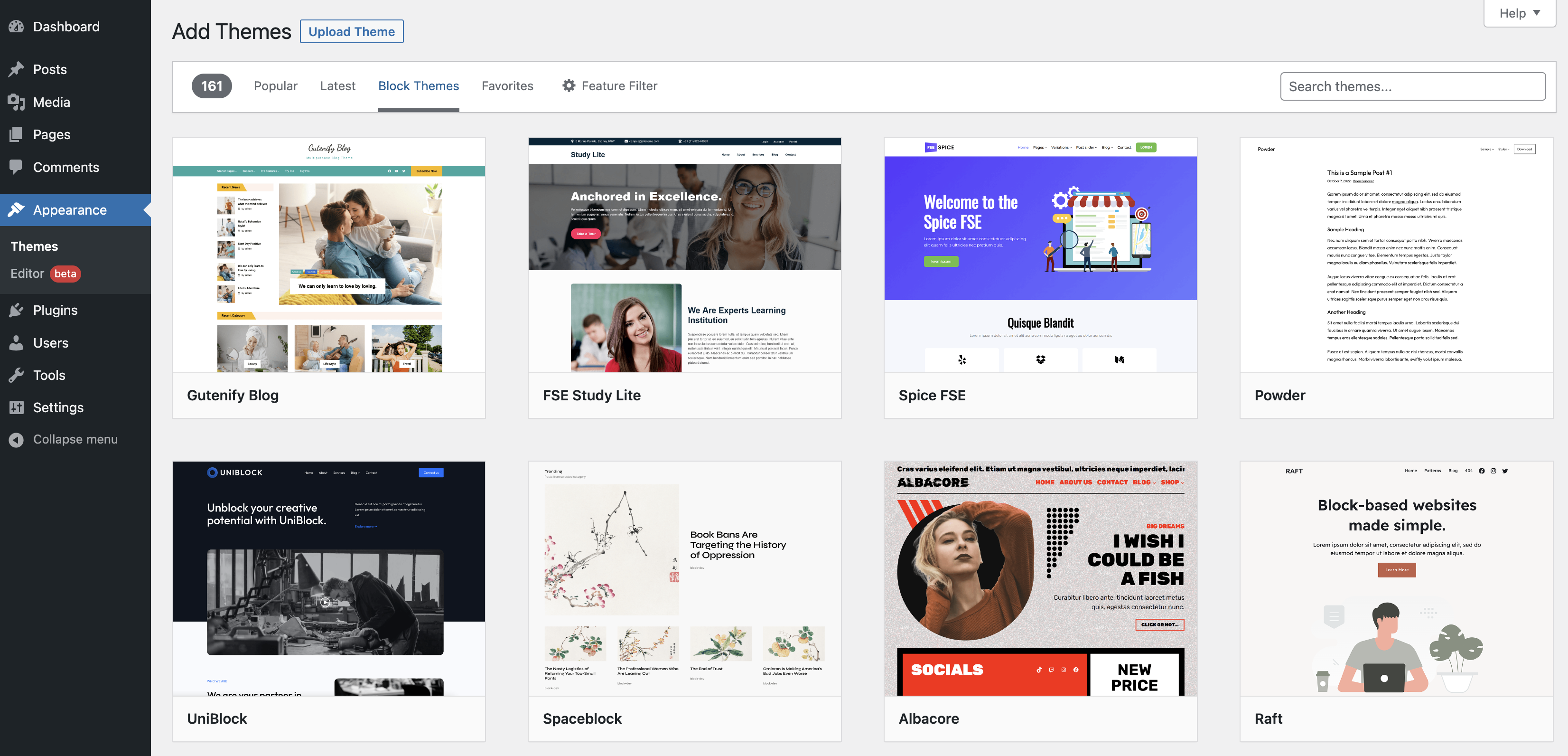
Conflicts between themes can cause problems. Some themes don’t work well with certain plugins. This can make adding pages difficult. Always use themes compatible with your plugins. Update your theme regularly. Outdated themes can lead to conflicts. If a theme causes issues, switch to a default WordPress theme. This can solve many problems. Testing new themes on a staging site can prevent live site problems.
Frequently Asked Questions
How Do I Add A Page To A WordPress Theme?
Navigate to the WordPress dashboard. Click “Pages” then “Add New. ” Enter your page title and content. Choose a template from the “Page Attributes” on the right. Click “Publish” to add the page to your theme. Ensure your theme supports custom page templates for optimal display.
How Do I Add Another Page In WordPress?
To add a new page in WordPress, log into your dashboard. Click “Pages,” then “Add New. ” Enter your page title and content. Choose a template if needed. Click “Publish” to make it live. Use SEO keywords in titles and content for better visibility.
How Do I Activate A New Page In WordPress?
To activate a new page in WordPress, log into your dashboard. Click “Pages,” then “Add New. ” Enter your content and title. Hit “Publish” to make it live. Ensure your theme supports the page layout for optimal display. Customize settings as needed for SEO and visibility.
How To Create A Blank Page In WordPress?
To create a blank page in WordPress, go to Pages > Add New. Title the page and select a blank template from Page Attributes. Publish to make it live. Adjust settings in the Customizer for visibility. Use plugins if needed for more customization.
Keep it simple for best results.
Conclusion
Adding a new page in WordPress is straightforward. Follow the steps above. Customize your page to match your site’s look. Keep your content clear and engaging. Simple layouts work best for easy navigation. Check your page settings before publishing. Regularly update your content for relevance.
Ensure your page fits well with your theme design. Use plugins wisely to enhance functionality. Avoid clutter for better user experience. Practice these tips for a smooth WordPress experience. Your site will look professional and inviting. Happy blogging!


