

Are you struggling to boost your website’s visibility on search engines? One simple but powerful step you might be missing is adding a meta description to your WordPress pages built with Elementor.
A well-crafted meta description can grab attention, improve your click-through rates, and bring more visitors to your site. You’ll learn exactly how to add a meta description in WordPress Elementor—quickly and easily—so your content stands out and reaches the right audience.
Keep reading to discover the step-by-step process that can make a real difference for your website’s success.
Meta Description Basics
Understanding the basics of meta descriptions helps improve your website’s presence. Meta descriptions are short text snippets that describe a page’s content. They appear in search engine results below the page title. Writing clear and relevant meta descriptions encourages users to visit your site.
What Is A Meta Description
A meta description is a brief summary of a web page. It usually contains 150-160 characters. Search engines show this text in the search results. It gives users a quick idea about the page content before clicking.
Importance For Seo
Meta descriptions help search engines understand your page better. Well-written descriptions improve your page’s relevance for keywords. This can increase your page ranking in search results. They do not directly affect rankings but influence user behavior.
Impact On Click-through Rates
A clear meta description attracts more clicks from search results. It acts as a mini-ad for your page. Good descriptions increase the chance users will visit your site. This improves your overall website traffic and engagement.
Credit: elementor.com
WordPress And Elementor Setup
Setting up WordPress with Elementor is the first step to create a powerful website. This setup makes designing pages easier and faster. You can add custom features without coding. Proper setup ensures your site looks good and works well on all devices.
Adding meta descriptions is easier after this setup. Meta descriptions help search engines understand your pages. They improve your site’s visibility in search results.
Installing Elementor Plugin
Start by logging into your WordPress dashboard. Go to the Plugins section and click “Add New.” Search for “Elementor” in the search bar. Find the Elementor Page Builder plugin and click “Install Now.” After installation, click “Activate.”
Once activated, you can start building pages with drag-and-drop tools. Elementor works smoothly with most WordPress themes. It gives you control over page layout and design.
Choosing Seo Plugins Compatible With Elementor
SEO plugins help you manage meta descriptions easily. Choose plugins that work well with Elementor. Popular options include Yoast SEO and Rank Math.
These plugins add fields to enter meta descriptions directly on page editors. They also guide you to create SEO-friendly content. Ensure the plugin updates regularly for best performance.
Adding Meta Description In WordPress
Adding a meta description in WordPress helps search engines understand your page. It shows a short summary in search results. This can improve your click rate. Meta descriptions should be clear and include main keywords. WordPress with Elementor does not add meta descriptions by default. You need a plugin for that. Here are three popular plugins to use.
Using Yoast Seo Plugin
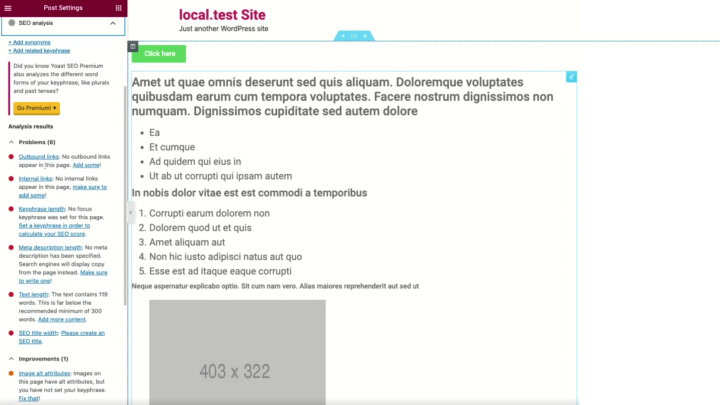
Yoast SEO is a popular plugin for WordPress. It helps you write meta descriptions easily. After installing and activating Yoast, open the page or post with Elementor. Scroll down to the Yoast SEO box below the content editor. Click on the “Edit Snippet” button. Write your meta description in the field provided. Keep it under 160 characters for best results. Save or update your page to apply the changes.
Using Rank Math Plugin
Rank Math is another SEO plugin that works well with Elementor. Install and activate Rank Math on your site. Edit your post or page in WordPress. Find the Rank Math SEO section below the editor. Click the meta description box and enter your description. Use keywords naturally but keep it simple. Save your changes and update the page. Rank Math also gives suggestions to improve SEO.
Using All In One Seo Plugin
All in One SEO (AIOSEO) offers a user-friendly way to add meta descriptions. Activate the plugin after installation. Edit your content in WordPress editor. Scroll down to the AIOSEO Settings area. Open the “General” tab and find the meta description field. Write a concise and clear description here. Make sure it matches the page content well. Update the page to save your meta description.

Credit: www.youtube.com
Integrating Meta Description With Elementor
Integrating meta descriptions with Elementor helps improve your site’s SEO. It allows you to control what search engines show for each page. Meta descriptions give a short summary of the page content. This helps attract more visitors from search results.
Elementor is a popular page builder for WordPress. It makes designing pages easy with drag-and-drop tools. Adding meta descriptions is simple, especially with SEO plugins. These tools work well together to boost your website’s visibility.
Editing Pages With Elementor
Open your WordPress dashboard and go to Pages. Choose the page you want to edit. Click the “Edit with Elementor” button. The Elementor editor will load your page. Here, you can change content and layout easily.
While editing, keep SEO in mind. Make sure your content matches the page topic. This helps your meta description be relevant. Save your changes before moving to the next step.
Using Seo Plugin Features In Elementor
Install an SEO plugin like Yoast SEO or Rank Math. These plugins add meta description fields to your pages. After editing the page in Elementor, switch to the WordPress editor. Scroll down to the SEO plugin section.
Find the meta description box. Type a clear and concise summary of your page. Use keywords related to your content but keep it natural. The plugin will check your description length and keyword use.
Customizing Meta Description For Each Page
Create a unique meta description for every page. Avoid copying the same description across pages. Each description should reflect the page’s content clearly. This helps search engines understand your site better.
Use simple words and phrases. Keep the length between 120 to 160 characters. This ensures the description shows fully in search results. A well-written meta description can improve your click rate.
Tips For Writing Effective Meta Descriptions
Writing effective meta descriptions helps improve your website’s visibility and click-through rates. A good meta description tells users what your page is about in a clear and simple way. It should encourage people to visit your site by giving them a quick preview of your content. Below are some key tips to create meta descriptions that work well.
Keeping It Concise And Relevant
Meta descriptions should be short and to the point. Aim for about 150 to 160 characters to ensure the full description shows in search results. Use clear language that matches the page content. Avoid adding unnecessary words or details that do not relate to the main topic. A focused description helps users quickly understand your page.
Using Target Keywords
Include important keywords that users might type when searching. Use these keywords naturally within the description. This helps search engines understand your page better and can improve rankings. Do not stuff keywords; keep the text readable and smooth. Keywords should support the message, not overwhelm it.
Avoiding Duplicate Descriptions
Each page on your site needs a unique meta description. Duplicate descriptions can confuse search engines and reduce your SEO value. Write different descriptions for different pages that reflect their unique content. This practice helps search engines show the right page for the right search query.
Credit: www.greengeeks.com
Troubleshooting Common Issues
Troubleshooting common issues helps keep your meta descriptions effective. Sometimes, meta descriptions do not appear as expected or changes don’t show up. Problems may arise from plugin conflicts or caching. Solving these issues ensures search engines display the right content. Follow these tips to fix common problems quickly.
Meta Description Not Showing
Check if you added the meta description correctly in Elementor. Sometimes, you might forget to save changes. Also, confirm that the meta description field is filled out. Search engines may not update immediately after changes. Wait a few days and check again. Make sure your page is not set to “noindex.” This setting blocks search engines from showing your description.
Conflicts With Other Plugins
Plugins can sometimes conflict with each other. SEO plugins like Yoast or Rank Math may override Elementor’s meta description. Disable one plugin at a time to find the conflict. Use only one SEO plugin to manage meta descriptions. Keep all plugins updated to avoid compatibility issues. Conflicts can stop meta descriptions from showing properly.
Clearing Cache For Changes To Take Effect
Caching can prevent updated meta descriptions from appearing. Clear your website cache after making changes. Clear your browser cache as well. If you use a caching plugin, clear or disable it temporarily. Wait a few minutes after clearing cache and check your page. This step helps search engines see the latest meta description.
Frequently Asked Questions
How Do I Add A Meta Description In Elementor?
To add a meta description in Elementor, use an SEO plugin like Yoast SEO. Edit your page, scroll to the SEO plugin box, and enter the meta description. Elementor itself doesn’t provide a direct meta description field.
Can I Customize Meta Descriptions For Each Elementor Page?
Yes, you can customize meta descriptions for each page in Elementor by using SEO plugins. These plugins allow unique meta descriptions per page, improving SEO and click-through rates.
Does Elementor Support Meta Description Editing Natively?
No, Elementor doesn’t support native meta description editing. You need an SEO plugin like Yoast or Rank Math to add and manage meta descriptions effectively.
Why Is Adding Meta Description Important For Elementor Sites?
Adding meta descriptions improves your site’s SEO and increases click-through rates. It helps search engines understand your page content better and attracts relevant visitors.
Conclusion
Adding a meta description in WordPress Elementor helps search engines understand your page. It also improves how your site appears in search results. Keep descriptions clear and relevant to attract visitors. Regularly update them to match your content changes. This simple step can boost your website’s visibility online.
Start adding meta descriptions today to see better search performance.


