
Are you struggling to add JavaScript to your new WordPress theme? You’re not alone.
Many find this task a bit daunting, especially when navigating a fresh theme. But don’t worry, you’re in the right place. Imagine the freedom and power of customizing your WordPress site exactly the way you want it, with dynamic features and interactive elements that keep your visitors engaged.
By the end of this article, you’ll confidently add JavaScript to your theme, enhancing your site’s functionality and user experience. Let’s dive in and unlock the full potential of your WordPress site together!
Credit: kriesi.at
Preparing Your WordPress Theme
WordPress themes have a basic structure. The main files are style.css, index.php, and functions.php. Each file has its own job. The style.css is for design. The index.php is for layout. The functions.php is for special features. These files work together to make your site look good.
A child theme is a safe way to change your site. It keeps your changes safe when you update your main theme. First, make a new folder. Name it after the main theme with “-child”. Next, make a style.css file. Add a few lines of code to link it to the main theme. Now, you can add or change code without worry.
Including Javascript In WordPress
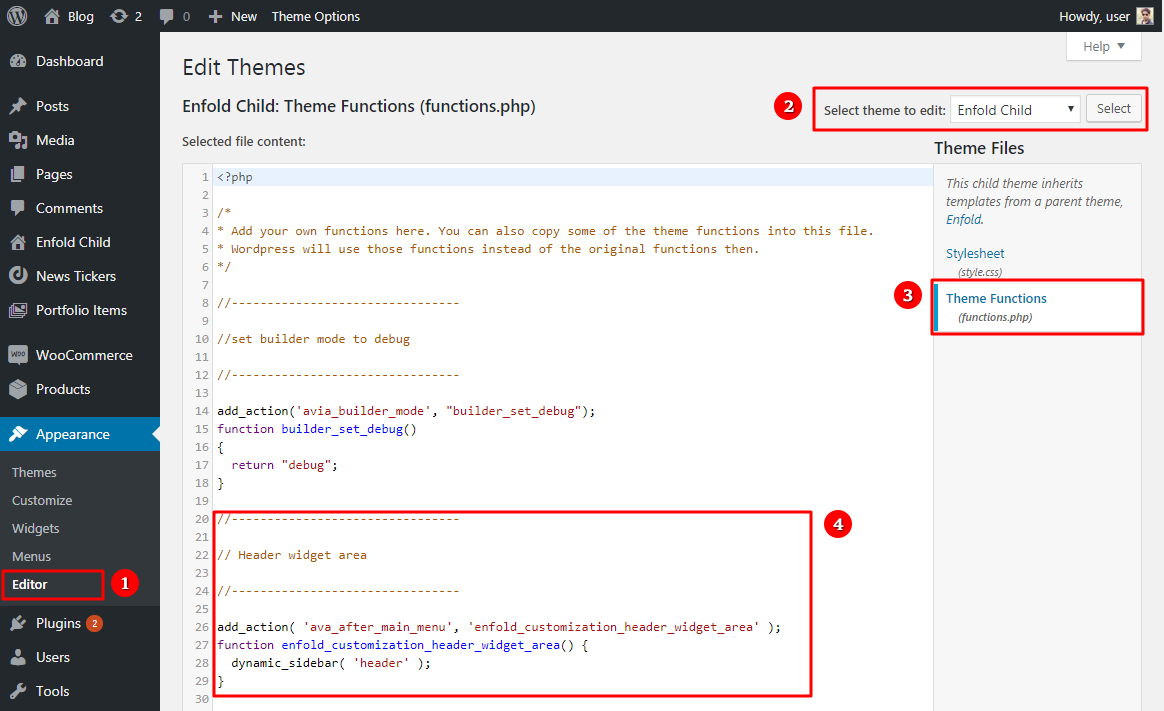
WordPress themes use the functions.php file to add JavaScript. This file is like the brain of the theme. It controls many things. Adding scripts here makes them work across the site. It’s important. It helps manage scripts well.
Scripts need to be enqueued properly. This means loading them the right way. It’s like placing books in a shelf neatly. Use the wp_enqueue_script() function. This helps load scripts without problems. You can use conditional tags. They check which pages need the script. This makes your site faster.
Customizing Javascript Code
Easily integrate JavaScript into your new WordPress theme by using the functions. php file. Simply enqueue your custom script, ensuring it loads properly. This approach enhances theme functionality without modifying core files.
Writing Custom Scripts
Creating custom scripts can be fun. It lets you add your own touch to a website. Start by using simple JavaScript code. This code can change how your site works. For example, you can add a button that changes color. It makes your site more interactive and lively. Always test your code to ensure it works. Mistakes in code can break a website. Fixing them is important. Use simple scripts to learn more. Practice makes perfect. Keep your scripts neat and organized. This helps others understand your work. Follow coding rules for best results.
Organizing Script Files
Keeping script files tidy is key. Make folders for different types of scripts. You can name them by function. For instance, animation scripts in one folder, form scripts in another. This helps find scripts easily. Use clear names for your files. Others will understand them better. Avoid cluttering your main folder. This keeps your site clean. Update script files often. Remove old or unused scripts. Regular updates improve site performance. Always back up your files. This protects your work. Good file organization saves time.
Managing Javascript Dependencies
WP_Scripts helps manage JavaScript in WordPress. It makes tasks easy. You can enqueue scripts using it. This means adding scripts to your theme. You should always use unique handles. These are like names for your scripts. They help WordPress find your script. WP_Scripts also keeps track of dependencies. A dependency is a script needed by another script. Always check for dependencies. This ensures all scripts work well together.
Script order is important. Some scripts need to load first. Others can load later. This order helps your site run smoothly. You can set the order using dependencies. Put the most important scripts first. This ensures they load first. Use wp_enqueue_script to manage this order. This function is part of WP_Scripts. Make sure scripts are loaded in the right order. This helps avoid errors and keeps your site fast.
Troubleshooting Common Issues
Integrating JavaScript into a new WordPress theme can sometimes be tricky. Resolve common issues by ensuring script files are correctly enqueued in the functions. php file. Properly linking the script enhances functionality and improves your site’s performance.
Resolving Script Conflicts
Script conflicts can cause problems on your website. They occur when different scripts try to use the same resources. Check if two scripts are using similar names or functions. This can lead to errors. Use browser tools to find conflicting scripts. The tools show which scripts are causing issues. Remove or modify one script to solve the conflict. This ensures your website runs smoothly.
Debugging Javascript Errors
JavaScript errors can make your site behave strangely. Identify errors using the console in your browser. It shows a list of errors and warnings. Look for red messages; these are usually errors. Fix errors by checking the code. Ensure all brackets and quotes are in the right place. Mistakes here can cause errors. Once fixed, refresh your page to see if the issue is resolved.

Credit: webdesign.tutsplus.com
Optimizing Javascript Performance
Minifying JavaScript files helps your website load faster. Smaller files mean quicker downloads. Use tools to remove extra spaces and comments. This makes the file size small. Your site will run smoother. Speed is important for users. Faster websites keep visitors happy.
Leveraging asynchronous loading is another good trick. It helps load scripts without blocking the page. Your site appears quicker to users. Asynchronous loading means scripts load at the same time. This is better than waiting for one to finish. Many browsers support this feature. It makes your site work better.

Credit: www.youtube.com
Frequently Asked Questions
How Do I Add Custom Javascript In WordPress?
To add custom JavaScript, navigate to your theme’s folder. Locate and edit the `functions. php` file. Use `wp_enqueue_script()` to include your script. This method ensures proper loading and avoids conflicts. Always test your changes on a staging site before applying them to your live site.
Can I Use Plugins To Add Javascript?
Yes, plugins like “Insert Headers and Footers” can add JavaScript easily. Install the plugin and navigate to its settings. Paste your JavaScript code in the headers or footers section. This method avoids direct file editing and is suitable for non-developers.
What Is The Best Practice For Adding Javascript?
Always enqueue scripts using `wp_enqueue_script()` in `functions. php`. This ensures proper load order and avoids conflicts. Use version numbers to manage updates efficiently. Test your scripts on a staging site before deploying them live.
How To Debug Javascript Issues In WordPress?
Use browser developer tools to inspect and debug JavaScript. Check the console for errors and warnings. Ensure scripts are loaded in the correct order. Review dependencies and test changes thoroughly. Consider using plugins for error logging to track issues easily.
Conclusion
Adding JavaScript to your WordPress theme boosts functionality. It’s simple with clear steps. First, understand your theme’s structure. Then, choose the right method. Use the functions. php file or enqueue scripts properly. Always test your changes on a local site.
This ensures everything works smoothly. Keep backups to prevent data loss. Regular updates keep your site secure and efficient. With practice, adding JavaScript becomes easier. Enhance your website’s interactivity today. Enjoy the benefits of a dynamic WordPress site. Happy coding!


