
Are you looking to make your WordPress site more interactive and dynamic? Adding jQuery can help you do just that.
But if you’re unsure how to properly include jQuery in your WordPress setup, you’re not alone. This guide will walk you through simple, step-by-step methods to add jQuery safely and efficiently. By the end, you’ll have the tools to enhance your site’s functionality without breaking a sweat.
Ready to unlock the full potential of your WordPress site? Let’s dive in.
Why Use Jquery In WordPress
jQuery is a popular JavaScript library that simplifies coding in WordPress. It helps create interactive and dynamic websites easily. Using jQuery in WordPress saves time and effort for developers and site owners alike. Its simple syntax and wide support make it an excellent choice for enhancing website functionality.
Benefits Of Jquery
jQuery makes coding faster and easier. It works well with many browsers without extra effort. This library reduces errors by handling complex JavaScript tasks. It also allows smooth animations and effects that improve user experience. jQuery integrates smoothly with WordPress themes and plugins, making it a flexible tool for developers.
Common Use Cases
Many WordPress sites use jQuery for image sliders and galleries. It helps create dropdown menus that improve navigation. Developers use jQuery to load content without reloading pages. It also manages form validation to avoid mistakes. These features keep websites user-friendly and engaging.
Credit: blog.templatetoaster.com
Methods To Add Jquery
Adding jQuery to your WordPress site can improve interactivity and design. There are several ways to include jQuery, each with its own benefits. Choose the method that fits your skills and needs best.
Using WordPress Built-in Jquery
WordPress comes with jQuery already included. You can use this version without extra downloads. It ensures compatibility with your theme and plugins. To enable it, just call the built-in jQuery script in your theme or plugin files. This method keeps your site lightweight and stable.
Enqueuing Jquery In Functions.php
Adding jQuery via the functions.php file is a clean and recommended method. Use the wp_enqueue_script function to load jQuery properly. This approach avoids conflicts and loads scripts in the right order. It also works well with caching and optimization plugins. Just add a few lines of code to your theme’s functions.php file.
Adding Jquery Via A Plugin
Plugins can simplify jQuery inclusion for beginners. Some plugins let you add jQuery with a few clicks. They manage script loading and avoid errors. This method is quick and does not require coding. It suits users who want an easy, no-code solution.
Including Jquery Manually In Theme Files
You can manually add jQuery by editing your theme files. Insert the jQuery CDN link in the header or footer. This method offers full control over the jQuery version. It requires careful placement to avoid conflicts. Manual inclusion is good for advanced users who need specific jQuery versions.
Step-by-step Guide To Enqueue Jquery
Adding jQuery to your WordPress site helps improve interactivity and user experience. This step-by-step guide explains how to enqueue jQuery correctly. Follow each step to add jQuery safely without breaking your site.
Accessing Theme Files
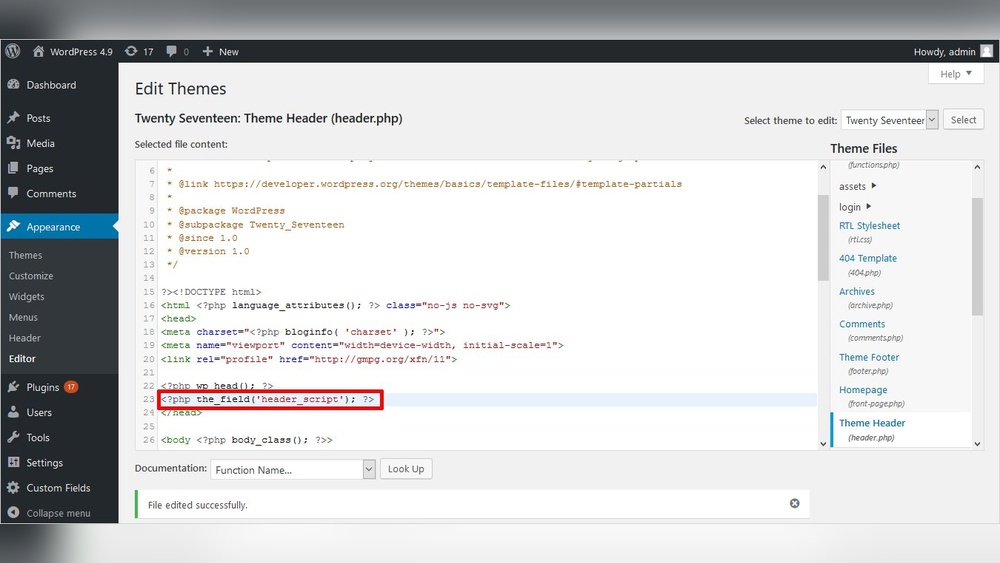
Start by logging into your WordPress dashboard. Go to Appearance and then select Theme Editor. Find the theme files on the right side. Locate the functions.php file. This file controls many features of your theme.
Editing Functions.php
Open the functions.php file for editing. Be careful when changing this file. A small mistake can crash your site. Use a child theme or backup your file before editing. This ensures you can restore it if needed.
Adding Enqueue Script Code
Insert the following code into functions.php. This code loads jQuery properly:
function load_custom_jquery() { wp_enqueue_script('jquery'); } add_action('wp_enqueue_scripts', 'load_custom_jquery'); This code tells WordPress to load the default jQuery script. It uses WordPress’s built-in jQuery version.
Verifying Jquery Load
Check if jQuery loads on your site. Open your website in a browser. Right-click and choose Inspect to open Developer Tools. Go to the Console tab and type jQuery or $. If it returns a function, jQuery works.
Troubleshooting Common Issues
Troubleshooting common issues with jQuery in WordPress helps keep your site running smoothly. Errors or conflicts can stop scripts from working. Fixing these problems improves user experience and site performance.
Identifying the cause is the first step. Understanding common issues saves time and effort. Below are some frequent problems and easy ways to solve them.
Jquery Conflicts
jQuery conflicts happen when multiple scripts use different jQuery versions. This causes errors or broken features on your site. Use WordPress’s built-in jQuery to avoid clashes.
Disable extra jQuery versions loaded by themes or plugins. Use the wp_enqueue_script function to load jQuery correctly. This ensures only one jQuery copy runs, preventing conflicts.
Version Compatibility
Not all jQuery versions work well with every plugin or theme. Some need older versions, others require the latest. Check the plugin or theme documentation for jQuery version requirements.
Update jQuery carefully. Test your site after changes. Use the WordPress default jQuery version unless a specific version is necessary. Avoid forcing versions that cause errors.
Console Errors
Console errors often point to jQuery problems. Open your browser’s developer tools and check the console tab for messages. Errors like “jQuery is not defined” mean jQuery didn’t load properly.
Fix console errors by checking script order. Load jQuery before other scripts that use it. Make sure scripts are enqueued correctly in your theme’s functions.php file.
Best Practices For Using Jquery In WordPress
Using jQuery in WordPress requires care to keep websites fast and error-free. Best practices help avoid common problems and improve user experience. These tips ensure jQuery works smoothly with your WordPress theme and plugins.
Follow these steps to keep your site stable and perform well.
Avoiding Duplicate Jquery Loads
Loading jQuery more than once causes conflicts and slows pages. WordPress already includes jQuery. Use the built-in version instead of adding your own copy. Check your theme and plugins for extra jQuery calls. Remove duplicates to stop errors and speed up your site.
Using No-conflict Mode
WordPress uses jQuery in no-conflict mode to avoid clashes with other scripts. This mode frees the $ shortcut, which jQuery normally uses. Use jQuery() instead of $() in your scripts. Wrap code in a function to safely use $ inside it. This keeps your jQuery code working without breaking other scripts.
Optimizing Performance
Load jQuery only where needed, not on every page. Use WordPress functions like wp_enqueue_script to add jQuery properly. Minify and combine scripts to reduce load times. Use caching plugins to speed up delivery. Keep your jQuery version updated for security and speed.

Credit: jetpack.com

Credit: wpmudev.com
Frequently Asked Questions
How Do I Add Jquery To WordPress Theme?
To add jQuery, use the wp_enqueue_script function in your theme’s functions. php file. WordPress includes jQuery by default, so enqueue it properly to avoid conflicts.
Can I Use Jquery With WordPress Plugins Safely?
Yes, WordPress loads jQuery in noConflict mode, allowing safe use with plugins. Always enqueue scripts to prevent compatibility issues.
Why Is Jquery Not Working In My WordPress Site?
JQuery might not work if it’s not enqueued correctly or if there’s a JavaScript error. Check your console and script loading order.
How To Add Custom Jquery Code In WordPress?
Add custom jQuery inside a script file or inline using wp_add_inline_script after enqueuing jQuery. Wrap code in jQuery(document). ready() for proper execution.
Conclusion
Adding jQuery to WordPress is simple and helps improve your site. Use the right method to avoid conflicts and errors. Enqueue scripts properly to keep your site fast and safe. Test your changes on different devices to ensure they work well.
With jQuery, you can add dynamic features easily. Keep practicing to get comfortable with WordPress coding. This small step can make your website better and more interactive. Start using jQuery today and see the difference it makes.


