
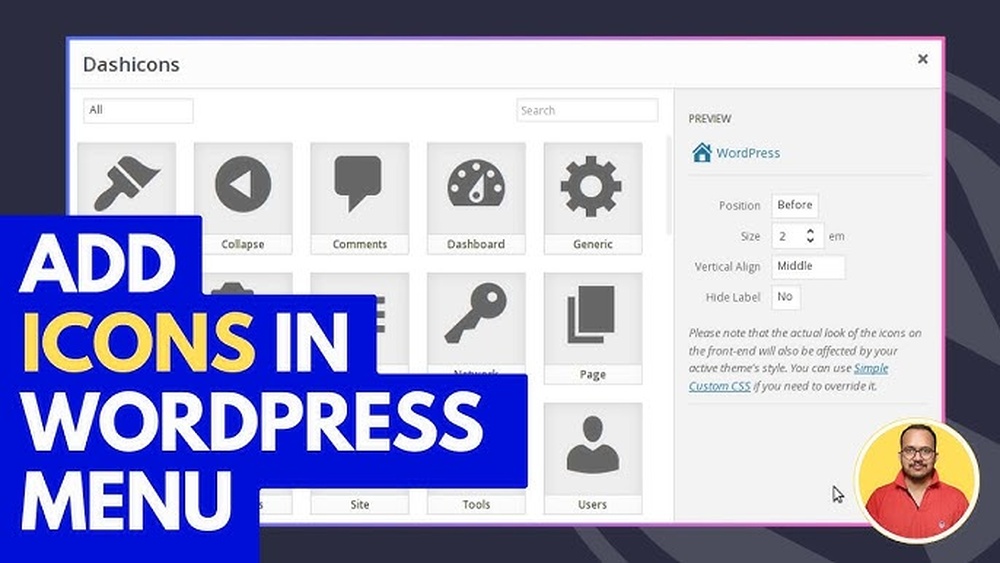
Do you want your WordPress menu to stand out and grab your visitors’ attention? Adding icons to your menu items can make your site look more professional and easier to navigate.
But if you’re not sure how to do it, don’t worry—you’re in the right place. You’ll discover simple, step-by-step ways to add icons to your WordPress menu without any hassle. Keep reading, and you’ll learn how a small change can make a big impact on your website’s look and user experience.

Credit: www.interserver.net
Benefits Of Icons In Menus
Icons in menus make websites easier to use and more attractive. They help visitors find what they need quickly. Icons also guide users through different sections without reading too much text.
Enhancing User Experience
Icons give clear visual hints about menu items. This reduces confusion and saves time. Users can scan the menu faster. It makes browsing smooth and pleasant.
Boosting Visual Appeal
Menus with icons look more modern and neat. They break the text and add color. This makes the website more inviting. Visitors enjoy exploring a well-designed menu.
Improving Navigation
Icons help users recognize sections at a glance. This speeds up finding pages or features. Good navigation keeps visitors on the site longer. It lowers the chance of users leaving early.
Preparing Icons For Your Menu
Preparing icons for your WordPress menu is an important step. It helps your site look neat and professional. Icons guide visitors and improve site navigation. Choosing the right style and size makes a big difference. Proper format keeps your site fast and responsive. This section explains how to prepare icons well for your menu.
Choosing The Right Icon Style
Pick icons that match your website’s design. Simple and clear icons work best. Avoid overly detailed icons that confuse users. Consistent style across all icons creates a clean look. Use either line icons or filled icons, not both. Match icon colors with your site’s color palette.
Finding Icon Resources
Use trusted websites to find free or paid icons. Popular icon libraries offer many choices. Choose icons in SVG or PNG format. SVG icons are scalable without losing quality. Download icons that suit your theme and message. Save icons in a separate folder for easy access.
Optimizing Icon Size And Format
Resize icons to fit your menu space. Too large icons slow down your site. Too small icons are hard to see. Use 24×24 or 32×32 pixels for most menus. Save icons in SVG for best quality and speed. Compress PNG files to reduce load time. Proper size and format improve user experience.
Adding Icons Using WordPress Plugins
Adding icons to your WordPress menu can make it more attractive and easier to use. Plugins offer a simple way to include icons without coding. They provide ready-to-use icon sets and easy tools to place icons beside menu items.
Using plugins saves time and ensures your icons work well on all devices. Many plugins support popular icon libraries like Font Awesome and Dashicons. This section explains how to choose and use these plugins to enhance your menu.
Popular Icon Plugins
Several plugins help add icons to WordPress menus. “Menu Icons by ThemeIsle” is one popular choice. It supports many icon libraries and is beginner-friendly. Another option is “WP Menu Icons,” which offers a simple interface and good customization. Both plugins are free and updated regularly.
Step-by-step Plugin Installation
Go to your WordPress dashboard. Click on “Plugins” then “Add New.” Type the plugin name in the search box. Click “Install Now” next to the plugin. Wait a few seconds, then click “Activate.” The plugin is now ready to use. Follow any setup instructions the plugin provides.
Assigning Icons To Menu Items
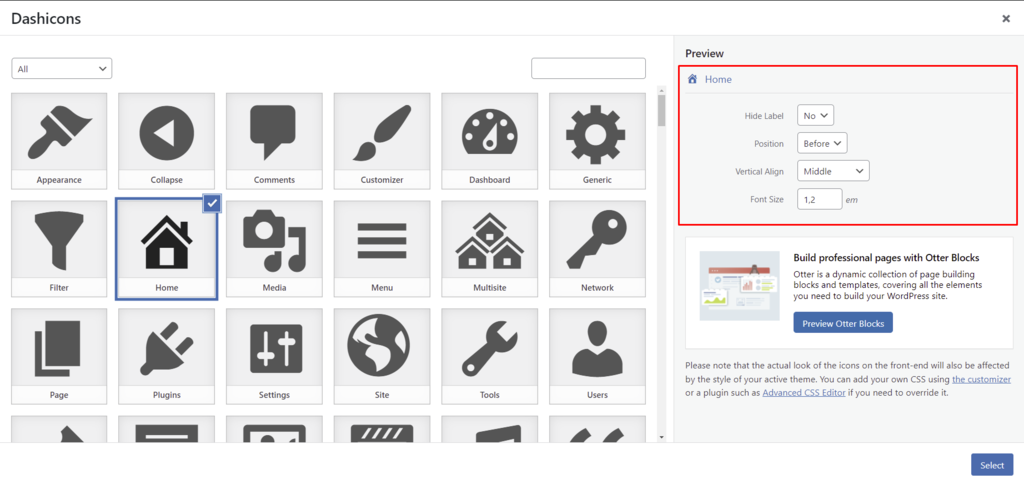
Open the WordPress dashboard and go to “Appearance” then “Menus.” Select the menu you want to edit. Find the menu item to add an icon. The plugin adds an icon option near the menu item. Click on it and choose an icon from the list. Save the menu to apply changes. Check your site to see the new icons in action.
Credit: www.hostinger.com
Manual Method: Adding Icons With Css
Adding icons to your WordPress menu can enhance the look and usability of your site. The manual method uses CSS to place icons next to menu items. This process gives you full control over the icons’ style and position. It does not require extra plugins, making it lightweight and fast.
This method involves three key steps: adding custom CSS classes, using icon fonts like Font Awesome, and customizing the icon’s appearance with CSS. Each step is simple and easy to follow, even for beginners.
Adding Custom Css Classes
First, open your WordPress dashboard and go to the Appearance > Menus section. Enable the “CSS Classes” option in the Screen Options tab at the top. Next, add a unique CSS class to the menu item where you want the icon. For example, use icon-home for a home icon.
These classes help target specific menu items with CSS. Use simple names that describe the icon. This step sets the foundation for adding icons using styles.
Using Font Awesome Icons
Font Awesome is a popular icon font library that works well with WordPress. Include the Font Awesome stylesheet in your theme’s header or via a plugin. Then, add CSS rules to display the icons using the custom classes.
For example, use this CSS to add a home icon:
.icon-home::before { content: "\f015"; / Unicode for home icon / font-family: "Font Awesome 5 Free"; font-weight: 900; margin-right: 8px; }This code adds the home icon before the menu text. Change the unicode and class name for different icons.
Customizing Icon Appearance
Adjust icon size, color, and spacing with CSS properties. Use font-size to make icons bigger or smaller. Change color with color. Add margin or padding to space icons properly.
Example:
.icon-home::before { font-size: 18px; color: 0073aa; margin-right: 10px; vertical-align: middle; }Test your changes on different devices for best results. Customizing icons improves menu clarity and user experience.
Troubleshooting Common Issues
Troubleshooting common issues is essential when adding icons to your WordPress menu. Small problems can stop icons from showing or working right. This section helps you fix those issues quickly. Follow these tips to ensure your menu icons look great and work well on all devices.
Icons Not Displaying Correctly
Icons might not show up because of wrong file paths. Check if the icon files are uploaded to the correct folder. Use the right icon format, like SVG or PNG. Clear your browser cache to see updates. Also, make sure your theme supports icons in menus. Sometimes, missing or incorrect CSS can hide icons. Inspect the page code to find style issues.
Plugin Conflicts
Plugins can clash and cause icons to break. Deactivate other plugins one by one to find the conflict. Some plugins change menu styles or scripts. After finding the problem plugin, seek an alternative or update it. Keep all plugins and WordPress updated for better compatibility. Avoid using many plugins that change menu behavior.
Responsive Design Considerations
Icons may look fine on desktop but break on mobile. Test your menu on different screen sizes. Use CSS media queries to adjust icon size and position. Ensure icons do not overlap menu text or buttons. Keep icons simple and small for better mobile view. Responsive design helps your site stay user-friendly on phones and tablets.
Tips For Stunning Menu Design
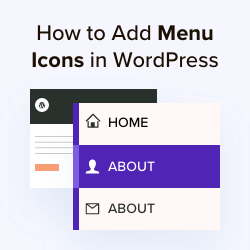
Creating a stunning menu design in WordPress improves user experience. Icons add visual interest and help visitors find pages faster. Follow key tips to balance icons and text. Keep styles consistent for a clean look. Test your menu on different devices to ensure it works well everywhere.
Balancing Icons And Text
Use icons that clearly match the menu item. Do not overcrowd the menu with too many icons. Keep icons small enough to not overpower text. Place icons before or after text for clarity. Make sure text is easy to read next to icons.
Maintaining Consistent Style
Choose icons with a similar style and color. Match icon size to the font size of menu text. Use the same spacing between icons and text on all items. Keep the overall design simple and neat. Avoid mixing too many icon types in one menu.
Testing Across Devices
Check the menu on desktop, tablet, and mobile screens. Make sure icons and text do not overlap or break lines. Test menu functionality on different browsers. Adjust icon size for smaller screens if needed. Ensure the menu stays easy to use everywhere.
Credit: www.wpbeginner.com
Frequently Asked Questions
How Can I Add Icons To My WordPress Menu?
To add icons, use plugins like “Menu Icons” or add custom code with CSS and Font Awesome. Plugins simplify the process and require no coding skills.
Which Plugins Help Add Icons To WordPress Menus?
Popular plugins include “Menu Icons,” “WP Menu Icons,” and “Font Awesome. ” These tools allow easy icon integration without coding.
Can I Use Custom Icons In WordPress Menus?
Yes, custom icons can be added using CSS or SVG files. Plugins may also support uploading your own icons for menus.
Will Adding Icons Affect My Site’s Loading Speed?
Icons added via lightweight plugins or SVGs have minimal impact on speed. Avoid heavy icon sets to keep loading fast.
Conclusion
Adding icons to your WordPress menu makes your site look neat and clear. It helps visitors find pages faster. You can use plugins or simple code snippets to add icons easily. Choose icons that match your site style and content.
Test your menu on different devices to ensure it works well. Small changes like these improve user experience a lot. Keep your menu simple and eye-catching. This way, your website feels friendly and professional at the same time. Try adding icons today and see the difference yourself.


