
Looking to make your best products stand out on your WordPress site? Adding featured products is a simple way to grab your visitors’ attention and boost your sales.
If you want to highlight what matters most and guide your customers right where you want them, this guide is for you. Keep reading, and you’ll learn step-by-step how to showcase your top products effortlessly—no tech skills needed. Ready to make your website more powerful and user-friendly?
Let’s dive in!
Choosing Featured Products
Choosing the right products to feature on your WordPress site helps boost sales and attract visitors. Featured products catch attention and highlight what matters most in your store. Picking these products carefully can make your site look professional and trustworthy.
Focus on products that match your store’s style and goals. Think about what your customers want and what you want to promote. This section explains how to choose featured products using simple criteria.
Criteria For Selection
Pick products with good reviews and steady sales. Choose items that are popular or have unique features. Avoid products with many complaints or low stock. Highlight products that best represent your brand’s quality and style.
Popular Vs New Arrivals
Popular products show what customers love. Featuring them builds trust and encourages more sales. New arrivals bring freshness and excitement to your store. They show your business is up to date with trends. Mix both types for a balanced display.
Seasonal Picks
Seasonal products match holidays or weather changes. They attract buyers looking for timely items. For example, show warm clothes in winter and swimwear in summer. Seasonal picks keep your site relevant and interesting year-round.

Credit: support.vamtam.com
Setting Up Woocommerce
Setting up WooCommerce is the first step to selling products on your WordPress site. This powerful plugin turns your website into a full online store. You can manage products, payments, and shipping easily. Follow these steps to get WooCommerce ready.
Installing Woocommerce Plugin
Go to your WordPress dashboard. Click on “Plugins” then “Add New.” Search for “WooCommerce.” Find the official plugin and click “Install Now.” After installation, click “Activate.” The setup wizard will start automatically.
Configuring Basic Settings
Follow the wizard to set up your store details. Enter your store address, currency, and product types. Choose payment methods like PayPal or bank transfer. Set shipping options based on your needs. Save your settings to move forward.
Adding Products To Store
Navigate to “Products” and click “Add New.” Enter the product name and description. Upload clear product images. Set the price and inventory details. Choose product categories to organize your store. Publish the product to make it live.
Marking Products As Featured
Marking products as featured helps highlight special items in your store. It draws customer attention to selected products. This step is important for online shops using WordPress and WooCommerce. It makes certain products stand out on your website. You can mark products as featured in two simple ways. Each method works well for different needs.
Using Product Edit Screen
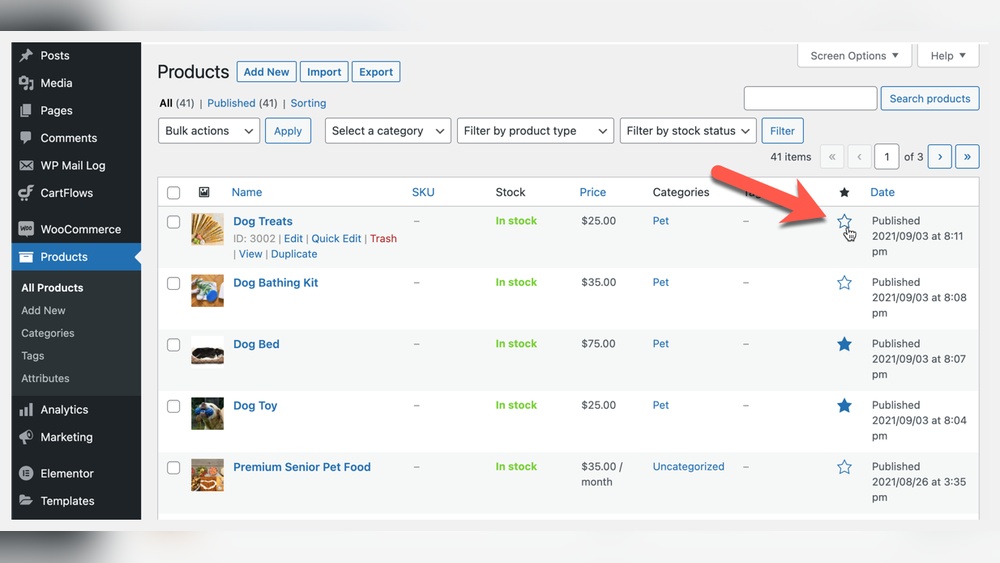
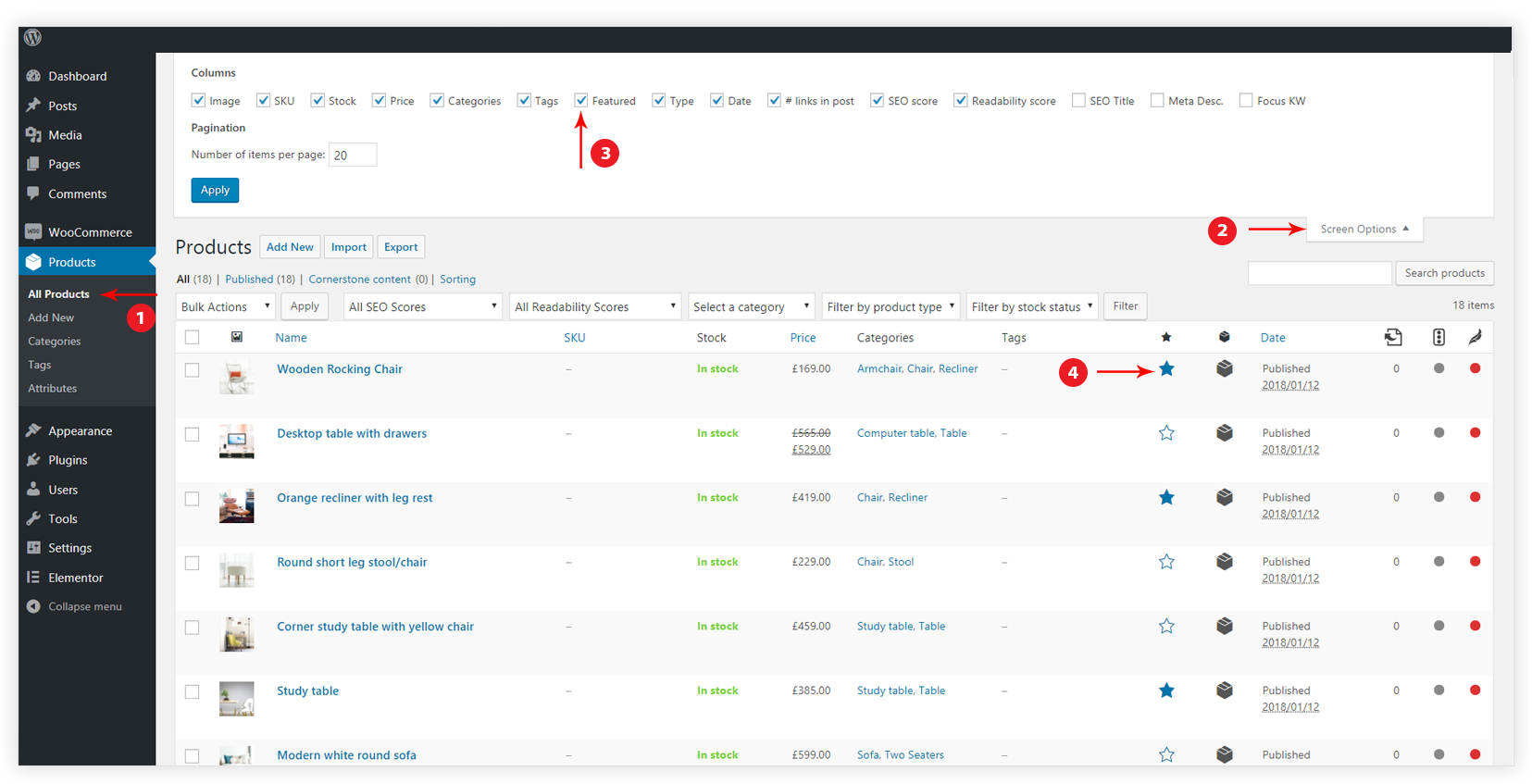
Open your WordPress dashboard and go to Products. Click on the product you want to mark as featured. On the right side, find the “Product Data” box. Look for the “Featured” option or a star icon. Click to mark the product as featured. Save or update the product to apply changes. This method works best for marking one or two products at a time.
Bulk Editing Featured Status
Go to the Products list in your dashboard. Select multiple products using the checkboxes. From the “Bulk Actions” dropdown, choose “Edit” and click “Apply.” Find the “Featured” option in the bulk edit panel. Select “Yes” to mark all chosen products as featured. Click “Update” to save the changes. Use this method to quickly feature many products at once.
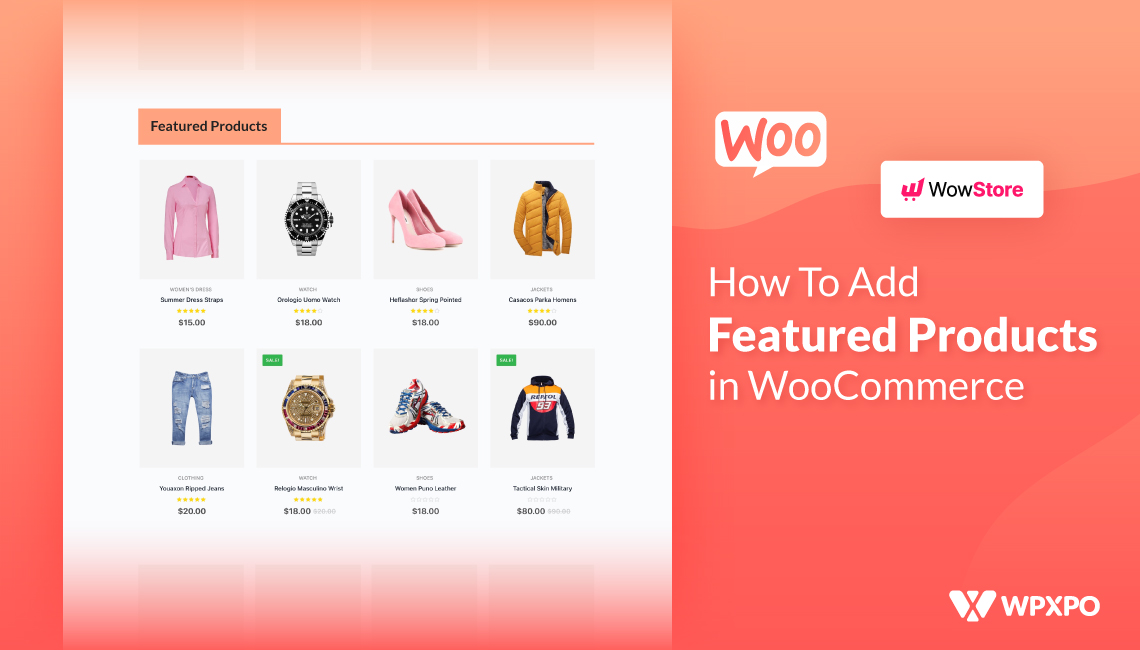
Credit: www.wpxpo.com
Displaying Featured Products
Displaying featured products on your WordPress site helps draw attention to your best items. It highlights special offers and popular products. Showing these products in the right way can boost sales and improve user experience.
WordPress offers simple methods to display featured products. You can use widgets, shortcodes, or customize the product display. Each method gives you control over how your products look on the page.
Using Widgets
Widgets are easy to use for showing featured products. Go to the WordPress dashboard and open the Appearance section. Select Widgets, then choose a widget area like the sidebar or footer.
Add the WooCommerce Featured Products widget to this area. This widget automatically pulls your featured products and displays them. You can adjust settings such as how many products to show and their order.
This method requires no coding and works well for most themes.
Adding Featured Products Via Shortcodes
Shortcodes let you place featured products inside posts or pages. Use the shortcode [featured_products] to show your items. You can add attributes like per_page to set product numbers.
Example: [featured_products per_page="4" columns="4"] shows four products in four columns. Place the shortcode in the editor where you want the products to appear.
This method is flexible and fits well in different content layouts.
Customizing Product Display
Customize the look of featured products to match your site style. Use CSS to change colors, fonts, and spacing. Some themes offer built-in options for product display settings.
You can also use page builders like Elementor to design product grids. Adjust image sizes, add buttons, and change text styles. This helps create a unique and attractive product showcase.
Customizing improves user engagement and keeps your site visually appealing.
Enhancing Featured Products Section
The featured products section is a key part of your online store. Enhancing this section makes your site look professional. It also helps visitors find important items quickly. Small changes can make a big difference in user experience and sales.
Focus on clear design and useful content. Make products stand out with simple but effective tools. Highlight reviews and special offers to build trust and interest. These steps keep customers engaged and encourage them to buy.
Using Page Builders
Page builders let you design without coding skills. They offer drag-and-drop tools to arrange products visually. This makes your featured section look neat and attractive. You can add columns, images, and buttons easily. Many page builders support WooCommerce, which is great for product displays. Customize layouts and styles to match your brand.
Adding Product Reviews
Product reviews increase customer trust. Show star ratings and written feedback below products. Positive reviews give new buyers confidence. Displaying reviews also helps in SEO by adding fresh content. Use plugins that collect and show reviews automatically. Highlight the best comments to catch attention quickly.
Incorporating Promotional Banners
Promotional banners draw attention to deals or new arrivals. Place banners near or inside the featured products section. Use clear messages like “Sale” or “Limited Offer.” Banners should use colors that stand out but fit your site’s theme. Keep text short and easy to read. This encourages clicks and boosts sales.
Troubleshooting Common Issues
Troubleshooting common issues helps keep your featured products visible and attractive. Some problems may stop products from showing or cause layout errors. Others might come from conflicts with plugins. Fixing these issues improves your site’s user experience and boosts sales.
Featured Products Not Showing
Check if you have selected the correct products as featured. Sometimes, the settings reset or change after updates. Clear your site cache to remove old data. Make sure your theme supports featured products. Look at product visibility settings and confirm products are published.
Layout Problems
Layout issues can make featured products look strange or broken. Inspect your site’s CSS for conflicts or missing styles. Use a simple theme to test if the problem is theme-related. Resize images to fit the layout better. Avoid using too many columns that clutter the page.
Plugin Conflicts
Plugins can interfere with each other and cause errors. Deactivate all plugins except WooCommerce and check if the problem persists. Reactivate plugins one by one to find the conflict. Keep all plugins updated to their latest versions. Use plugins from trusted sources only.
Credit: ultimateelementor.com
Frequently Asked Questions
How Do I Add Featured Products In WordPress?
To add featured products, go to your WordPress dashboard. Navigate to Products, select a product, and mark it as “Featured. ” You can also use widgets or plugins to showcase featured products on your site’s homepage or specific pages.
Can I Feature Products Without Woocommerce Plugin?
Yes, you can feature products without WooCommerce by using custom post types or manual HTML. However, WooCommerce simplifies product management and displaying featured products with built-in options and widgets.
How To Display Featured Products On Homepage?
Use the WooCommerce Featured Products widget or shortcode. Place the widget in a homepage widget area or add the shortcode to a page or post to showcase selected featured products.
Does Featuring Products Improve WordPress Seo?
Yes, featuring products can boost SEO by highlighting popular items. It increases user engagement and helps search engines identify important products on your site.
Conclusion
Adding featured products in WordPress helps highlight your best items. It draws attention and can boost sales. The steps are simple and clear to follow. You just need a bit of time and patience. Keep your product choices relevant and fresh.
Update them often to keep visitors interested. This small change can improve your website’s look and feel. Try it today and see the difference it makes.


