

Are you looking to make your WordPress posts more engaging and fun? Adding emojis is a simple way to catch your readers’ attention and express your message clearly.
But how exactly can you add emojis to your WordPress site without any hassle? You’ll discover easy, step-by-step methods to include emojis that fit perfectly with your content. Keep reading, and you’ll learn how to brighten up your posts and connect better with your audience in no time.
Why Use Emojis In WordPress
Emojis bring life to WordPress posts. They make content more fun and easy to read. Using emojis helps connect with readers on an emotional level. They break the text and add color to your message. Many bloggers use emojis to catch attention and make their posts stand out.
Boosting Engagement
Emojis help grab readers’ eyes quickly. They make posts feel friendly and inviting. People tend to comment and share posts with emojis more often. Emojis make content feel less formal and more approachable. This leads to better interaction and a stronger community.
Adding Personality To Posts
Every blog has its own style. Emojis add a unique voice and mood to your posts. They show your feelings without many words. Readers can understand your tone better with emojis. This builds trust and makes readers return for more.
Built-in Emoji Support In WordPress
WordPress supports emojis natively, making it easy to include fun icons in your posts. You do not need extra plugins to start using emojis in your content. This built-in feature helps enhance user interaction and adds emotion to your text.
Emojis appear correctly on most modern browsers and devices. WordPress uses a special script to convert emoji characters into images. This ensures your emojis look good everywhere your site is viewed.
How WordPress Handles Emojis
WordPress uses a JavaScript file to detect emoji characters. It then replaces these characters with images. This method helps maintain emoji style across different platforms. The script loads automatically in the WordPress editor and on the front end. It supports a wide range of emojis from various categories. This way, your audience can see emojis the same way you intended.
Limitations Of Default Emojis
The default emoji set in WordPress looks simple and basic. It may not match the style of your website perfectly. Some users find the images outdated compared to newer emoji designs. Also, the emoji script can add extra loading time. This might slow down your site slightly. Custom emojis or third-party plugins can offer more style choices and better performance. The built-in support works well for basic needs but has these limits.
Inserting Emojis With Keyboard Shortcuts
Inserting emojis with keyboard shortcuts saves time and makes your WordPress posts fun. You do not need special tools or plugins. Just use built-in emoji pickers on your computer. These tools let you quickly find and add emojis while writing.
Using Windows Emoji Picker
Press the Windows key and the period key together. This opens the emoji picker on your screen. You can scroll through different emoji categories. Click any emoji to insert it into your WordPress editor. The picker also lets you search emojis by typing words. It works in most text fields and editors on Windows.
Using Mac Emoji Viewer
Press Control + Command + Spacebar to open the emoji viewer. A small window appears with many emojis to choose from. You can browse or search for specific emojis. Double-click the emoji to add it to your WordPress post. The emoji viewer works anywhere you type text on a Mac.

Credit: aioseo.com
Adding Emojis Via WordPress Editor
Adding emojis in WordPress makes your posts more lively and fun. Emojis help express feelings quickly. They catch readers’ attention and make content easier to understand. WordPress allows emoji insertion directly from its editor. Two main editors exist: Classic Editor and Block Editor. Each has a simple way to add emojis.
Classic Editor Method
Open the WordPress Classic Editor. Place the cursor where the emoji should go. Use your device’s emoji keyboard. On Windows, press Win + . keys. On Mac, press Control + Command + Space. This opens the emoji panel. Click the emoji to insert it.
The emoji appears in the text instantly. You can add multiple emojis this way. Save or update the post to keep changes. No extra plugins are needed for this method.
Block Editor (gutenberg) Method
In the Block Editor, add a paragraph block or select existing text. Use the same device emoji keyboard shortcuts. The emoji panel opens for selection. Pick the emoji you want. It inserts where the cursor is.
This method supports emojis in all text blocks. Emojis display correctly on most browsers and devices. The Block Editor also supports HTML entity codes for emojis. Use these codes in a Custom HTML block for advanced use.
Using Emoji Plugins For WordPress
Using emoji plugins for WordPress helps add fun and expression to your posts. These plugins make it easy to insert emojis without coding. They also ensure emojis display well on all devices. Plugins save time and improve user engagement. You can choose from many plugins based on features and ease of use.
Popular Emoji Plugins
Many emoji plugins exist for WordPress. Some popular choices include “WP Emoji One,” “Emoji Button,” and “JoyPixels.” WP Emoji One offers a wide emoji library and simple controls. Emoji Button adds a quick emoji picker in the editor. JoyPixels provides high-quality emojis with frequent updates. Each plugin suits different needs and styles.
Installation And Setup Tips
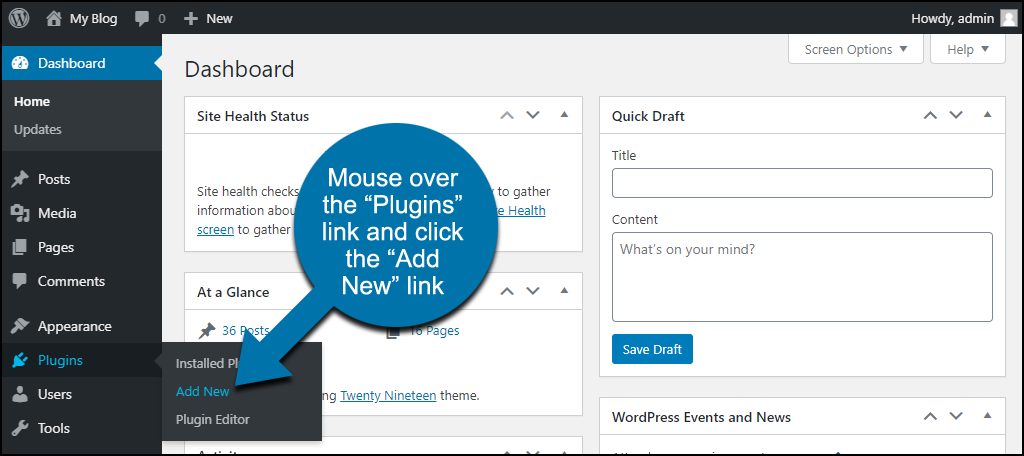
Start by going to your WordPress dashboard. Click on “Plugins” then “Add New.” Search for your chosen emoji plugin by name. Click “Install Now” and then “Activate.” After activation, open the plugin settings. Customize emoji styles and options to fit your site. Test the emojis in a new post to check appearance. Keep plugins updated for best performance and security.
Credit: aioseo.com
Customizing Emojis For Your Brand
Customizing emojis for your brand helps create a unique and consistent style. Emojis add personality and make your content more relatable. Tailoring them to match your brand colors and tone strengthens your identity. This section explores how to select emoji styles and create custom emoji sets for your WordPress site.
Selecting Emoji Styles
Choose emoji styles that fit your brand’s voice. Some styles are playful, while others look professional. Match emoji colors to your brand palette for consistency. Check different emoji packs available for WordPress plugins. Simple and clear emojis often work best for wide audiences. Test how emojis appear on desktops and mobile devices. Consistent style helps users recognize your brand quickly.
Creating Custom Emoji Sets
Designing custom emojis lets you express your brand in unique ways. Use graphic tools like Adobe Illustrator or free apps to create icons. Keep designs simple and easy to understand. Save emojis in web-friendly formats like PNG or SVG. Upload your custom emojis to your WordPress media library. Use plugins to replace standard emojis with your custom set. Custom sets keep your messages fresh and aligned with your brand style.
Troubleshooting Emoji Display Issues
Emoji display issues can make your WordPress site look unprofessional. Broken or missing emojis confuse visitors. Fixing these problems improves user experience and site appearance.
Understanding why emojis fail to show helps you solve the problem fast. Common causes include font issues and browser compatibility. Follow simple steps to troubleshoot emoji display problems.
Fixing Broken Emojis
Broken emojis often happen due to missing fonts. Your site needs a font that supports emoji characters. Use a web-safe font like “Segoe UI Emoji” or “Noto Color Emoji.” These fonts show emojis correctly on most devices.
Another cause is outdated WordPress themes or plugins. Update all to the latest versions. Old code may not support newer emojis. Also, clear your site cache after updates. This ensures changes take effect.
Ensuring Cross-browser Compatibility
Different browsers handle emojis differently. Some may not support color emojis. Test your site on major browsers like Chrome, Firefox, Safari, and Edge. Check if emojis appear as expected.
Use fallback options for browsers that lack emoji support. You can add emoji images or use Unicode characters. This guarantees all visitors see emojis clearly. Avoid relying on a single method for emoji display.
Credit: www.greengeeks.com
Frequently Asked Questions
How Do I Add Emoji To WordPress Posts?
To add emoji in WordPress posts, use the built-in emoji keyboard or copy-paste emojis. You can also install emoji plugins for easy access. This enhances your content’s visual appeal and engages readers effectively.
Can I Use Emojis In WordPress Page Titles?
Yes, you can insert emojis in WordPress page titles by copying and pasting emojis directly. However, ensure emojis are compatible with your theme and don’t affect SEO negatively.
Are WordPress Emoji Plugins Safe To Use?
Most WordPress emoji plugins are safe if sourced from reputable developers. Always check reviews, update regularly, and back up your site before installing new plugins to avoid conflicts.
Will Emojis Affect My WordPress Site’s Loading Speed?
Using a few emojis won’t affect your site speed significantly. However, avoid excessive emoji images or heavy plugins that can slow down your WordPress site performance.
Conclusion
Adding emojis to WordPress posts makes your content more fun and clear. It helps catch readers’ attention quickly. You can use built-in tools or plugins to add emojis easily. Remember to choose emojis that fit your message well. Keep your site simple and friendly with just the right amount of emojis.
Try different methods and see what works best for you. Enjoy making your WordPress posts more lively and engaging with emojis today!


