

Are you looking to give someone else the power to manage your WordPress site without handing over full control? Adding an editor to your WordPress can be a game-changer.
It lets you share the workload, improve content quality, and keep your site fresh — all while keeping your admin access safe. In this guide, you’ll discover simple steps to add an editor quickly and securely. By the end, you’ll feel confident managing user roles like a pro.
Ready to make your WordPress site more efficient? Let’s dive in!

Credit: wordpress.com
Choose The Right User Role
Choosing the right user role is important when adding an editor to WordPress. Each role has different permissions. Giving the correct role helps keep your site safe and organized.
Understanding the roles helps you control who can do what. Editors have specific powers that differ from other roles. Let’s explore these differences and when to assign the editor role.
Difference Between Editor And Other Roles
Editors can create, edit, publish, and delete any posts or pages. They can manage comments and moderate content. Editors cannot change site settings or install plugins.
Authors can only manage their own posts. Contributors can write but cannot publish posts. Subscribers can only read content and leave comments.
Administrators have full control over the website. They can manage users, settings, themes, and plugins.
When To Assign Editor Role
Assign the editor role to trusted team members who handle content. Editors are ideal for managing articles and pages without full site control.
Avoid giving editor access to people who do not need content control. This prevents accidental site changes or security risks.
Use the editor role when you want content review and publishing handled by someone else. It keeps your site content fresh and well managed.
Credit: www.ionos.com
Add A New User In WordPress
Adding a new user to WordPress allows you to give others access to your site. This is useful for collaboration or managing content. You can assign different roles to control what each user can do. Here, you will learn how to add a new user with the Editor role.
Accessing The Users Menu
Start by logging into your WordPress dashboard. On the left side, find the menu labeled “Users.” Click on it to open a list of current users. Look for the “Add New” button at the top of the page. Click this button to start creating a new user account.
Filling Out User Information
Fill in the user’s details in the form shown. Enter a username that the user will use to log in. Provide a valid email address for notifications and password resets. Add the first and last names to keep things organized. Choose a strong password or let WordPress generate one automatically.
Next, assign the user role. Select “Editor” from the dropdown menu. Editors can manage and publish content but cannot change site settings. Finally, click “Add New User” to save and activate the account.
Assign Editor Role To User
Assigning the editor role to a user gives them control to manage and publish content. Editors can create, edit, and delete posts, including those written by others. This role is useful for team members who help run your website’s content.
Follow clear steps to assign this role correctly. This helps keep your site organized and secure.
Selecting The Editor Role
Start by opening your WordPress dashboard. Go to the “Users” section. Find the user you want to assign the role to. Click on their name to edit their profile.
Look for the “Role” dropdown menu. Click it and select “Editor” from the list. This action sets the user’s permissions to editor level.
Saving User Settings
After selecting the editor role, scroll down to the bottom of the page. Click the “Update User” button to save changes. This confirms the new role is active on the user account.
Check the user list to ensure the role has updated. The user can now start managing content as an editor.
Manage Editor Permissions
Managing editor permissions in WordPress lets you control what editors can do. This helps keep your site safe and organized. You decide which tasks editors can perform. You can limit or expand their access.
By managing permissions, you reduce risks of mistakes or unwanted changes. It also helps editors focus on their work without confusion. Setting clear roles improves teamwork and site management.
Customizing Permissions With Plugins
Plugins make it easy to customize editor permissions. They give you control beyond WordPress’s default settings. You can choose exactly what each editor can see and edit.
Many plugins offer simple interfaces. You adjust permissions using checkboxes or dropdowns. No coding needed. Customize access to posts, pages, media, and more.
This flexibility helps match roles to your team’s needs. You can create specific rules for different editors. It fits sites of all sizes and types.
Best Plugins For Role Management
Several plugins stand out for role management in WordPress. They help you manage editor permissions with ease and safety.
One popular option is “User Role Editor.” It lets you change permissions for any role. Another choice is “Members,” which offers role control and content restriction.
“Advanced Access Manager” is good for detailed permission settings. It supports custom roles and fine-grained controls. These plugins help you build a secure and organized site.
Test Editor Access
Testing editor access is a key step after adding a new editor to WordPress. It ensures that the editor can work properly on your site. This step helps avoid issues later and confirms correct permissions.
Testing also helps you check if the editor can see and use the right tools. You can catch problems early before publishing content. This saves time and keeps your site running smoothly.
Logging In As Editor
Start by logging out of your admin account. Use the editor’s username and password to log in. Check that you can reach the WordPress dashboard without errors. This confirms the login details are correct.
Make sure the editor does not see admin-only menus. The dashboard should show only editor-specific options. This keeps the user interface simple and focused for the editor role.
Verifying Editing Capabilities
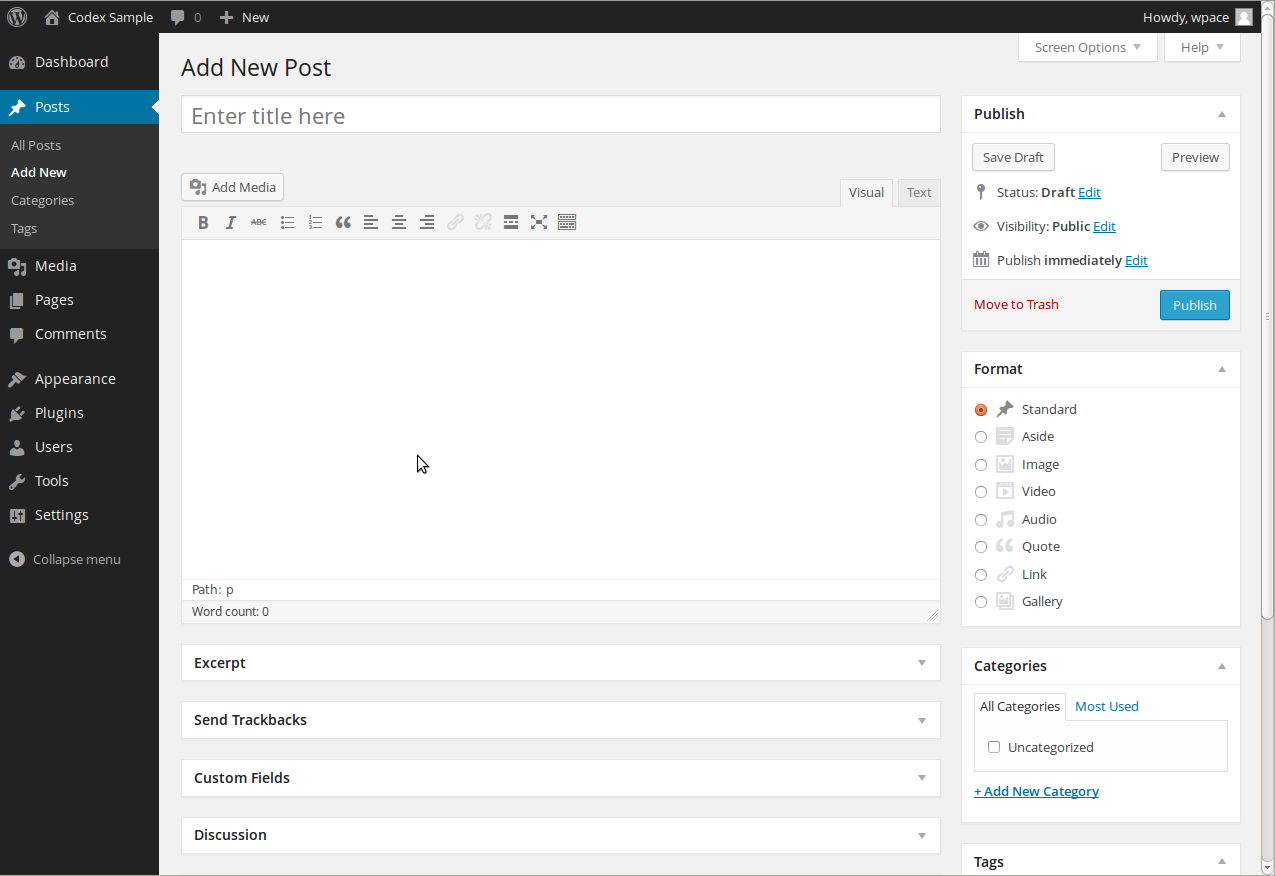
Try creating a new post or page in WordPress. Check if the editor can add text, images, and media files. Save the draft and preview the content. This tests basic editing functions.
Check if the editor can edit existing posts or pages. Make small changes and update the content. Ensure the editor cannot publish or delete content if not allowed. These checks confirm the editor’s access rights.
Troubleshoot Common Issues
Troubleshooting helps fix common problems when adding an editor to WordPress. Some issues stop the role from working properly. Others cause permission problems. Understanding these problems saves time and effort.
Role Not Applied Correctly
Sometimes, the editor role does not save properly. This can happen if the page times out or the browser has a glitch. Refresh the page and try again. Clear your browser cache and cookies. Use a different browser if the problem continues.
Check if the user already has another role that may conflict. WordPress only allows one role per user, so the editor role may not apply. Remove other roles and assign the editor role again.
Permission Conflicts
Permission conflicts occur when plugins or themes block editor capabilities. Some security plugins limit what editors can do. Disable plugins one by one to find the conflict. Test if the editor role works after each change.
The theme may also restrict editor permissions. Switch to a default WordPress theme temporarily. See if the editor role works with the default theme. If yes, the theme causes the issue and may need an update or fix.
Credit: wordpress.org
Frequently Asked Questions
How Do I Add An Editor In WordPress?
To add an editor, go to your WordPress dashboard. Navigate to Users > Add New. Enter the user’s email, assign the Editor role, and save. The user will receive an invitation to access your site with editor permissions.
What Permissions Does A WordPress Editor Have?
Editors can publish, edit, and delete any posts or pages. They manage comments and moderate content. However, they can’t change site settings or install plugins. This role suits users who manage content but not technical site aspects.
Can I Change A User’s Role To Editor Later?
Yes, you can easily change roles anytime. Go to Users > All Users. Find the user, click Edit, and select Editor from the Role dropdown. Save changes, and the user will have editor permissions immediately.
Is It Safe To Assign Editor Role In WordPress?
Assigning the editor role is safe if you trust the user. Editors have control over content but no access to site settings or plugins. Always assign roles carefully to maintain site security and integrity.
Conclusion
Adding an editor to WordPress is quick and simple. Choose the right user role to keep your site safe. Editors can help manage content without full control. Always review permissions before adding new users. This keeps your website organized and secure.
Now, you can share tasks and grow your site easily.


