
Are you looking to customize your WordPress site but unsure how to add code to your functions.php file? You’re not alone.
Many website owners want to make their site more powerful and unique but hesitate because coding seems complicated. The good news is, adding code to functions. php is easier than you think—and it can unlock amazing features for your site.
In this guide, you’ll discover simple steps to safely add code that enhances your WordPress without breaking anything. Keep reading, and by the end, you’ll feel confident making your site truly yours.
What Is Functions.php
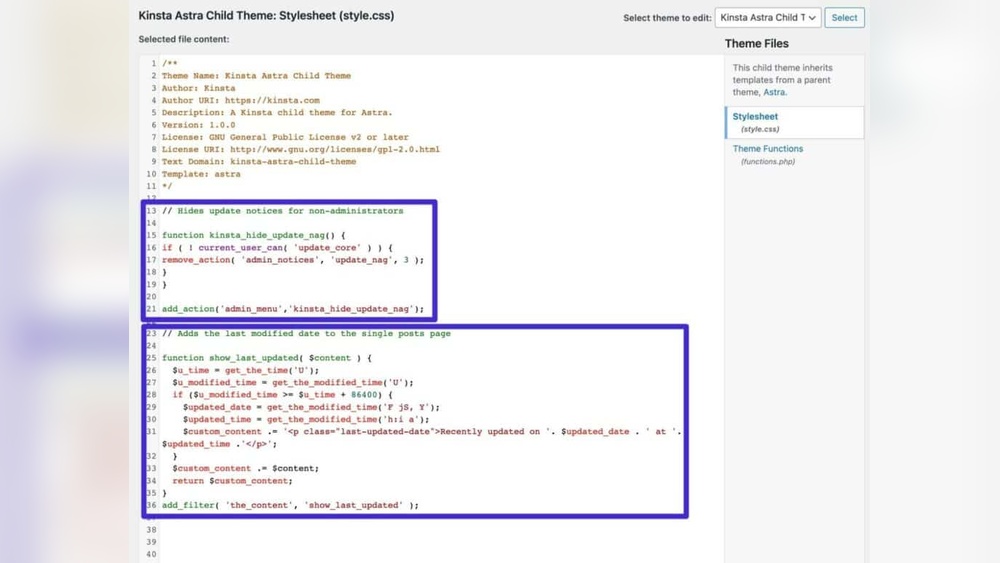
The functions.php file is an essential part of any WordPress theme. It works like a plugin that lives inside your theme folder. This file lets you add custom code to change how your website works without touching the core WordPress files.
Think of functions.php as a place to add special instructions for your site. You can use it to create new features, change existing ones, or connect your site with other tools. It helps your site stay unique and fit your needs.
What Does Functions.php Do?
This file lets you add PHP code that runs on your website. It controls many parts of your site, like menus, widgets, and scripts. You can also use it to add new functions or remove unwanted features.
Where To Find Functions.php?
You can find functions.php inside your theme folder. Use an FTP client or the WordPress theme editor to open it. Each theme has its own functions.php file, so changes affect only the active theme.
Why Use Functions.php?
This file is easy to edit and lets you customize your site quickly. It avoids the need for extra plugins, which can slow down your site. Changes in functions.php stay even after WordPress updates.
Why Add Code To Functions.php
Adding code to the functions.php file in WordPress lets you change how your site works. This file controls many features of your theme and site behavior. Small code snippets here can make big changes.
It is a safe way to customize your site without changing core WordPress files. You can add new functions, remove unwanted features, or fix issues. This keeps your site unique and tailored to your needs.
What Is Functions.php?
The functions.php file is part of your WordPress theme. It acts like a plugin for your theme. You can use it to add custom PHP code that runs on your site.
Enhance Site Features
Adding code to this file can add new features. For example, you can create custom menus or add new widget areas. It helps make your site more useful and user-friendly.
Control Site Behavior
You can change how WordPress works by editing functions.php. Disable automatic updates or change post display order. This gives you better control over your website.
Keep Customizations Organized
Using functions.php keeps your code in one place. It is easier to manage than many separate plugins. This reduces site clutter and improves performance.
Preparing For Code Addition
Adding code to the functions.php file in WordPress can change how your site works. Before starting, prepare carefully. This avoids problems and keeps your site safe. Follow these steps to get ready.
Backup Your Site
Backing up your site saves your work. It creates a copy of all files and data. If something goes wrong, you can restore your site quickly. Use a plugin or your hosting service to make a backup. Always back up before making changes.
Use A Child Theme
A child theme keeps your changes separate. It protects your edits when the main theme updates. Without a child theme, updates can erase your code. Create a child theme or use one already made. This step keeps your site safe and your changes intact.
Accessing Functions.php File
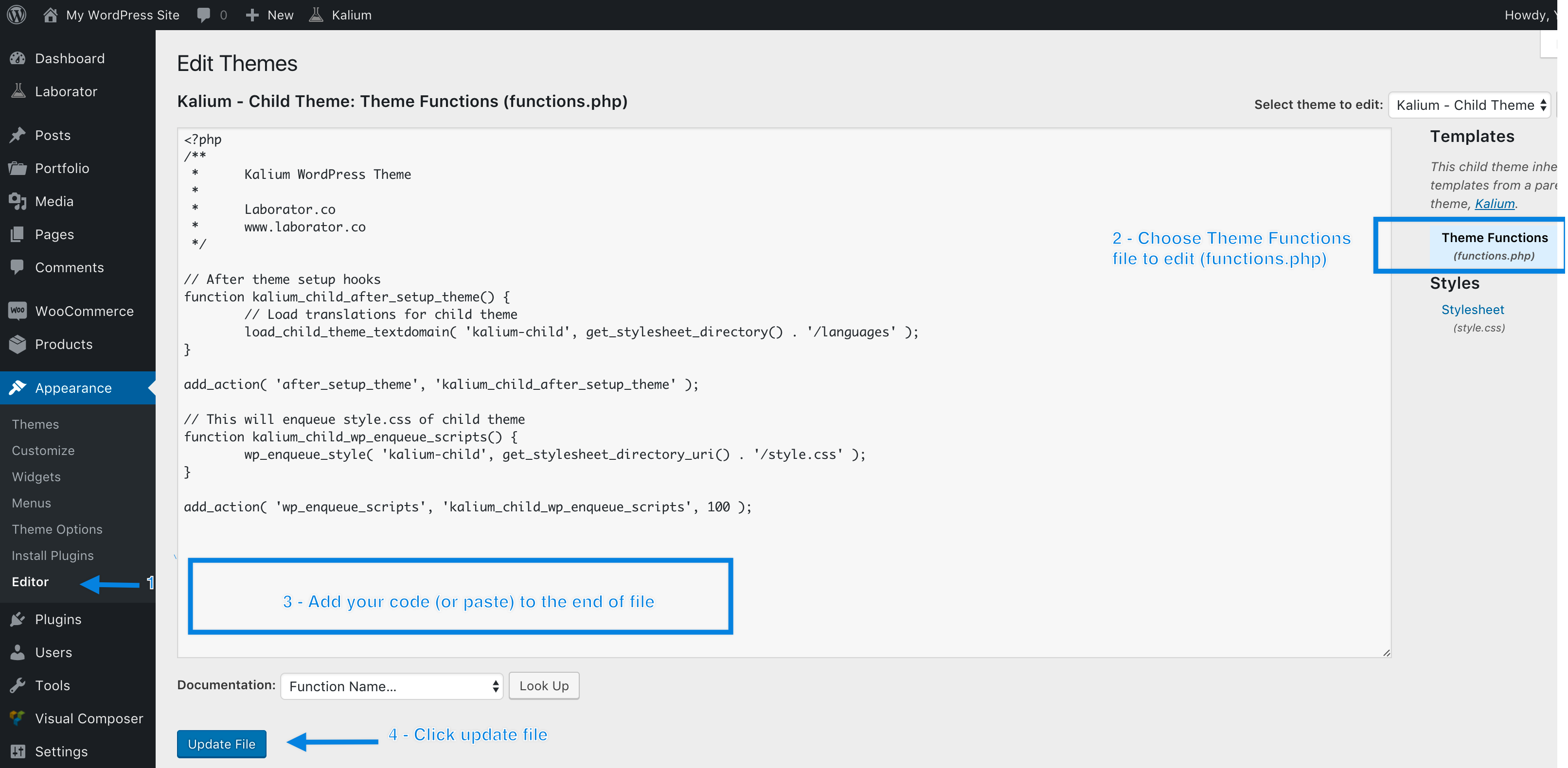
Find the functions.php file in your theme folder. You can access it via the WordPress dashboard or FTP. In the dashboard, go to Appearance > Theme Editor. Choose the child theme and open functions.php. Always edit this file carefully to avoid errors.
Methods To Edit Functions.php
Editing the functions.php file is important for customizing your WordPress site. This file controls many features and functions. Knowing how to safely edit it helps you add new code or fix problems.
There are several ways to edit functions.php. Each method suits different skill levels and access types. Choose the best method for your situation to avoid errors.
Using WordPress Theme Editor
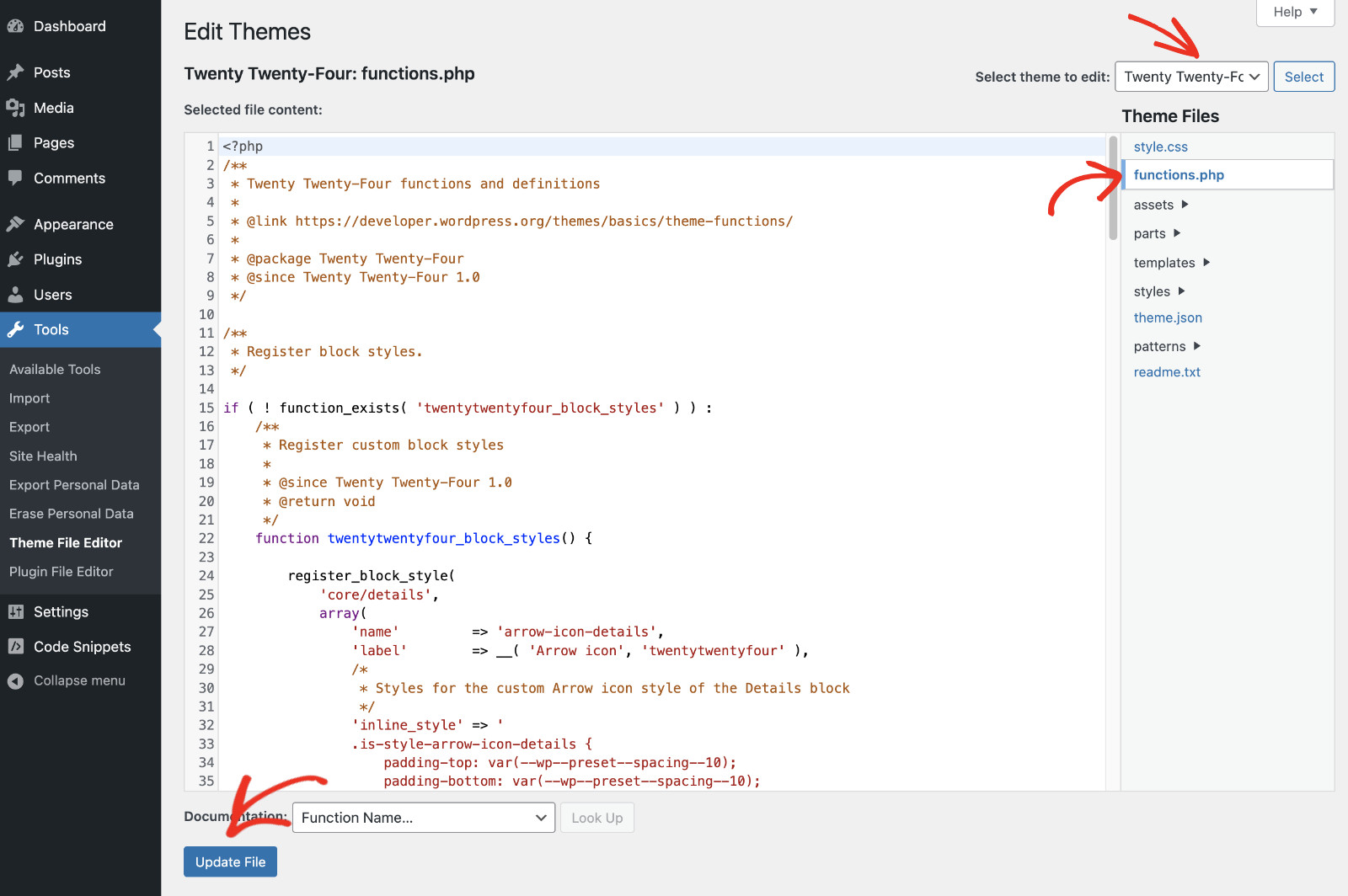
The WordPress Theme Editor is the easiest way to edit functions.php. You can access it from your WordPress dashboard. Go to Appearance > Theme Editor. Then select the functions.php file from the right side.
Make sure to back up your file before making changes. Edit the code carefully. Save your changes and check your site for errors. This method is quick but be cautious. A small mistake can break your site.
Editing Via Ftp
FTP allows you to access your site files directly. Use an FTP client like FileZilla to connect to your server. Navigate to /wp-content/themes/your-theme/ and find functions.php.
Download the file to your computer. Edit it using a text editor like Notepad or VS Code. Save the file and upload it back to the server. FTP gives more control and safety. You can keep a backup copy easily.
Editing With File Manager
File Manager is a tool in your hosting control panel. It lets you browse and edit files on your server. Open File Manager and go to public_html/wp-content/themes/your-theme/.
Find the functions.php file and open it in the editor. Make your changes and save the file. This method is good if you don’t want to use FTP. It is simple and fast but requires hosting access.
Step-by-step Code Addition
Adding code to your WordPress theme’s functions.php file can enhance your site’s features. Follow these steps carefully to avoid errors. This guide shows you how to do it safely.
Open Functions.php Safely
Access your WordPress dashboard. Go to Appearance > Theme Editor. Find and select the functions.php file from the list on the right. Before making changes, back up the file. This prevents data loss if something goes wrong.
Add Custom Code Snippet
Scroll to the bottom of the functions.php file. Paste your custom code snippet here. Make sure the code is correct and complete. Avoid removing existing code unless you know what it does.
Save And Upload Changes
Click the “Update File” button to save your changes. If using FTP, upload the edited file back to your server. Refresh your website to check if the code works. Clear your cache if you don’t see changes.
Credit: www.rosehosting.com
Testing Your Changes
Testing your changes in the functions.php file is a crucial step. It helps you find mistakes early and keeps your website running smoothly. After adding or editing code, do not skip testing. It saves time and prevents bigger problems later.
Check Website Frontend
Start by visiting your website’s frontend. Look for any unusual behavior or broken parts. Test the pages you expect the code to affect. Refresh the page several times to see if changes appear. This quick check shows if your code runs as planned.
Monitor For Errors
Watch for error messages on your site. These might show as white screens or warning texts. Errors can stop your site from working properly. Check your site after every change. Catching errors early avoids downtime.
Use Debugging Tools
Enable WordPress debugging by adding define('WP_DEBUG', true); in your wp-config.php file. This helps show errors and warnings. Use browser developer tools to inspect issues. Debugging tools give you detailed info about problems. They make fixing code easier and faster.
Common Mistakes To Avoid
Adding code to the functions.php file in WordPress can improve your site. Mistakes can cause errors or break the site. Avoiding common errors saves time and frustration. Below are key mistakes to watch out for.
Syntax Errors
Small typos can cause big problems. Missing semicolons or parentheses stop code from running. Always check your code carefully. Use a code editor that highlights errors. Test code on a staging site before going live.
Overwriting Core Files
Never edit WordPress core files directly. Changes will be lost during updates. Use functions.php in your child theme instead. This keeps your custom code safe and update-proof. Protect your site by avoiding core file changes.
Not Backing Up
Failing to back up before editing is risky. A small mistake can break your site. Create a full backup of your site first. Use backup plugins or your hosting service. Backups allow easy recovery if something goes wrong.
Credit: documentation.laborator.co
Alternatives To Editing Functions.php
Editing the functions.php file in WordPress can be risky. A small mistake may break your website. Many users prefer safer options to add custom code. These alternatives keep your site stable and make managing code easier.
Two popular methods stand out. Using code snippet plugins and creating custom plugins. Both offer simple ways to add code without touching functions.php.
Using Code Snippet Plugins
Code snippet plugins let you add custom code in a safe place. They keep your code separate from theme files. This means your code stays active even when you switch themes.
These plugins usually have user-friendly interfaces. You can enable or disable snippets anytime. No need to edit files directly or use FTP. They also help avoid common errors by checking your code before saving.
Creating A Custom Plugin
Creating a custom plugin is another way to add code safely. It lets you package your code as a standalone plugin. This makes it easy to activate or deactivate without touching theme files.
Custom plugins work across all themes. They keep your code organized and easy to manage. You only need basic knowledge of PHP and WordPress plugin structure. Once set up, updating or moving your code is simple and secure.
Best Practices For Code Management
Managing code in your WordPress functions.php file is important. Proper code management keeps your site stable and easy to update. Follow best practices to avoid problems and save time.
Organize Your Code
Keep your code clean and well-structured. Group similar functions together. Use sections or separators to mark different parts. This makes it easier to find and change code later. Avoid mixing unrelated code in one place.
Comment Your Additions
Write clear comments for every code snippet you add. Explain what the code does and why you added it. Comments help you and others understand the purpose of the code. Use simple language and keep comments short.
Keep Regular Backups
Always back up your functions.php file before making changes. Backups protect your site from errors or crashes. Use plugins or manual backups to save copies regularly. Restore backups quickly if something goes wrong.
Credit: wpcode.com
Frequently Asked Questions
How Do I Safely Add Code To Functions.php?
Always back up your site before editing functions. php. Use a child theme to avoid losing changes during updates. Add code snippets carefully to prevent syntax errors that can break your site.
Where Is The Functions.php File Located In WordPress?
The functions. php file is in your active theme’s folder. You can find it via Appearance > Theme Editor or through FTP in wp-content/themes/your-theme.
Can I Add Custom Php Code To Functions.php?
Yes, functions. php allows you to add custom PHP code to extend WordPress functionality. Ensure your code is error-free to avoid site issues.
What Happens If I Add Incorrect Code To Functions.php?
Incorrect code can cause a white screen or site crash. Always test code in a staging environment before applying it live.
Conclusion
Adding code to your WordPress functions. php file is simple and useful. It helps customize your site without extra plugins. Always back up your site before changing the file. Test your changes carefully to avoid errors. Use clear, small code snippets for best results.
This way, your website stays safe and runs smoothly. Keep learning and experimenting to improve your WordPress skills.


