

Are you struggling to organize your WordPress pages effectively? Adding categories to your WordPress pages can make your website easier to navigate and more appealing to your visitors.
But if you’re wondering how to add categories to a WordPress page, you’re in the right place. You’ll discover simple, step-by-step instructions that anyone can follow—even if you’re not a tech expert. Keep reading, and you’ll learn how to boost your site’s structure and improve user experience in no time.
Credit: 10web.io
Benefits Of Adding Categories
Adding categories to your WordPress pages brings many benefits. It helps both visitors and search engines understand your content better. Categories create a clear structure. This makes your site easier to use and improves its overall quality.
Improving Site Navigation
Categories group similar pages together. Visitors can find topics quickly. This reduces the time spent searching. Clear navigation keeps users on your site longer. Easy-to-use menus based on categories improve the user experience.
Enhancing Seo Performance
Search engines use categories to understand your site. Well-organized categories help search engines index pages properly. This can increase your site’s visibility in search results. Keywords in category names boost relevance for search queries. Categories also help avoid duplicate content issues.
Organizing Content Effectively
Categories keep your content neat and tidy. They allow you to manage many pages without confusion. Grouping content by topic makes editing and updating easier. Categories help you plan future content strategically. A well-organized site looks professional and trustworthy.

Credit: wpsites.net
Difference Between Pages And Categories
Understanding the difference between pages and categories in WordPress helps you organize your website better. Pages and categories serve unique purposes. Each one controls how content appears and how visitors find it. Knowing their roles improves your site’s structure and user experience.
Pages Vs Posts
Pages are static and hold timeless content. Examples include About Us or Contact pages. They do not change often and are not listed by date.
Posts are dynamic and appear in reverse order. They are part of your blog or news section. Posts can be organized by categories and tags to help users find related content.
Role Of Categories In WordPress
Categories group posts by topic or theme. They create a clear hierarchy on your site. Visitors use categories to browse related posts easily.
Categories make your blog easier to navigate. They also improve SEO by organizing content around keywords. Proper use of categories helps search engines understand your site better.
Preparing Your WordPress Site
Before adding categories to your WordPress page, prepare your site properly. This ensures smooth setup and better results. Take time to check your theme and plugins. These affect how categories work on your site.
Checking Theme Compatibility
Your theme controls your site’s look and some functions. Not all themes support categories on pages by default. Check your theme’s documentation or support forum. See if it allows categories on pages or just posts.
If your theme does not support categories on pages, you may need to switch themes. Choose one that fits your needs and supports categories. This avoids problems later in adding categories.
Installing Necessary Plugins
WordPress core does not add categories to pages by default. A plugin can enable this feature easily. Search for plugins that allow categories on pages.
Install and activate a reliable plugin. Test if it works by creating a test page. Add a category to see if it shows correctly.
Plugins help expand WordPress features without coding. Pick well-rated and updated plugins. They keep your site secure and functional.
Creating Categories In WordPress
Creating categories in WordPress helps organize your content. Categories group similar posts or pages. This makes your site easier to navigate. Visitors find topics they want quickly. Categories also improve SEO by structuring your site well.
Accessing The Categories Menu
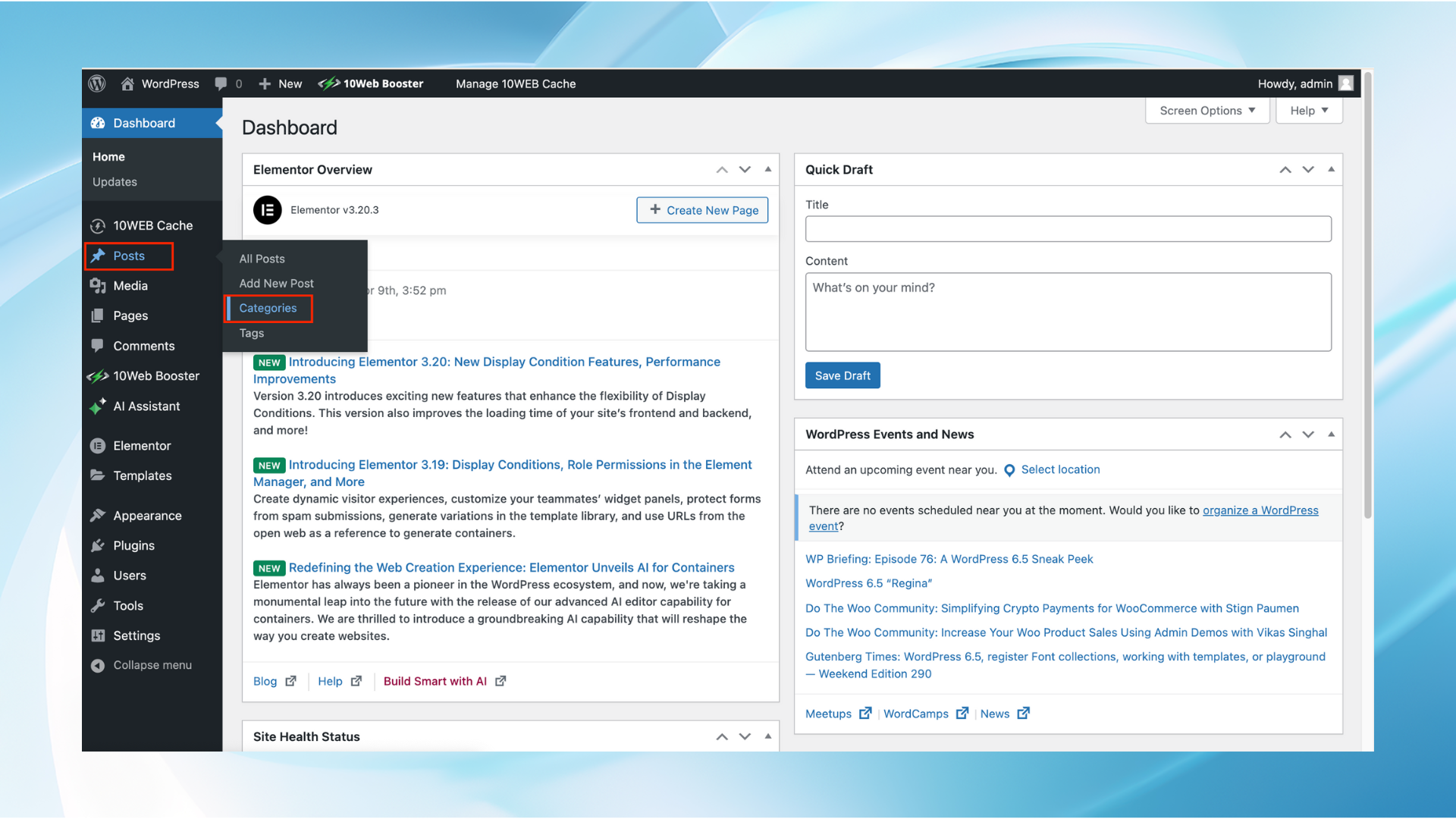
Log in to your WordPress dashboard first. Look for the “Posts” section on the left menu. Click on “Categories” to open the categories page. Here, you can see all existing categories. This is where you manage and create new ones.
Adding New Category Details
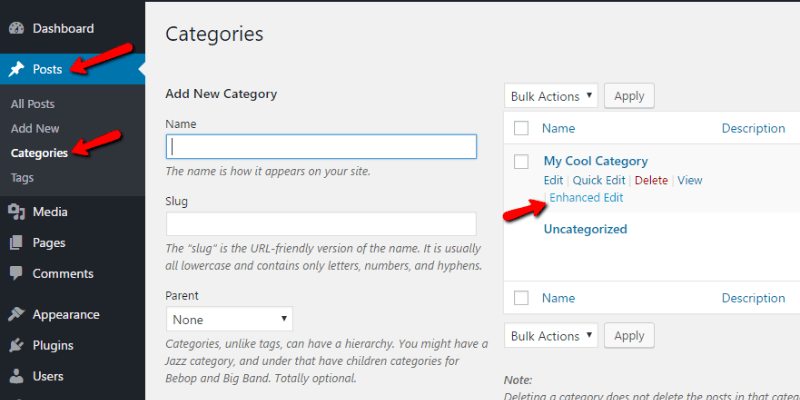
On the categories page, find the “Add New Category” box. Enter a name for your category in the name field. Use a simple, clear name related to your content. Optionally, add a slug. The slug is the URL-friendly version of the name. You can leave it blank to auto-generate.
Select a parent category if you want a hierarchy. Leave this as “None” for top-level categories. Add a description to explain the category’s purpose. This may show on some themes. Finally, click the “Add New Category” button. Your new category now appears in the list.
Assigning Categories To Pages
Assigning categories to pages in WordPress helps organize content clearly. It lets visitors find related pages easily. By default, WordPress does not support categories for pages. You need to enable this feature manually or with plugins. Both methods are simple and effective.
Using Plugins To Enable Categories On Pages
Plugins are the easiest way to add categories to pages. They require no coding skills. One popular plugin is “Category Tag Pages.” It activates category support for pages instantly. After installing and activating, you can assign categories like posts. This method saves time and works well for beginners.
Plugins also offer extra features. Some let you customize category display on pages. Others improve SEO by linking categories to menus. Choose a plugin that fits your needs and updates regularly.
Manually Adding Categories With Code
Adding categories with code suits users who prefer control. You can add a small snippet to your theme’s functions.php file. This code enables categories for pages without plugins. It keeps your website light and fast.
Copy and paste this code:
function add_categories_to_pages() { register_taxonomy_for_object_type('category', 'page'); } add_action('init', 'add_categories_to_pages'); After adding the code, categories appear in the page editor. You assign categories as you do for posts. This method requires basic knowledge of WordPress theme files. Always back up your site before editing code.
Optimizing Categories For Seo
Optimizing categories for SEO helps search engines find and understand your site better. It also improves user experience by organizing content clearly. Proper category setup can increase your site’s traffic and ranking.
Choosing Seo-friendly Category Names
Pick names that are clear and simple. Use words people might type in search engines. Avoid long or complex terms. Keep category names short and direct. This helps search engines and visitors quickly understand your content.
Writing Category Descriptions
Write short, clear descriptions for each category. Describe what type of content belongs there. Use keywords naturally but do not overuse them. Good descriptions help search engines rank your pages better. They also guide visitors to the right content.
Using Categories In Urls
Include category names in your page URLs. This makes URLs descriptive and easy to read. Search engines use URLs to understand page topics. A clear URL structure improves SEO and user trust. Avoid long or confusing URLs for better results.
Managing Categories Efficiently
Managing categories efficiently keeps your WordPress site organized. It helps visitors find content quickly. Categories also improve your site’s SEO by grouping related posts. Regular updates to categories keep your website clean and easy to navigate. Two key tasks in managing categories are editing or deleting them and merging similar ones.
Editing And Deleting Categories
Editing categories lets you change their name or description. This keeps your categories clear and relevant. To edit a category, go to the WordPress dashboard. Click on “Posts” and then “Categories.” Find the category you want to edit. Click “Edit” under the category name. Make the changes and save.
Deleting categories removes unused or duplicate ones. Be careful; deleting a category moves its posts to the default category. To delete, go to the same “Categories” page. Hover over the category and click “Delete.” Confirm the deletion. This helps keep your category list tidy.
Merging Similar Categories
Merging similar categories avoids confusion and overlap. It combines related topics under one category. WordPress does not have a built-in merge tool. You can merge categories using plugins or manual methods.
One way is to change all posts from one category to another. Edit posts in the old category and assign them to the new one. Then delete the old category. This method keeps your content grouped properly. Merging categories improves user experience and site structure.
Credit: pagely.com
Common Issues And Fixes
Adding categories to WordPress pages can sometimes cause issues. Many users face common problems that stop categories from showing or working correctly. Understanding these issues helps you fix them quickly. This section covers the usual problems and how to solve them.
Categories Not Showing On Pages
WordPress does not show categories on pages by default. Categories usually apply to posts, not pages. To display categories on pages, you must enable this feature in your theme or use a plugin. Some themes have settings to show categories on pages. Check your theme options first.
You can also add custom code to show categories on pages. This requires editing your theme files or using a child theme. Another option is to use plugins that add category support to pages. Always back up your site before making changes.
Conflicts With Themes Or Plugins
Themes and plugins can cause conflicts with categories on pages. Sometimes, a theme may not support categories on pages at all. Other times, a plugin may block categories from displaying. To check conflicts, switch to a default WordPress theme like Twenty Twenty-Three. Deactivate all plugins and reactivate them one by one.
This process helps find the cause of the problem. If a plugin or theme causes the issue, look for updates or contact the developer. Fixing these conflicts often restores category functions on your pages.
Tips For Maintaining Seo With Categories
Categories help organize content and improve site navigation. They also play a key role in SEO. Keeping categories updated and relevant boosts your website’s search ranking. Proper SEO with categories drives more traffic to your pages.
Regularly Updating Categories
Update categories to reflect new content and trends. Remove outdated topics that no longer fit your site. Adding fresh categories can target new keywords. This keeps your website current and useful for visitors. Clean categories help search engines understand your site better.
Monitoring Category Performance
Track how each category performs using analytics tools. Look for categories that attract the most visitors. Find those with low engagement and improve or remove them. Use data to refine your category structure. This ensures your categories support SEO goals effectively.
Frequently Asked Questions
How Do I Add A Category To A WordPress Page?
WordPress pages don’t support categories by default. Use a plugin like “Category Tag Pages” to add category functionality to pages easily.
Can I Organize WordPress Pages Using Categories?
Yes, by installing a plugin that enables categories on pages. This helps organize content similarly to posts.
Why Add Categories To WordPress Pages?
Adding categories improves site navigation and SEO. It helps users find related pages quickly and boosts content structure.
Is Adding Categories To Pages Better Than Tags?
Categories provide broader organization while tags are more specific. For pages, categories help group related content effectively.
Conclusion
Adding categories to your WordPress page helps organize your content better. It makes your site easier to navigate. Visitors find what they want faster. Search engines also understand your site clearly. This can improve your website’s ranking. Keep your categories simple and relevant.
Update them as your site grows. Now, managing your WordPress pages feels less confusing. Start adding categories today to keep your site neat and user-friendly. Your readers will appreciate the effort.


